Logitech Gaming on Noon UAE: checkout message — buyer checklist
If you’re choosing a Logitech device for gaming, think about the specific game titles and your play style.
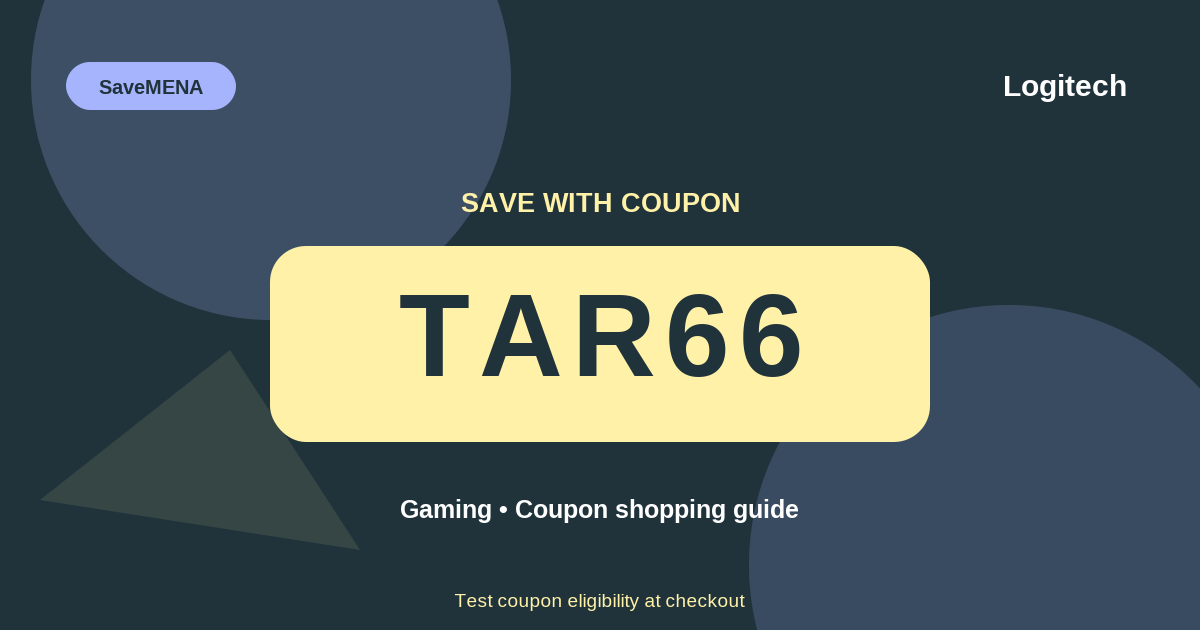
Codes available to try while comparing
These codes are not guaranteed for the article topic or listed brands; test them at checkout and use the live result.
1. Selecting the Right Logitech Gaming Product for Your Session
If you’re choosing a Logitech device for gaming, think about the specific game titles and your play style. A mouse with extra buttons and adjustable DPI can enhance precision in shooters and MOBAs, while a mechanical gaming keyboard offers tactile feedback for role‑playing or strategy titles. Take inventory of the features you value most—ergonomics, battery life, programmable keys—and match them against product descriptions on Noon to set a clear buying benchmark before you even add items to your cart.
Once you’ve settled on a model that meets your gaming needs, scan the Noon listings for model variations, such as different colors or bundled peripherals. Pay attention to whether the product appears\u2014or not\u2014in an active sale or featured promotion. Turn the focus to the final price displayed under the description; this is the amount that will be used to calculate any coupon effect in the checkout phase.
2. Decoding Noon UAE’s Price Display and Shipping Information
Noon’s product page typically lists the base price, a brief description, and any badges such as “Free Delivery” or “Cashback.” Focus on the price shown next to the “Add to Cart” button; this figure reflects the listed price excluding taxes and shipping. Shipping fees are often shown separately under “Delivery & Shipping” and can change based on your address or the seller’s shipping options.
Notice that some sellers display a strategy of “Normal” vs. “Expression” shipping. While this detail doesn’t influence the coupon calculation directly, it helps you anticipate whether you might need to add a shipping fee later. Keep a mental note of any “Free Delivery” claims because they might affect the final amount you see at checkout.
3. Adding the Item to Your Cart and Reviewing the Cart Summary
Drag the chosen Logitech gear into your cart by hitting “Add to Cart.” Once you load the cart, you’ll see a summary of the item’s price, any applicable seller fees, and a projected total. At this stage, the coupon code hasn’t yet been entered—so the amount shown is the baseline before any discount.
Before proceeding to checkout, double‑check that the cart is showing a single unit of the item (unless you intentionally want multiple units). Also ensure that the quantity selector is set correctly, as multiple units would multiply the base price and could influence coupon eligibility during the final payment step.
4. Initiating Checkout and Entering the Coupon Code
At checkout, you’ll be prompted to choose payment options, confirm shipping details, and potentially enter a coupon code. Input the coupon code TAR66 in the coupon field, then press the “Apply” button. The platform will immediately refresh the cart to reflect any discount that the coupon offers—provided the coupon is applicable to the item and seller.
Do not assume the discount takes effect if you don’t see an immediate visual change; some platforms update the price after a brief recalculation. If the price stays the same, note that the coupon is still “available to try” and the final amount may shift once the checkout is finalized.
5. Locating the Live Coupon Message at Checkout
Once you have applied the coupon, scroll to the part of the checkout page that lists the “Subtotal” and “Total” amounts. The live coupon message is usually displayed just above the total or in a new line that indicates whether a discount has been applied. The message might read something like “Coupon Applied” or “No discount applied – try another code.” Observe what text appears next to the “Total” figure.
Read carefully the wording: if it indicates “Coupon Applied,” the discount was recognized and the total cost reflects it. If it says “No discount applied” or “Coupon not available for this item,” the coupon code did not reduce the price. Each phrase informs you if the coupon took effect before payment confirmation.
6. Verifying Final Payable Total Before Confirmation
Before finalizing the purchase, verify that the total payable amount shown matches the sum of item price, any shipping or handling fees, and the discount applied (if any). The platform’s final pay button will typically display the exact amount to be charged to your chosen payment method.
At this point, the live coupon message is your final confirmation that the discount conceptually applied. If you see “Coupon Applied,” trust that the amount on the pay button includes the coupon benefit. If the message is neutral or negative, cross‑reference the price again to ensure no hidden fees or rounding changes are affecting your budget.
7. Considering Delivery Timing and Seller Policies
After reviewing the final amount, check the estimated delivery window presented during checkout. The seller’s policy on shipping speed can affect how soon you receive your gaming gear—especially if you’ve chosen express options that might alter the fee.
Also, look for any “No‑return” or “Return within X days” tags displayed at checkout. These details do not influence the coupon but are essential for understanding your post‑purchase rights and contact points if the product arrives defective.
8. Completing the Purchase and Tracking the Order
Once you confirm the purchase, Noon will display a confirmation page with the order number and final USD amount paid. Save this confirmation for reference; it will also let you see any final coupon note once the payment is processed.
Track the shipment via Noon’s tracking feature using the same order number. Keep an eye on any updates that might indicate delays or changes in delivery address. If you notice a discrepancy between the amount paid and the amount displayed in your account, contact Noon customer support for clarification.
Related SaveMENA pages
Related articles
Official sources to check
Frequently asked questions
How can I be sure the coupon code works for the Logitech product I want?
I recommend entering the code before you finalize payment. Then look for a “Coupon Applied” message that appears just above the total price at checkout. If the message indicates that the coupon did not apply, the code isn’t valid for that product or seller.
Will the coupon waive the shipping fee on Noon UAE?
Coupon codes usually affect only the product price. Shipping fees, if any, are listed separately and are not typically reduced by most coupon codes unless the coupon explicitly states so in its description.
Can I use the coupon code if I already have another discount on the item?
Typically, coupons on platforms like Noon can’t stack with other promotional discounts. After applying the coupon, check for any overlapping discount message; if another discount appears, the coupon may not be applied.
What should I do if the checkout shows a larger total after applying the coupon?
Verify that you’re on the correct portion of the cart and that the coupon was entered in the correct field. If the total still increases, the code might not be compatible with the seller or the exact item variant you chose.