Apple Mobile Accessories on Noon UAE: listing condition — buyer checklist
On every mobile accessory listing on Noon, a small icon or badge sits next to the product title. The icon indicates whether the item is brand new, refurbished, or
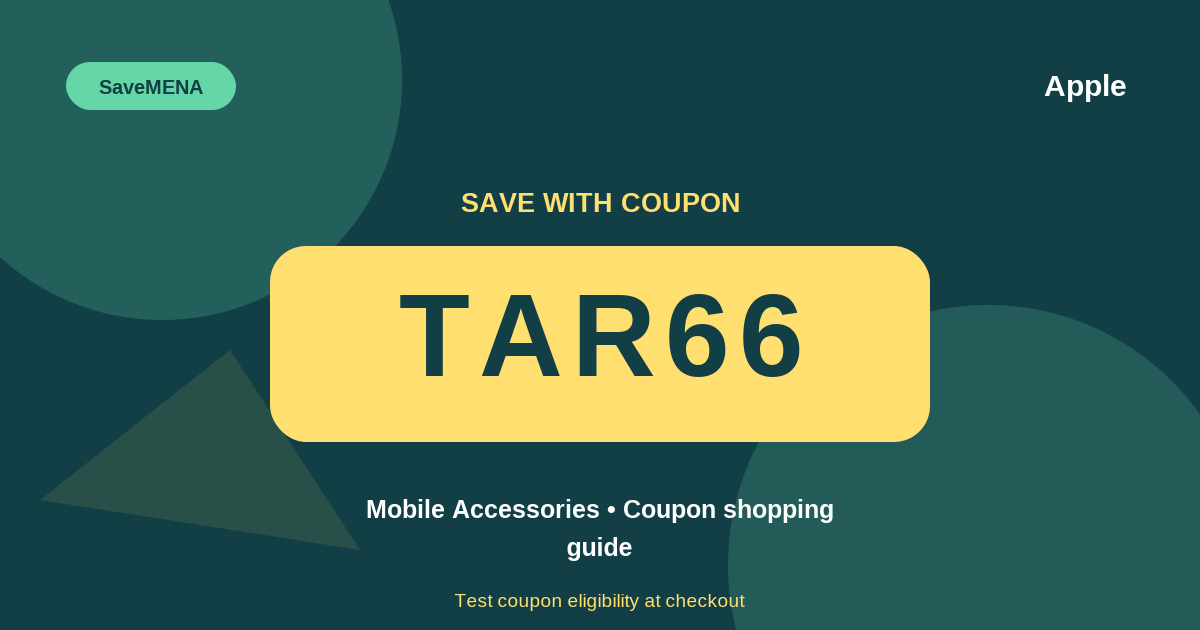
Codes available to try while comparing
These codes are not guaranteed for the article topic or listed brands; test them at checkout and use the live result.
1. Read the Condition Icon Before Clicking “Add to Cart”
On every mobile accessory listing on Noon, a small icon or badge sits next to the product title. The icon indicates whether the item is brand new, refurbished, or used. For Apple accessories, this is particularly crucial because a refurbished case might still carry the Apple warranty, while a used charger may not. Look for the “Brand‑New” or “Renewed Apple” badge; if it’s missing, the product might be second‑hand or a resell, which matters if you need a genuine Apple guarantee. Check the badge’s placement in the thumbnail as well, because mid‑listing images can sometimes display a different condition level.
When you click “Add to Cart,” a pop‑up will often re‑confirm the condition next to the item’s price. This secondary verification point prevents you from accidentally adding a used item when the listing’s thumbnail suggested otherwise. If the confirmation text says “This item is used – 6 months wear,” you'll know immediately that you’re not getting a brand‑new accessory. Use this step to cross‑check while comparing multiple sellers, so you aren’t at a loss during checkout. Always press the “View Details” button to anchor your decision on the seller’s displayed condition before proceeding.
2. Verify Seller Ratings in the Context of Condition Claims
Seller ratings on Noon are generic and reflect overall performance, but they can indirectly hint at the reliability of condition declarations. A seller with a high star rating—above 4.5—is more likely to adhere to its stated condition, especially for niche Apple accessories that customers scrutinize. However, don’t rely solely on the rating; read a handful of recent reviews that mention product condition. Customers often report whether a charger arrived as new or with visible wear, which is a credible source of confirmation.
While navigating the seller’s page, scroll for a “condition history” section, if available. Some vendors display how many items they’ve sold in each condition category. If a seller has most of its stock listed as refurbished or used, it may indicate that they are accustomed to handling such products and could be more transparent. Conversely, a seller who rarely lists used items might be overpromising or mislabeling. By contextualizing the seller’s rating with this condition data, you gain a clearer picture of whether the “New” tag is just marketing fluff or a trustworthy indicator.
3. Scrutinize Product Photos for Physical Clues
A well‑captured product photo can reveal the true state of a mobile accessory. Look for close‑up shots that display the manufacturing numbers, the Apple logo, and any protective films that are still intact. A new phone case will typically have a crisp, glossy logo with no scratches, while a refurbished case might show faint scuffs or a missing protective film. Inspect the images for a “pre‑sale” tag or a note that says “Screen Protector Not Included,” which indicates that the seller is honest about missing accessories that might affect the product’s condition.
Pay attention to lighting and angle: a blurry or unused spot on the image could conceal a flaw that the title never mentions. If the seller provides a photo of the item “as delivered” with the packaging intact, this adds an extra layer of proof that the product matches its description. Even if the photos are perfect, cross‑check with the product description’s condition statement. Any discrepancy—such as “Brand New” in text but a photo that looks used—warrants a cautious approach. Save a favorite of the empty photo so you can refer to it later against customer comments in the FAQ box.
4. Examine Warranty and Return Policy Relative to Condition
Apple accessories like AirPods or HomePod mini often include a one‑year manufacturer warranty for brand‑new items. If the Doo listing proclaims a “New with Apple Warranty” badge, you should be able to rely on the warranty’s coverage. However, if the product is listed as refurbished, the warranty might be shorter or altered. Look for a dedicated “Warranty” subsection in the listing that clarifies the duration and any specific exclusions that apply to refurbished items.
Understanding the return policy also holds the key to assessing condition risk. If the seller offers a 30‑day return window with a refund for “defective or misrepresented items,” the policy protects you if the product’s condition turns out to be inconsistent with its description. Make sure the return logistics—pick‑up address, shipping cost, or return shipping—are clear before adding the item to your cart. A seller that explicitly states “Return shipping paid for warranty cases” implicitly vouches for the authenticity of the listed condition.
5. Compare Listings Across Multiple Sellers Before Deciding
Noon hosts several variants of a single accessory from different sellers. A quick side‑by‑side comparison reveals subtle differences in condition wording. For example, one vendor might list a “Brand‑New” iPhone charger with a new warranty, while another lists the same charger as “Refurbished – No Warranty.” By curating a spreadsheet of each seller’s condition descriptor, the displayed item state, warranty coverage, and price, you can quantify the trade‑offs and avoid paying extra for a falsely advertised condition.
When comparing, keep the “Store Badge” or “Lightning Fast Delivery” icon in mind. It has no bearing on condition but may reflect the seller’s logistics reliability. Focus on the condition text; if one vendor guarantees a “Manufacturer Replaced” status and another posts a vague “New” claim, you’ll already have a clear hierarchy for purchase. Don’t rush to purchase the cheapest option if its condition is ambiguous. Your informed comparison will save you time, money, and potentially a defective accessory.
6. Match User Reviews With the Stated Condition
Under each accessory listing, user reviews can be gold mines of condition validation. Search for words like “new,” “unused,” or “like‑new” near the reviewer’s rating. Even if a review is on a different accessory, replies from the seller about the condition of the device can help estimate whether the item matches its description. Positive reviews that mention “no scratch” or “still sealed” reinforce the listing’s honesty.
Negative reviews that bring up “only part of the case is new” or “battery not working” cast doubt on the veracity of the condition badge. Pay particular attention to reviews that deviate from the listing’s stated condition. For example, if a product says “Brand‑New” but an inspector review mentions visible use, it’s sensible to pause before adding to cart. Use filtered review sections to capture both the condition and product quality together, giving you a broader view of the real state before you proceed.
7. Test the TAR66 Coupon First Without Assumption About Eligibility
The TAR66 code is available for all UAE shoppers across Noon’s platform, but its efficacy depends on the final checkout configuration, which includes shipping fee, minimum spend, and active promotions. To try the coupon, add a mobile accessory to your cart—mindful of its listed condition—and then attempt to apply TAR66 at checkout. Document whether the coupon was accepted, and if your payment method or shipping location had any impact. Many sellers offer coupons that are only valid for specific categories, and the code may be inapplicable if the cart contains a mix of items or a special promotion is active.
When using the coupon, carefully read the pop‑up that appears under the payment section. It will outline any constraints or the exact amount saved—if any. Remember that the coupon’s effect cannot be summed in the checkout subtotal until all flags are resolved. If your cart shows the coupon as “Not Eligible,” you’ll know that you’re responsible for full payment, and you may want to consider a different accessory or seller. The key is never to accept a discount unverified; always confirm at the last step, and note the final payable amount to prevent misreading the benefit.
8. Final Checkout Confirmation: Verify All Parameters Together
At the final stage of your purchase, Noon aggregates all the variables: product condition, seller rating, warranty, return policy, shipping, and any applied coupons. The order summary page will list each condition tag explicitly. Carefully review each line item beyond the price: the product name, the badge stating “Brand‑New,” and any condition clarifications. A deliberate pause here helps you catch any slip in the previous steps, such as a seller that offered a refurbished product but the cart still says “Brand‑New.” If you notice discrepancies, delete the item and reload it before proceeding.
Once you feel assured, select your payment method, confirm the merchant’s name in the debit/credit card prompt, then finalize the order with the final total displayed. Only at this point should you consider that the coupon or any conditions might be offered by the merchant. Because the checkout page is the definitive source for eligibility and the final payable total, double‑check that the product’s condition logged here matches the listing’s. Purchasing with confidence requires paying attention to the small condition icons that led you to that last confirmation screen.
Related SaveMENA pages
Related articles
Official sources to check
Frequently asked questions
Does TAR66 apply to all Apple mobile accessories on Noon UAE?
TAR66 is a coupon code that shoppers can try, but its applicability depends on the specific checkout conditions such as cart contents, shipping location, and active promotions. The code may or may not be valid for a particular Apple accessory. Verify at checkout to see if the discount is granted.
What should I do if the seller claims an item is brand new but the photos show wear?
If the photo or description hints at wear, pause before adding the item to your cart. Scroll for additional images or a “as delivered” photo, and read user reviews for confirmation. If uncertainty remains, consider a seller that explicitly states all parts are new.
Will a refurbished Apple accessory still come with Apple’s warranty?
Some refurbished accessories are eligible for Apple or merchant warranties, but the duration and coverage differ from brand‑new items. Check the listing’s “Warranty” section or the seller’s policy to confirm the terms before purchase.
Can I cancel my order after applying TAR66 but before final payment?
Order cancellation policies vary by seller and item type. Some sellers allow cancellation within a short window after checkout, whereas others do not. Because the final total is displayed at checkout, you can review the “Order Cancellation” information there before completing payment.