Women’s Fashion on Noon UAE: price changes — buyer checklist
Noon UAE deals Women’s Fashion rechecking after a price change: In the fast‑moving world of online women's fashion, a single price tweak can flip your shopping
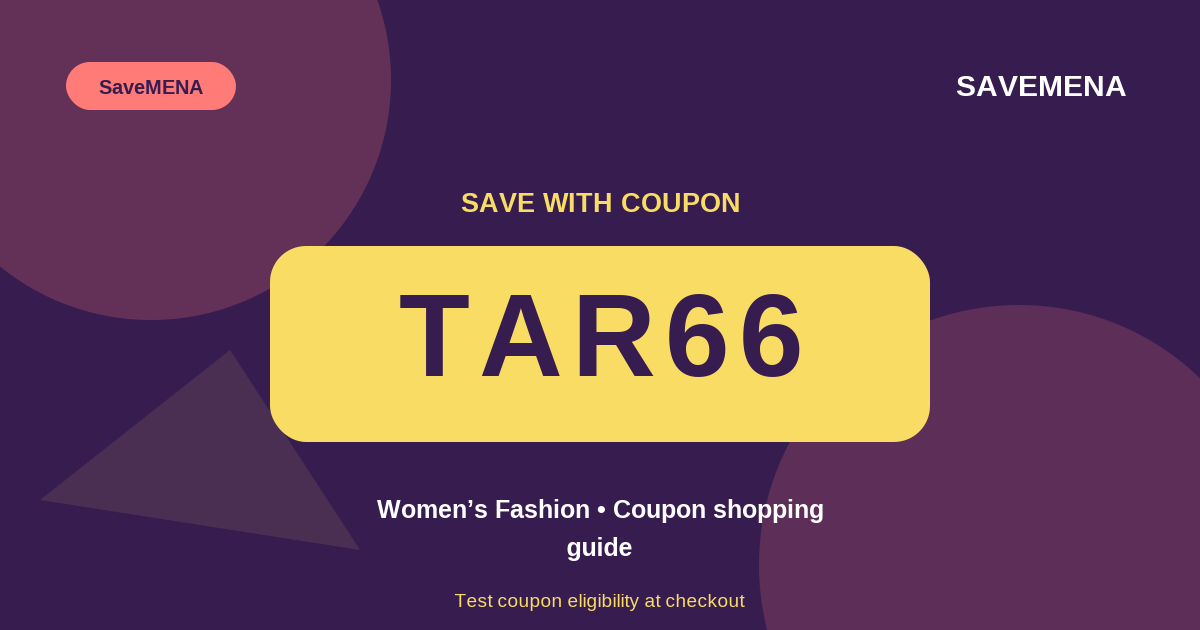
Codes available to try while comparing
These codes are not guaranteed for the article topic or listed brands; test them at checkout and use the live result.
Step 1 – Verify the Updated Unit Price Before Adding to Cart
When a product’s price jumps on Noon, your first act should be a quick snapshot of the new GDP‑free cost. Open the listing, note the shown price, and cross‑check it with any recent price history that the platform offers. If the interface shows a “Price Alert” or “Previous Price” indicator, ensure the new figure truly reflects the current cost. Record the number in a note or screenshot before any quantity changes – price shifts that occur during cart updates can distort your intended budget.
Once you confirm the price, compare it with other sites or previous Noon visits that may have cached an older figure. Because Noon’s algorithm updates in real time, a delayed refresh can show the wrong price. If your browser still displays the old value after a refresh, clear the cache or use an incognito window. Locking in the correct price now prevents accidental overpayment later on.
Step 2 – Confirm Size and Color Options are Unchanged After the Price Shift
Make sure that the price you’ve verified applies to the exact size and color you want. Some sellers adjust pricing per variant, especially for limited‑edition colors or premium fabrics. On the product page, scroll through the “Size” selector and note any price differences that appear when you pick a new option. If you’re planning to buy multiple items, double‑check each variant separately.
To keep track, jot down the price beside the selected size in your shopping list. If the price climbs after you choose a different size, you’ll know whether the coupon can still cover the higher cost. A simple visual cue—like a highlighted box next to the final price—helps you avoid subconscious slip‑ups during browsing.
Step 3 – Check Coupon Eligibility at the Cart Level for “TAR66”
Apply the TAR66 coupon code at the cart screen, not the product page. After adding your chosen items, navigate to the cart, then find the “Enter Coupon” field. Enter TAR66 and watch for a confirmation that the code is accepted. If the coupon shows as unavailable or mismatched, Check the coupon’s placeholder text—often it will read “Invalid code” or “Not applicable for this item.”
Keep in mind that a successful code entry may change the displayed subtotal, but not immediately alter the final payable total until checkout. If TAR66 is rejected, remember that the code’s performance may vary by promotion, so testing it at checkout can confirm if it applies in your specific scenario.
Step 4 – Compare Shipping Fees for Current vs. Previous Price Points
Shipping costs sometimes shift when a product’s price changes, especially if the seller uses tiered shipping thresholds. On the cart screen, view the calculated shipping charge and see whether it matches the fee you paid previously or recorded earlier. If your order falls into a free‑shipping bracket that was just lost, the revision could erode your savings.
Note the region‑based delivery charges that Noon may apply differently for UAE with one‑day service versus standard two‑day delivery. If the price increase pushes you over a threshold where shipping becomes paid, factor that amount into your new total before finalizing the purchase.
Step 5 – Inspect Payment Method Surcharges That May Affect the Final Total
The checkout page lists any additional fees that ride on top of the subtotal—such as credit‑card surcharges or convenience fees for certain payment methods. These are rarely noted until you reach the payment step, so scroll carefully to confirm no hidden costs appear post‑reprice.
Document the nominal surcharge, if any, by writing it down next to the final displayed total. Some UAE banks may add a the discount shown at checkout fee for overseas transfers, while local wallets often have a small fixed fee. Knowing this allows you to compare your total to the one you’d pay if the price had remained unchanged.
Step 6 – Review Return and Exchange Policies Post‑Price Change
Even if the price shift doesn’t seem to hurt your upfront cost, it can alter your post‑purchase flexibility. Check whether the seller has adjusted the time frame for returns or excluded items from the “45-day return” window that Noon typically offers. If a refund revolves around the original price, a change might affect the reimbursement you receive.
Also confirm that the return labelling still applies to the variant you selected. Some sellers restrict returns for limited‑edition releases or have changed their policy to “no‑return” after a price jump. Getting this information now protects you from a reverse‑situation where you’re unable to return after a faulty product.
Step 7 – Keep an Eye on the Automatic Price Re‑Adjustment in the App
If you use Noon’s mobile app, certain items may auto‑reprice because of dynamic inventory adjustments. To avoid a second surprise, enable the “Price Alert” feature if available, which will flag any price change after you add a product to the cart. This tool offers a safer way to lock in the current rate.
Should an alert trigger during checkout, pause the process and verify the updated total. The app may sometimes delay removing the previous priced amount. Refresh or logout‑in to retrieve the live total before confirming payment.
Step 8 – Record the Final Checkout Price to Audit Future Purchases
Once you complete the purchase, take a screenshot of the final confirmation page that lists the subtotal, coupon application, shipping, and final total paid. This snapshot is your audit trail if you need to return or dispute an order. Save it in your photo library or use a note‑taking app so you can reference the exact figures later.
Do not rely solely on email receipts for the final amount, as bank statements may show a rounded figure. Keeping the same ledger line item for your ongoing budget allows you to compare future price changes and ensures you never pay unexpectedly for a change you hadn’t verified.
Related SaveMENA pages
Related articles
Official sources to check
Frequently asked questions
What happens if the TAR66 coupon is not accepted after I add the item to my cart?
If TAR66 shows as invalid, it could be due to a restriction for that specific item or category. You can still check the final total; sometimes the coupon applies only at checkout, so re‑entering it there may succeed. If it still fails, consider using a different coupon or contacting Noon support for clarification.
Does a price change affect my free shipping eligibility?
Yes. If the product’s price drops below Noon’s free‑shipping threshold, you may lose the free delivery benefit. Verify shipping charges on the cart screen before finalizing the payment, especially after a price adjustment.
Will my return window change if the product price shifts?
Typically, Noon standard returns apply regardless of price updates. However, sellers can adjust refund policies independently. Check the product’s return details in the cart or on the product page to confirm the time frame and conditions after a price change.
Is there a way to lock in a price when I’m buying a highly sought‑after item?
You can place an item on “Wishlist” or use the “Price Alert” feature if available. These options monitor the listing for lower prices and notify you before you push to checkout. This gives you a chance to act before a price jump occurs.