HP Laptops on Noon UAE: offer combinations — buyer checklist
Noon UAE deals Laptops HP coupon interaction with visible promotions: If you’re looking to combine Noon UAE deals on HP laptops with the TAR66 coupon, here’s your
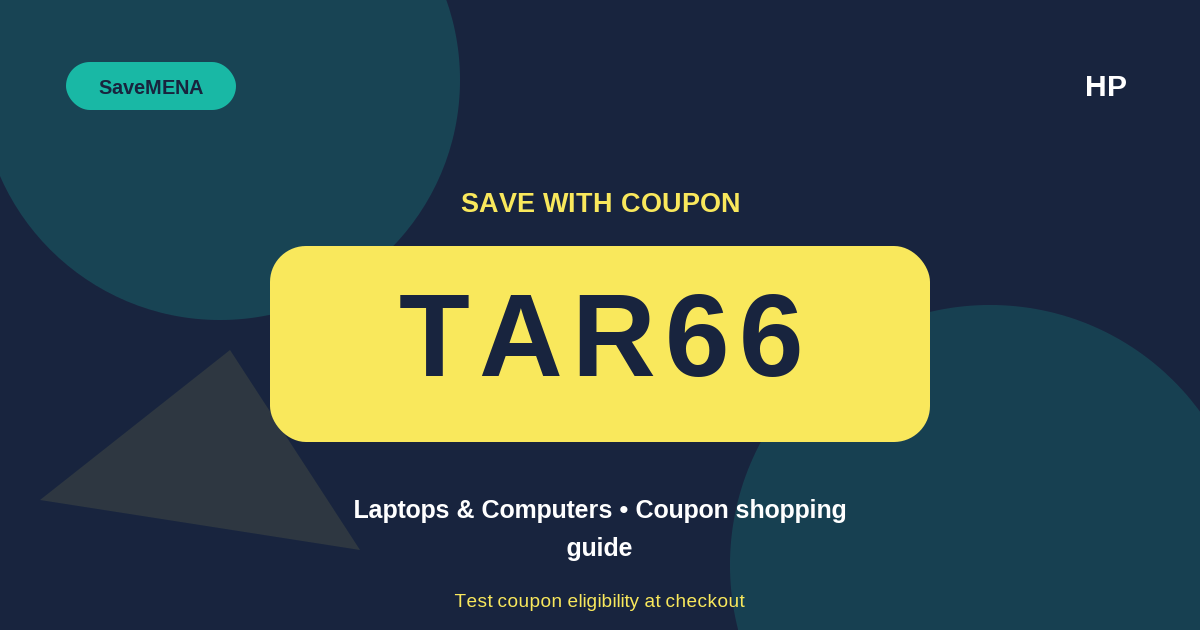
Codes available to try while comparing
These codes are not guaranteed for the article topic or listed brands; test them at checkout and use the live result.
1. Identify the coupon code HP Laptops on Noon UAE
Begin by browsing Noon’s laptop section and filtering for HP brands. When a laptop appears with a striking “the discount shown at checkout off” banner or a price in bold, it’s a visible promotion. Take note of the model number, configuration, and whether the vendor is Noon’s own marketplace or a third‑party seller. Keep a record of each appliance’s SKU so you can later confirm that the item you intend to buy matches the configuration you wish to discount.
After compiling a shortlist, double‑check that each listing displays a clear promotion label. Promo badges that appear on the product image or within the price range are the easiest to validate manually. Verify these labels are not placeholders or removed automatically at checkout, which can happen if the promotion timeline expires before you finish buying. A quick scroll through each product detail page ensures the promotion remains active at the time of purchase.
2. Open the Detailed Item Page and Spot the Promo
On the product page, look for the discounted price shown next to the original price. The original price is usually struck through, and the discounted figure is in a contrasting color. Beneath this, Noon often places a small banner like “Limited Time Offer” or “Free Shipping Today.” These are visible promotions that should persist when the item is added to your cart. Write down any such banners as part of your evidence for later comparison.
Visually confirm that the promotional badge is not hidden under a collapsible section or a “Show more” link. Some sellers respond only when you expand the description, so ensure the badge is visible in the default view. This verification step saves you from discovering the discount disappeared only as you were about to click “Add to Cart.”
3. Add the Item to Your Cart and Inspect Cart Promos
Click “Add to Cart” and navigate to the mini cart view. The cart should recalculate your subtotal to reflect the promotion you just looked at. A small banner next to the price, such as “Price Reduced by 5 USD,” gives a final price snapshot before the coupon step. If the discounted price is gone, exchange the product for another HP variant that clearly shows a promotion in its item view.
Take a screenshot of the cart summary for later reference. This visual record will also help you confirm that the visible promotion remains during coupon entry and not only at the product page level.
4. Locate the Coupon Entry Field
Near the bottom of the cart page, find the “Apply Coupon” link or textbox. This is where you’ll tap “Add Code” and type TAR66. Notice whether the field is marked as mandatory or optional; this indicates whether Noon will wait for a coupon before showing the final amount.
Sometimes the coupon field appears only if you have a paid membership or if the cart subtotal exceeds a threshold. If you see no field, scroll to the bottom or check if your cart totals exceed any hidden minimum. If the field remains absent, the coupon likely won’t be applicable for your current order.
5. Enter TAR66 and Verify Coupon Application
Type TAR66 into the coupon field and tap “Apply.” Notice if the cart instantly updates or if Noon asks for confirmation. A successful application will usually display a “Coupon Applied” message and recalculate the final price, sometimes adjusting shipping or providing a small discount reflection.
Confirm that the promotional discount shown before coupon entry still appears after applying the code. If the discount disappeared, the site may have removed an overlapping offer to prevent stacking. In that case, the coupon may not be usable with that particular sale.
6. Re‑check Final Price and Shipping Before Checkout
Scroll further down the cart to verify the final payable amount, including any shipping fee adjustments. Noon often updates shipping rates when a coupon reduces the subtotal. Ensure the shipping line still reflects the visible promotion, if any, like “Free local delivery.”
If the shipping fee changes unexpectedly after applying the coupon, mention it in your screenshot documentation. This ensures you have evidence for any dispute on the final charge amount and clarifies whether the coupon affected shipping.
7. Proceed Through Checkout and Observe Final Validation
Click “Proceed to Checkout” and fill out your delivery address. In the payment page, Noon will present the final amount once again. It is critical to read the displayed total carefully; this is the amount you’ll actually pay. If the displayed price has changed from your cart due to a backend rule, the adjustment will be noted here.
At this stage, Noon might re‑evaluate coupon eligibility. If the coupon is rejected, it will display a brief message detailing why it cannot be used. Keep this message note for reference when you contact support or seek to dispute any unexpected charge.
8. Capture Proof and Safeguard Your Order
After confirming the payment details, before finalizing the purchase, take a screenshot of the order confirmation page. This image shows the product, the applied coupon, the final price, and any shipping terms. Keep this command for potential post‑purchase adjustments or validations.
Store the screenshot with your purchase‑related emails or in your order history. Doorways for customer support will often ask for this evidence if you later raise a query about applied coupons or promotional price mismatches.
Related SaveMENA pages
Related articles
Official sources to check
Frequently asked questions
Will TAR66 always apply to HP laptops on Noon UAE?
No guarantee; the coupon may be rejected if the listing’s promotion conflicts or if the cart total doesn’t meet certain hidden criteria. Check during checkout for acceptance or refusal.
How can I confirm Noon’s visible promotions are still active?
Verify that the discount badge is present both on the product page and after adding to cart. Take a screenshot; if the badge disappears after adding, the promotion may no longer be active.
What happens if Noon applies free shipping instead of the coupon?
If free shipping supersedes a coupon, Noon will display the shipping adjustment in the cart final. Confirm the final payable amount includes any such promotion and note it for reference.
Can I use multiple coupons together?
Noon typically accepts only one coupon per order. If a second coupon is needed, you must cancel the first or rely on the visible promotion instead.