Puma Shoes on Noon UAE: account eligibility — checkout checklist · TAR71
A coupon is not guaranteed; verify its result at the retailer checkout. By using a Noon UAE coupon, navigating through your Shoes category, and keeping your account
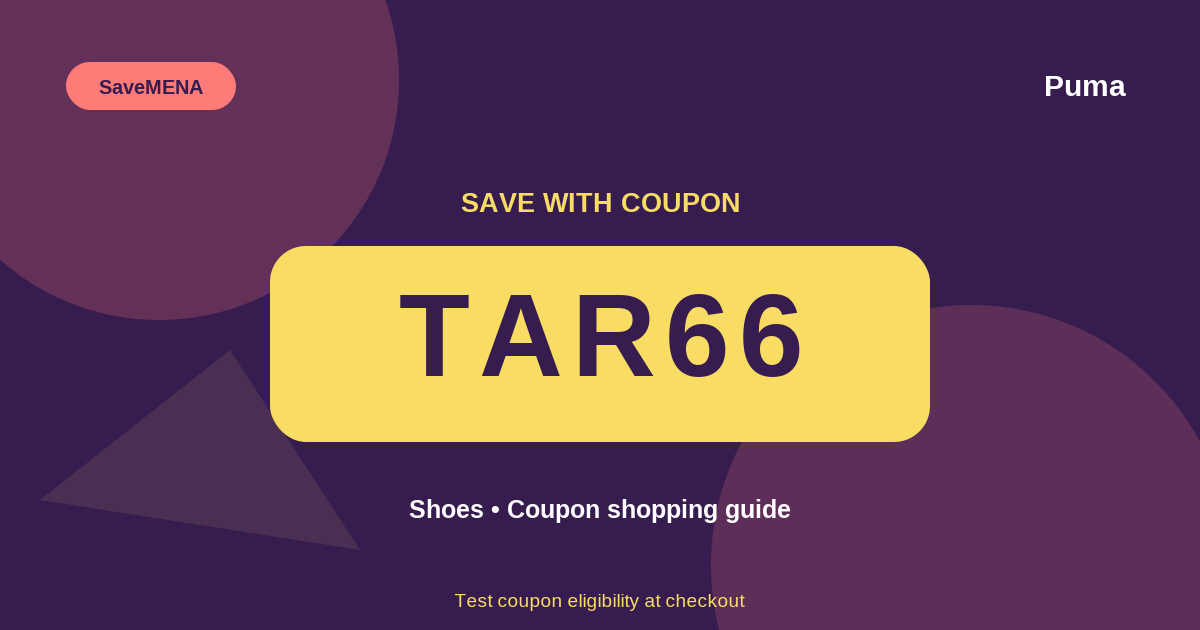
Codes available to try while comparing
These codes are not guaranteed for the article topic or listed brands; test them at checkout and use the live result.
1. Authenticate Your Noon UAE Account
Start by logging into your Noon account using the credentials you normally use for UAE purchases. Remember, the unique benefits such as purchase history, saved addresses, and payment methods are tied to your account context. If you are checking out a Puma shoe under an order that is linked to your profile, ensure that you are on the same device and browser where you typically shop; this prevents mismatches in shipping preferences or applied coupons.
After confirming your identity, double‑check that your account settings display the correct delivery location within the UAE.A coupon is not guaranteed; verify its result at the retailer checkout. If your profile is set to a different country, your checkout might render some offers invalid or redirect to a different marketplace.
2. Validate the TAR71 Coupon Eligibility
Next, locate the “Apply Coupon” field in the cart before proceeding to payment. Enter the code TAR71 exactly as it appears, ensuring you copy it without adding spaces or changing its case. The system will confirm whether the coupon fits the shoes category and your account context. Since coupons are subject to conditions that can vary, the display will indicate if the code is “eligible” or “invalid” for the current purchase.
Even if the code accepts, remember that coupons are only tested and are not guaranteed to provide a discount. The system may lock the code at payment stage if any unforeseen rule triggers. Verify that the code remains active under the “Coupon” section of Noon’s checkout page and that it has not expired according to your own record or the platform’s status indicator.
3. Choose the Right Puma Shoe Size and Variant
Before proceeding to payment, review the product page for the selected Puma shoe. Confirm the size, width, and design variant (e.g., runner or casual model) exactly match your intended purchase. The shoes page typically lists a size chart; double‑check your measurement against the chart provided by Norma (Puma’s reference unit) to avoid mismatches after shipping.
To flag any potential size issue, add a quick note in the “Order Notes” field if your unit is in a special packaging or if you require a particular color. This ensures the seller or Fulfilment Center registers your preferences, preventing accidental substitution that could trigger an unplanned return.
4. Confirm Seller Credibility and Authenticity
In the cart, each item displays the seller logo and rating. For Puma shoes, verify that the seller’s name matches an official partner or a reputable third‑party verified by Noon. This protects against counterfeit goods, especially valuable within the UAE market where authenticity is highly prized.
If the seller has a low rating or missing reviews, you can hover over the “Seller Details” link to view a brief overview. While this does not guarantee authenticity, it offers a practical gauge. If there is any doubt, consider switching to a different seller listed for the same item, or use noon’s “Buy from authorized sellers” filter.
5. Inspect Payment Options and Security Settings
The checkout interface will present your saved payment methods—credit card, PayPal, or any local e‑wallet. Ensure that the card’s expiry date matches yours, and confirm the BIN (first six digits) belongs to a recognized UAE bank. If you plan to use a new card or a different payment method, double‑check that your bank supports online purchases to avoid a failed payment.
In addition, verify that the “Secure Checkout” badge appears. Noon usually displays a lock icon when the session is encrypted. If the security warning shows or if the connection is not HTTPS, treat proceeding as risky until the issue resolves or you contact Noon support.
6. Track Cart Totals and Hidden Delivery Charges
To confirm that your final amount reflects all applicable charges, scroll up to the summary panel under the “Review Order” button. The subtotal should only list the Puma shoe(s) amount; any markup or taxes specific to the UAE sector should be indicated separately.
Look for a “Delivery” row; if it indicates “Free” or lists a specific fee, that number will be added to the total. If the fee appears with a note—such as “Limited to UAE residents”—cross‑check your profile address. The final “Grand Total” you’ll pay includes this fee, so ensure it aligns with your expectations before you click “Place Order.”
7. Customize Delivery Preferences and Timing
Prior to completion, scroll to the “Select Delivery Slot” area. Choose a preferred time from the displayed windows based on your availability. If you prefer a pickup location or an alternate delivery address, click the “Change Address” link and ensure the new address is verified.
Some sellers may handle deliveries on their own schedule, while others rely on Noon’s Fulfilment. Notice any wording like “Delivered by Seller” or “Delivered via Noon.” If you see a seller‑specific note, you might have a slightly different ETA—confirm that this still fits your timeline.
8. Final Verification: Cart to Confirmation
Once every item, coupon, payment method, and delivery detail is confirmed, review the final order summary again. Focus on three key components: the product description (size, variant), the delivery fee, and the total payable amount. This last check prevents accidental changes such as a size swap or a misapplied voucher that the system might flag after you hit “Place Order.”
Clicking “Place Order” will open a confirmation screen where you can check the applied TAR71 coupon status—notice whether the discount appears and how it adjusts the total. Confirm all details once more, then complete the purchase. Post‑confirmation, you’ll receive an email summarizing your order, which you should keep to compare against any future return or exchange requests.
Related SaveMENA pages
Related articles
Official sources to check
Frequently asked questions
What happens if the TAR71 coupon doesn’t apply?
If the coupon is marked invalid during checkout, it will not reduce your total. Check the code again for errors, ensure you’re using a Noon UAE account, and confirm the offer applies to shoes in the UAE. Try refreshing or contacting Noon support for further clarification.
Can I change delivery address after placing the order?
Yes, you can usually modify the shipping address within Noon’s order‑management section before the item ships. Access “My Orders,” select your order, and use the “Change Address” option. If the delivery window has passed, you might need to contact support for assistance.
How do I confirm that my Puma shoes are authentic?
Verify the seller’s rating and look for product photos posted on the official Puma page or verified sellers. Check for any authenticity tags or shipping labels typical of reputable distributors. If in doubt, contact Noon support before finalizing the purchase.
Will there be additional fees after checkout?
Any listed delivery fee or local tax appears in the final total before you place your order. Should an extra charge appear later, it would be reflected in the payout email or on your Noon account’s order history. If it deviates from the stated amount, reach out to Noon’s customer service.