Smart Watches on Noon UAE: account eligibility — checkout checklist
use a Noon UAE coupon Smart Watches account context: Before you hit that payment button, make sure you follow a simple yet thorough checkout checklist tailored for
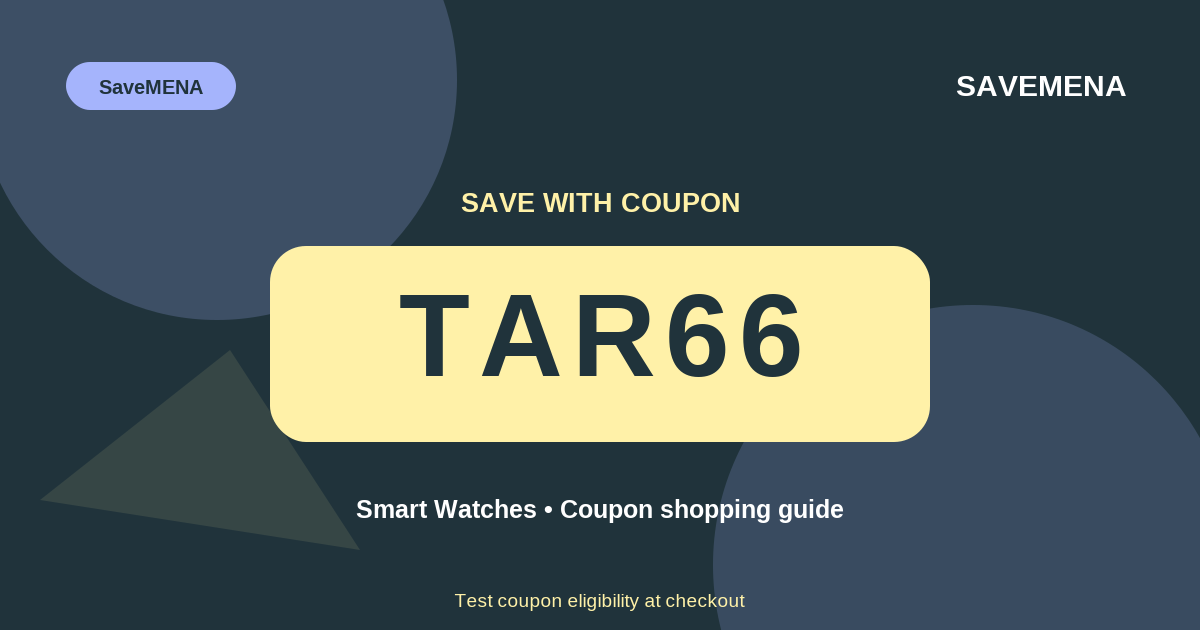
Codes available to try while comparing
These codes are not guaranteed for the article topic or listed brands; test them at checkout and use the live result.
Verify Smart Watch Model Details for Your Noon Account
Start the checkout by selecting a smartwatch that matches your desired features—display size, battery life, and connectivity options. Navigate through Noon’s product categories and read the brief descriptor that appears on the listing; it should include key specs without needing additional clicks. If the model is listed under a specific seller, confirm that the seller’s name appears in your account’s order history tabs. This ensures you are buying directly from a source your account recognizes, reducing the risk of mislabeled products.
Once you’ve finalized the model, double‑check the color and size options available. Noon often shows real‑time stock availability, but understanding what variants are offered helps avoid last‑minute swap issues once the item is shipped. Record the selected variant under your Noon account to keep a single source of truth for this purchase. At the cart stage, you’ll see the product’s short title and price, which will be used while applying any coupon.
Assess Compatibility with Your Existing Devices (Account Lens)
Smart watches rely on your smartphone’s OS to unlock full functionality. Before buying, review your phone’s current version and NFC or Bluetooth capabilities. Noon allows you to view a compatibility note in many listings; look for statements such as “Compatible with iOS 15+ and Android 11+.” If your device is older, you may miss out on health monitoring or notification features.
Use your Noon account’s previous orders to see if you’ve purchased similar devices before. Most users keep a built‑in log of device types; cross‑referencing can confirm that the smartwatch will work with your existing ecosystem. If you first time shop, check the help interface for a compatibility guide that may list supported models. This step avoids future connectivity headaches and keeps you aligned with what your Noon account can support.
Review Warranty and Support Terms (Seller Lag)
Every smartwatch listing should state the warranty period, typically ranging from one to two years. Scan the seller’s notice in the description for details such as “Full manufacturer warranty” or “Limited 1‑year warranty.” Note that many sellers handle returns or repairs directly through Noon, which is reflected in the delivery or after‑sales sections.
The seller’s status is also visible in the account’s messaging system, where you can ask questions about the warranty’s exact wording. A strong seller reputation often translates into better after‑sales support, which may be either through the seller’s customer service or Noon’s platform support. Reviewing these details inside your account before checkout safeguards future claims and reduces friction if a defect is found.
Choose the Right Delivery Option for Your Address
Delivery preferences are controlled by the address saved in your Noon account. During the checkout process, you’ll see the address that will receive the smartwatch, and there will be multiple delivery options listed, such as standard, express, or pickup lockers. Each option is shown with an estimated arrival time and a potential fee.
Select the one that best matches your urgency and budget. If you are a frequent Noon shopper, you may have a preferred courier stored in your account, influencing which options appear first. Confirm the final delivery address and ensure that the smartwatch’s size conforms to the shipping box’s dimensions, which can be inferred from the product’s weight and volume listed in the details section.
Evaluate the TAR66 Coupon Application (Coupon Lens)
When you reach the payment screen, look for the “Add Coupon” field. Type in TAR66 and observe whether the field accepts it. Remember that the coupon is available to try; it does not guarantee a discount. The Wise risk of the coupon should be noted among the fields that show the new subtotal, tax, and tax‑free amounts.
After entering the coupon code, double‑check that the discount is applied before proceeding. The order summary should now display a separate line for the “TAR66” discount, or it may show a new total if the code is accepted. If the code isn't accepted, proceed with the original price, but keep the coupon for future use. Checking this step while still on your account’s checkout page ensures you won’t lose the opportunity for savings after the final transaction.
Calculate Total Cost Including VAT and Handling Fees (Pricing Lens)
Once the coupon has been applied (or not), you’ll see the subtotal that the smartwatch’s price contributes to. The platform’s checkout automatically appends a VAT of the discount shown at checkout as per UAE regulations. In addition, check whether there is a handling fee which may appear above or below the tax line. These figures are shown in AED on your account’s payment page.
Sum up all components—subtotal, discount, VAT, and any fees—to arrive at the final amount due. Verify that no hidden charges are connected to the chosen payment method. If you notice discrepancies or feel unsure, take a screenshot of the final summary and consult Noon’s help center or the seller directly. Ending this calculus before you confirm the payment saves you from post‑purchase error corrections.
Settle on a Payment Method Linked to Your Account
Your Noon account offers multiple payment methods: credit card, debit card, and Noon Pay. Choose the method that is already verified in your account to avoid extra authentication steps at payment. The platform will show you the last four digits of the card and its expiration date for confirmation.
Some payment options may lay out a small processing fee; read all the on‑screen prompts carefully. If you use Noon Pay, ensure you have enough balance or that the linked credit line is sufficient. If the payment method requires a new OTP, confirm you can receive SMS or email at the stored contact. Completing this step keeps the flow smooth and lets you focus on the checkout’s final summary.
Final Order Summary & Confirmation Steps (Checkout Lens)
Before clicking the final “Place Order” button, review your account’s order review screen. It should list each smartwatch item, its variant, quantity, price, applied coupon, tax, shipping fee, and final total. Compare this with the cart page to catch any recent changes that may not have updated yet.
When ready, confirm that the payment method matches what you intended, then hit “Place Order.” Immediately after, your account will show a brief confirmation with an order number and expected delivery window. Save or print the confirmation for future reference. By following this thorough checkout checklist, you increase the chances that your smartwatch arrives as expected, at the correct price, and with all account–specific details properly accounted for.
Related SaveMENA pages
Related articles
Official sources to check
Frequently asked questions
Can I use the TAR66 coupon with multiple smartwatches in my cart?
Whether the coupon applies to multiple items depends on the terms provided by Noon at checkout. The code will only reflect on the order total if it is accepted on your current cart. If you add more units, confirm each time the discount appears.
What should I do if the smart watch I want isn’t shipped to my saved address?
Check the delivery options during checkout. If the default address is unavailable for that product’s box size, you may need to add a new address or choose a different courier. Contact Noon’s support or update your account address list.
Will VAT or other fees be added after I place my order?
No additional taxes or fees beyond those shown at the final summary will appear. All tax, handling, and shipping costs are displayed before the payment step. If an unexpected charge appears, contact Noon Customer Service.
I used TAR66 but the discount wasn’t applied. What’s next?
Double‑check the code spelling and that it exists at checkout. If still not applied, try a different payment method or contact Noon support. The coupon may simply not be valid for the selected item.