Dell Office on Noon UAE: bundle contents — checkout checklist
use a Noon UAE coupon Office Dell bundle and accessories: Before you hit that final “Place Order” button, a quick checkout checklist can save you time, surprise
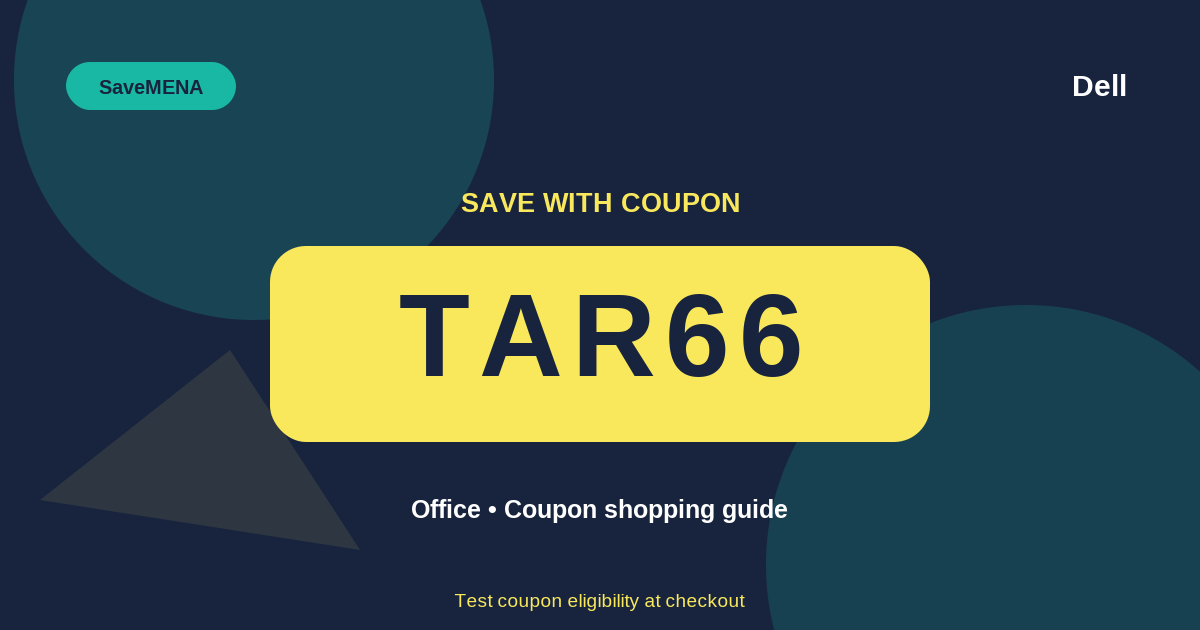
Codes available to try while comparing
These codes are not guaranteed for the article topic or listed brands; test them at checkout and use the live result.
Verify Bundle Compatibility and Warranty
Start by reviewing the exact Dell Office bundle you’ve selected – confirm the model numbers, included components, and how they fit with your existing office setup. Compare the listed specifications against your current hardware and software requirements to avoid compatibility issues, especially if you’re integrating laptops, monitors, or printers that rely on specific drivers or ports. Double‑check the bundle’s warranty period and terms; most Dell bundles come with a standard one‑year warranty, but additional cover for components may differ.
When you view the product page, note any optional extended warranties or service contracts offered separately. This helps you decide whether to add coverage at checkout. If you already have a service plan in place, you can skip the extra purchase, saving on both time and potential extra fees. Prioritizing compatibility at this stage prevents future returns or technical setbacks.
Check Delivery Options and Timeframes
Next, glance at the delivery information displayed for the Dell accessories. Noon lists estimated arrival dates, but delays can happen, so read any notes on shipping windows or special handling requirements for electronics. Make sure your delivery address matches open or prefer a pickup point if that’s more convenient for large items like desks or monitors.
Also confirm the delivery fee policy. Some sellers offer free shipping on large bundles, while others may charge a flat rate. Verify whether the cost is included in the subtotal or added later. Knowing the exact delivery cost before finalizing helps you anticipate the final payable amount without surprises.
Add Accessories and Confirm Compatibility
When you choose accessories—such as mouse, keyboard, docking station, or monitor cables—ensure each item lists the exact Dell model it supports on its description. Electronic accessories often require specific docking connectors or USB-to-PCI adapters, and mismatched components could lead to latency or power issues.
In the cart, look for any “ accessories bundle” offers that combine multiple items at a better price. If you’re adding standalone accessories, keep an eye on any cross‑product compatibility messages or conflicts that may appear in the cart. If a conflict shows, double‑check the accessory’s compatibility label before proceeding.
Review Payment Methods and Security
Check the payment options available for Noon UAE, such as credit card, e‑wallet, or COD (if offered). Each method may impose different processing times or fees, so decide which aligns best with your payment schedule. For office procurement, credit card payment often provides a small protection window for returns.
Confirm the security of the checkout page by verifying the HTTPS protocol and any security badges displayed before entering card details. Noon typically uses secure encryption, but double‑checking reassures you that your financial information stays private.
Apply Coupon and Observe Application
Enter the coupon code TAR66 in the designated field at the bottom of the cart. The system should process the code and, if accepted, display the discount applied. Remember that the coupon is only available to try; accept any verification that it failed, and proceed with the full price.
After applying the code, look for a line item that reflects the discount. If no change occurs, read any error message that appears. Some coupons only work on specific bundles or require a minimum spend. Verify if the bundle qualifies, and if not, you may need to adjust your cart or explore alternative savings.
Inspect Order Summary for Hidden Fees
Before the final payment, scroll through the last part of the checkout page where the order summary consolidates all costs: product subtotal, coupons, delivery fees, and taxes, if applicable. Tally the numbers against the displayed totals to spot any discrepancies.
Pay special attention to any “service fees” or “handling” charges that may not appear earlier in the listing. These can inflate the final total. If you spot an unexpected fee, consider modifying the cart or contacting Noon’s customer support for clarification.
Confirm Return and Cancellation Policies
Review the return conditions for the Dell bundle and each accessory. Dell’s standard returns often require a pristine product state and original packaging, but Noon’s policies may add a restocking fee or a limited return window. Make sure the return timeframe aligns with your procurement schedule.
Check cancellation terms too. If you change your mind before the final payment or once the payment is processed, note whether Noon and the specific seller allow a refund or if a restocking fee applies. Understanding these conditions prevents costly surprises if you need to alter your order.
Final Review and Confirmation
Perform a last‑minute scan of the cart: verify the bundle items, attached accessories, applied discounts, shipping fee, and the final payable amount. Ensure the payment method is still your chosen one and that your billing address matches the debit card or bank account details for seamless authorization.
Once satisfied, click “Place Order.” You’ll receive an order confirmation email and a tracking link once the package is dispatched. Keep the confirmation handy for any future inquiries or to verify the coupon’s application if the discount does not reflect in your payment statement.
Related SaveMENA pages
Related articles
Official sources to check
Frequently asked questions
What should I do if TAR66 does not apply to my Dell bundle?
If the coupon field shows an error or no discount is reflected, double‑check the bundle’s eligibility or the cart totals. Some coupons only apply to specific bundles or require a minimum subtotal. If it still doesn’t work, proceed without the discount and contact Noon support for clarification.
Can I combine the coupon with other promotions?
Typically Noon disallows stacking coupons on the same purchase. If you see a “No more promotions” message, only one coupon can be applied. Verify on the cart page if the coupon is the sole discount before proceeding.
Will there be any additional charges after I hit “Place Order”?
All fees, including delivery and handling, are displayed in the order summary just before payment. If any extra charges appear post‑payment, contact Noon support immediately; it may be a processing fee or a seller‑added fee that wasn’t visible earlier.
How long does it take to receive a Dell Office bundle?
Delivery time depends on the seller’s location and shipping method chosen. Noon typically provides an estimated arrival date during checkout. For office bundles, wait times can be longer if the seller ships from outside the UAE.