Dell Office on Noon UAE: delivery fees — checkout checklist · TAR53
In a seamless grocery of office gear, your Checkout Checklist is the trust architect that protects your budget and prevents hidden surprise charges.
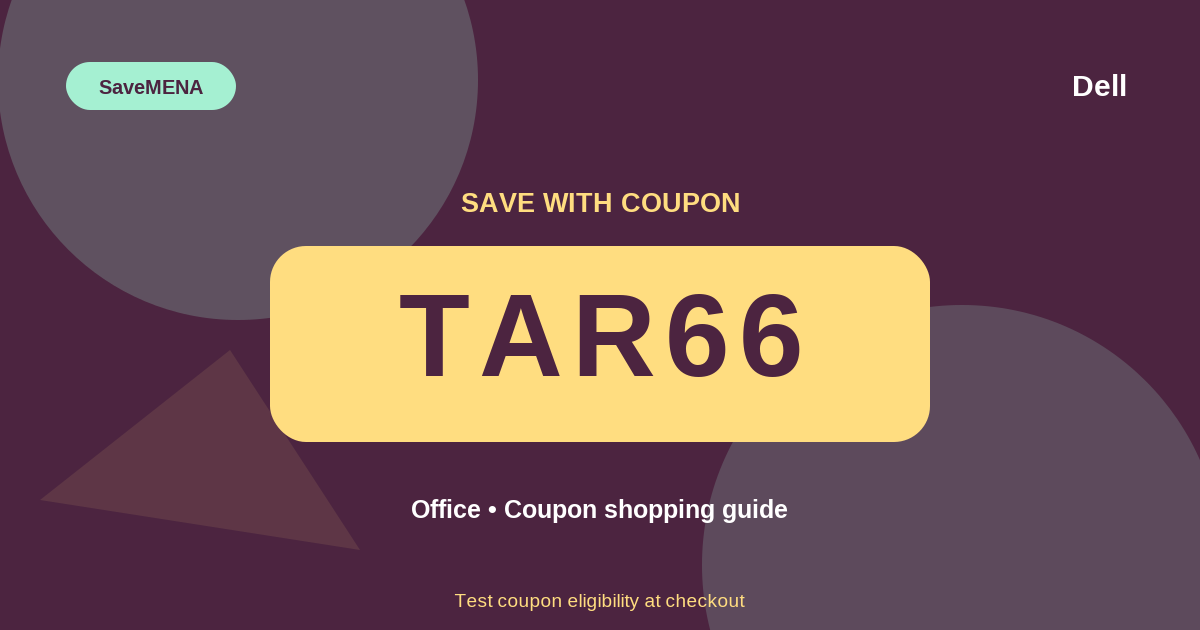
Codes available to try while comparing
These codes are not guaranteed for the article topic or listed brands; test them at checkout and use the live result.
1. Identify Your Office Needs with Dell Models
Before even loading your cart, sift through Dell’s office‑grade lineup—whether it’s a streamlined laptop, a robust workstation, or a versatile 2‑in‑1 tablet—matching each model’s specifications to your everyday tasks. Pay attention to processor class, RAM, storage capacity, and connectivity features that will dictate performance over time. Storing these criteria helps you compare seller listings cognitively, reducing the risk of clipping a heavily advertised item that falls short of technical needs. Stick with Dell’s reputable Office range and keep a spreadsheet of the favorable specs you’ll whitelist when reviewing the seller list later.
Take note of each model’s warranty, upgrade options, and any Dell‑specific support packages that may influence long‑term usage costs. Commercial office equipment often benefits from extended coverage or on‑site service—attributes that can be negotiated in the post‑purchase conversation. Confirm that your chosen Dell brand is exact (e.g., Dell Latitude vs. Dell G Series) because even a small variant shift can redirect delivery timelines or fee structures set by the seller. By front‑loading this decision, you can later focus on whether the checkout path truly reflects the price you promised to pay.
2. Verify Availability and Seller Reliability
Once you’ve pin‑pointed a Dell office model, map the seller landscape on Noon. Look for sellers that carry the exact variant, confirm their stock status, and read their user ratings independently via traditional consumer review sites if needed. This reliability check is critical because a zero stock status forces a redesign of your purchase plan, potentially adding to delivery uncertainty. In addition, Di Check for seller‑tagged warehouse locations—some listings advertise “Free Shipping from Dubai” while others might be from remote hubs, which can affect arrival windows.
During this assessment, also review the official seller profile for any declared return policies. Dell’s home‑grown support contacts or the vendor’s LinkedIn footprint can often serve as a sanity check for operational transparency. A trustworthy seller reduces the risk of post‑purchase disputes that might otherwise manifest as additional fees or delays, which are precisely what your Checkout Checklist aims to prevent. Answer: Is the Dell model available, is the seller reputable, and can the delivery promise be honored in a timely way?
3. Confirm Delivery Options for Office Dell Products
Dell office gear usually arrives via freight or courier, so clarify the available shipping methods before placing the order. Look for options such as scheduled delivery windows, “same-day” or “next-day” delivery, and special handling requirements—some Dell laptops come with anti-static packaging that may demand a buried pick‑up location. Seller profiles often highlight whether the item is dispatched from a local fulfillment center or shipped from abroad; the former usually translates into shorter dwell times.
When verifying delivery routes, pay attention to whether the seller offers “Friday delivery” or “Saturday delivery.” These options can affect the convenience factor for office staff receiving the gear. If your organization requires a particular delivery window, note this in the cart’s instructions section. The better the seller aligns with your scheduled window, the fewer the chances of unexpected delivery fees or re‑scheduling charges that could show up at final checkout.
4. Review Applicable Delivery Fees and Charges
Even when a product lists “free shipping,” keep an eye on the fine print that may surface if the total cart value fails to meet a threshold. Some Dell office models are tiered with hidden “service surcharge” labels that only appear at the summary stage. These extra charges can arise when a delivery hub is out of range or the product requires bulky packing—particularly relevant for large Dell workstations.
Zero dollar shipping often hides a variable fee that may apply if the order is incomplete or if the seller needs to pull the item from a remote warehouse. In this case, the fee is disclosed in your final payment breakdown. Always cross‑compare your chosen Dell product with the seller’s delivery fee component in the cart summary and confirm that these charges are finalized before applying any coupon codes.
5. Apply the Noon UAE Coupon TAR53 Safely
Once you’ve verified the product, seller, and delivery path, it’s time to test the “use a Noon UAE coupon” banner. Input the coupon code TAR53 into the cart’s discount field and observe the system’s response. Note that the coupon may or may not apply to Dell office categories; the checkout screen will confirm in real time whether the code is eligible. An “invalid code” message means either mis‑typing or that the coupon does not cover the selected Dell variant.
If the coupon applies, watch how it alters the subtotal and, more importantly, whether it affects delivery fees. Coupons sometimes have carry‑over restrictions that do not impact shipping costs but reduce the product price. SaveMENA’s guidance emphasizes that you should treat the coupon as a trial—it may not guarantee a discount, and you should not assume a savings percentage until the final confirmation stamp appears on the checkout screen.
6. Double‑Check Checkout Cart Totals
With the coupon applied, double‑check the cart’s monetary summary. The final line should display the product cost, any applied coupon reduction, and the delivery fee. Verify that the order total shown matches your internal budget estimates; any discrepancy can be a red flag that a hidden fee or incorrect discount calculation is at play. Because Dell office equipment can have high price points, small percentage errors often translate into significant dollar differences.
Also confirm that your preferred payment method is reflected correctly. This step ensures that the necessary processing fees or cashback opportunities tied to specific payment options are accurately applied. If you see an unexpected fee, you’ll need to revisit the seller’s shipping policy or the coupon eligibility status before proceeding.
7. Understand Payment Methods and Possible Fees
Payment method selection can influence both the final price and your experience with the retailer. When checking out, pick a card, digital wallet, or cash‑on‑delivery option that aligns with your organization’s spending policy. Pay attention to whether the selected payment type carries a processor surcharge or a “separate transaction fee.” These are shown as a line item in the cart and may alter the final payable total.
Additionally, confirm that your chosen payment method is accepted by Dell or the seller’s fulfillment system. Some corporate buying accounts on Noon only allow specific merchant categories or credit limits; mismatches can trigger order decline or additional fee. A precise review of the payment ledger ensures that your card or account balance lines up with the amount displayed after all deductions and fees have been accounted for.
8. Finalize Order and Track Your Delivery
When you click “Buy Now,” the final confirmation page is your last audit checkpoint. The screen will re‑display the product details, delivery timeline, applied coupon, total fee breakdown, and any payment method‑specific costs. If everything matches your prior expectations, feel confident to accept the order. Click “Confirm” to lock in the transaction.
After placement, access the Noon app or website’s “Order History” to monitor real‑time status. Look for the “Parcel Tracking” link—this is your window into whether the delivery fee that was shown at checkout remains unchanged or if post‑delivery adjustments occur. Proactive tracking reduces the risk of surprise late‑stage delivery fees and gives you immediate recourse should the route deviate from the promised time frame. This should bring the entire Shop ‑ Checkout ‑ Delivery cycle to closure.
Related SaveMENA pages
Related articles
Official sources to check
Frequently asked questions
What should I do if the TAR53 coupon doesn’t apply to my Dell office product?
If the coupon fails to activate, consult Noon’s help for eligibility criteria. You’ll still complete the purchase without the discount; the cart will show the full product price plus any delivery fee. Remember that coupons are a trial option and may not be universally applicable.
Will the delivery fee change after I place my order?
The fee shown at checkout is final for that transaction. If the seller needs to modify the route—rare for Noon—new fees would be communicated prior to shipping. Follow the order status updates for any potential changes and contact support if the fee differs.
Can I change my delivery address after order confirmation?
Do so immediately via Noon’s “Order Detail” section before the package departs. Once shipping is underway, address alterations might incur a fee or could be unavailable, so act quickly and verify the updated fee if any.
Will a credit card transaction incur extra fees for a Dell office purchase?
Check the cart for a “Processor Fee” label. If present, this fee is added to the total and will appear on your statement. Different cards may have varying rates, so review the card’s fee schedule beforehand.