Office on Noon UAE: final total — checkout checklist
When adding office items to your cart, begin by inspecting the listed price next to each product. UAE shoppers should confirm that the price shown includes all
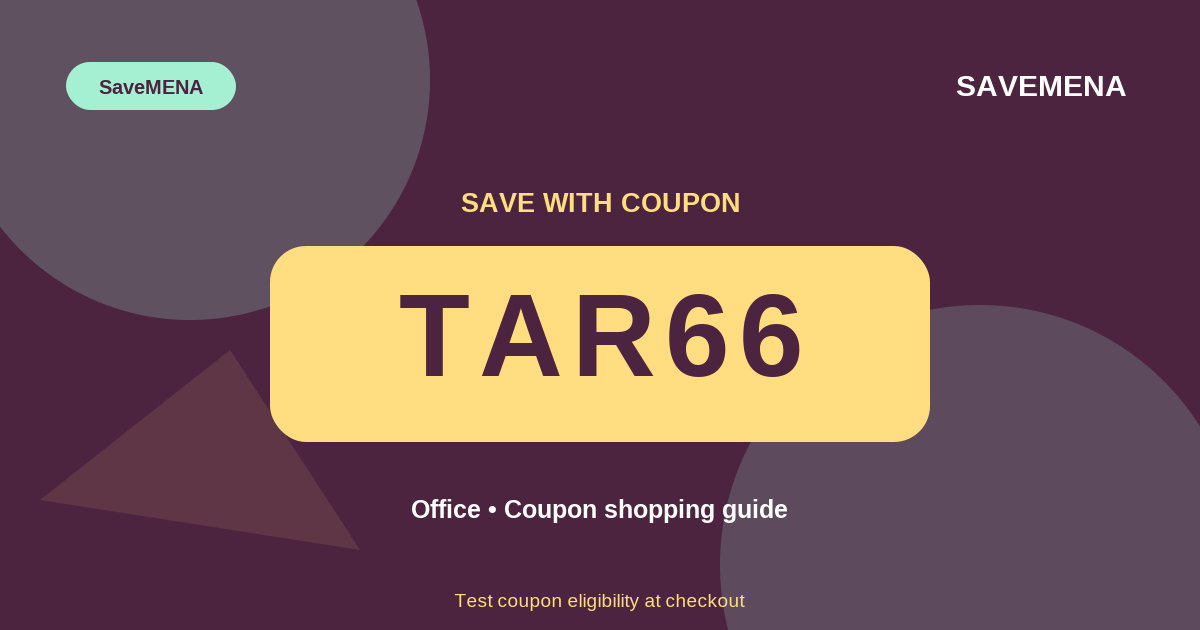
Codes available to try while comparing
These codes are not guaranteed for the article topic or listed brands; test them at checkout and use the live result.
1. Review Item Price and Seller Transparency
When adding office items to your cart, begin by inspecting the listed price next to each product. UAE shoppers should confirm that the price shown includes all mandatory charges such as VAT, displayed clearly in AED. The seller’s name, ratings, and return policies can also affect the final amount, particularly if a seller includes a handling fee that appears in the subtotal. Always cross‑check the safe‑payment tag or “verified seller” badge beside the price to avoid hidden costs that might arise from unsponsored vendors.
Before proceeding further, ensure the product variant (e.g., color, size, or specification) exactly matches your requirement. Mis‑selected variants can trigger a price shift or a different body‑weight packaging fee that runs into the final payable total. It is useful to print or note down the initial price and seller details so you can spot any changes that occur once you hit “Checkout.” This foundational review sets the baseline for any discount or extra fee that may appear later.
2. Verify Add‑On Fees and Taxes
Once all desired office items are in the cart, examine the breakdown of charges presented before payment. UAE buyers must watch for additional fees labeled under “Seller fees,” “Handling costs,” or “Packaging charges.” Each of these appears as a separate line item and directly alters the payable total. If the store offers an eco‑packaging option, its cost will add to the subtotal and then be reflected in the final amount.
VAT is articulated in the checkout summary under its own headline; this figure is mandatory for every item purchased in the UAE. The VAT, calculated as a percentage of the product price excluding shipping, is always applied consistently across all sellers. Understanding how VAT aggregates with handling fees lets you confirm that the final total truly represents your purchase plus the regional tax, leaving no room for surprise adjustments.
3. Confirm Coupon Eligibility – Use TAR66
With the checkout page loaded, locate the “Apply Coupon” field. Enter the coupon code TAR66, which is available for UAe shoppers to try against office items. Using the code at this stage is essential for the final payable total, but note that eligibility is not guaranteed. The claim of a discount is displayed only after hitting the “Apply” button and may not trigger if the code doesn’t meet the specific item or order criteria.
Should the coupon refuse to apply, examine the onsite messages or pop‑ups for any stated reasons—typical causes include the product not being eligible, minimum spend requirements not met, or the code being out of flow. Even a partial application (e.g., a the amount shown at checkout deduction for a selected item) will still reflect in the final payable total, so capture the new subtotal after the discount to verify it hasn’t been misapplied.
4. Check Delivery Charges Linked to Final Total
The delivery fee appears after voucher and coupon application, reflecting a separate line item. UAE shoppers should confirm whether the fee is flat, location‑dependent, or influenced by pickup points. A delivery tag labeled “Free for orders above a certain amount” may surface only if the subtotal meets that threshold. Each courier assignment can carry a distinct cost, affecting the final payable figure contemporaneously.
Pay special attention to the “Delivery Options” dropdown – it sometimes lists a choice between standard delivery, express, or click‑and‑collect. Every option updates the delivery fee shown to you before payment. Once the selected option is confirmed, ensure the displayed fee integrates into the final payable total and that no additional “handling” or “processing” charges appear post‑selection.
5. Review Payment Method Fees
The checkout panel offers several payment platforms, from local credit cards to digital wallets. Choose your preferred method carefully, as some methods may add a small processing fee to the final payable total. UAE shoppers should verify this fee appears transparently in the summary, often labeled “Transaction fee” or “Payment service fee.”
In cases where the selected method is a credit card, the card network may impose a surcharge. Spotting such a surcharge in the payment summary ensures that the final amount you commit to payment reflects every additional cost. The fee usually appears as a separate, albeit often minor, line item before the final total is compiled.
6. Inspect Order Summary for Discounts and Re‑calculation
From the moment all items, coupons, fees, and shipping are added, the order summary recalculates automatically. It is advisable to scroll the summary area entirely to confirm no hidden or duplicate discounts are listed. For example, some sellers automatically offer a “Weekend Discount” earmarked as a sub‑total reduction; verify it appears elsewhere in the final payment line.
Once the final payable total is displayed, do one last read‑through of the price components. Any discrepancy between the displayed total and your earlier calculations must be questioned by contacting retailer support before confirming the purchase, as missing or erroneous subtractions can distort the actual amount you owe.
7. Evaluate Final Payable Total Visibility
Before hitting “Confirm Order,” the final payable total should appear as a single, bold line, usually positioned adjacent to the payment method selector. This figure merges all previous calculations, including the applied coupon, taxes, fees, and shipping. Confirm that the total on-screen is in AED and matches the expectations derived earlier.
The UAE electronic etiquette requires that no additional charges appear post‑payment. Therefore, ensure the final payable total, as seen immediately before the “Confirm Order” button, remains stable when the button is pressed. A sudden change in the total after confirmation signals a potential glitch and warrants a quick contact with the support desk.
8. Record Order Confirmation for Future Reference
After confirming the payment, capture the order confirmation screen. The order number, total payable amount, and breakup of fees are all visible here. Save or screenshot this page to safeguard against any post‑purchase adjustments, especially if the coupon TAR66 is declared valid later or if returns occur.
The confirmation email also carries an accurate final payable total, which should align with the amounts displayed on both the checkout and order summary pages. Keep an eye on any variations, as they may indicate an additional charge or a saved payment. A negligible mismatch is rare; a substantial discrepancy should trigger a support inquiry.
Related SaveMENA pages
Related articles
Official sources to check
Frequently asked questions
How do I check if the TAR66 coupon has applied before I pay?
To confirm, enter TAR66 in the “Apply Coupon” field at checkout. If it’s valid, the discount amount will appear on the page and factor into the final payable total. If it doesn’t apply, a message will explain why.
Will a delivery fee change after I confirm my order?
Once you confirm, the delivery fee is locked with the final payable total. If it inadvertently changes, contact Noon UAE customer support immediately for correction.
Do I need to watch for hidden taxes when ordering office items?
VAT is built into the final payable total. It’s displayed separately before payment, so verify that the total amount reflects the added VAT based on UAE regulations.
Can I use another discount after applying TAR66?
Typically, only one coupon applies per order. If another discount is available, the system will override or refuse the secondary code and you’ll see that in the final payable total.