Apple Mobile Accessories on Noon UAE: market and currency — checkout checklist
To keep your expectations realistic, start by confirming that the product is listed under the Noon UAE platform.
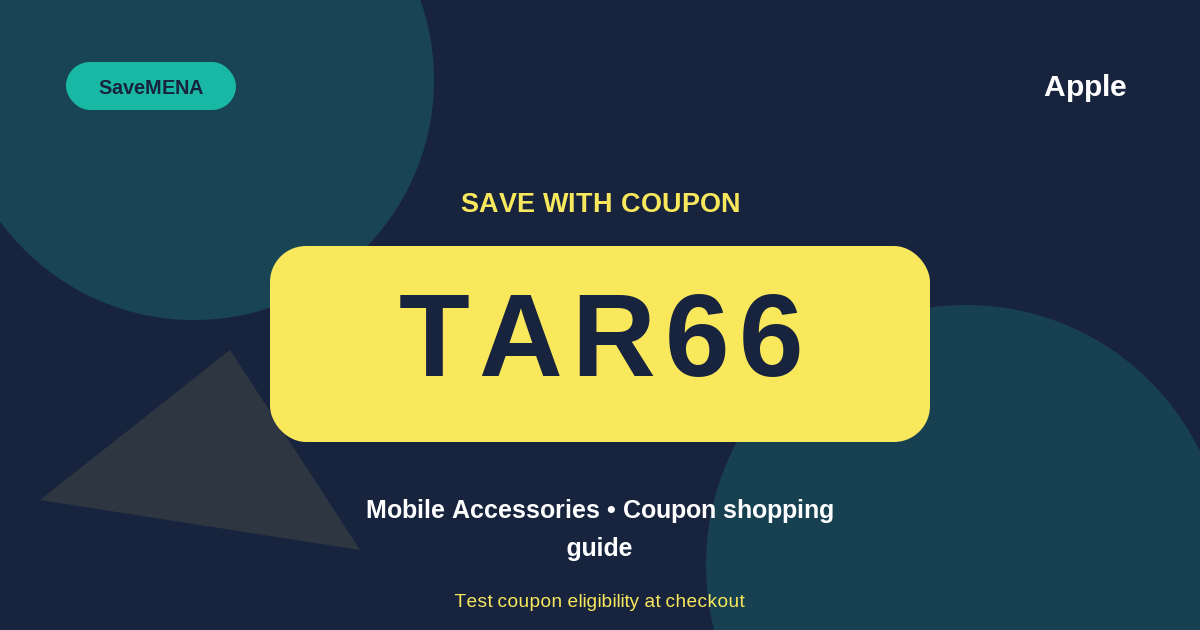
Codes available to try while comparing
These codes are not guaranteed for the article topic or listed brands; test them at checkout and use the live result.
1. Understand the Market Scope
To keep your expectations realistic, start by confirming that the product is listed under the Noon UAE platform. Filters like “Marketplace” and location tags help you see whether a seller ships from the UAE, uses local distribution channels, or relies on international fulfillment. Missing this step can lead to unexpected delays or import fees that rearrange your budget and timeline.
When you open a mobile accessory listing, scroll to the bottom of the page where the seller information appears. Look for a marketplace tag that explicitly states “Noon UAE” or a seller location of the United Arab Emirates. If you see a different country listed, you are looking at a cross‑border transaction where currency conversions or customs duties may apply. Confirming the market scope early prevents surprise shipping logistics and ensures the displayed price is relevant to you.
2. Confirm Currency Settings
Currency presentation is often where confusion begins. Screen displays can switch between AED, USD, or even local riyals, especially on shared platforms. Tap the currency icon at the top right of the app or website to verify it reads AED before adding items to your cart. The price shown will reflect this setting. You want to see the amount that the cashier will deduct from your account at the exact moment of checkout.
For UAE shoppers, AED is the default, but if you’re traveling or have enabled other local settings, the page may show a different currency. The final payable total will use the currency you confirm now, and any change after adding items to the cart could alter your bill. Double‑checking this detail eliminates surprises when the payment screen loads.
3. Verify Product Availability
Seeing a product in a listing does not guarantee instant dispatch. Look for an “In Stock” label next to the product, and check any stock counts if displayed. If a seller reports “Limited Quantity” or shows a countdown, you know there is a risk of back‑order if you wait too long to buy.
Open the product page, scroll down to the inventory section, and check if a real‑time quantity indicator appears. If the indicator is absent, read the description for any mention of delivery timelines. Availability feeds directly into shipping estimates, so a sold‑out sign or a delayed status means you risk an extended wait beyond your planned schedule.
4. Select the Right Seller
The seller’s reputation can make or break the buying experience. Look for a rating that is verifiable, a profile with clear contact information, and a history of active listings. Sellers with higher ratings often respond faster to queries, which is vital if you need clarification about a feature or compatibility.
Navigate to the seller’s profile link from the product page. Here, read the seller’s description and locate any customer reviews that are specifically tied to the mobile accessory you’re eyeing. If a seller’s profile includes a confirmed storefront or a verified vendor badge, it gives an additional layer of confidence that your item will arrive as described and within the expected timeframe.
5. Check Item Compatibility
Apple mobile accessories often depend heavily on your device model. Before adding a charger, case, or headphones to your cart, cross‑reference the spec sheet or product image with your exact iPhone, iPad, or Apple Watch model. This small check can prevent compatibility issues that lead to returns or replacements.
On a mobile accessory page, manufacturers often list the supported Apple models. Scroll to the specifications section or click on a “Compatible Devices” link, if available. If you still feel uncertain, tap into the product Q&A or read through customer comments where buyers confirm or deny compatibility with similar Apple devices. Avoid buying an accessory that’s only for the previous generation of your Apple product.
6. Inspect Payment Options
Payment methods can influence the final price via fees or available coupons. Look for a card icon or a list of accepted payment methods such as credit, debit, or digital wallets. If the platform offers cash on delivery, double‑check that your chosen courier supports it for the product category you’re buying.
After you add an item to the cart, scroll to the bottom of the checkout page and review payment options available for the selected store. Any extra service fees or platform fees are usually reflected here as well. Knowing whether a particular payment method opens or blocks coupon usage helps you strategize how best to apply the TAR66 code while remaining eligible for the payment plan that works for you.
7. Apply Coupon Code
When you’re ready to apply the TAR66 coupon, locate the “Apply Coupon” field on the final review screen. Enter the code carefully, ensuring no spaces or capitalization errors. The page will indicate whether the coupon is accepted or rejected, but do not assume acceptance guarantees a discount without looking at the recalculated total.
Even though you can try the code, the coupon’s effect is confirmed only after you hit the “Apply” button and the system updates the payable amount. If the dish shows a changed total, you have a confirmed discount; if the amount stays the same, the coupon was not applicable for that particular transaction or market. Always cross‑verify the final figure before proceeding to payment.
8. Final Checkout Verification
Before you click the final pay button, review the entire order summary: product details, seller, delivery address, shipping method, payment method, any applied coupon, and the total. Reading every item ensures no accidental extras like packaging fees or wrong accessories have slipped in unnoticed.
If any element looks off, adjust it at this stage—such as changing your delivery address, swapping the seller, or choosing another payment option. Backing out from the checkout screen gives you an opportunity to correct details that might otherwise inflate the cost or delay delivery. Once the screen reads exactly what you intended, proceed to complete the transaction.
Related SaveMENA pages
Related articles
Official sources to check
Frequently asked questions
How do I know the product will be shipped from UAE?
Check the seller’s listed location on the product page; it should read UAE. Also confirm the marketplace tag says “Noon UAE.” Products from other countries may incur additional shipping or duty costs.
What if the TAR66 coupon is rejected?
Rejection means it does not meet the current criteria—this could be because we’re not on Noon UAE, a different category is selected, or the coupon is limited. Verify your cart or try a different coupon if available.
Can I change my payment method after applying a coupon?
Yes, but switching payment methods may affect coupon eligibility. If you change, re‑check the total and the coupon status, because some coupons are only valid with specific payment types.
Which mobile accessories are best for Apple devices in the UAE?
Popular choices include wireless chargers, protective cases, and Apple‑approved earphones. Always verify compatibility with your exact iPhone or Apple Watch version on the product page before purchasing.