Dell Office on Noon UAE: payment method — checkout checklist · TAR98
Before you complete your purchase, use this concise checkout checklist to verify every detail before payment.
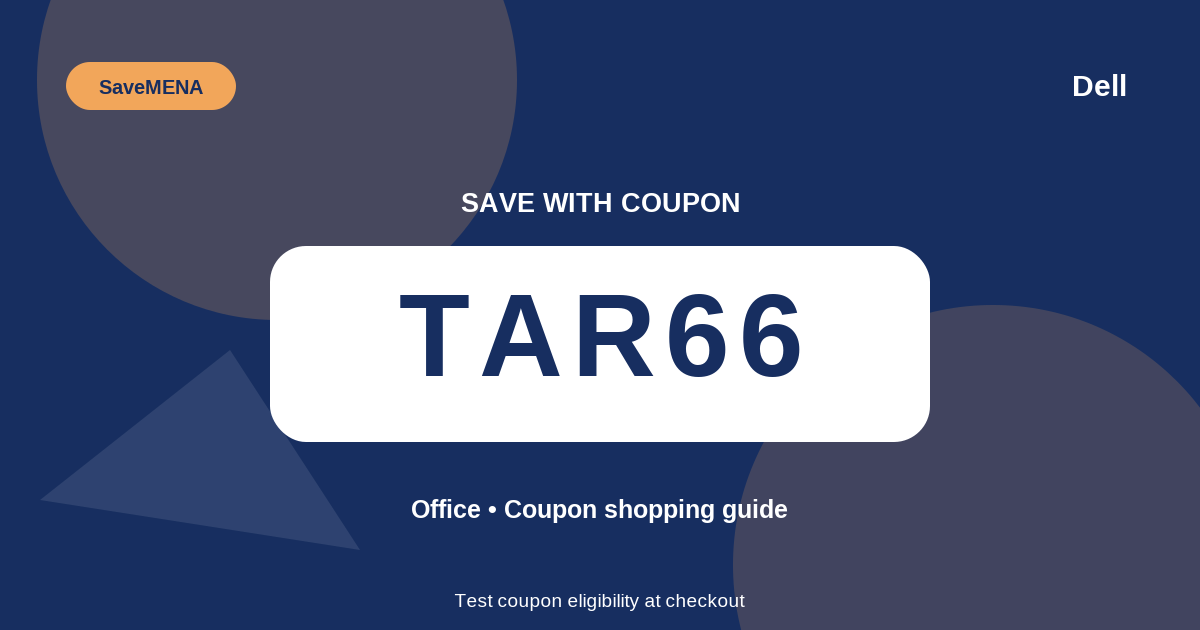
Codes available to try while comparing
These codes are not guaranteed for the article topic or listed brands; test them at checkout and use the live result.
Understanding Your Checkout Checklist
Checkout begins once you add your Dell office gear—computers, monitors, or peripherals—to the cart. A robust checklist examines every line item, verifies quantities, ensures the correct Dell model, and verifies that your preferred office specification matches the listing. This step prevents accidental ordering of wrong sizes or capacities. You should confirm that the cashier displays the total amount, including any applicable GST and shipping fees, which in the UAE typically appear before you submit payment.
Next, confirm your address and session details. A correct delivery address ensures quick, cost‑effective shipping, and lamping any potential address discrepancies at this stage saves time. Verify the time of shipping and any preferred delivery window you require for office equipment, which may require specialist handling or after‑hours service in the UAE. Completing this pre‑payment check guarantees a smoother flow to the payment section without back‑and‑forth messages.
Gathering Office Essentials: Dell Product Selection
Select your Dell office equipment carefully. Whether it’s the Inspiron laptop, UltraSharp monitor, or Dell Latitude workstation, the product page provides config options and serial numbers. Ensure the “Add to Cart” button selects the exact variant you need, especially if the Dell model is available in multiple configurations (RAM, SSD, or color). Checking the box that confirms you want the specific Dell configuration protects against accidental purchases of a base model.
Ask yourself if the Dell product matches your office needs. For instance, if you require a monitor with 4K, double‑check the model’s resolution listed. If you’re ordering a laptop for executives, verify throughput specs listed for processor speed and battery life. Flag any accessories, like Dell adapters or docking stations, that may be needed for full functionality—these items should also populate your cart prior to coupon application.
Applying the Noon UAE Coupon in Your Cart
When your Dell office gear is ready, locate the coupon field in the cart page. Enter the code TAR98 with care—use the exact upper‑case letters and no spaces. This code is available to try, meaning it may or may not apply and clear at checkout, so wait to see it reflected in the subtotal before proceeding.
After submission, watch for the coupon’s effect on the subtotal. If the coupon applies, the cart will show a deduction beside the original subtotal amount. If it does not, an error message will appear; you can remove the code and continue with the original price.A coupon is not guaranteed; verify its result at the retailer checkout.
Confirming Delivery Options for Office Equipment
Next, review how and where the Dell office gear will be delivered in the UAE. Noon offers several delivery methods; choose the one that aligns with your office schedule, such as standard, express, or scheduled delivery. These details typically include estimated arrival times, which may affect office plans.
Check if a delivery requires a signature, which is typical for high‑value items like computers and monitors. If someone must be available to sign, confirm onsite personnel or arrange for a representative to receive the package. The shipping cost appears before payment, so ensure it’s included in your final cost and matches the displayed figure.
Verifying Your Payment Method – Dell's Seamless Approach
Paying through Noon using the standard UAE payment method—credit card, debit card, or digital wallet—is straightforward. Input your card details, expiration date, and CVV into the secure payment portal. For Arab shoppers, make sure your bank supports Noon transactions without additional fees.
It’s prudent to verify your available balance before proceeding. If you’re using a prepaid card, confirm that the spendable amount covers the cart total, coupon, shipping, and any possible taxes. Gmail or synced accounts often assist in auto‑filling card details, but confirm the security prompt before submitting the transaction confirmation code.
Reviewing Taxes and Additional Fees in the UAE
Sales tax—currently a the discount shown at checkout VAT—is systematically added to your order. The final price on the payment screen includes VAT, as well as any service fees or delivery charges that Noon may impose. If there are special handling fees for heavy equipment like monitors, they will appear individually before you confirm payment.
Remember that electronics in the UAE carry VAT, and it’s calculated on the net purchase price (after any coupon). Make sure the VAT figure shown matches your expectations; a discrepancy may indicate a misapplied coupon or hidden surcharge. Capture the final amount before you insert payment details.
Final Confirmation: Phone Number, Email, and Order Summary
Before you tap “Pay Now,” double‑check that the phone number and email on your account reflect current contact details. Noon’s system will use these to send order confirmations and delivery updates. A mis‑typed number or email can delay critical delivery notifications.
Re‑watch the order summary—product names, Dell models, quantities, delivery date, shipping fee, VAT, coupon discount, and the exact payable amount. This is your last chance to spot a price mismatch or an unintentional item. If any area seems off, cancel and re‑apply the coupon or alter the delivery option.
Managing Post‑Checkout: Tracking and Customer Support
After you complete payment, Noon offers a real‑time tracking feature. Use the “Track Order” button on the confirmation screen to see shipping milestones, especially for delicate office equipment that may require careful handling. For Dell products shipped to UAE offices, updates may include shipping, out‑for‑delivery, and signed‑receipt statuses.
If you encounter any post‑checkout issues—delayed arrival, damaged gear, or unregistered coupons—contact Noon customer service via the chat, phone, or email. Keep your order number handy; the support team will reference your Dell office purchase for a swift resolution. Document any communication to support future inquiries.
Related SaveMENA pages
Related articles
Official sources to check
Frequently asked questions
A coupon is not guaranteed; verify its result at the retailer checkout.
Enter TAR98 in the coupon box on the cart page. The discount will appear next to the subtotal once verified. If the code doesn’t work, Noon will notify you immediately; only proceed when the discount reflects correctly before proceeding to payment.
Will Noon charge extra fees for delivering fragile Dell office equipment?
Noon typically includes a standard delivery fee, which covers handling of electronics. There may be an additional small surcharge for fragile items, but this is displayed in the cart before payment, ensuring you are not surprised by hidden charges.
Is the VAT included in the final amount I pay on Noon?
Yes. The final payment screen shows the total including the discount shown at checkout VAT plus any shipping or service fees. This figure is the exact amount you will be charged.
What if I need to change the delivery address after I've paid?
Once payment is confirmed, address changes require contacting Noon customer support. They can update the address only if the package hasn’t departed the warehouse; otherwise, you may need to arrange a redelivery.