Samsung Smart Watches on Noon UAE: payment method — checkout checklist · TAR84
Before you hit the “Place Order” button on Noon UAE, double‑check every payment detail. The checkout phase confirms how a Samsung payment method will be processed
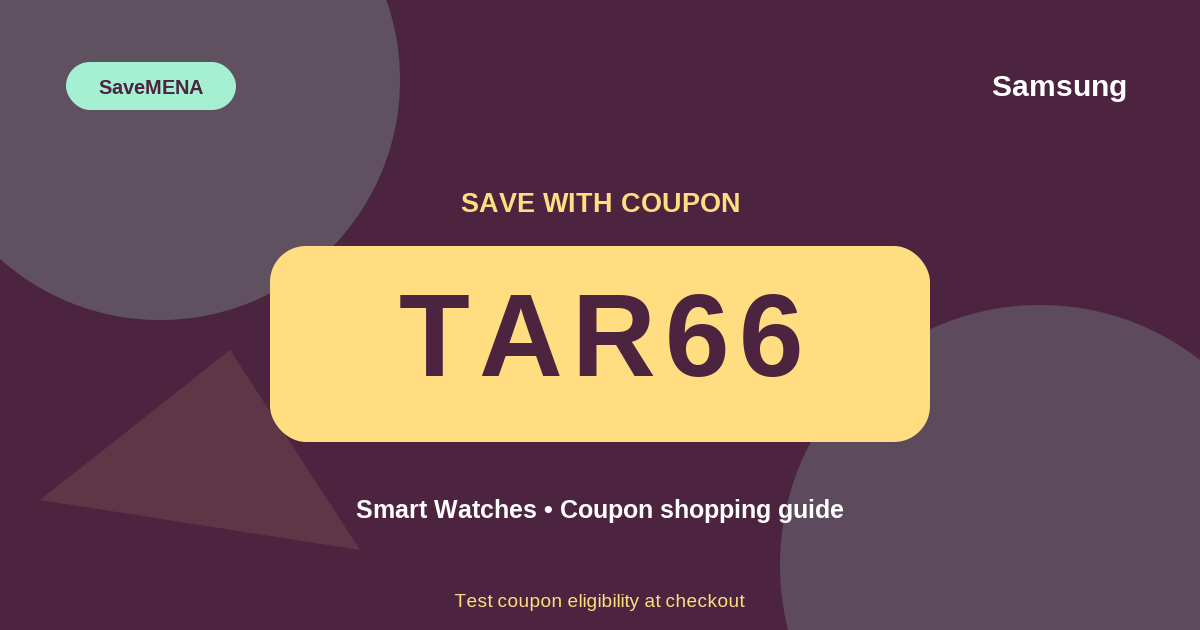
Codes available to try while comparing
These codes are not guaranteed for the article topic or listed brands; test them at checkout and use the live result.
Understanding the Noon Checkout Flow
Noon’s checkout journey segments into four clear stages: cart review, address confirmation, payment selection, and order verification. At each checkpoint, the system updates the subtotal, shipping, and any applied coupons. The UI displays an exact payable amount after you choose a payment method, allowing you to see how a Samsung payment will be acted upon before finalizing the transaction. Recognizing this sequence helps you spot any glitches or missing information early. Draft notes or screenshots can aid you in tracking changes instantly, which is especially useful when you’re testing a new coupon code.
In this phase, timing matters. If you use a Samsung payment, ensure the method is loaded in your Noon wallet or linked to your Samsung Pay account. Otherwise, the platform may revert to an alternative payment option. The checkout screen may also prompt you to verify your phone number or email for confirmation. A complete, error‑free address and contact segment means the transaction will proceed directly to the payment choice instead of stalling. Prepare these details in advance to keep the flow uninterrupted.
Prepare Your Samsung Payment Check
Samsung payment methods often require the seller to accept Samsung Pay or a corresponding card network. Verify on Noon that the smartwatch’s seller supports this payment channel by reviewing the seller profile or product page. The product details will list accepted payment methods; if Samsung is absent, you may need to switch to an alternative card or digital wallet. For UAE shoppers, a credit or debit card that supports NFC or a Samsung Pay‑friendly Visa/Mastercard is ideal. Recall that any discrepancy between your chosen payment method and what Noon accepts will trigger a fallback prompt during checkout.
Before finalizing, cross‑check if the Samsung payment has any pending notifications—such as a missing token or device eligibility confirmation. The Noon app usually presents a pop‑up if your account does not support the selected method. It’s prudent to pre‑populate the payment area with card details or register your Samsung Pay account in the Noon mobile app. The smoother the payment process, the fewer chances for last‑minute rejections. Remember, the final payable total you see will factor this payment method into the total before you confirm.
Entering the TAR84 Coupon Safely
When you come to the coupon section of the checkout, type the code TAR84 exactly as shown. Noon’s system will instantly validate the coupon against your order and adjust the subtotal if applicable. Because the coupon’s efficacy depends on both the product category and your cart total, it is wise to confirm that the smartwatch is listed under its approved category.
Even if the coupon code looks workable, it remains “trial” until you hit “Apply.” During the voucher confirmation, Noon will display the adjusted total or indicate any restrictions. If the coupon does not alter the displayed amount, double‑check the lower‑case/upper‑case spelling, spacing, or any recent announcements from Noon about coupon availability.
Verify Cart and Cart Total
Once the coupon is applied—if applicable—review the cart section to confirm the price per item and the quantity. Smartwatch listings often show promotional or bundle pricing; validating these numbers ensures you are on the correct product listing. UAE shoppers should double‑check the listed model, color, or storage variant to avoid any mismatch during pickup or delivery. This step also confirms that any price adjustments from the coupon are reflected correctly before you see the final payable total.
The cart total now represents the product cost, any shipping fees, VAT, and coupon adjustments. Notice that Noon may adjust for size or customization differences. Carefully compare the pre‑ and post‑coupon totals to ensure visibility over all minor changes. If a discrepancy is found, revisit the coupon field or contact Noon support. The accurate cart total is the baseline for the payment stage; misunderstandings here can lead to a payment mismatch or partial charge.
Checking Delivery Fees and Taxes</HEHeading>
Delivery charges on Noon vary by product weight, destination, and eligibility for free shipping promotions. Smartwatches typically incur a nominal fee unless they meet a free‑shipping threshold. Confirm the exact delivery fee shown on the checkout page; it will be added to the cart total before the final payable amount. For UAE shoppers, local VAT is automatically applied and displayed alongside delivery costs.
Any applied promo or coupon does not usually affect delivery fees or VAT. Verify that the two separate columns—“Shipping” and “VAT”—display consistent numbers that reflect the product’s price and any discount. If taxes seem miscalculated, check the default tax rate configured for the UAE; differences may arise if your residency status (expat or local) affects the seller’s tax handling. A clear presentation of these components lets you trust the final displayed payable amount.
Finalizing Payment Options
Now that the payment method, cart total, and delivery fees are confirmed, it’s time to commit to the payment channel. Tap the “Samsung” option if your previous checks confirmed compatibility. The screen will request card details or Samsung Pay token information. If you selected Samsung Pay, you might be directed to approve the payment via biometric or PIN lock on your phone. Ensure an internet connection is stable to avoid disconnections during the authorization process.
Check the displayed “Total Payable” value once more; it should include the final amount after all adjustments. This figure is your ultimate charge. The winning final payable total reflects product price, shipping, VAT, coupon, and payment method fees if any. At this point, your only concern is that the number matches your expectation after all steps. Once satisfied, confirm the payment. An order confirmation page will appear, affirming that the transaction was successful.
Confirmation and Post‑Purchase Actions
Immediately after payment, you’ll receive an order confirmation screen and a tracking link from Noon. Store the confirmation number for reference. Review the details: smartwatch model, quantity, shipping address, and the total amount charged. This is your opportunity to spot any errors like the wrong product variant or incorrect total. If you spot an issue, contact Noon support using the order number; prompt action often fixes the problem before the watch leaves the warehouse.
Should the smartwatch arrive damaged or incorrect, Noon’s return policy will guide you through initiating a return. Keep the packaging and six‑digit return reference ready. Once the return initiates, Noon offers a refund to the original payment method. Ensure your Samsung payment account remains active, so the refund processes cleanly. For future purchases, the transaction history in Noon’s app serves as a reliable audit trail.
Common Payment Pitfalls to Avoid
UAE shoppers often forget to verify that their Samsung payment method is enabled in the Noon app prior to checkout. An active, approved Samsung Pay setup prevents order cancellations caused by rejected payments. Another frequent oversight is ignoring the distinction between inline coupons and store‑wide promotions. A coupon code like TAR84 may not apply to all watch series; double-check eligibility before applying to avoid disappointment.
Lingering cart items that exceed the free shipping threshold can inflate the final payable total unexpectedly.A coupon is not guaranteed; verify its result at the retailer checkout. Lastly, keep an eye on the “Notes” section during checkout—occasionally, Noon adds a service fee for certain payment channels, which can subtly increase the total. Spotting these nuances at checkout guarantees a smoother transaction experience.
Related SaveMENA pages
Related articles
Official sources to check
Frequently asked questions
Does TAR84 specifically apply to Samsung watches?
There is no guarantee that TAR84 focuses on any particular brand or category. It simply requires a validation at checkout with your selected smartwatch. If it does not apply, Noon will display the unchanged total after trying the coupon.
Will my Samsung payment method be charged immediately after I place the order?
When you confirm payment, Noon authorizes the transaction and immediately debits your Samsung payment source. An order confirmation confirms the charge, and the cycle completes in real time.
What if the the coupon code or VAT is incorrect on the checkout page?
Double‑check the listed values. Errors may appear if your residence or seller settings differ. Contact Noon support with the order number to correct any miscalculations if needed.
Can I use Samsung Pay for multiple orders at once?
Each order’s payment must be processed separately. Once you finish one, you proceed to the next order's checkout, where you can again choose Samsung Pay.