Pet Supplies on Noon UAE: offer combinations — checkout checklist
use a Noon UAE coupon Pet Supplies coupon interaction with visible promotions: , etc. Let's do. Take stock of your pet supplies before you finalize your purchase to
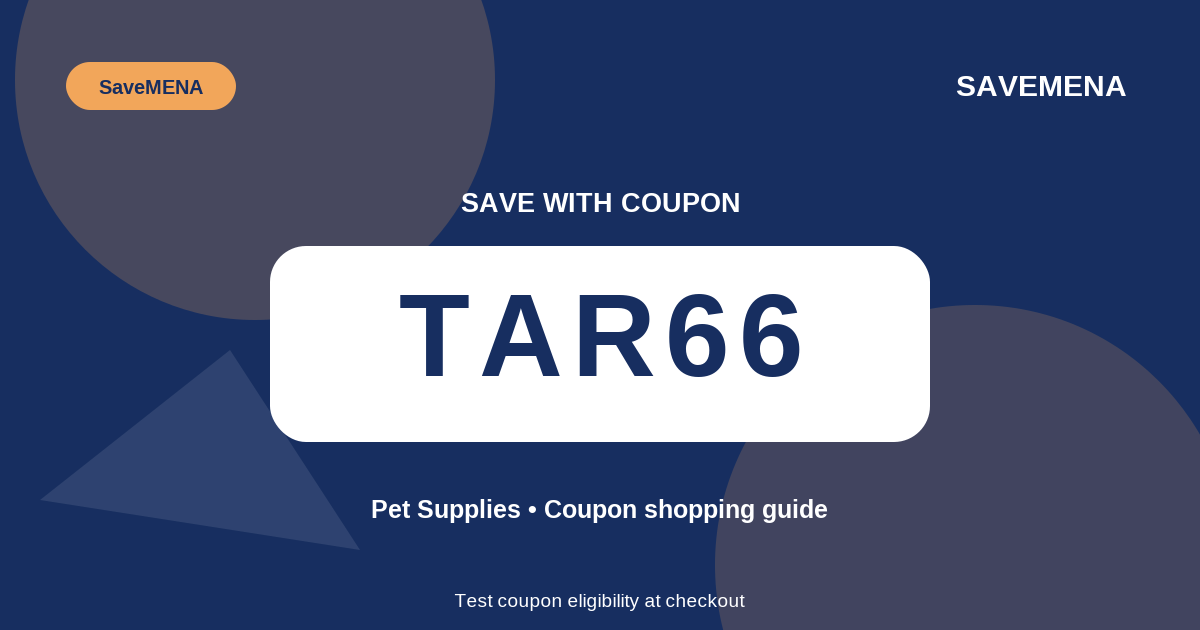
Codes available to try while comparing
These codes are not guaranteed for the article topic or listed brands; test them at checkout and use the live result.
1. Selecting Trusted Pet Products
Start your shopping journey by browsing pet supplies that have consistent, clear product descriptions. Trusted sellers often display a clean list of visible promotions directly on the product page, allowing you to see which offers apply before adding items to your cart. Ensure that each listing includes a “See promotions” link or shows any automatic seller discounts, so you can evaluate if a checkout‑time coupon like TAR66 will stack. This proactive review prevents surprises when you later see the order summary.
During this stage, pay attention to whether the product name matches the seller’s advertised category. Confirm the availability of the item in the UAE marketplace, and review any seller‑specific terms that might affect coupon eligibility. Ready a short list of your must‑have pet items—food, toys, grooming—so your cart builds logically and you can monitor promotional overlap later.
2. Building a Smart Cart Strategy
As you add products to your cart, watch for the section that lists visible promotions. Some platforms automatically tag items with promotional badges like “Free Gift” or “Top Seller Discount.” The key is to see these labels stay visible within the cart view before you proceed. Platforms frequently update their cart UI to feature active promos, which can influence how the final total is calculated. Keep an eye on the cart totals, noting that the display often updates after each addition.
Before you add your last item, scroll through the cart to verify that the categories of the visible promotions are still trending. Confirm that any automatic discounts are shown and that the cart is not hiding any stackable offers. A well‑organized cart will illuminate whether your TAR66 code could safely apply once you’re ready to checkout.
3. Inspecting Product‑Specific Promotions
Some pet items come with product‑specific promotions that are only visible after an item is in the cart. Look for a drop‑down or a button that displays “See all promotions” next to the price. Clicking this confirmation should reveal any static discounts or bundle deals that could overlap with a coupon.
Check that each promotion has a clear label, like “Bundle Offer” or “Seasonal Sale,” because these visibility cues help you understand what the system will consider during checkout. If a product has an explicit “Not eligible for coupons” notice, you’ll know that TAR66 will not apply automatically, and you can decide whether to keep or remove the item to preserve the discounts you need.
4. Confirming Coupon Compatibility
Enter the TAR66 code in the coupon field before moving to the payment step. At this juncture, the cart should immediately refresh to show the potential savings if the coupon is eligible. A visible promotion indicator—often an icon or a banner—will confirm that the system accepted the code and is ready to reduce the final amount.
If the cart does not update, check for any error message that might explain ineligibility. Common prevention notes include “Not applicable to selected items” or “Combining with existing promotions not allowed.” These messages will typically appear near the coupon field, ensuring you have an accurate status before you finalize the purchase.
5. Tracking Total Discount Visibility
Below the list of items, most cart interfaces display a summary that breaks down the base price, visible promotion discounts, and any applied coupon savings. Confirm that the TAR66 icon or a clear text entry is present next to the discount amount. This visual cue ensures that the coupon effect is not happening silently in the background without a user‑visible trace.
Make a side‑by‑side note of the total before and after applying the coupon to your eyes. Even if you don’t capture numeric values, you should see a smaller total line with a label like “Coupon: TAR66” or “Discount applied.” This verification step protects against discrepancies that could arise after the final payment.
6. Preparing for Checkout Confirmation
Prior to clicking the checkout button, review the “Review order” page. This screen typically reiterates all visible promotions, the applied coupon, and the final subtotal. Confirm that the coupon’s impact is still present; any shift in the displayed total indicates the coupon is in effect and visible.
Take the time to cross‑check the promotion labels again, ensuring none of the visible offers changed after you triggered the final review. If a coupon has been removed or changed, the platform will usually provide an on‑screen prompt or a link explaining the reason. Avoid proceeding until you’re comfortable that every visible promotion, including the TAR66 savings, remains active.
7. Final Payment Verification
When you reach the payment screen, carefully inspect the payment summary. The system should display the total you agreed to pay along with a confirmation that the TAR66 coupon is applied. Look for a labeled line such as “Coupon: TAR66” or a small icon next to the total amount. This is the last checkpoint before the transaction is finalized.
If the payment page does not show the coupon’s impact, backtrack to the previous page to see if any error occurred during the transition. Only proceed if the payment summary illustrates the coupon accepted and visibly adjusts the final amount you will be charged.
8. Post‑Checkout Follow‑up
After you confirm the payment, you will receive an order confirmation that typically lists the final charges, any applied discounts, and the coupon code used. Verify that the TAR66 coupon appears in this summary and that the total matches the previously displayed amount. This final check ensures no post‑processing errors altered the discount after the fact.
Keep a copy of your order confirmation for reference. It is also wise to review the order details within your account dashboard, as the cart history often replays the same discount breakdown. If you notice any discrepancy between what was displayed during checkout and the confirmation, reach out to customer support for clarification. This proactive follow‑up guarantees that every visible promotion remains preserved through the entire transaction process.
Related SaveMENA pages
Related articles
Official sources to check
Frequently asked questions
What if the TAR66 coupon doesn’t appear in my cart after I enter it?
If the coupon fails to display a discount or an error message appears, it could be due to eligibility conditions. Verify the list of items in your cart, check for any “not eligible” labels, and ensure that no other promotions are preventing the coupon from applying.
Can multiple coupons stack with visible promotions?
Many platforms restrict stacking multiple coupons with other promotions. If you notice a notice indicating “Combination with existing offers not allowed,” the system only applies one coupon or discount. The visible promotion labels will reflect any discount used in place of a second coupon.
Is the discount from TAR66 displayed in AED or SAR?
The currency shown during checkout aligns with the UAE marketplace’s default, typically AED. The final amount you pay will appear in the currency specified on the payment page, ensuring clarity for both the discount and the total cost before you confirm the order.
Does the checkout summary automatically update if I change my shipping address?
Yes. Selecting a different shipping option can alter the total by adding new fees or removing free delivery eligibility. The checkout summary will update to reflect any new cost and will still display visible promotion labels and the coupon impact if it remains applicable.