Sports on Noon UAE: account eligibility — coupon troubleshooting · TAR92
If you're a UAE shopper trying to use a Noon UAE coupon in a sports account, this guide shows exactly how you can troubleshoot the issue without guessing.
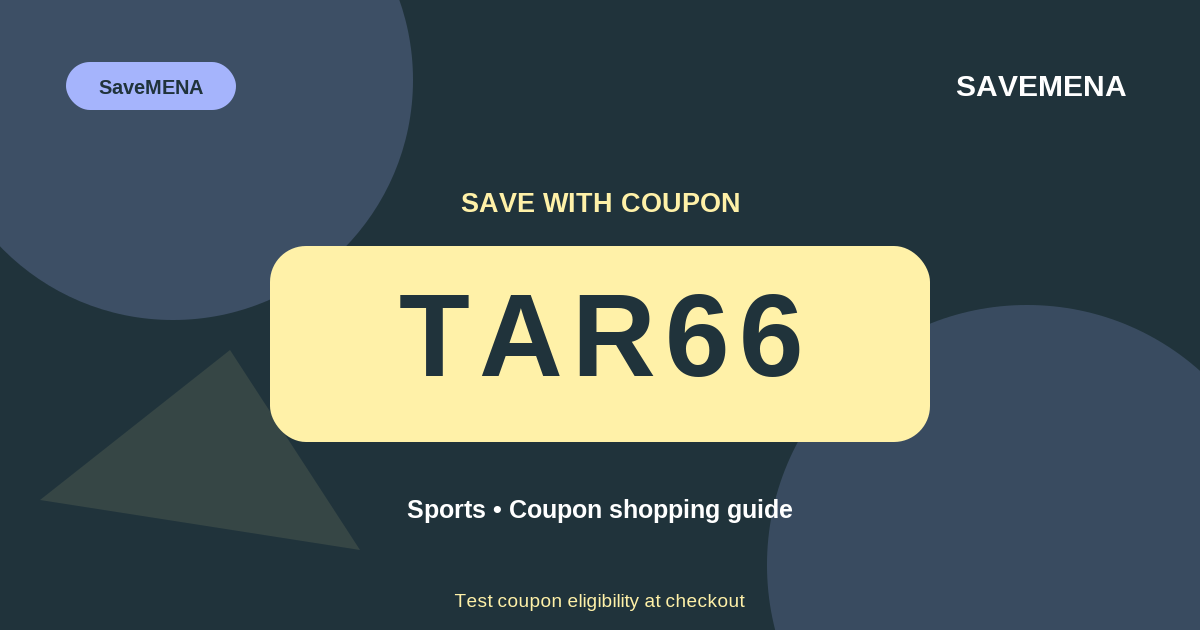
Codes available to try while comparing
These codes are not guaranteed for the article topic or listed brands; test them at checkout and use the live result.
1. Verify the Coupon Code Entry and Format Limits
First, check that the coupon code entered exactly matches the one provided. Noon expects the code in uppercase, without any spaces or special characters; a simple typo can instantly trigger a failure. Make sure you type “TAR92” in full, rather than a shortened or inverted version, and confirm there are no hidden characters from copy‑pasting. The coupon can only be entered once per checkout, so if you’ve added it already, remove it, then re‑apply the exact code during the same session. This eliminates basic mistakes that often cause a “not working” alert.
After inputting the coupon, notice the immediate visual feedback from Noon’s system. A green check mark indicates the code has been recognised; a red cross means it is either invalid or ineligible for your current cart. If you see a red cross, take note of the explanation shown—often it specifies why the coupon cannot be applied. Recording that message is critical when you’ll later verify account specifics or move to support.
2. Confirm Product Eligibility within the Sports Category
Many Noon coupons are category‑specific; for sports items, the promotional terms may restrict the offer to a subset such as footwear, apparel, or accessories. At Checkout, scroll to the product list and double‑check each item’s classification in the product title or description. If a product falls outside the permitted sub‑category, the coupon will be rejected even if the overall cart remains sports‑focused. Note that bundles or multipacks may shift the classification, so evaluate each element individually.
Use the “View Details” option next to each product to view the full category path. If you discover a product outside the eligible sub‑category, remove it or replace it with a compliant alternative. Only after all items align with the sports‑eligible sub‑category should you re‑apply the TAR92 code. Doing so enhances the likelihood that Noon will process the coupon correctly without additional error messages.
3. Examine Cart Minimum Spend Conditions
Coupons often require a minimum spend to activate. In sports purchases, this threshold can hinge on the subtotal of sports‑eligible items. At Checkout, review the cart total displayed before taxes or shipping. If the subtotal is below the coupon’s minimum threshold, Noon will flag the code as inapplicable. This check is usually based on the product cost alone, excluding any taxes or delivery fees.
To test this, try adding a high‑priced sports item or a few low‑priced accessories so that the subtotal surpasses common minimum spend requirements. Notice any changes in the coupon status message after updating the cart. If the message changes from “not working” to “applied,” you have likely met the spend condition. If it remains unchanged, the issue likely lies elsewhere, such as account status.
4. Verify Your Account Status and Active Session
Account‑centric restrictions can prevent a coupon from applying, even when all purchase criteria are satisfied. Ensure you are logged into Noon with the correct account—particularly if you have multiple accounts (e.g., personal vs. corporate). Check the profile icon at the top of the page to confirm the email address displayed matches your intended shopper profile.
Additionally, verify that any membership status required for the coupon is active. For example, if the coupon is tied to a Noon Plus subscriber, your account’s subscription status should be current. Sign out of your account, clear browser cookies or restart the app to eliminate stale session data, then log back in before adjusting your cart and re‑applying TAR92. These steps help confirm that the account context is not the cause of the failure.
5. Inspect Regional and Delivery Restrictions
Coupon applicability can also be region‑specific. Noon may limit certain offers to delivery within fixed emirates. Double‑check your chosen delivery address; the system may restrict the coupon if the address is outside the permitted zone. Updating the address to a location within the authorized delivery area can resolve this constraint.
In addition, ensure that the selected delivery option does not hold a surcharge or special handling fee that could alter the coupon’s eligibility. Occasionally, express or same‑day delivery services are excluded from promotional discounts. Switch back to standard delivery if necessary before trying the coupon again. These adjustments tighten the account‑delivery context to match coupon criteria.
6. Evaluate Time‑Based Promotional Rules
Although we avoid revealing a specific expiration date, Noon’s system will typically inform you if a coupon has expired or is only valid during a particular timeframe. On the coupon entry field, look for any date indicator displayed (e.g., “Ends 12/31/2025”). If the coupon shows a past date, it is no longer valid, regardless of account or product alignment.
If the date appears current but the coupon still fails, consider whether the promotional window aligns with the day of the week or a special campaign (e.g., weekday or weekend sales). Change your cart content or attempt the coupon at a different time to test if a timing rule is in effect. This tactic helps confirm whether a temporal restriction, rather than an account mismatch, is the culprit.
7. Check for Promotional Code Uniqueness and One‑Time Use
Nordic, Noon coupons sometimes carry a one‑time‑use flag per account or per cart. This means that after first usage, the same code will refuse subsequent claims. Verify whether TAR92 has already been used in your session or on a previous order. The checkout page will usually display a message indicating prior use if the code is blocked by this rule.
To bypass a one‑time use limitation, you may need to set up a new account or wait until the promotional rule resets (which can be at the end of a calendar month). This rule ensures each customer’s coupon usage aligns with Noon’s policy, and it is directly tied to the account’s transaction history – a crucial component of troubleshooting coupons that “don’t work.”
8. Contact Noon Support with Detailed Coupon Feedback
If you have methodically confirmed that the coupon code, product lineup, minimum spend, account status, delivery address, and time frame all satisfy the intended conditions, yet the coupon still fails, the next step is to appeal to Noon’s customer help. Provide them with the exact error message, a screenshot if possible, and the current cart details. This precise information allows support to determine if a backend system glitch or a hidden restriction is causing the false “not working” indication.
When filing a support ticket, reference the specific coupon code, TAR92, and mention that it is a sports‑category promotional offer tied to your account. The customer service portal often offers chat, email, or phone options; choose the channel that best delivers your screenshots and yields a timely response. They can either correct the coupon status or inform you of an unforeseen restriction so you can adjust accordingly.
Related SaveMENA pages
Related articles
Official sources to check
Frequently asked questions
Why does my Noon UAE coupon show “not working” even after entering it correctly?
The message usually appears due to a mismatch in product eligibility, minimum spend, account status, delivery restriction, or a time‑based limit. Double‑check each condition and re‑apply the code only after confirming they all align.
Can I use the same coupon code on multiple devices or sessions?
Typically, Noon coupons are limited to one use per account or per session. If you attempt to apply it on another device, the system may reject it, treating it as a duplicate use.
How can I confirm my account meets the coupon’s eligibility requirements?
Log into Noon, verify the email address shown in the profile, and review any membership status if required. Clear any session data, then re‑log in before re‑applying the coupon to ensure the account context is current.
What steps should I take if the coupon is still not accepted after all checks?
Gather the exact error text, take a screenshot, and contact Noon support via chat, email, or phone. Provide your cart details and specify that the coupon code is TAR92 for sports items. Support can resolve backend issues or clarify hidden restrictions.