Apple Mobile Accessories on Noon UAE: checkout message — coupon troubleshooting
Noon UAE coupon not working Mobile Accessories Apple the live coupon message at checkout: .. Verify the actual item, seller, and checkout total; the coupon is
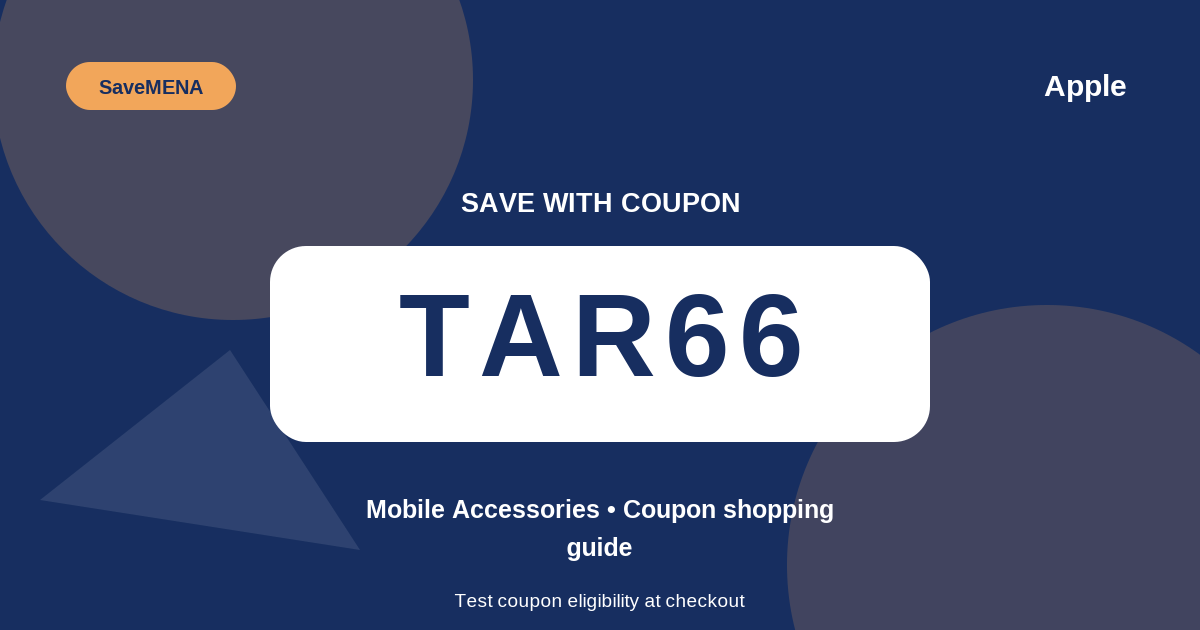
Codes available to try while comparing
These codes are not guaranteed for the article topic or listed brands; test them at checkout and use the live result.
Verify Coupon Syntax and Capitalisation
The first piece of evidence the checkout system examines is the exact characters you entered. Even a single misplaced space or incorrect capital letter can make “TAR66” appear invalid. Compare your input closely against the promotional flyer or email that listed the code, noting whether the campaign uses uppercase, lowercase, or a mix of both. A quick re‑type or copy‑paste from the source can eliminate accidental typos before the system reaches the next stage of validation.
Once the code appears syntactically correct, submit it again to trigger the server response. If the live coupon message at checkout still flags a problem, you may be dealing with an issue beyond simple spelling. At this point, move onto confirming the product eligibility of the items in your cart.
Check Product Eligibility for the Coupon
Coupons usually have implicit eligibility rules—such as a minimum spend, a specific category restriction, or a prohibition on premium Apple accessories. When the live coupon message at checkout states “not working”, it may be because one or more items in your cart fall outside those rules. Cross‑check the product listing against the campaign description; if the guidance is vague, select a single Apple accessory and test the code alone to see if it applies.
Should the code still fail, it indicates that the product itself is not qualifying for the discount. Remove it from the cart and re‑apply the code to verify that the system now accepts it, or consider adding an additional item that is explicitly marked as eligible.
Confirm the Seller is Supporting the Coupon
Even if the product appears eligible, the seller’s participation can block coupon usage. Noon’s platform allows individual sellers to opt‑in or opt‑out of promotional campaigns. In the checkout message, look for any seller‑specific language that may indicate non‑participation. If the message is generic and no seller is mentioned, the issue may still stem from the seller’s pricing strategy or inventory status.
Speak directly with the seller through the chat feature on the product page. Ask whether the “TAR66” coupon is currently accepted on their listings. If the seller confirms it is active, retry the coupon; if they deny, the code will continue to fail unless you switch to a vendor that participates in the promotion.
Inspect the Cart for Competing Promotions
Online checkout systems cascade discounts in a specific order. A “TAR66” coupon may be overridden by a higher‑priority buy‑one‑get‑free offer, a seasonal sale, or an automatic newsletter discount. The live coupon message typically surfaces if a competing promotion disables your code. Open the cart view and locate any active promotional banners that apply to the same items.
Manually remove the conflicting promotion if it’s not mandatory, or let the system apply the voucher by adjusting the cart configuration. After the removal, re‑enter the “TAR66” code and observe whether the live coupon message changes. Such adjustments can be a quick way to surface hidden priority rules that were blocking your discount.
Verify Market and Currency Settings
The checkout platform distinguishes between domestic UAE market listings and other regional variants. A “TAR66” coupon that is active in the UAE may not transfer to a cross‑border or specialized Apple marketplace. Double‑check that your account is set to the UAE market and that all items in the cart are tagged accordingly.
Additionally, confirm that your payment method is accepted for the UAE market. Some payment options may trigger a state change that falls outside the coupon’s operational scope, thereby causing the live coupon message at checkout. If any discrepancy is detected, switch to a compatible payment method or adjust your account region to match the coupon’s intended audience.
Refresh Checkout and Clear Cache
Sometimes, a cached version of the checkout session can prevent a freshly added coupon from evaluating properly. Hold the “Refresh” button on your browser or app to clear the session state. Watching the live coupon message while the page reloads can reveal whether the issue persisted after a fresh start.
If the problem continues, try clearing browser cookies or app cache via the device settings, then re‑log into Noon. Re‑adding your wish list items and re‑entering the code should reflect the most recent validation from the server, removing any stale or inconsistent messages that could have blocked the coupon.
Inspect the Final Checkout Summary
A final check involves verifying that the coupon successfully applies in the payment summary area. The summary lists the subtotal, any discount, and the final payable amount before confirming the order. If the live coupon message remains, but the discount line is still empty, the system has not accepted the coupon.
In that scenario, note the specific text of the error—whether it mentions “not applicable”, “incompatible with current cart”, or “expired”. If the message is ambiguous, print or screenshot the summary and submit it to the Noon support portal for clarification. The detailed information will help support deduce whether the issue is a server error or a legitimate restriction.
Contact Noon Support for Live Coupon Confirmation
When all preceding steps are exhausted and the live coupon message persists, it’s time to engage official support. Reach out through the Noon app chat or email, describing every action you’ve taken, the exact wording of the error message, and the items in your cart.
Support agents have access to backend logs and can determine if the “TAR66” coupon is temporarily out of service, if your cart violates hidden terms, or if a system glitch is causing the failure. In many cases, they can manually apply the discount or provide an alternative coupon that suits your purchase of Mobile Accessories or Apple products.
Related SaveMENA pages
Related articles
Official sources to check
Frequently asked questions
What does the “TAR66” coupon code do?
It’s a promotional code for a discount on selected items for testing purposes. For specific exclusions and limits, it’s best to check the live checkout’s coupon message or contact Noon support.
Will my Apple accessories automatically qualify for the “TAR66” coupon?
Eligibility depends on the seller and the active promotion. Test the code on a single Apple accessory first; if it fails, the product may not be part of the campaign.
Can I combine the “TAR66” coupon with other offers?
Competitive discounts like other coupons or automatic deals may override each other. Usually only the highest‑priority offer applies, so check the cart for conflicts before applying the coupon.
What if the coupon works in the cart but fails at payment?
Re‑enter the coupon at the final checkout screen or refresh the page to reset the session. If the problem persists, contact Noon support with the error message for further assistance.