Dell Office on Noon UAE: checkout message — coupon troubleshooting
Noon UAE coupon not working Office Dell the live coupon message at checkout: You’ll tell the copier you’re ready for a deal, but the coupon fails.
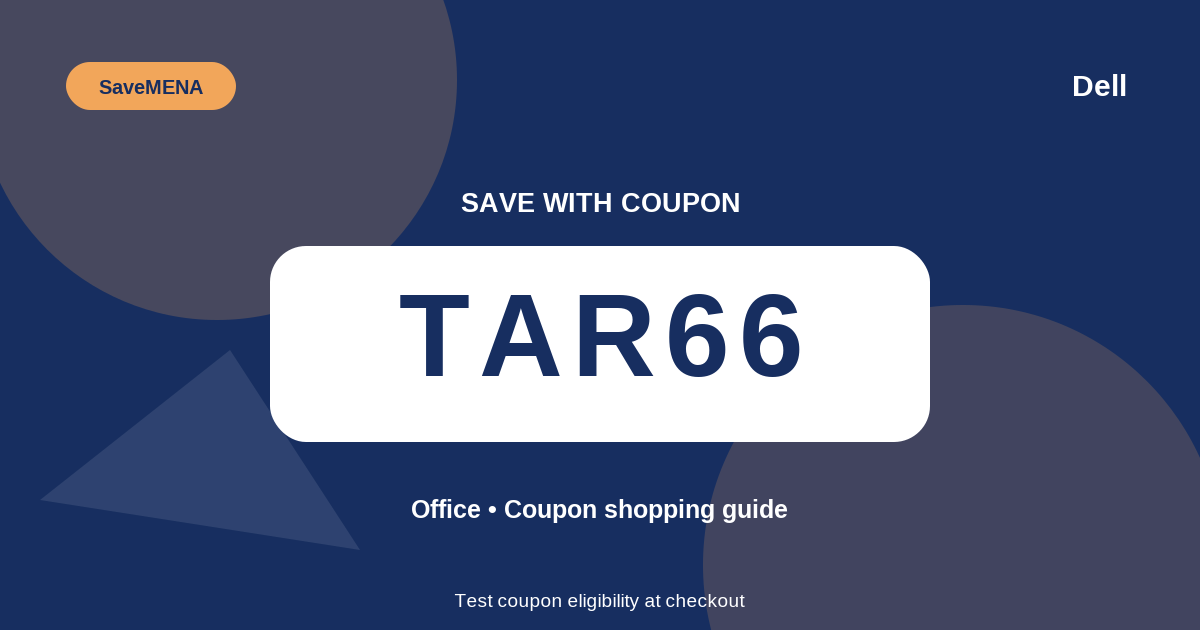
Codes available to try while comparing
These codes are not guaranteed for the article topic or listed brands; test them at checkout and use the live result.
1. Verify Coupon Eligibility for Office Items
Begin by confirming that the coupon is actually meant for the office category. The live coupon message often appears if the discount category does not match the items in your cart. Even if you see “Noon UAE coupon not working Office Dell,” the coupon may still apply to office supplies in general but not to specific Dell laptops or accessories. Check the product listings or the coupon terms displayed near the code entry field. If there is no explicit office restriction in the terms, assume the coupon should work, but still confirm that each item belongs to the office taxonomy in the Noon catalog.
To verify, navigate to the product detail page of each Dell office item and observe the “Category” label. If the label reads “Computers & Office” or a related sub‑category, the coupon is theoretically eligible. However, some Ilike items might be mislabelled under “Electronics & Gadgets.” If any product falls outside the official office branch, the live message will persist. Adjust your cart by removing ineligible items or substituting a compatible office variant to see if the discount then accepts.
2. Double‑Check the Exact Coupon Code Entry
A simple typo can generate the “coupon not working” pop‑up. The nightly syntax for Noon coupons is case‑sensitive and often includes letters and numbers tightly together. With TAR66 you must type “TAR66” exactly, without spaces or extra characters. The live coupon message will instantly invalidate the code if the text is mistyped or altered.
To avoid this, copy the code directly from the email or coupon announcement and paste it into the coupon field. After pasting, press Enter or click Apply to trigger the server check. If the live message continues, try clearing the field completely, retyping the code, and checking for invisible characters or accent marks that some keyboards might add. Once the code is validated, the message should either confirm the discount value or remain silent, indicating that further locks may be in place.
3. Inspect Cart Items for Compatibility with the Coupon
Certain office products have built‑in restrictions, such as non‑discountable accessories or bundled offers. The live coupon message at checkout usually reflects such restrictions. For example, if you have added a Dell mouse that is part of a set, the coupon may not apply to that bundle. Open the cart view, then hover over each item to read any “Special Pricing” bullet points. If an item is flagged “Not eligible for coupons,” the live message will or has already informed you.
If you spot an ineligible product, remove it or replace it with a stand‑alone component that does not carry a “no coupon” restriction. After the modification, recall the coupon code. The live message will either show the new discount or maintain its status if other barriers remain. This step is critical because many users overlook that certain accessories, like Dell docking stations, fall outside the standard office coupon pool.
4. Confirm Minimum Spend and Total Shopping Amount
Coupons on Noon often require a minimum purchase value. Though we don’t state the exact threshold, you should ascertain the total cart value that is needed for a coupon to activate. The live coupon message will not display a specific amount, but it will simply refuse to apply if the cart is below the threshold.
To check, review the cart summary. Beneath “Subtotal,” you’ll see the aggregate of all item prices. If you have pencils, pens, or other small office items instead of a high‑value Dell laptop, the total might fall short. If the live message still appears, adjust your order by adding a qualifying item or increasing the quantity of an existing item. Then retry the coupon code. If the total still fails to cross the threshold, the live message will persist, prompting you to consider increasing your cart balance.
5. Validate Browser and App Session Consistency
Sometimes the cart state is out of sync between the browser and the server, leading to the live coupon not applying. A simple action like clearing browser cache, logging out and back into Noon, or refreshing the app can reset the session and clear errors. The live coupon message appears if the client session doesn’t recognize the coupon as valid for the current cart snapshot.
Try closing the app or browser, reopening Noon, and re‑entering the cart. If you use the mobile app, tap “Refresh” at the top of the checkout screen. After the app has re‑synchronised, re‑apply the TAR66 code. A successful refresh often removes lingering error messages. If the live coupon message remains, the issue likely lies beyond session handling, and further steps are required.
6. Examine Payment Method Restrictions
Certain coupons on Noon may be available only for specific payment types—Visa, MasterCard, or Noon wallet. Though we cannot confirm the rule for TAR66, the live coupon message at checkout usually appears if the chosen payment method violates a coupon constraint. Check the payment options under “Select Payment Method” to ensure you are using an accepted gateway.
If you selected a promotional credit or a temporary payment slip that Hanoi uses, swap to a standard credit card or the Noon app’s gift card. After applying the new payment method, re-submit the coupon code. The live message should disappear if the payment type is now compatible. If after changing the method the message is still present, the restriction is likely elsewhere in the checkout chain.
7. Verify Customer Account Status and Checkout Checkout
The live coupon message can also trigger if your Noon account is new, suspended, or not fully verified. Some coupons are limited to verified accounts or to users who have completed a profile check. Navigate to your account settings, confirm that your email and phone number are verified, and that your profile contains a valid address.
Should your profile lack verification or if you have a temporary account flagged for unusual activity, the system may block coupon application to prevent fraud. Complete any pending verification steps—like confirming a phone code or uploading a photo ID—then return to checkout. Once the account status aligns with the platform’s policy, re‑enter the TAR66 code; the coupon may then apply, and the live message disappears.
8. Contact Noon Customer Support to Resolve Persistent Live Message
After performing all the above checks, if the live coupon message at checkout persists, the issue is likely under the platform’s control. Capture the error screenshot and note the cart contents, payment method, and account status. Then reach out via Noon’s live chat or the “Help & Support” section in the app.
Provide customer support with the exact coupon code (TAR66), describe the steps you’ve taken, and share any relevant links. Support agents can confirm whether the coupon is still active, if there’s a system outage, or if your specific case has a mask of compliance restrictions. Since Noon cannot share platform‑wide restrictions publicly, direct support will give you the most accurate resolution. When the session ends, you should either receive confirmation that the coupon now applies or a clear explanation of why it cannot be used at that time.
Related SaveMENA pages
Related articles
Official sources to check
Frequently asked questions
How can I confirm that a coupon applies to the office category?
The coupon terms usually appear near the code input field. Look for a label indicating the category; if it mentions office or work‑related items, the coupon should work. If the label is missing, test by adding an office item and reapplying the coupon.
What should I do if my Noon's cart refreshes but the coupon still doesn’t apply?
Refresh both the cart page and your account session, clear your browser cache, or restart the Noon app. If the issue persists, check for restrictions or contact Noon support with a screenshot of the live error.
Can a payment method choice affect coupon usage?
Yes, some coupons only work with specific payment methods. If your coupon fails, try a different card or the Noon wallet and reapply the code to see if the live message disappears.
When should I contact Noon support about a coupon that’s not working?
After checking code entry, cart eligibility, minimum spend, payment method, and account status. Capture a screenshot of the live error, then use the app’s chat or support page to get assistance.