Office on Noon UAE: checkout message — coupon troubleshooting
Noon UAE coupon not working Office the live coupon message at checkout: Finding yourself stuck with a “Noon UAE coupon not working” message when you’re ready to buy
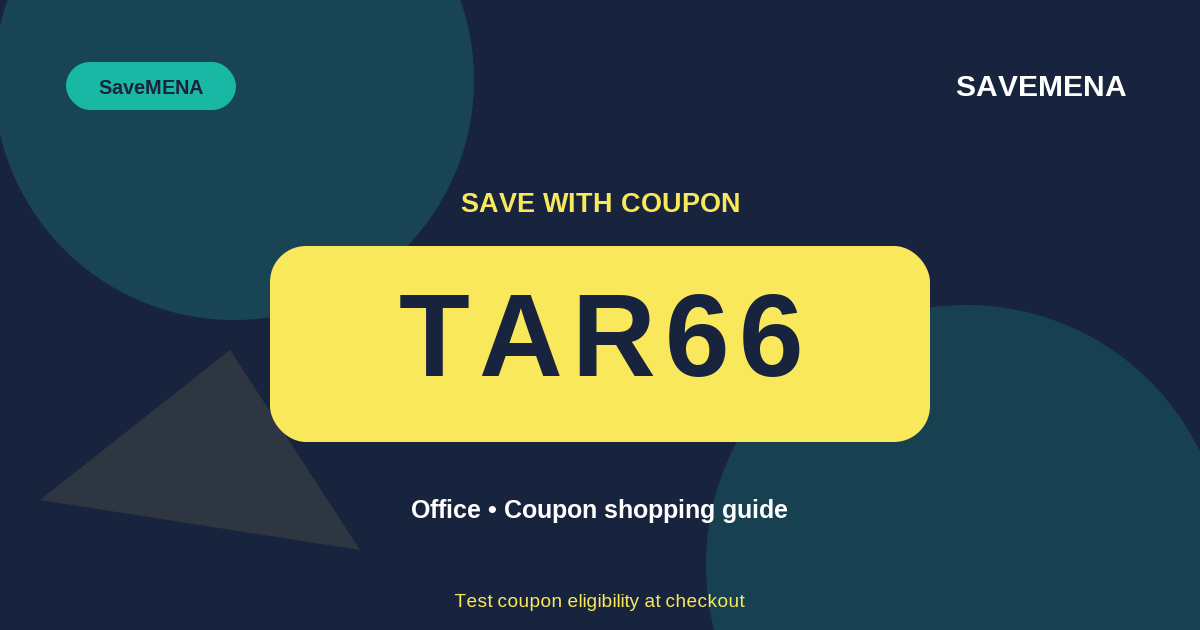
Codes available to try while comparing
These codes are not guaranteed for the article topic or listed brands; test them at checkout and use the live result.
Read the Live Message for Specific Errors
When the coupon fails, the checkout screen shows a live message that explains why. It could say things like “invalid coupon,” “not applicable to this purchase,” or “minimum spend not met.” Take a screenshot or note the exact wording. A correct message tells you whether the code is simply wrong, whether you’re missing a condition, or whether the coupon has restrictions you aren’t aware of.
Don’t rely solely on the conversation you had before. Double‑check that the message you read now matches what the app displays. If the wording has changed, it might indicate a recent update to the coupon’s terms or a new restriction that was added after your initial use. Capturing the live text keeps the troubleshooting focused on what the system is actually telling you.
Verify the Total Meets Hidden Policy Requirements
Some coupons require a minimum spend or a specific order value before they activate. The live message may even flag this if you’re below that threshold. Check the cart total and any hidden fees—shipping or handling charges—but don’t add an extra product to meet the requirement. If the coupon’s terms are unknown, ask Noon at checkout what the threshold is, or review the policy section of the app.
Even if the message doesn’t explicitly mention a minimum, the failure likely points to this factor. Verify that the sum of the item prices equals the amount shown in the message before attempting to reapply the code. This avoids circling back to “coupon not working” for the same reason.
Confirm Product Eligibility and Category Restrictions</HEIGH
N> Office products often have their own catalog restrictions. The live message can say “not applicable to selected items.” Look at the product description and any related tags that mention exclusions. The TAR 66 code may apply only to a subset of office goods or exclude certain seller listings.
Even if the product seems ordinary, the information is hosted in the item’s listing details. If eligibility is unclear, contact the seller directly through Noon’s chat window or look for a “Questions & Answers” section. Ensuring the item complies with the coupon criteria avoids repeated errors that the live message flags in the first place.
Use the Correct Input Field and Format
Coupon codes are sensitive to both case and formatting. The live message will usually point out if the code is “invalid” because of a typo or wrong characters. Make sure you type TAR 66 exactly as it appears—no spaces at the start or end, and confirm that you’re using the “Enter Coupon” field and not a promo note box.
Some apps allow multiple promo codes; check whether the field is for a single code or if it expects nested codes like “TAR‑66.” If the message says “invalid coupon code” after trying both formats, the issue almost certainly lies elsewhere in the checkout process, not in the code itself.
Test Across Browsers or Clear Cache and Cookies
A common hiccup is a stuck coupon value in the browser’s cache. If you’re using the Noon web version, clear cookies and try again, or switch from Chrome to Safari. The live message may remain unchanged, but it may get refreshed and show the reason more accurately.
If you’re using the mobile app, a quick reinstall often clears any cached coupon data that could be causing a repeated “not working” message. After clearing, load the cart again and reapply TAR 66 to see if the message updates or if the discount kicks in.
Double‑Check Account Status and Payment Limits
Coupons sometimes have hidden account‑level restrictions, such as only applying to active Cash & Cashless users or excluding new accounts. The live message will typically note a restriction if the policy requires a specific account type. Check your Noon profile to see if any status flags exist and verify any verification steps that might still be pending.
Payment methods can also influence coupon eligibility—some platforms block certain cards or e‑wallets while applying coupons. If the live message reads “not applicable to selected payment method,” switching between credit card, bank transfer, or Noon Wallet may resolve the issue.
Reach Out to Noon Support via In‑App Chat
If the live message remains opaque or you’ve exhausted all identified troubleshooting steps, use Noon’s in‑app chat to request a help ticket. Supply the exact message text, screenshot, and your order details so the support staff can pinpoint whether the TAR 66 code is active for your region or if there’s a system error.
Support can also tell you whether your current coupon is still valid. If the code has ceased to exist or been replaced, they’ll provide the new coupon code or confirm that the problem lies in the policy side of the platform and not in your action.
Explore Alternative Office Discounts and Loyalty Points
When a coupon refuses to work, a final step is to look beyond the TAR 66 code. Noon may offer flash discounts, loyalty points, or bundle offers that can still lower your office purchase’s cost. The live message often points out that a promotion was not applied, so verifying if a different coupon or a view‑only discount is active can double‑check your savings options.
Review the “Deals” tab and your loyalty balance. While you’re at it, compare the discount your cart shows after the coupon failure with any alternative discount you can apply. If a standard price adjustment is possible, the live message can help you verify which option is most beneficial for you.
Related SaveMENA pages
Related articles
Official sources to check
Frequently asked questions
What should I do if the live coupon message says “invalid coupon code” after I try TAR 66?
If the message says “invalid coupon code,” double‑check that you entered TAR 66 exactly, with no spaces or extra characters, and that the correct code field was used. If the problem persists, the code may be expired or region‑restricted; confirm with Noon support.
Can a hidden minimum spend cause the coupon to fail even if my order looks high enough?
Yes. The live message may indicate a minimum spend that includes shipping, handling, or automatic taxes that you didn’t account for. Add a small item or check the order breakdown to see if the total rises enough to meet the requirement.
Will reinstalling the Noon app change the live message about coupon failure?
Reinstalling clears cached coupon data and can refresh the checkout logic. After reinstalling, add your items back to the cart, reapply TAR 66, and watch if the live message updates or accepts the code.
What if Noon support says the coupon has been discontinued?
In that case, look for a new promotion or ask for an alternative code that is still active for office items. If there’s no replacement, you may need to weigh the value of waiting for future sales against the purchase urgency.