Puma Shoes on Noon UAE: checkout message — coupon troubleshooting
Noon UAE coupon not working Shoes Puma the live coupon message at checkout: If you’re facing the “Noon UAE coupon not working” error while shopping for Puma shoes
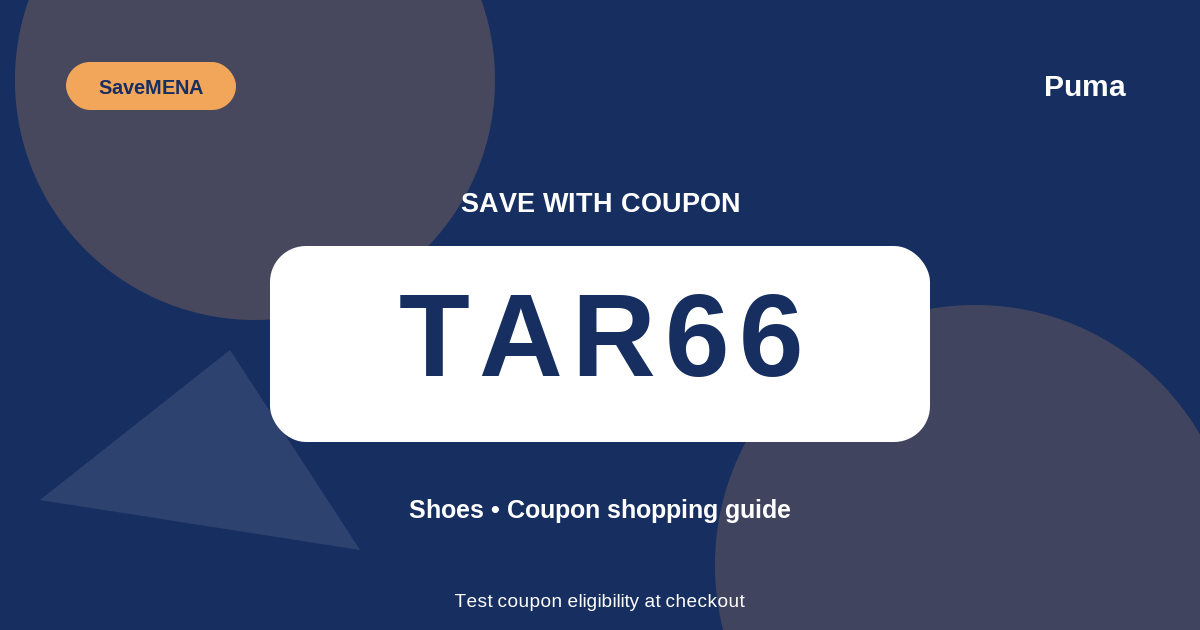
Codes available to try while comparing
These codes are not guaranteed for the article topic or listed brands; test them at checkout and use the live result.
1. Verify the Coupon’s Syntax and Expiration Directly on Noon UAE
Begin at the token entry point: the “Enter code” field on Noon’s cart page. Small typos can trigger a blanket denial. Double‑check that you’ve inputed TAR66 exactly as presented, case‑sensitive, without spaces or stray characters. Even a superfluous space at the end of a code often causes the system to reject it outright. Since Noon does not display explicit expiration dates beneath the code box, consult the email or promotional page that sourced it; if the announcement was a limited‑time offer, the code will become inactive once the clock runs out.
In the same moment you trial the code, watch the live error text that pops beneath the field. If the error reads “Coupon not valid for this order” instead of a generic “not working” remark, it indicates a specific eligibility violation. This pinpointed feedback means the problem is not with Noon’s engine but with your cart content or location, helping you avoid futile further attempts and saving you time by skipping unchecked codes.
2. Confirm Your Cart is Full of Eligible Puma Shoes Only
Coupons rarely apply across mixed‑category orders, especially on platforms like Noon where a separate line item might trigger a global exclusion. With the TAR66 code, scroll through every line in your cart and ensure each product listed is a Puma shoe or a related accessory classified under the same sub‑category. If you’ve added a Puma shirt, a pair of socks, or a third‑party sneaker brand, Noon will automatically strip the discount from the total.
Hold for any “Eligible Items” icon that usually appears next to coupon‑supported products. If your cart shows a recommendation of “Only shoes qualify for this code,” it confirms the restriction. Remove the offending items or replace them with eligible Puma shoes, then re‑enter the code. This practice prevents the live coupon message from flipping to an invalid status right at checkout.
3. Double‑Check the Seller’s Location Versus Your Delivery Zone
Noon’s platform displays the seller’s base location beside each listing. If a Puma shoe is sourced from a seller in a different emirate or even outside UAE, the platform may automatically append a cross‑border delivery fee. Certain promotional codes only apply to locally sourced items, and the cross‑border logistics can remove the tax‑on‑shipment advantage. The live coupon message at checkout will suddenly change to “Coupon not available for this order” when the system detects a mismatch.
Navigate to the “Delivery Options” menu before proceeding to payment. Verify that the seller’s address is within the UAE, and if multiple sellers provide the same shoe model, choose the one whose location aligns with the promo’s geographic criteria. After selecting a local seller, reposition the code and watch for a reversal of the error message.
4. Inspect Any Hidden Charges That Could Nullify the Discount
Platforms often add brand‑specific or seller‑tiered service fees that do not appear as standard shipping costs. These hidden fees, like managing fees or online payment surcharges, can push the order’s subtotal beyond the coupon’s minimum threshold. Thus a coupon that qualifies on a nominal subtotal may fail once every surcharge is tallied.
At the cart page, click on “View all fees” (or equivalent) to reveal the hidden items. If the total rises above an unspecified threshold—say, a the amount shown at checkout minimum spend requirement—rewrite the coupon code and expect the live message to update accordingly. Knowing these fees early on sidesteps the frustration of a coupon disappearing after the payment step.
5. Verify that Noon’s Holiday Promotions Don’t Conflict With Your Coupon
During festive seasons or seasonal sales, Noon may automatically apply a store‑wide discount that overrides or merges conflictiously with third‑party coupons. If you’re shopping during a UAE holiday wave, the platform might mark “Free Shipping” or “Buy one get one” as active in your cart. These built‑in offers can veto additional promotional codes.
To confirm, look for a “Current Promotions” block in your cart summary. If multiple discounts appear, examine the “Exclusions” notes. If the TAR66 code is listed as ineligible due to overlap, you’ll often see a specific warning. Though Quiet, the live coupon message will shift to “Coupon not available for this order.” Removing competing offers, if possible, restores the coupon’s viability.
6. Evaluate Your Account Status and Any Membership Tiers
Some coupons on Noon are reserved for loyalty members, Prime subscribers, or new registrants. If the TAR66 code carries such a condition, attempting it with an account that doesn’t meet the eligibility will trigger a refusal. The platform may not explicitly state the condition—you’ll simply see the generic “not working” text.
Before entering the code, navigate to your profile and note your membership tier—Free, Keyword Plus, or a similar designation. If you’re not a member of the required tier, you may still proceed with the purchase but remain ineligible for the discount. In that case, the live coupon message will confirm that the code has been blocked due to account status.
7. Confirm No Multiple Parallel Coupons Were Occasionally Enabled
Many e‑commerce sites disallow stacking more than one discount. If another coupon or promotional tag is already active in your cart, activating TAR66 will cause a clash. Once the coupon code is entered, the platform usually clears the previous discount and replaces it, but the live message may reflect this sudden change with “Coupon not valid for this order.”
Inspect the cart for any labeled “Coupon applied” or “Discount code” tags from earlier attempts. If you see one, delete it or deactivate it before re‑entering TAR66. The live coupon message at checkout will update immediately, reflecting whether the new code has been accepted or vetoed due to the previous discount.
8. Final Live Checkout Verification Prior to Payment
Once all cart adjustments are made, navigate to the final review page before confirming payment. Here, the live coupon message is your last authority to reassure you that the discount tracks with the displayed total. If the message still states “Coupon not working,” cross‑check every earlier point—syntax, item eligibility, seller location, fees, and membership status. The platform will not apply a coupon that fails any of these checks, even if the cart itself appears correct.
Should the live message remain negative, consider contacting Noon customer support or re‑examining the promotional source for hidden prerequisites. If after all verification the error persists, it may indicate a site‑wide technical glitch or a temporary removal of the coupon from active use. The live coupon message will then provide that final clue, leaving you with an informed decision on whether to proceed without the discount.
Related SaveMENA pages
Related articles
Official sources to check
Frequently asked questions
What should I do if the "Noon UAE coupon not working" message keeps showing up?
If the error persists after checking code input, cart contents, seller location, fees, and account status, it may be a site issue or an expired offer. Contact Noon’s customer service for a confirmation on the coupon’s eligibility or try waiting for system resets.
Can I use the TAR66 coupon if I have a subscription or a new-registrant discount?
Coupons are often limited to specific account tiers. Verify your membership details in your profile. If you do not meet the required tier, the coupon will not apply, even if it appears active elsewhere.
Will hidden service fees not affect the coupon’s applicability?
Hidden service fees can push the subtotal above a minimum‑spend threshold, invalidating the discount. Always review the “View all fees” section before finalizing to avoid surprises at checkout.
Is there a way to identify if my seller’s location blocks the coupon?
Check the seller’s listed address next to each product. If it falls outside the UAE, cross‑border logistics might prohibit the coupon. Choosing a locally sold item typically resolves this issue.