Apple Mobile Accessories on Noon UAE: payment method — coupon troubleshooting · TAR64
etc. Let's produce final content. When the TAR64 code stops working on Noon UAE, shoppers often feel stuck amid a maze of error messages and endless “Help” links.
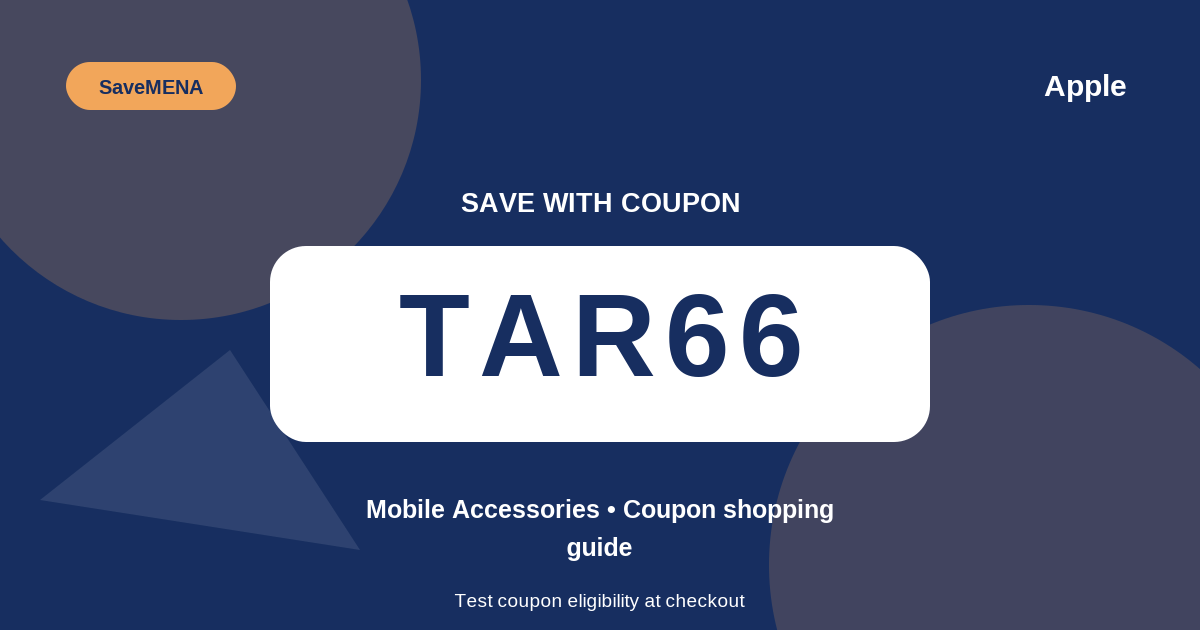
Codes available to try while comparing
These codes are not guaranteed for the article topic or listed brands; test them at checkout and use the live result.
Pinpointing the Coupon Issue
When a coupon fails to activate, the first step is to verify the exact error message appearing on Noon UAE. Is the app notifying you of a technical glitch, an incompatibility, or an expiration notice? Understanding this difference guides the next troubleshooting step. For instance, a “Coupon not applicable” note indicates a mismatch with cart items or payment methods, whereas a vague “Error processing coupon” typically points to a system hiccup. Carefully noting the wording will help you avoid generic fixes that don’t address the real root.
Next, document the time at which the coupon was entered and the screen on which it disappeared. Screenshots or a brief note can be invaluable when consulting customer support. If the notice appeared after agreeing to terms, it may relate to a prohibited combination of offers. If it vanished immediately after hitting ’Apply’, the issue is likely a temporary app sync delay. Staying organized with these details trims the guesswork that often mars online coupon troubleshooting.
Confirming Eligibility and App Conditions
Coupon eligibility on Noon UAE frequently hinges on specific seller policies or cart thresholds. While the TAR64 code is advertised as applicable to mobile accessories, it may still honor a minimum purchase or exclude bundles from certain third‑party sellers. Check your cart for any items flagged by the platform as incompatible. Additionally, ensure that weekend or weekday restrictions don't apply—some codes activate only on certain days. Aligning your cart size and composition with these unseen criteria is essential before moving on to platform configuration.
Also examine app‑only versus web‑only rules. Noon’s mobile app often uses dynamic pricing that differs from the web interface. If you originally entered the code on a desktop, it may not carry over to the same order on a mobile device.A coupon is not guaranteed; verify its result at the retailer checkout. If the code has been limited to app usage, bypassing this step will render your troubleshooting fruitless.
Checking Your Apple Payment Method Settings
Because the focus lens is Apple payment method, scrutinize whether the chosen payment method complies with Noon’s accepted bank requirements. Noon may restrict the use of Apple Pay for certain categories if the device’s region settings or card issuer differ. Ensure that the Apple Pay card stored on the device is a UAE‑issued debit or credit card approved for online transactions. If the card is from a foreign bank, double‑check that international e‑commerce purchases are enabled. Without this alignment, Noon may silently reject coupon codes tied to Apple Pay.
Moreover, Apple Pay's transaction limits could affect coupon validation. Noon typically imposes a maximum transaction value per payment method; exceeding that cap triggers a refusal. Verify that your Apple Pay balance or card credit limit supports the total payable after the coupon is theoretically applied—though the discount itself is uncertain, the payment method must still cover the price. Adjusting the payment method to a different debit card within Apple Pay or adding a new card can sometimes resolve blocked coupons.
Validating Cart and Cart Items
Coupon applicability may be limited to particular brands or models within the mobile accessories category. Ensure that each item in your cart meets the product specifications that Noon associates with the TAR64 code. Some accessories, like flagship protective cases or premium ear‑bud accessories, may be classified under a higher tier that exempts them. If an item isn’t supported, removing or replacing it with a compliant variant can free the coupon from a readiness block.
Check for promotions already active within the cart. Noon often disallows stacking multiple discounts on the same item, especially when one is a coupon and the other is a store‑wide flash sale. Pause any pending promotions, then re‑enter TAR64 to see if the conflict resolves. If the discount remains inapplicable, a single higher‑priority coupon may have taken precedence—identifying and clearing such overlaps is key to unhindered coupon application.
Clearing Browser Cache and App Data
Sometimes residual data in the app or browser can corrupt the coupon application process. Open the Noon app’s settings and locate the ‘Clear Cache’ or ‘Delete Local Data’ option. This action removes stored cookies, temporary files, and previous session logs that might be passing an obsolete state to the payment gateway, causing the coupon to fail. Restarting the app afterward prompts a fresh session that recognizes the latest coupon parameters.
If using a web browser, clear the cache and cookies specific to noon.com and then refresh the page before re‑entering TAR64. Some browsers store offers in the local storage segment, preventing new coupon data from overwriting stale entries. After clearing, close and reopen the browser or use a private incognito window to eliminate old session variables. A clean slate often eliminates the friction that leads to non‑functioning coupons.
Contacting Noon Customer Support
If all technical steps fail, engaging Noon’s customer support becomes essential. Capture a screenshot of the error message and copy the exact wording to share in the chat or email. Inform them of your attempted steps—applying the code, checking eligibility, clearing cache, and verifying Apple Pay settings. Provide the full cart detail; a clear list helps them cross‑reference any internal restriction that mis‑triggers the error. They can investigate whether the TAR64 code is active on the current server or if an exception applies to UAE shoppers.
Should the support representative confirm a temporary system fault, request a reimbursement or credit adjustment accordingly. Otherwise, ask if an alternative code or a manual voucher can be issued. Keep a record of the support ticket number and response timeline. Following up after 24 hours ensures that the issue doesn’t linger and that you can resume checkout without further guesswork.
Alternative Discount Strategies
Until the coupon issue resolves, consider other discount avenues to reduce your total cost. Noon regularly offers flash sales on mobile accessories; registering for email alerts can alert you to time‑limited price drops. Additionally, credit card rebates or loyalty points may coexist with the coupon rule, allowing you to apply both simultaneously. While the TAR64 code remains uncertain, combining a lower‑tier coupon or catalogue discount can still bring down overall spend.
Another pathway is shifting payment method. Some codes accept only specific card issuers or may function when using a direct debit instead of Apple Pay. If a credit card from a different bank can be temporarily added to your wallet and authorized for the transaction, attempting the coupon again with that method may circumvent restrictions tied to Apple Pay. Always double‑check purchase eligibility for the new payment instrument to ensure no hidden conflicts arise.
Summarizing the Resolution Path
The reconciliation of a non‑working Noon UAE coupon demands a systematic approach. Start with the precise error message, align cart eligibility, and verify Apple Pay compatibility. Clean session data to eliminate glitches, then involve Noon support if the problem persists. Concurrently explore alternative discounts or payment methods to avoid complete loss of savings. By structuring troubleshooting into these distinct layers, UAE shoppers can reduce trial‑and‑error and gain clarity on where the coupon’s failure lies.
Even after implementing every recommended step, the final checkpoint remains the checkout screen. This stage sends the definitive approval to Noon’s payment gateway; any subsequent decline of the coupon or payment method indicates that the issue lies within platform backend or account‑level settings. At this juncture, revisiting the support queue or contacting your bank’s merchant services offers the last available avenue. Ultimately, following a methodical troubleshooting pathway ensures that mobile accessory purchases can be completed with minimal frustration and the highest degree of confidence.
Related SaveMENA pages
Related articles
Official sources to check
Frequently asked questions
What might cause the TAR64 coupon to stop working on Noon UAE?
Common causes include cart items not matching the code’s eligibility, Apple Pay being restricted for certain sellers, or the coupon being limited to app usage. System glitches, stale cache, or an account issue can also trigger a failure message.
Can I use the TAR64 code with Apple Pay on my iPhone?
The code is technically available, but Noon may flag Apple Pay for specific accessories or under certain bank restrictions. Double‑check that your Apple Pay card is UAE‑issued, active for online purchases, and that the app doesn’t block the coupon for that payment method.
How do I clear the Noon app cache on my mobile device?
Navigate to the Noon app settings, locate the ‘Clear Cache’ or ‘Delete Local Data’ button, tap it, and then restart the app. This removes stored cookies that might interfere with coupon processing.
If the coupon still fails, what are my next steps?
Document the exact error, screenshot the issue, and contact Noon support. Provide your cart details and Apple Pay settings. Request clarification on coupon availability or a possible manual voucher while waiting for a system fix.