Dell Office on Noon UAE: payment method — coupon troubleshooting
On Noon’s product page, an “Apply Coupon” button appears beside the price. Tapping it reveals a field for the code.
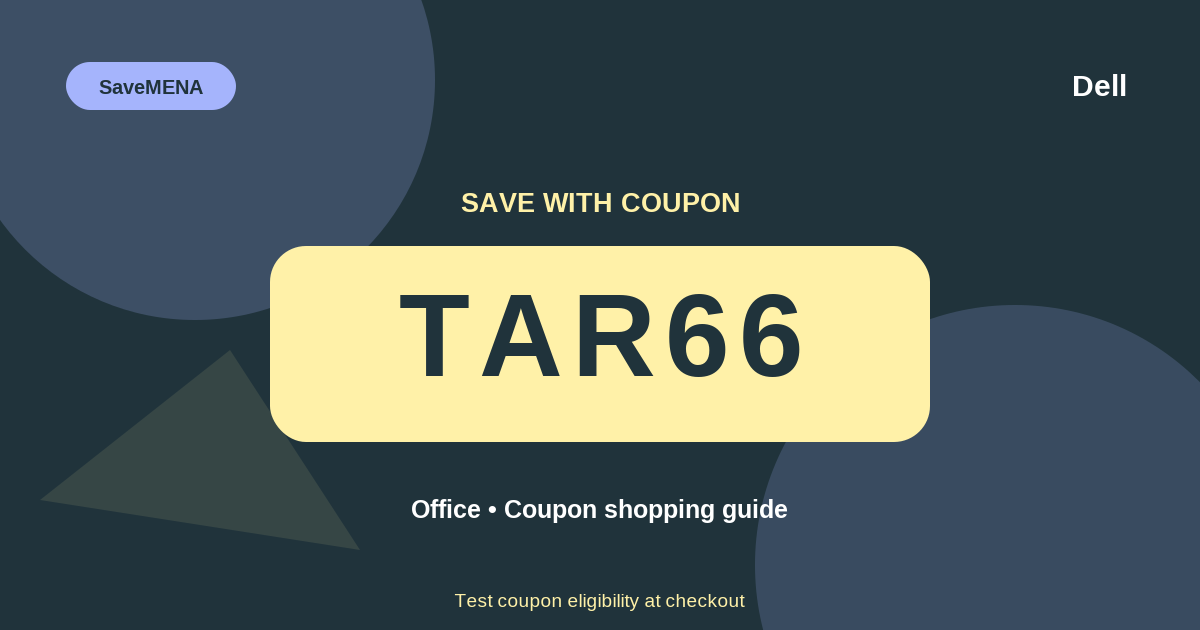
Codes available to try while comparing
These codes are not guaranteed for the article topic or listed brands; test them at checkout and use the live result.
1. Seeing the Coupon Feature on Noon
On Noon’s product page, an “Apply Coupon” button appears beside the price. Tapping it reveals a field for the code. Make sure you are using the mobile app or desktop site that matches your account, as interface differences can obscure the coupon entry option. Occasionally, the button may be hidden due to a browser extension or pop‑up blocker; turning off such extensions typically resolves the issue.
After entering “TAR66” in the coupon field, the system either accepts it, prompting a discount label, or returns a message that the coupon is invalid. The latter indicates that the code may not be compatible with the item or cart configuration. Before concluding a problem, double‑check the code spelling, capitalization, and that the field has been filled in completely.
2. Confirming That the Dell Office Unit Is Eligible
Only certain Dell office lines are included in Noon’s promotion pool. To verify eligibility, search for the specific Dell model in the Noon catalog and review the product description for any partnership notes. If the item lists “No Promo” or has a distinct stock tag, it may be excluded from coupon redemption.
If the unit appears eligible, add it to the cart and revisit the coupon prompt. Some products require a minimum quantity or a specific packaging size to unlock coupon privileges. Knowing these constraints keeps you from being blindsided at checkout by an unexpected decline.
3. Setting the Cart Correctly Before Applying the Coupon
Once the Dell item is in your cart, ensure that no conflicting add‑ons—such as extended warranties or accessories—are pre‑selected, as they can alter the cart subtotal. A cleaner subtotal increases the likelihood that the coupon will process, since some coupons apply only to the base product price.
Verify the cart total line before attempting to apply the code. If the cart shows an additional fee or a hidden delivery charge, the coupon may not activate until the address is confirmed. Trigger a full cart view to see every line item and fee, so nothing is unintentionally omitted from the discount calculation.
4. Checking the Payment Method Against Coupon Requirements
Some Noon coupons demand a specific payment method, such as a Noon Wallet balance or a Visa debit card. Identify the payment options you have in your account by reviewing the “Payment Methods” section under profile settings.
If Noon lists a “Payment Method Required” note for the coupon, ensure your chosen credit or debit card is the designated type. When you go to checkout, the system will sometimes prompt you to switch cards or add a new one that satisfies the coupon’s prerequisite. Omitting this step is a common reason coupons fail to apply.
5. Typographical Accuracy of the Coupon Entry
A simple typo can invalidate the code. Confirm that you have typed “TAR66” exactly, including uppercase letters. Frequently, the system accepts the code in lowercase, but it will still treat a mismatch as invalid.
If you notice the code has an extra space—before or after—the coupon often fails. Delete any hidden characters or leading spaces before submitting. Some browsers auto‑format text, so copy‑pasting directly from a plain‑text source can help preserve the correct format.
6. Account Status and Loyalty Tier Requirements
Noon may restrict certain coupons to customers who have reached a particular loyalty tier or have completed a minimum number of prior purchases. Check your loyalty status by visiting the “My Noon” dashboard; the tier level and order history are clearly marked there.
Even if you meet the tier requirement, you must remain logged in by the time the coupon is applied at checkout. A session timeout could lead to the system treating you as a new user, thereby discarding the coupon eligibility. Keep the browser tab open and avoid logging out during the process.
7. How Noon Support Can Clarify Coupon Issues
If after performing the prior checks the coupon still does not work, contact Noon’s customer support either via the live chat on the website or the help center in the app. Provide the product SKU, the coupon code, and a screenshot of the error message if possible.
Support representatives can confirm whether “TAR66” is currently active or has been retired, and they can walk you through the exact payment method prerequisites. Their guidance is especially useful if the issue is due to system outages or temporary restrictions on a particular product line.
8. Refreshing, Re‑applying, or Trying an Alternative Strategy
A quick way to resolve stubborn coupon failures is to refresh the cart by deleting the item, confirming the address, and then reinstating the product. This clears any cached cart data that might interfere with coupon validation.
If the coupon still refuses to apply after a full refresh, consider ordering the Dell unit for a later date when the coupon may be active again, or seeking a different discount that explicitly indicates approval for the item. Alternatively, downloading the Noon app if you haven’t already can sometimes bypass desktop interface quirks that block the coupon entry.
Related SaveMENA pages
Related articles
Official sources to check
Frequently asked questions
What should I do if the coupon says it’s not valid after I’ve entered it?
Double‑check that the coupon code is typed exactly as “TAR66,” no extra spaces or typos, and that your cart contains a compatible Dell office item. If still not working, verify your chosen payment method meets any required criteria, then try again.
Can I use the same coupon for multiple Dell office purchases?
The coupon can be applied only once per order and generally cannot be combined with other discounts. To redeem additional savings, you’ll need a separate coupon or promotion that explicitly allows stacking.
Does the coupon work if I pay with a Noon wallet balance?
Only if the coupon’s terms specify a Noon wallet payment. If the coupon requires a credit or debit card, using a wallet balance will prevent it from applying. Check the payment requirements before checking out.
How can I confirm my account’s loyalty tier before applying the coupon?
Navigate to the “My Noon” section in the app or website and look for your assigned tier level and purchase history. This information will tell you if the coupon is available to you based on your current status.