Logitech Office on Noon UAE: payment method — coupon troubleshooting · TAR64
A coupon is not guaranteed; verify its result at the retailer checkout. And never give discount percentages. Use generic.
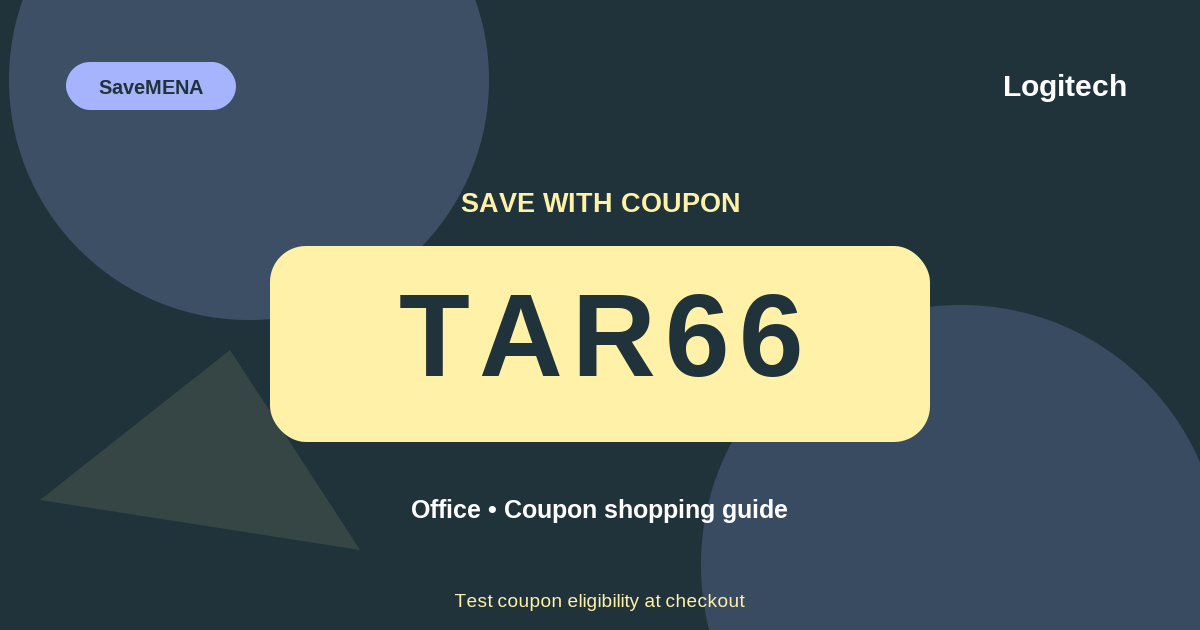
Codes available to try while comparing
These codes are not guaranteed for the article topic or listed brands; test them at checkout and use the live result.
When to Contact Noon Support
A coupon is not guaranteed; verify its result at the retailer checkout. And never give discount percentages. Use generic.
When a Noon UAE coupon code such as TAR64 fails to apply to a Logitech office product, it’s often due to a mix‑up in the checkout flow rather than the coupon itself. Understanding how Noon applies codes, what makes a product eligible, and how specific payment choices interact with the coupon system will guide you past the most common snags. In this guide we give you a clear, step‑by‑step troubleshoot path that focuses on your chosen Pay‑method—whether it’s a card, wallet, or installment plan—while keeping your Logitech office gear on track. If the coupon is still hanging in limbo after following these steps, you’ll know exactly what to report when you reach out to Noon support.
Understanding Noon UAE Coupon Mechanics
Coupon codes within Noon’s system are applied at the point of checkout, just before the final payment is authorized. The moment you press “Apply code”, Noon’s back‑end checks several criteria: the code’s validity period, whether the user’s cart value meets any minimum, and the product category restrictions. Even if the code entered correctly, a hidden shelf of restrictions can cause the red “Invalid” or “Expired” banner to appear. Confirming these parameters is the first line of defense against a failed coupon.
It is also essential to remember that Noon stores logistics and billing data in separate micro‑services. App‑only rules, for instance, are not visible to the web version. If you are shopping from a mobile browser, you still experience the same discount logic as with the app. Thus, verifying that the coupon version used on your device matches the service rule is a basic sanity check you can perform before advancing to the payment method.
Checking Coupon Eligibility for Office Items
To determine if a Logitech office device qualifies, you need to look at its listed category on Noon’s product page. Office electronics typically fall under the “Computers & Accessories” area. While the TAR64 code is not branded, it might still have an implicit office‑product gating. If the product banner shows a “Not eligible for coupon” note, the code will never apply, regardless of what payment method is selected.
If no clear indicator appears, proceed to cart. Drop a single Logitech mouse, keyboard, or monitor into the basket. Hit the coupon field, type TAR64, and watch for immediate feedback. Should the code be rejected here, it is almost certainly a product restriction rather than a Pay‑method hiccup. This early confirmation saves time that would otherwise be spent tweaking your card or digital wallet settings.
Verifying Your Logitech Orders at Noon
Logitech products on Noon come in many variations—RGB keyboards, ergonomic mice, or ultra‑wide monitors. Some special editions are sold only to business accounts or have limited availability. Ensure that the item you wish to purchase is the standard retail version that Noon’s open‑market sellers list. Proprietary or B2B‑only SKUs can have hidden programme lock‑ins that make a coupon invisible to the regular code engine, leading to a perceived “non‑applicable” message.
When you spot a “Business Only” tag or a price listed with a special B2B prefix, it is advisable to either switch to a consumer‑friendly SKU or consult Noon’s Seller FAQ for the listing’s eligibility. This purchase advice stage is crucial because the Checkout step will show a payment‑method‑only prompt if the item hints at a corporate‑only policy. Thus, correcting the SKU early may unlock both coupon and payment compatibility.
Payment Method Compatibility Issues
Once the coupon is successfully applied or at least verified to be applicable, Noon’s payment gateway checks your method. Some saved cards or wallet balances in UAE dollars (AED) or Saudi Riyal (SAR) might have international usage restrictions that block certain promotions. Ensuring that your payment method is “International” or “Visa/Mastercard Global” can make the difference. Some local bank cards have built‑in security layers that flag promotional discounts if the transaction amount is unusually large for a particular merchant.
If the code applies but the payment screen shows a “Coupon expired after this payment” message, that is a hint that the Pay‑method verification step flagged the transaction as non‑eligible for the promotion. Resetting the billing address to match the card issuer or switching to a different payment instrument can bypass this gate. A quick audit of your saved payment methods—especially any new cards added in the past month—will catch most of these incompatibilities.
Common Reasons for Coupon Rejection
Coupon rejection can stem from a handful of systemic triggers: (1) cart value below a hidden floor; (2) a mismatch between saved card and promo eligibility; (3) ongoing sales that supersede coupon limits; or (4) a glitch in the code’s active status. Notice that a missing “COUPON EXPIRED” pop‑up is never a cosmetic glitch—it reflects the code’s time‑bound nature. This is a separate log that Noon’s server manages in real time, so a quick refresh of the page will often reset the visual artefact but not the underlying status.
The second layer is the payment method. If your chosen method is flagged as “internal” or “corporate” by Noon during the billing phase, the coupon engine may hold it back. Even unflagged cards can trigger a “restricted usage” flag if the amount holds the threshold for a card‑issuer’s promotional lock. This double‑layer gate—code eligibility and payment method compatibility—is why a seemingly working coupon may silently fail right before authorization.
Step‑by‑Step Troubleshooting Workflow
Begin in the cart: click the cart icon, confirm the Logitech model, and note the exact text under the product title. Next, clear any previously entered coupon code and re‑type TAR64. Observe the success message or error banner. If you see an error, scan the barcode next to the error for a hint—often it will read “Not eligible for this product” or “Minimum spend required.”
Proceed to the payment screen. Click your saved card, appraisal screen, and locate the “Payment Method” wording. If it lists “Contactless” or “Retail,” you should be fine. If it states “Corporate” or a vendor name, remove that card and add a personal Visa or MasterCard. After re‑applying the code, re‑enter the amount and confirm. If the approval persists, the issue lies in a deeper server‑side configuration that only Noon’s support can resolve. Document the error timestamp, screenshot, and the exact message for the provider.
Alternative Ways to Apply the Coupon
Should the in‑cart application still refuse the code, you can try applying it during the final “Review Order” screen where a secondary field appears. In some cases, Noon’s childhood product bundling feature activates a hidden coupon field that is silent in the cart. Paste TAR64 into that field and it may accept the discount when the order total meets the implicit threshold. This trick works best when you have exactly one Logitech item and no extra accessories that can inflate the cart beyond the coupon’s slides.
If that still stalls, it might not be a payment method issue but a billing address mismatch. Noon verifies the billing ZIP code against the card’s embossed region. In the UAE, ZIP codes are less granular, but if you’re using a corporate address that Noon still sees as “Business,” the verification may flag it. Switching your displayed address to your personal UAE address before submitting coupons can sometimes unlock the promotion.
Related SaveMENA pages
Related articles
Official sources to check
Frequently asked questions
Will the nonexistent discount description from the coupon be shown on receipt?
No distinct discount description will appear on the receipt because coupons on Noon are applied as a tally subtraction at shipping. The final total reflects the applied value but does not print a coupon label. If you want to reference which code used, you must check the order confirmation email for the summary note that includes “Coupon Applied.”
Can I use another payment method while the coupon is not working?
Yes, you can swap to a different saved card or wallet. The coupon engine processes once you enter the payment details, so using a fresh method may bypass a previously flagged card correspondence bug. Just ensure the new method is not restricted by corporate tier or regional lock to avoid another rejection.
Is there a time limit to when I can try using the TAR64 coupon?
The code’s active period is controlled by Noon’s system and not visible publicly. If it works in one purchase but fails later, it may have crossed its date expiry. Check the order confirmation or contact Noon support for the exact validity window.
Will the coupon affect VAT or shipping charges?
Coupons on Noon apply to the product price before VAT and shipping are calculated. The final total after applying the coupon still includes all applicable VAT and delivery fees. No separate discount appears for VAT or shipping; they remain at the usual U. A. E. rates or delivery fee structure.