Apple Smart Watches on Noon UAE: payment method — coupon troubleshooting
When you insert the “TAR66” Noon UAE coupon at checkout for a smart watch and it refuses to work, the frustration is real.
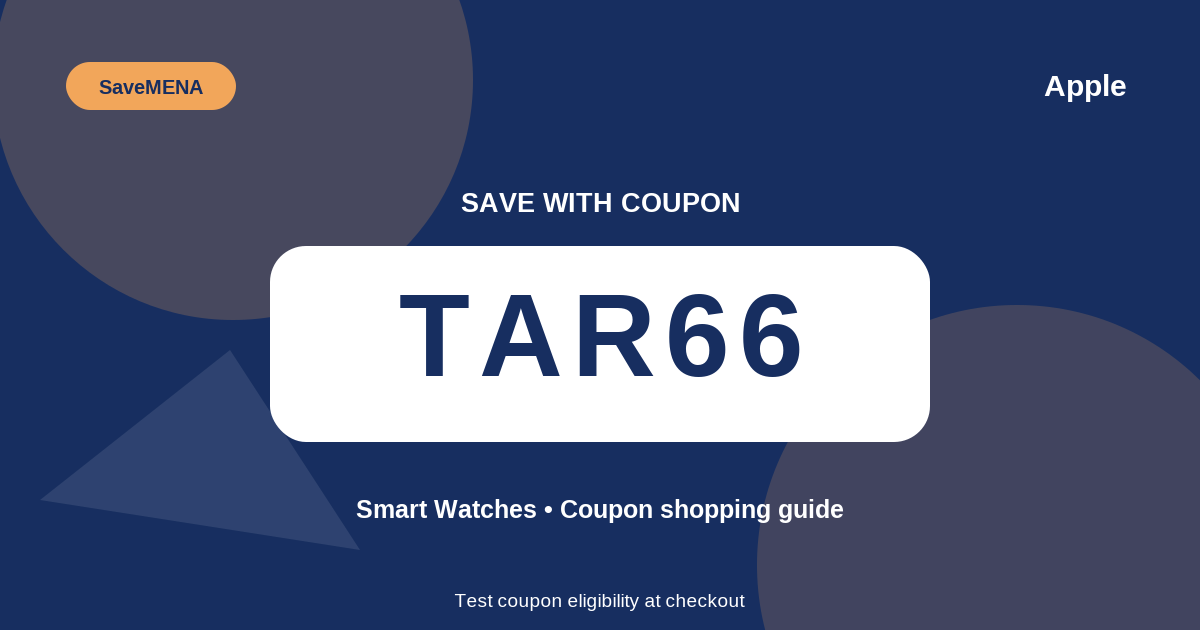
Codes available to try while comparing
These codes are not guaranteed for the article topic or listed brands; test them at checkout and use the live result.
Understanding Why Your Noon UAE Coupon May Fail
The first place to look is the coupon’s compatibility scope. While Noon offers an assortment of savings codes, each has its own technical constraints. If the “TAR66” coupon is silent at checkout, it can mean that the smart watch you selected is not eligible under its rule set or that your Apple payment method triggers a validation bypass. The Noon system enforces coupon rules at the transactional level, and an apple‑specific payment flag might override a coupon that would otherwise be valid. So start by checking whether Noon blocks coupon usage for certain payment methods, especially if you’re streaming your purchase through the Apple Pay route.
Second, examine the coupon status during the cart stage, not merely at the address confirmation. Noon’s coupon engine performs real‑time updates as you adjust quantities or alter delivery options. A smart watch’s weight or size could alter shipping calculations, which in turn may invalidate the coupon.A coupon is not guaranteed; verify its result at the retailer checkout.
Check Your Apple Payment Method Settings
Apple’s payment infrastructure relies on a set of trusted parameters that Noon monitors. If your Apple Pay switch is on but the coupon doesn’t register, verify that your card information is fetched correctly. Noon expects the card to be on the same billing region as the purchase; cross‑border discrepancies often prompt a coupon mismatch warning. Ensure the card’s country matches the UAE or a recognized payment‑processing zone for Noon; otherwise, the coupon engine may treat the transaction as non‑eligible. A quick audit of the card’s stored location can save the trouble of a coupon crash.
Another nuance is the “merchant category code” (MCC) that Apple assigns to each transaction. Noon’s algorithm may interpret the smartwatch as a high‑value electronics category—an MCC that triggers strict coupon checks. When you use Apple Pay, the MCC is embedded in the token and cannot be altered. Consequently, if Noon’s coupon system flags high‑base‑price items for Apple transactions, the coupon will not apply, regardless of other qualifying attributes. This is a system‑level limitation rather than a mistake on your side.
Verify Smart Watch Eligibility Before Adding to Cart
Each smart watch model on Noon may carry a proprietary qualification screen within its product detail page. Scroll through the “Deals” or “Coupon Eligibility” segments to confirm if the “TAR66” code is advertised. Even if the smart watch seems to be a general category item, Noon sometimes restricts certain brands or models from coupon application. The Apple Pay route may trigger a stricter compliance check that cross‑references these segments. So, before adding the product to your cart, double‑check that the smart watch’s eligibility banner matches the coupon code you intend to use.
Also, be mindful of variant specifics—different faces, bands, or technical allowances might alter eligibility. If you choose a variant that offers a larger storage or added features, the base price could push the purchase beyond a threshold that Noon still associates with the coupon code. Since we cannot know the exact threshold without the checkout data, it is safer to stick with the base variant where the coupon’s status is clear. This simple precaution often prevents the coupon from getting rejected later.
Login Status and Account Verifications
Noon’s coupon engine requires a stable session to parse coupon applicability accurately. If your login session times out or is flagged as “guest,” the coupon will not be fetched properly during the Apple payment process. Prior to inserting the “TAR66” code, confirm that you are logged in with the same email you used to open the Apple Pay wallet. A mis‑matched account can lead to the coupon being silently dropped from the transaction data packet.
Beyond login, Noon also reviews account age in certain scenarios. Some coupons are piloted only for new or returning users with a specific purchase history. Though we cannot claim a rule for the “TAR66” code, ensuring your account meets any such demographic filters can help avoid unexpected denials. Logging out and back in after clearing the cache—your next step, as recommended in the following section—often resets the requisite account parameters.
The Role of Shipping Fees and Currency Conversion
When you add a smart watch and choose Apple Pay, Noon calculates shipping fees based on weight and destination. The calculated shipping total is an integral part of the coupon validation formula. If the shipping fee is high or the system miscalculates due to a corner case in weight thresholds, the coupon disqualifies automatically. Review the shipping selector before final checkout; a lower shipping option may keep the overall total within the coupon’s limits.
Currency conversion can subtly affect the total as well. Noon typically charges in AED, but Apple Pay may apply a foreign exchange conversion once the payment is forwarded to PayPal or a card processor. A slight increase due to currency conversion can push the cumulative amount over the threshold the coupon was designed for. Double‑check the final subtotal displayed on Noon before confirming the Apple payment to ensure that nothing slipped through the cracks.
Clearing Browser Cache and Using App Versus Website
Sometimes the coupon disassociation is a result of stale cookie data. Clearing your browser cache removes old transaction references that can cause Noon’s coupon logic to think you’re missing steps. After clearing, add the smart watch again, apply “TAR66,” and then proceed to Apple Pay.A coupon is not guaranteed; verify its result at the retailer checkout.
Alternatively, the Noon mobile app can behave differently from the desktop website regarding coupon enrollment. Apple Pay might skip certain app‑only checks that your browser otherwise mandates. If you run the transaction in the Noon app, the coupon may activate after all, but only if the app correctly updates the cart before invoking Apple Pay. Switching between app and web and retrialing the coupon can uncover a hidden compatibility issue.
Contacting Noon Support for Coupon Issues
Should you exhaust all local checks and still see the coupon not applied, a direct ticket to Noon’s support team allows for a deeper audit. Supply the exact smart watch SKU, your Apple Pay card details (without personal data), and the session transcript showing the coupon entry. Noon’s tech team can confirm whether the coupon rule set recognizes the payment method or flags a system error.
When contacting support, present the entire purchase flow. Noon’s help chat often requests a screenshot of the cart, the coupon field, and the payment method page. By showing that the “TAR66” code entered correctly under Apple Pay, you isolate the transaction to the coupon engine, thereby helping the support analysts identify the root cause faster.
Final Checkout Confirmation and What to Do If the Coupon Persists
The last checkpoint occurs at the payment screen. Noon sends a final validation request back to its coupon database to confirm eligibility once the transaction amount, shipping, and payment method are locked. If the “TAR66” is still absent, the system will list a reason, often labeled as “coupon inapplicable for selected payment method.” This message is definitive and should guide your next steps, either by switching payment methods or selecting an alternative coupon.
In case the coupon remains non‑functional, consider temporarily disabling Apple Pay on your device and trying a standard credit card. Since Apple Pay embeds additional payment metadata, the coupon engine may see the transaction as a non‑standard route. If the coupon applies with a traditional card, you’ve identified that the issue lies with Apple Pay’s data flags rather than the coupon itself. From there, you decide whether to stick with Apple Pay or accept the alternative method for the convenience of the discount.
Related SaveMENA pages
Related articles
Official sources to check
Frequently asked questions
What does “Noon UAE coupon not working Smart Watches Apple payment method” mean?
It indicates that the “TAR66” coupon is rejecting during the Apple Pay checkout for a smart watch, likely due to specific payment method restrictions or coupon eligibility rules within Noon’s system.
Can I still get the discount if Apple Pay is causing the issue?
Try switching to a standard credit or debit card and reapply the coupon. If it works, the Apple Pay metadata was the blocker; if not, the coupon might be invalid or restricted for that product.
Will changing the smart watch variant help with the coupon?
Yes, choosing the base model can keep the price within the coupon’s valid range and remove policy flags that might trigger a rejection on Apple Pay.
Do I need to contact Noon support if the coupon fails repeatedly?
Contacting Noon support is recommended for persistent failures. Providing transaction details and the “TAR66” code allows them to check the coupon’s rule set and confirm whether it’s compatible with Apple Pay.