Puma Sports on Noon UAE: payment method — coupon troubleshooting · TAR64
Before you dive into the checkout page, confirm that the product you intend to buy falls under Noons’ promotional umbrella.
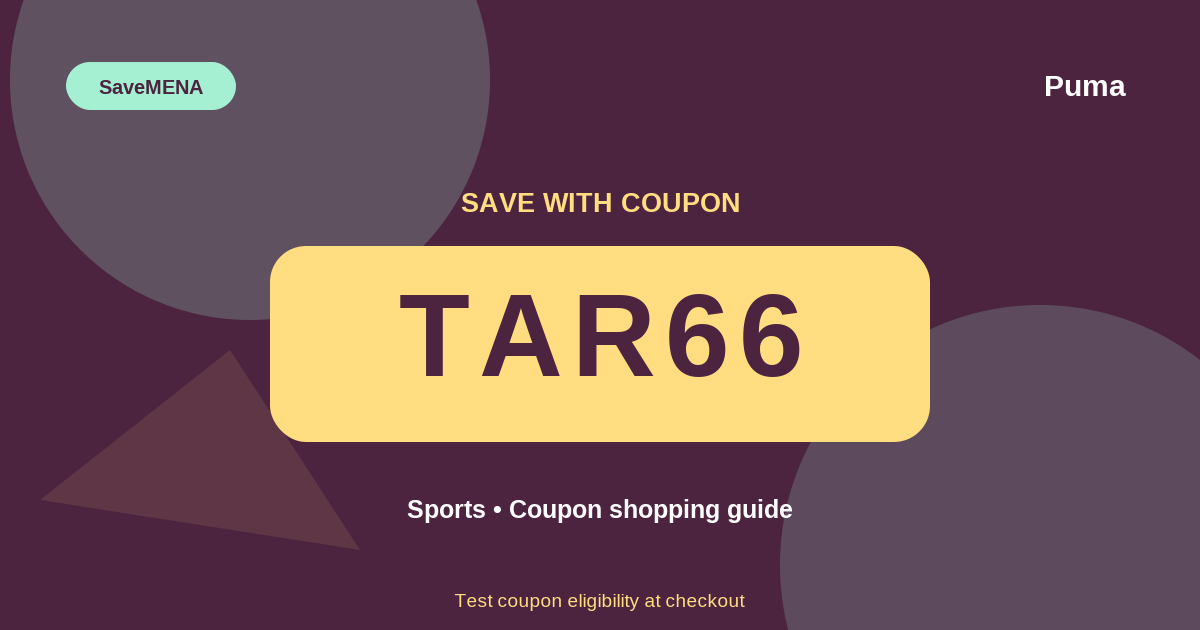
Codes available to try while comparing
These codes are not guaranteed for the article topic or listed brands; test them at checkout and use the live result.
Identifying Coupon Eligibility on Noon UAE
Before you dive into the checkout page, confirm that the product you intend to buy falls under Noons’ promotional umbrella. Sports items from the Puma range typically qualify, but the coupon may be restricted to certain categories or brands. Check the product page for any notes or a preliminary discount tag that suggests eligibility. If the item has no visible promotional indicator, it’s safer to cross‑verify it with Noon’s coupon policy, ensuring you do not waste time on an ineligible product. This step helps prevent the coupon from failing once the payment method is confirmed.
Once eligibility is confirmed, log into your Noon account or create one if you haven’t yet. Without a registered profile, many coupons will not register, regardless of the product category. Make sure your profile matches the region (UAE) and that your shipping address is set correctly, as Noons generally checks the region before allowing a code to work. A neatly set up account reduces the chances of encountering a “code invalid” message during the payment process.
Confirming Your Sports Product Selection
After verifying eligibility, add your chosen Puma sports item to the cart.A coupon is not guaranteed; verify its result at the retailer checkout. Double‑check that you are not in a promotional bundle that overrides single‑item discounts; bundles often get their own pricing rules, preventing external coupons from applying. This protects you from a silent coupon rejection caused by the chosen bundle type.
Hover over the shopping cart icon to view a summary of items. Pay close attention to any “product restrictions” text that might appear. If the item is flagged as restricted, the coupon will likely not work with your chosen payment method. In that scenario, consider updating the item to a different variant or choosing another product that explicitly lists the discount before proceeding to checkout.
Verifying the TAR64 Coupon Availability
Now that your cart has an eligible product, it’s time to input the coupon code. Locate the “Apply Coupon” field on the cart or checkout page and enter TAR64 exactly as shown. The code recognises each letter’s case; a minor typo can instantly invalidate it. After hitting “Apply,” wait for a confirmation message before moving onto payment options.
Keep in mind that the coupon is “available to try.” No guarantee can be made that it will end up in the final subtotal. Rather than looking for a specific discount figure, rely on the app’s status message to confirm whether the code was accepted. If the message shows an error, do not assume a broader system failure—there may still be an issue with the payment method, which we’ll explore next.
Checking Store‑Specific Payment Method Restrictions
Different payment methods on Noon can trigger unique coupon behaviours. For example, debit cards sometimes trigger a separate “card fee” addition that might prevent a coupon from being applied. Similarly, digital wallets or credit cards issued by local banks may have restrictions that are invisible until you proceed to payment. Each method can be subject to a different rule set, especially for coupons that were configured with “card‑only” eligibility.
When you’ve loaded TAR64 and see no acceptance error, review the available payment options on the checkout screen. The system will normally list Visa, Mastercard, American Express, and sometimes local e‑wallets. Make note of any notice indicating “coupon not available with 3‑D Secure” or a similar restriction—a cue that you might need to switch the payment method to bypass the limitation.
Ensuring Correct Payment Method Entry
Hover over the chosen payment method field. Noons typically requires complete card details: number, expiry date, CVV, and the billing address linked to the card. If any of these details do not match the bank’s records, the transaction may fail, which can erroneously flag the coupon as invalid. Verify each data point carefully before confirming the payment.
If you’re using a stored card, confirm that it is active and that the bank hasn’t flagged it for suspicious transaction patterns. An inactive or blocked card may send a silent “coupon not applied” error. In such cases, try a different card or switch to a digital wallet that does not enforce 3‑D Secure, which can sometimes bypass the coupon restriction entirely.
Handling Technical Glitches During Checkout
Sometimes a coupon appears to fail due to a network hiccup or a temporary database sync issue. When TAR64 fails after entering a correct payment method, try refreshing the checkout page or clearing the browser cache. These actions can resolve minor front‑end glitches that prevent the coupon from registering.
If the discount still doesn’t apply, pause the transaction, close the app, and reopen it. Re‑authenticate if necessary, then redo the entire process carefully. Make sure the app’s version is up‑to‑date; older software can misinterpret coupon codes as seen in reported intermittent failures during older releases.
Saving the Coupon for Future Use
Most shoppers find value in storing a working coupon for later use, but you must confirm that the code remains valid after a failed attempt. Noons often allow the same code to be entered again on subsequent orders, provided it hasn’t expired. If TAR64 was accepted on a previous order, add it to your coupon list for quick reuse in future collections.
Use the “My Coupons” or “Saved Savings” tab if available, and note the code’s status. If you’re unsure whether it will still exist after modification of your payment method, simply try pasting it into an empty cart later. Verify acceptance before you finalize the purchase to save the time spent troubleshooting again.
When All Else Fails – Reaching Out for Support
When a coupon still does not apply after all performance checks, it may be a server‑side issue or a mis‑communication from Noon regarding the coupon’s eligibility window. In this scenario, contacting Noon’s customer support is the most reliable next step. Provide them with the exact product details, coupon code, and the selected payment method to get precise assistance.
Keep a screenshot or a written record of the error message you received; it will help the support team diagnose the issue faster. They can clarify whether the coupon is temporarily on hold, expired, or simply incompatible with the payment method you selected. Once the issue is clarified, you’ll know whether to retry or accept an alternate discount strategy.
Related SaveMENA pages
Related articles
Official sources to check
Frequently asked questions
Why does my Noon UAE coupon not apply at checkout?
The coupon may be restricted to specific payment methods, product categories, or require a certain type of card.A coupon is not guaranteed; verify its result at the retailer checkout.
Do I need a specific card to use the TAR64 coupon?
Noon does not publicise a card requirement for this coupon, but payment methods can affect application. If you encounter errors, try another card or switch to a digital wallet that doesn’t enforce 3‑D Secure to test if the coupon will accept.
Is it safe to try the coupon again after a failed attempt?
Yes, you can retry entering TAR64 anytime the coupon remains active. On Noons’ platform, coupons can usually be re‑used until they expire or reach any usage limits, so a fresh attempt is safe.
Can I combine the TAR64 coupon with other discount programs on Noon?
Coupons generally cannot be stacked with other discounts or sales unless expressly stated by Noon. If you’re unsure, check the coupon’s terms within the app or consult customer support before proceeding.