Apple Tablets on Noon UAE: payment method — coupon troubleshooting · TAR64
Anyone who has tried to apply a Noon UAE coupon while shopping for tablets, only to find the code rejects itself, has had the same frustration.
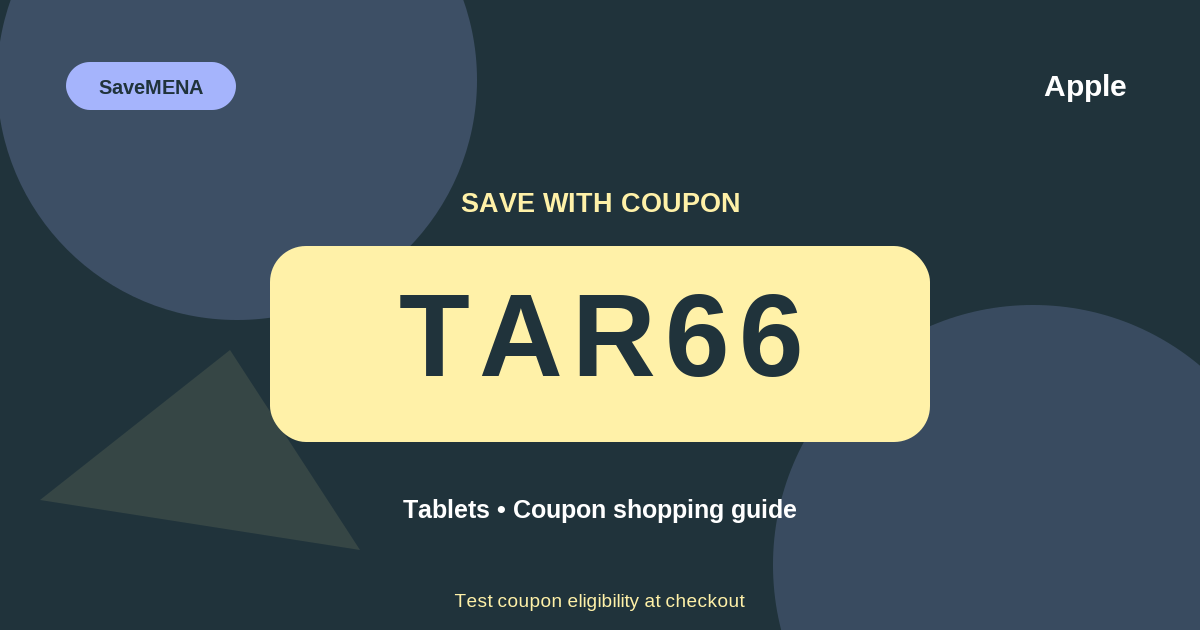
Codes available to try while comparing
These codes are not guaranteed for the article topic or listed brands; test them at checkout and use the live result.
Identify Why the Noon Coupon May Stall on Tablet Purchases
When Noon’s system does not accept a valid coupon during a tablet checkout, the most common culprit lies in the product attributes. Tablet models differ in size, storage, and sometimes in whether they’re sold as refurbished or new, and each attribute can trigger a different offering pathway within Noon’s backend. If the “TAR64” code is flagged as incompatible with a particular storage capacity or bundle, the UI will simply refuse application, even if you are using Apple Pay for the transaction. Verifying that the specific tablet variant you’d like matches the coupon’s eligibility phase is the first step before you leap into payment‑method concerns.
Once the variant check is done, you can inspect the coupon’s rule set in the seller’s merchant portal, if you have access, for any hidden constraints. If the rule states a minimum spend that is not met by the chosen tablet, Noon’s system will automatically block the discount regardless of the chosen payment approach. Ensuring the product meets all coupon prerequisites eliminates a large portion of false “code not working” scenarios.
Check the Compatibility of the Coupon with Apple and Samsung Payment Methods
In the UAE, Noon often treats Apple Pay and other mobile wallets as a single payment category within the checkout flow. However, the coupon engine may differentiate between card‑backed and wallet‑backed payments. If the “TAR64” coupon has a simple activation flag tied to “card payments only,” the application will show an error during Apple Pay selection. This nuance can be subtle and often isn’t documented in the coupon details, so testing both Apple Pay and a regular credit card first reveals the payment‑method dependency.
Similarly, Samsung Pay or Google Pay can sometimes bypass certain merchant restrictions, but they too might be blocked if the coupon condition is tied specifically to Apple Pay. By toggling between these payment options in a controlled test checkout, you can determine whether the coupon’s failure is truly linked to the Apple payment method or to a broader payment‑method incompatibility.
Verify Cart Eligibility Before Adding the Coupon
The moment you add a tablet to the cart, Noon’s algorithms flag the entire basket for coupon validation. If other items in the cart—such as accessories or previous purchases—interfere with the discount rule, the coupon can be denied before you even hit “apply.” For example, a pre‑ordered planner for the same store date might disallow simultaneous coupon usage for electronic devices. Remove such items, or replace them with the standard tablet version, before attempting to use “TAR64.” This pre‑checkout sanitation is vital for Apple Pay users who often rely on incremental purchases via banner offers.
After cleansing the cart, add the tablet again and trigger the coupon application. Should the code still refuse, note the exact error message Noon displays. An “invalid coupon” text, as opposed to “coupon not available for the chosen payment method,” points to cart‑level issues. In either case, a fresh cart experience is guaranteed to reveal the true root cause.
Clear the Browser Cache and Retry the Coupon Application
Browser caching is a silent disruptor of coupon logic because it preserves stale token states. If your session already stored a previous payment‑method flag—such as “Apple Pay” locked to a specific device— the coupon engine might incorrectly assume that state when you later switch to a new device or a different payment type. The quick fix is to clear the cache of the web browser on which you’re shopping. On iOS devices, for instance, resetting the Safari cache forces Noon’s system to re‑evaluate the coupon against the fresh session data.
Once the cache is cleared, you can safely add the tablet, apply the “TAR64” code, and choose Apple Pay again. A successful application will confirm that the coupon failure was indeed a caching glitch. If the code remains stubborn, you can proceed to the next troubleshooting step without resetting the cache again, ensuring a consistent session is maintained for accurate coupon validation.
Recreate the Scenarios that Trigger the Coupon Failure
Repetition is the best teacher when diagnosing payment‑method specific errors. Take a systematic approach: first, place the tablet into an empty cart on a different device, using a different internet connection, and apply the coupon. Log the result. Then switch to Apple Pay on the original device, keeping the same coupon. Document whether the error replicates in each instance. This process pinpoints whether the coupon malfunction is device‑dependent, network‑dependent, or strictly linked to the payment method selection.
When the “TAR64” code works on other devices but still fails on your iPhone with Apple Pay, you can surmise that the failure is isolated to the combination of device‑specific Apple Pay tokens and Noon’s backend logic. In that case, consider contacting Noon support with the exact error description and the apple‑specific device identifier. Consistent evidence across trials strengthens your case for a systemic issue.
Test Alternative Payment Methods on Noon to Compare Effectiveness
In many markets, toggling to a credit‑card payment method can expose a coupon that Apple Pay ignores. Grab a single‑use virtual card or a standard debit card, add the tablet with the same checkout flow, and apply the coupon again. Noon’s backend may treat the transaction differently when a traditional card is selected, allowing the discount to pass through. The comparative effect showcases whether the “TAR64” code has a general Apple Pay exclusion or a more specific payment‑type filter.
Take note of any changed behavior: a successful discount on a card but a failure on Apple Pay points directly to payment‑method gating. Conversely, if the coupon fails across all payment options, the underlying issue is more likely coupon‑specific rather than payment‑method–related. Document each outcome so that you can reference it when discussing the problem with Noon support or stakeholders.
Contact Noon Support Through the Dedicated Apple Pay Channel
When all self‑service tactics fail, reaching out to Noon’s customer care with a precise, well‑structured report is the most decisive step. Include the exact tablet model, the timestamp, the “TAR64” coupon code, and the error message. If your device’s Apple Pay requires special tokens, mention that the transaction was initiated via Apple Pay’s Secure Element. This specificity ensures that Noon support can parse step‑by‑step logs rather than guessing general issues.
In some cases, Noon’s support team may automatically trigger a coupon revalidation process, especially if they detect a systemic mismatch between Apple Pay and coupon eligibility. Request a confirmation that the coupon is now valid or a clear alternate coupon if your purchase is time‑sensitive. Document any responses in your order notes for future reference, especially if you plan to reuse the coupon or if further disputes arise.
Make an Informed Decision About Using the Coupon Versus Direct Purchases
After confirming the coupon’s status, you need to evaluate whether to press forward with the “TAR64” code or settle on a straightforward purchase. If Noon confirms the coupon is not compatible with Apple Pay for tablets, you can still rely on a credit‑card method for the discount. But if the coupon is valid only for non‑Apple Pay transactions and you prefer using Apple Pay for its ease, you may opt for a direct purchase without the coupon, assuming you can still negotiate for a better price elsewhere.
Keep in mind that your ultimate objective is to obtain the tablet at the lowest possible cost while preserving the convenience of Apple Pay. A feasible compromise is to use a temporary virtual card, obtain the coupon discount, and then add an Apple‑Pay‑backed device to the cart that meets all eligibility rules. The logic that ties payment‑method decisions to coupon validity is nuanced, but by following the structured steps above you’ll be equipped to make an evidence‑based choice.
Related SaveMENA pages
Related articles
Official sources to check
Frequently asked questions
Why does the Noon coupon “TAR64” keep showing as invalid even though I enter it correctly?
The issue frequently stems from cart or payment‑method incompatibilities.A coupon is not guaranteed; verify its result at the retailer checkout. ) aligns with the coupon’s eligibility criteria.
Will using a different Apple device fix the coupon not working problem?
Sometimes, a new device can reset session tokens that Noon’s backend uses, which may resolve caching or device‑specific errors. However, test first by clearing cache and re‑applying the coupon before swapping devices.
Can I still use the “TAR64” coupon if it’s blocked for Apple Pay?
Yes—switch your payment to a standard credit or debit card. Many coupons that block Apple Pay remain usable for other card‑based payment methods, but confirm at checkout to be sure.
What should I include when contacting Noon support about the coupon?
Provide the tablet model, coupon code, error message, exact time of attempted use, and note that the transaction involved Apple Pay. These details help Noon’s team locate logs and resolve the issue efficiently.