Samsung Tablets on Noon UAE: payment method — coupon troubleshooting
If the Noon UAE coupon you’re trying to apply to your tablet purchase feels like a dead‑end, start here. This guide walks you through a systematic troubleshooting
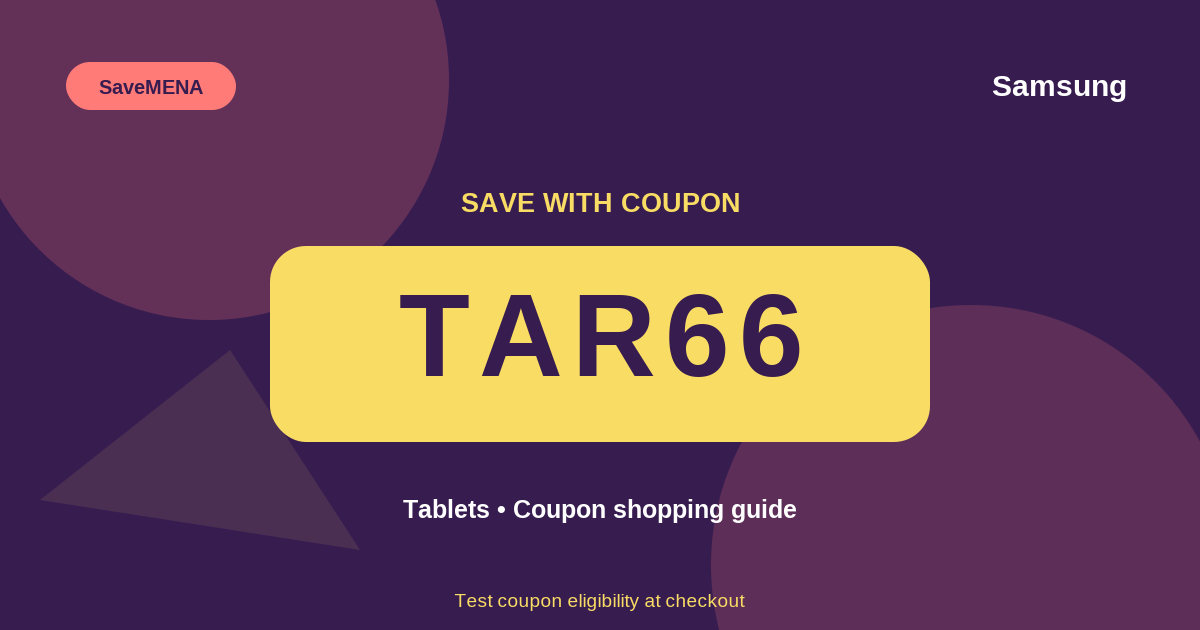
Codes available to try while comparing
These codes are not guaranteed for the article topic or listed brands; test them at checkout and use the live result.
1. Confirm Storewide Coupon Eligibility for Tablet Products
Before reaching for the TAR66 code, double‑check that Noon’s catalog marks your selected tablet as coupon‑eligible. Many coupon codes are activated site‑wide; however, certain promotions may still restrict them to specific sub‑categories. The product listing can usually indicate if “discountable” is applied, which will confirm that the coupon will be recognized when you add the item to the cart. When in doubt, scroll to the “Specifications” or “Additional Information” sections where Noon prompts for any applicable promotions.
Even if the tablet is eligible, verify that the coupon itself is active. While the code TAR66 is advertised as available, Noon may suspend or reinstate it at any time. A quick glance at the product’s price breadcrumb along with any promotional banner can reveal whether you should expect a reduction. If the banner is absent, the code might no longer apply, and you’ll need to seek an alternative discount or use a different coupon that is confirmed active.
2. Double‑Check Coupon Code Input Accuracy
Entering your coupon correctly is essential. Noon’s coupon field requires the exact code, including capitalization and punctuation. The TAR66 code has no hyphens or spaces, and a single accidental space before or after the string will prevent Noon from registering it. Replace any hand‑typed characters with a copy‑paste method for assurance, and make sure the entire string appears without trimming.
After typing or pasting, press “Apply.” Noon will instantly respond with a success or failure notification. If the notification states “Coupon not found,” confirm that you are still on the same page and that no other promos are overriding the code. Re‑loading the page to re‑introduce the coupon may fix minor cache glitches that sometimes cause the validation step to fail.
3. Ensure Samsung Pay Is Linked and Active in Your Noon Profile
A core requirement for utilizing Samsung Pay during checkout is that the payment method be properly associated with your Noon account. Navigate to the “Payment Methods” section in your profile and confirm that Samsung Pay appears as a listed option. If it shows “Not linked,” you’ll need to add the card details from Samsung Pay to Noon. The linking process must run to completion; otherwise, Noon will consider Samsung Pay unavailable during the transaction.
Once linked, double‑check that Samsung Pay is set as the default payment method for this order. If another card or wallet remains selected, Noon may still default to that card, which could cause the coupon to be ignored if the manufacturer stipulates certain payment methods. Switching the default to Samsung Pay before re‑applying the coupon helps ensure that Noon’s backend associational logic processes the code correctly.
4. Verify the Coupon’s Presence in Your Order Summary
Adding a tablet to your cart and applying TAR66 should trigger an immediate update in the order summary. Look for a line item with “Coupon Applied” or a discount icon that shows the reduced subtotal. If the summary remains unchanged, the coupon was not accepted; you should re‑initiate the coupon application process, ensuring no steps were missed.
If a discount line appears but the amount remains the same afterward, Noon might be displaying a placeholder for the coupon while waiting for validation against your Samsung Pay transaction. In that case, proceed to the payment step to see if the final total reflects a net reduction. The ultimate confirmation is at the final checkout page, where the post‑payment calculation shows the definitive total you will pay.
5. Explore Payment Method Restrictions That Might Affect Coupon Validity
Certain promotional codes are tied to specific payment channel conditions. For instance, a coupon requiring "card payment only" will not apply if Samsung Pay is treated as a wallet-based transaction by Noon. Check the coupon’s fine print or Noon’s help articles for any restrictions tied to payment method types, such as “credit/debit card only” or “No wallet coupons.”
If Samsung Pay is indeed treated as a wallet transaction, you can attempt to switch to a directly linked credit card instead. This alternative path often triggers the coupon’s discount logic. Maintaining multiple payment options in your profile gives you flexibility to test whether the code applies asynchronously when you choose a different method.
6. Address Errors During Payment Confirmation That May Reference Coupons
Occasionally, the checkout page will return error messages that refer to coupon compatibility, especially if the payment method conflicts. A common message states something akin to “Your selected payment method is not supported for this coupon.” If this happens, a quick clearance of browser or app cache can resolve stale session errors. Remove the cart contents, re-add the tablet, re‑apply TAR66, and reconnect Samsung Pay.
If the error persists, consider removing all other items from the cart to isolate the tablet as the sole purchase. Shopping carts containing a mix of categories may influence coupon eligibility checks. Once the tablet stands alone in a clean cart, try the coupon again with Samsung Pay to see whether the issue resolves.
7. Reach Out to Noon Customer Support for Coupon and Payment Method Clarification
When your attempts still fail, Noon’s support line is the most reliable approach. Assemble the following before calling or messaging: the product ID, the coupon code TAR66, the payment method name, and any error messages. Providing this data helps the support agent reproduce the issue quickly and determine whether the coupon is still active for the tablet category or if your Samsung Pay linkage is incorrectly configured.
Support may also advise temporary workarounds—such as applying the coupon via the Noon mobile app rather than the website—or confirm that the promotion has been retired. Recording the conversation details ensures that you have proof of the solution, which is valuable if you encounter the same issue on future orders.
8. Final Checklist Before Finalizing the Tablet Purchase
A coupon is not guaranteed; verify its result at the retailer checkout. If any of these fail to appear as expected, revisit the earlier troubleshooting steps. A final visibility check at the checkout page confirms the net total displayed matches the amount that will be charged.
If you observe a consistent discrepancy—coupon shows but the reduction does not appear in the total—then the coupon likely failed to apply at the backend level. In that scenario, contact Noon support immediately with the screenshot or reference of the cart. Following the checklist at each step eliminates common oversight while maintaining a clear record for any adjustments at the final payment stage.
Related SaveMENA pages
Related articles
Official sources to check
Frequently asked questions
What should I do if Noon shows “Coupon not found” when I try to apply TAR66?
Ensure there are no leading or trailing spaces and that you are on the correct page. Re‑copy the code and press Apply again. If the message persists, the coupon may no longer be active for your tablet, and you should look for an alternative discount.
Can I use Samsung Pay for a Noon transaction that has an active coupon?
Samsung Pay must be properly linked and selected as the default payment method at checkout for the coupon to be considered. If Noon treats wallet payments differently, try switching to a directly linked credit card.
Why does Noon sometimes apply a coupon but still reject the Samsung Pay method?
Some coupons limit acceptance to specific payment types. If Samsung Pay is blocked, this indicates a compatibility filter. Switching to another card type or contacting Noon support will resolve or clarify the restriction.
If my coupon code appears to work, but the final amount doesn't reflect a discount, what’s wrong?
Double‑check the order summary for the discount line. If absent, the coupon failed during the payment validation stage. Re‑add the tablet, re‑apply the code, ensure Samsung Pay is active, and reach out to Noon support if the issue persists.