Xiaomi Tablets on Noon UAE: payment method — coupon troubleshooting · TAR64
When you click “Use Code” and the screen flashes an error, you know the “Noon UAE coupon not working Tablets Xiaomi payment method” scenario feels frustrating.
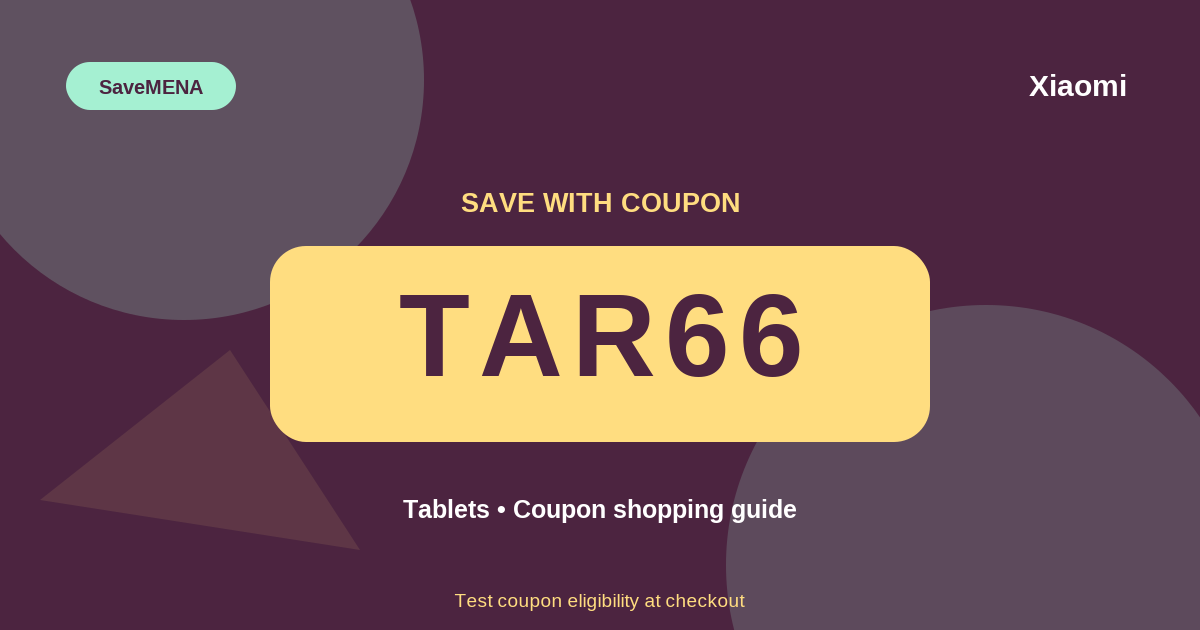
Codes available to try while comparing
These codes are not guaranteed for the article topic or listed brands; test them at checkout and use the live result.
Why the Coupon Might Not Apply
Coupons on Noon’s platform have a limited scope defined by the merchant, not by Noon. A code that works on a popular phone may not trigger on an X‑iaomi tablet because the seller’s offer does not include that category. As a result, the first thing to check is the item list in your order: confirm that the specific Xiaomi tablet is listed among the eligible products for any discount. If it’s absent, no amount of code‑management will enable a unpublished promotion.
Even if the tablet is present, the coupon may be blocked by a rule that the seller added at checkout. Sellers often enable “apply only if minimum spend is met” or “apply only to items from seller ID X.” Ensure no hidden threshold is preventing the coupon from firing. If the seller details show the code is not available for your exact product variant, you will need an alternative discount strategy.
Checking Order Eligibility Before Checkout
Before you click “Proceed to payment,” scroll through the cart summary that appears on the right side of the Noon app or website. The cart screen lists each line item, including any applicable offers or restrictions. If your code is listed under “Available offers,” it will automatically deduct the discount value. If it’s not shown, you’ll see a note explaining the reason – such as incompatible product or invalid code.
Sometimes the code appears but is greyed out because the product price is less than a hidden threshold. Many sellers set a minimum cart value before any coupon triggers. Verify that the total of the items in your cart, including taxes and delivery fees, meets or exceeds that minimum. If the threshold is not met, you can add a small accessory line item to raise the value, then re‑apply the code.
Confirming the Payment Method Compatibility
The “payment method” lens is crucial when troubleshooting a coupon that won’t work. Noon supports credit/debit card, cash on delivery, Apple Pay, Google Pay, and sometimes UPI-like mobile wallets. Certain merchant offers are restricted to specific payment methods, so double‑check your chosen method against the seller’s allowed list. Some sellers only show their coupon for card payments, not for COD.
If you are using a Xiaomi wallet or a custom payment option through a third‑party service, it may not be recognized by Noon’s coupon engine. In that case, switch to a standard card or the “Pay via Google Pay” option. The coupon will only be redisplayed on the final payment screen after the method has been confirmed. Remember to reverse the single‑use or multi‑use rule of the coupon once you have completed the transaction.
Verifying Offer Terms in the Cart
Open the cart and tap the “Coupons” section. If the TAR64 coupon is listed to “Try,” you can preview its eligibility without applying it to the total. Clicking “Try” toggles visibility but does not secure the deduction. This preview shows the exact amount it would apply, but only after confirming that the payment method you selected is valid for discount activation.
Match the preview discount figure with the cart’s subtotal. If the amount appears but the final total doesn’t change, the problem usually lies in the payment stage. Check that the card you want to use is saved in the app and that there’s sufficient balance or credit limit. If a pre‑authorization fails, the coupon might be rolled back automatically by Noon’s payment processor, leaving the price unchanged.
Adjusting Payment Options to Trigger the Discount
When you reach the payment screen, notice the dropdown where you choose the payment method. If the screen remains unchanged after switching from one method to another, the coupon may have already been invalidated. Clear the cart, restart the checkout, and apply the coupon before selecting a new payment method to ensure it stays active.
For high‑value items like a Xiaomi tablet, the seller may require a 3D‑Secure authentication process. Some payment providers incorporate a low‑risk waiver that can suppress coupon usage. In that scenario, select a different card brand or opt for a 2‑step verification route. Keep an eye on the live chat request; merchants often grant a short‑lived coupon override when you ask directly from the seller’s support page.
Capturing the Coupon During Final Payment
At the final payment screen, the coupon code field should still display TAR64, and the resulting discount should be reflected in the displayed final amount. If it’s without result, swipe beyond the cart summary to the bottom and tap “Add final note.” Some sellers require you to provide a reason for the coupon usage; leaving the note blank may trigger a system error.
Once the coupon is applied, read the updated total carefully. The system will list “Coupon applied” next to the original price. Notice the exact deducted amount and confirm it matches the coupon terms known to you. If the field shows “code invalid,” double‑check that you have not exceeded the usage limit or stretched the coupon across two separate devices or accounts.
Alternative Ways to Use the Coupon Code
If the coupon refuses to apply on your tablet purchase, consider the “Try” feature again. The seller may have a hidden rule where the discount applies only when purchased as part of a bundle with another product. While this is not guaranteed, adding a small accessory or detachable case for the Xiaomi tablet might trigger the discount. You can verify this by re‑adding the accessory, applying the code, and seeing if the cart updates accordingly.
Another possibility is to apply the coupon to an earlier stage purchase unrelated to the tablet, then substitute the tablet later. By adding the order items, completing the purchase with the coupon, and then hoping the seller allows a product exchange, you may harvest the discount. Such a process is contingent on seller policies, and must be explicitly requested with the seller’s trading team before you place the order.
Final Checklist Before Completing the Purchase
At checkout, review the following points: 1) The selected product is eligible under the coupon terms; 2) The cart subtotal meets any a minimum-spend condition, if the retailer shows one) The selected payment method is supported by the coupon; 4) The coupon is listed as “applied” on the final payment screen. If any of these steps fails, note it down and contact Noon’s support or the seller’s chat for confirmation. A successful coupon application will reflect in a lower final payable amount.
Once satisfied, finalize the payment. Noon will send a confirmation SMS and email indicating that the coupon was applied, and the amount saved will be shaded. Keep a screenshot of the receipt in case you need to dispute a mis‑calculation because the coupon did not function as expected.A coupon is not guaranteed; verify its result at the retailer checkout.
Related SaveMENA pages
Related articles
Official sources to check
Frequently asked questions
Why does my Noon UAE coupon not work on tablets?
It might be due to the seller limiting the coupon to other product categories, a hidden minimum spend, or an incompatible payment method. Check the cart for eligibility, confirm the coupon appears under “Coupons,” and verify the chosen payment method is allowed.
Can I use the TAR64 code with a Xiaomi purchase?
Yes, the code can attempt to apply to a Xiaomi tablet, but you must confirm that the seller allows the discount on that variant and that your cart meets any set thresholds. If it still fails, try changing the payment method.
What payment methods support the coupon?
The coupon typically applies to standard credit/debit cards, sometimes to Apple Pay or Google Pay. Cash on Delivery and some third‑party wallets may not trigger the discount. Verify the supported methods in the seller’s offer details before checkout.
How to claim the coupon if it doesn't apply automatically?
Manually enter TAR64 in the “Coupon” field on the cart page, then proceed to the payment screen. If it still fails, clear the cart, restart checkout, select a different payment method, then reapply the coupon. Contact seller support if the issue persists.