Anker Computer Accessories on Noon UAE: seller context — coupon troubleshooting · TAR92
When your Noon UAE coupon code “TAR92” refuses to apply, it can feel like an invisible barrier standing between you and a potential savings on your next computer
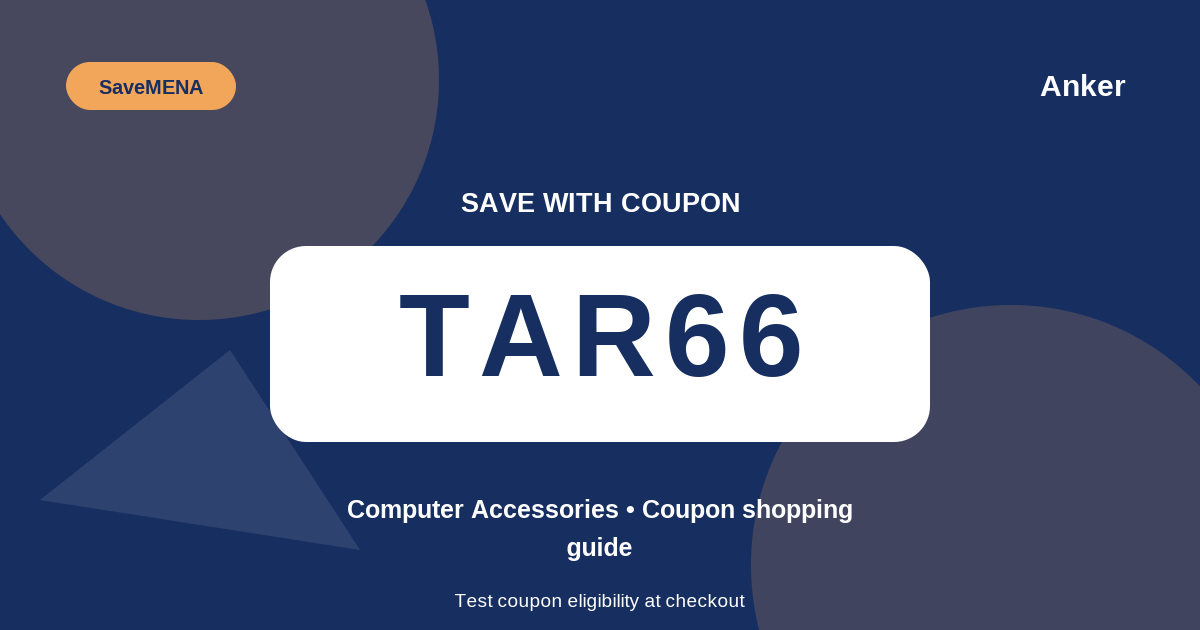
Codes available to try while comparing
These codes are not guaranteed for the article topic or listed brands; test them at checkout and use the live result.
1. Verify the Coupon Code Format and Availability
Start by double‑checking the exact notation of the coupon “TAR92.” Copy the code from the source you received and paste it into Noon’s coupon field, paying close attention to capital letters and avoiding accidental spaces. Noon’s system is case‑insensitive but any stray character will invalidate the code. Once you confirm the spelling, check if the coupon appears in your order summary after adding items. If it disappears instantly or if a pop‑up states “invalid code,” the code may be out of circulation or restricted to specific sales periods.
Next, scrutinize the product listings for the coupon’s eligibility. Coupon issuers sometimes tie a code to a particular category or brand. Even though Noon doesn’t enforce brand restrictions publicly, confirm that the Anker product you added actually falls within the “Computer Accessories” group. If you’re ordering an accessory that’s coded under a different sub‑category, the coupon will not activate. Keeping an eye on the exact classification helps you avoid mis‑alignments before you even attempt checkout.
2. Confirm the Anker Products List on Noon UAE
Locate the Anker seller page on Noon and review all listed items categorized under computer accessories. Not all Anker products are sold through the same Noon seller lane; some may be third‑party re‑sellers offering different SKUs. This distinction matters because coupons often apply only to items stocked by the primary seller. Double‑check the seller’s name in the product details to ensure it matches the Anker storefront you intend to purchase from.
To avoid surprises, click through to an individual item page and note the seller’s info in the “Sold by” section. If the seller’s profile is consistent with the Anker store, you can safely proceed. However, if the product is offered by a different vendor, the coupon may not apply. This subtle seller‑specific check saves you from a doomed checkout and directs you to the correct stock source.
3. Check the Cart and Eligibility Criteria
After adding your chosen Anker accessory to the cart, view the cart summary and verify all details: quantity, price, and shipping options. Certain coupons bind to conditions like minimum spend or a mandatory free‑shipping trigger. While we can’t provide exact thresholds, ensure that your cart fulfills any implicit criteria the coupon might demand. If your total is too low, the code might be automatically discarded during the checkout process.
Also, examine the shipping destination. Coupons tied to postal code or emirate may behave differently. Noon calculates shipping fees based on delivery to UAE addresses, but special promotions can restrict them to specific emirates. If you’re shopping from a UAE emirate but notice the code invalidating, it might be a region‑specific rule, not an error on your part.
4. Analyze the Noon UAE Coupon Application Process
During checkout, there’s a dedicated field to input coupons. Enter “TAR92” exactly as once. Pay close attention to any message that pops up—whether it confirms a discount, shows an error, or offers an explanation. No coupon‑related error message typically hints that the coupon is expired, already used, or not applicable to the selected items. Even if an error appears, read it carefully; the system often provides a brief clue like “can’t apply to this seller” or “requires a different category.”
If the coupon seems to be accepted but you still see no price reduction in the final summary, check your browser cookies or the site’s caching mechanisms. Logout, clear your cache, and attempt the process again. Persistence with a clean session often resolves hidden glitches that prevent the coupon’s effect from showing up.
5. Explore Alternative Discount Opportunities
While you’re troubleshooting the coupon, it’s wise to broaden your discount horizon. Unused loyalty points, flash sale events, or Noon’s own lake‑of‑discount days can add value to your purchase. Check for any ongoing promotions that align with your Anker accessory purchase. Though these are separate from the “TAR92” code, they may offset the same cost, providing equivalent savings without coupon complications.
Many Noon users also leverage bundle deals or “Buy One Get One” offers in computer accessories. Scan the category page for combos or starter packs that include Anker accessories. Sometimes, these bundles are sold by the same seller and apply automatically, relieving the need for a coupon entirely while still delivering a healthy discount.
6. Contact Noon UAE Support for Transaction Confirmation
If the coupon doesn’t activate and no alternative perk applies, reaching out to Noon’s customer support is the next sound step. Use the live chat or support email, provide the exact product SKUs, your cart details, and the attempted coupon code. Request confirmation on whether the coupon is still active for the Anker store and if there are hidden restrictions you might have overlooked.
Note that support responses can clarify whether the coupon is linked specifically to Anker’s official Noon storefront or if it’s bundled with a broader sale that must be triggered manually. Their feedback can guide whether to rescue the coupon or shift to a different purchasing workflow that honors the discount.
7. Update the Browser and App for Coupon Refresh
Cached data or outdated app versions can cause Noon’s coupon engine to behave unpredictably. Ensure your web browser or Noon mobile app is on the latest version. If using a mobile device, update the app via the UAE App Store or Google Play before attempting the purchase again. An outdated interface may not recognize new coupon rules or could display stale discount calculations.
After updating, clear the app’s local storage or browser’s cookies, then re‑add the Anker product to your cart. This fresh start often clears any stale validation errors that prevented the coupon from being applied on the first attempt.
8. Rely on Seller Response for Final Clarification
Since the Anker storefront on Noon is a distinct seller, it has the authority to communicate any specific terms surrounding its promotions. In case the coupon remains stuck, explore the seller’s “FAQs” or “Seller Support” contact sections. Sometimes, sellers have their own discount codes or exclusive offers not reflected on the main Noon discount listings.
Engaging directly with the Anker seller, either through Noon’s messaging interface or via any listed support email, can provide definitive answers. They can confirm if “TAR92” is a legacy code, if it was tied to a limited launch, or if a new coupon is pending activation, thereby concluding your troubleshooting loop.
Related SaveMENA pages
Related articles
Official sources to check
Frequently asked questions
What should I do if Noon says the coupon “TAR92” is invalid?
Check that you’ve typed the code correctly and that the coupon hasn’t expired. If the error persists, contact Noon UAE support or the Anker seller to verify whether the code is still active for their computer accessory listings.
Can I use “TAR92” with other brands on Noon?
The coupon may be limited to specific sellers or brands. Verify eligibility on Noon’s coupon terms or ask the seller; if it’s exclusive to Anker, it won’t apply to other brands.
Will clearing my browser cache fix a coupon error?
Yes, clearing cache removes stale data that could confuse Noon’s discount engine, often restoring the coupon’s functionality when you retry the checkout.
Is there a difference between applying the coupon on desktop vs mobile?
Both platforms should process the code the same way, but app versions sometimes lag on updates. Ensure your Noor app is current; otherwise, use the desktop site to enter the code.