Logitech Computer Accessories on Noon UAE: seller context — coupon · TAR53
When you’re hunting for the best deal on Logitech computer accessories and the “Noon UAE coupon not working” message keeps flashing, frustration can set in quickly.
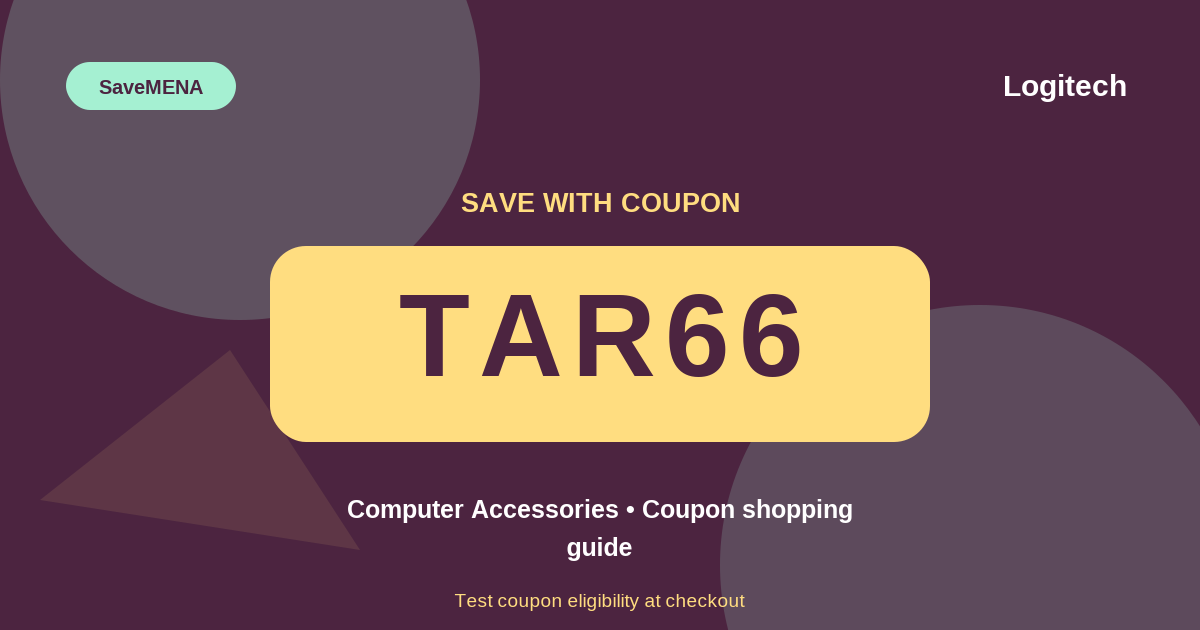
Codes available to try while comparing
These codes are not guaranteed for the article topic or listed brands; test them at checkout and use the live result.
1. Recognizing the Coupon Issue: Initial Troubleshooting Checklist
The first instinct when a coupon fails is to re‑enter the code, double‑check the spelling, and make sure you’re logging into the correct Noon account. These quick checks are often enough to clear up a typo or a case‑sensitivity error. Even if the code looks correct, a stray space or hidden character can trigger the “not working” message, so a fresh copy from the source is the safest start.
Beyond the text itself, consider whether you’re on the right device and browser. Mobile browsers sometimes mis‑render input fields, while desktop versions may hold a cached version of the page. Clearing your browser cache or switching devices can reveal whether the failure is a local display issue rather than a coupon policy problem. This foundational step ensures you’re not chasing a non‑existent bug.
2. Inspecting the Seller: Seller Rating, Verification Status, and Stock Visibility
Seller reliability is the cornerstone of a smooth checkout on Noon. Navigate to the product page’s seller section and examine their star rating and number of reviews. A rating above four stars coupled with a robust review count typically signals consistent fulfillment quality. If the seller’s rating is lower or reviews are sparse, it may indicate potential delays that could affect coupon eligibility during the final checkout stage.
Verification status is another critical layer. Sellers marked as Premium or Verified by Noon usually benefit from streamlined shipping and support. Check the badge next to the seller’s name; sellers lacking this status might have stricter policy enforcement or limited coupon acceptance. By confirming the seller’s standing, you can rule out account‑level restrictions that could interfere with your code.
3. Coupon Conditions at Noon: How to Decode the Fine Print
Noon’s coupon system may have baseline conditions that aren’t immediately visible. The TAR53 code is available for trial, but each store may impose its own “terms and conditions” link located under the product or during the wish‑list phase. Scan that link for clues such as “valid for specific brands” or “available only for selected seller categories.” Knowing whether the coupon has a brand or category restriction helps you decide whether a Logitech seller’s listing qualifies.
Frequently, coupons enforce a minimum spend or a required set of compatible items. Since we lack explicit policy details for TAR53, you should check for a “minimum order value” field on the product page, which normally appears next to the price. If the field is missing, the seller may have removed it, but double‑check at checkout when you’re ready to apply the code.
4. Realigning Your Order: Managing Cart Items and Quantities for Coupon Eligibility
Once you’re confident the seller is reliable and the coupon’s niche requirements are clear, load the desired Logitech accessory into your cart. Keep quantities minimal to avoid accidental exceedance of quantity limits that some sellers set for bulk orders. Set the cart for only one unit, as extra items can trigger “cart does not meet coupon criteria” errors.
Some sellers allow add‑ons like protective cases or cables that may or may not be eligible for the coupon. Cross‑referencing each add‑on against the seller’s “eligible add‑ons” table—a small icon or note often appears beside the item—helps prevent inadvertent un‑eligible combos, which can overwrite the coupon code at checkout.
5. Payment Pathways: Choosing the Right Payment Method to Avoid Credit Card Errors
Coupon problems can surface when the chosen payment method conflicts with Noon’s internal validations. Opt for a primary payment method that’s widely accepted—credit card or PayPal, for instance—since they tend to handle discount checks more reliably. If you’re using a newer prepaid wallet or a local credit facility, you may encounter a “payment mismatch” that cancels the coupon automatically.
Before finalising, review the currency conversion details if you’re using a debit card linked to a foreign feature. Noon typically displays the final amount in AED, so confirm the conversion rate and potential foreign transaction fees, which might otherwise trigger a rejection at the payment gateway level.
6. Navigating Cart Settings: Removing Unwanted Items or Adjusting Shipping Options
Unnecessary items in your cart, even if invisible, can trigger validation logic that disallows coupon application. Check the cart summary for hidden addons, gifts, or optional warranties that might not be displayed prominently. Deleting them before attempting the code can unlock eligibility.
Shipping options also play a role. Some sellers offer standard, express, or local delivery, each with distinct cost structures. Make sure you select the shipping method that aligns with the seller’s recommended “bulk‑free shipping” threshold, if any, as a mismatch may lead to a final price that falls below any sub‑minimum threshold required for the coupon to apply.
7. Using the “Apply Coupon” Feature: Step‑by‑Step Guidance and Common Pitfalls
Navigate to the cart page and locate the “Enter coupon” field. Paste TAR53 exactly as it appears, noting case sensitivity. Hit apply and observe the immediate recalculation. If the field clears or shows a generic error, double‑check that the field accepts single‑word alphanumeric codes; some interfaces restrict special characters.
Should the code still refuse to land, try clearing all browser cookies for Noon and re‑opening the site. Occasionally, the site remembers previous coupon attempts and may block re‑applications. A fresh session usually resolves such persistence issues, restoring the code’s eligibility path.
8. Final Verification at Checkout: What to Look for Before Confirming Payment
Before you hit the final “place order” button, scroll through the payment summary. The summary will list the item price, any applied coupon, shipping, and additional fees. Verify that the coupon total is present and that the final amount reflects the discount. If the coupon discount’s numerical representation is absent, it signals that the code was not accepted at this point.
Once you confirm the details, place the order. Even if the coupon didn’t apply instantly, stay alert for any subtle success notifications that may appear after payment confirmation—occasionally, Noon processes discounts post‑payment. If the code still fails, reach out to the seller via the “Contact Seller” link, as they may have a resolution pathway or an alternative coupon you can use.
Related SaveMENA pages
Related articles
Official sources to check
Frequently asked questions
Why does the Noon UAE coupon not work on a specific Logitech seller’s product?
The code could be incompatible with that seller’s listed conditions, such as a minimum spend or exclusive brand usage. Checking the seller’s verified status, ratings, and any stated coupon eligibility on the product page helps determine if the issue is seller‑specific.
Do I need to use a particular payment method for the coupon to be accepted?
Coupons generally work with standard credit or debit cards; using alternative payment methods like certain wallets may trigger validation conflicts. Opt for a commonly accepted payment option to reduce glitches when applying the code.
Can I apply the same coupon to other items in my cart after it fails on the Logitech product?
If a coupon remains invalid for a particular item due to seller restrictions, you may still apply it to eligible items later in the cart, as long as each item meets its individual coupon criteria. Double‑check each product’s terms before re‑attempting.
What if the coupon works during the cart stage but the final price shows no discount?
This could happen if the seller updates its stock or shipping terms at checkout, inadvertently dropping the coupon’s eligibility. Verify the final order summary before payment, and if the discount disappears, contact seller support for clarification.