Philips Kitchen on Noon UAE: seller context — coupon troubleshooting · TAR92
The first thing to do is confirm that you’re entering the code into the correct field on Noon’s UAE site or app.
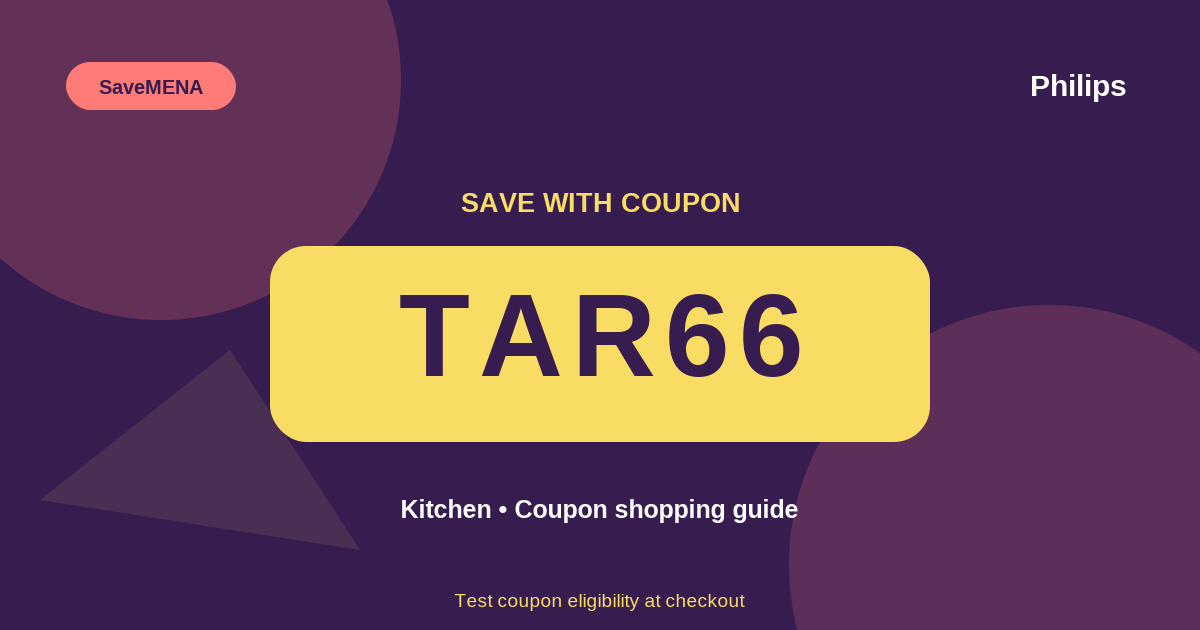
Codes available to try while comparing
These codes are not guaranteed for the article topic or listed brands; test them at checkout and use the live result.
1. Identify the Coupon Problem Early
The first thing to do is confirm that you’re entering the code into the correct field on Noon’s UAE site or app. Noon separates coupons for different categories and some codes only work on specific product pages. Make sure you’re on a Philips kitchen page, not a living‑room appliance page, because the coupon may be restricted by category. Even a stray space or wrong capitalization can result in a failure message, so double‑check the spelling of TAR92 before proceeding.
If your coupon instantly rejects the code, the issue is almost certainly technical on your end. Check that you have the latest version of the Noon app or a supported mobile browser, and test the code on a different device. This rule of thumb helps rule out device‑specific bugs that can keep a valid code from applying, as opposed to a problem with the coupon itself.
2. Verify Coupon Eligibility Is Met
Coupons on Noon often have specific eligibility requirements, such as a minimum spend or a single‑merchant limitation. Since you’re shopping for Philips kitchen appliances, confirm that the Philips seller has not stated a different threshold for applying coupon codes. Avoid guessing; the best practice is to glance at the product listing for any “Valid for this seller only” notice and check the cart before clicking Apply.
The Check‑out page is your final authority. Even if the coupon appears to work in the cart, Noon’s backend may override it based on real-time inventory or promotional conflicts. If the coupon disappears after you move from cart to checkout, note that the violation occurred at the final step, not at the catalog level. Knowing this distinction helps you decide whether to retry on a different product or wait for a new promo.
3. Inspect the Philips Seller’s Reputation
Seller context matters. Noon’s platform lists variants and history for each seller, so before adding an item to your cart, review the Philips seller’s feedback rating and review count. A low rating could hint at delivery delays or mis‑charging, which may impact coupon application if the vendor’s terms restrict discounts from discount codes.
Additionally, check the seller’s return policy for kitchen items. If Spoon & Photos of Philips have a restrictive policy, the coupon may be disallowed as a precautionary measure. While we can’t guarantee the coupon will apply, verifying seller credibility reduces the risk of encountering a failed transaction at checkout.
4. Examine Product Availability and Stock Status
Stock shortages can trigger automatic replacement items or trimmed quantities that invalidate a coupon. Check the “In Stock” status and quantity limits for the Philips kitchen model you want. If the item is limited to one per customer, adding multiples of the same item might trigger a disallowing rule, cutting the coupon from the bill.
If Noon displays a different variant (such as a different color or wattage) during checkout, compare its SKU with the original listing. Even a small variation can change eligibility, so keep your selections consistent from each listing page to final checkout.
5. Review Cart and Quantity Rules
Adding multiple kitchen appliances can unlock bulk‑purchase discounts, but this can clash with coupon rules that only allow single‑item discounts. Look at the cart summary to see if the Philips SKU appears with a quantity of one or more. If it reads “Qty: 2”, the coupon might be rejected because the code was issued for a single-unit purchase.
At checkout, Noon often lists “Your quantity is limited for this promotion.” If you see this message, reduce the quantity and retry the coupon. This approach keeps your verification systematic—first check cart, then apply code, then observe the change before proceeding to payment.
6. Clear Browser Cache and Use Fresh Sessions
Sometimes cached data from a previous cart or expired session keeps the coupon from registering. Clearing your browser’s cache or deleting cached cookies ensures a clean start. If you’re using the Noon app, try logging out and back in or reinstalling the app to reset any saved login tokens that might affect coupon eligibility.
Test the coupon immediately after clearing the cache. If it works in a new session but not in the old one, the issue was indeed due to stale data. This quick fix often resolves the “coupon not working” error without deep technical troubleshooting.
7. Confirm Payment Method Settings
Some coupons are valid only for specific payment methods, like credit cards or UPay. During checkout, notice the “Payment Options” section. If the coupon was intended for a cash‑on‑delivery only, attempting to pay with a credit card may revoke the discount. Align the payment method selection with the coupon’s requirements before final confirmation.
If the payment method you wish to use is not listed among the coupon’s valid options, the platform will cancel the discount once the payment process begins. In such cases, adjusting the payment choice (or awaiting a new coupon that aligns with your preferred method) is the only solution.
8. Reach Out to the Philips Seller or Noon Support
When all else fails, it’s time to contact the seller directly. The Philips vendor’s contact information usually appears on the product page or in the seller profile. Ask whether the coupon code TAR92 is known to work on their listings and request guidance on any hidden restrictions that might not be obvious in the product description.
If the seller confirms the code should work, reach back to Noon’s customer support for a second opinion. Provide them with screenshots of the error message, the cart contents, and the applied coupon code. Their technical team can confirm whether the coupon expired, was misapplied, or if a system anomaly is at play. This dialogue often uncovers non‑public issues that a solo shopper would miss.
Related SaveMENA pages
Related articles
Official sources to check
Frequently asked questions
Does the Noon UAE coupon not working issue mean the coupon is no longer valid?
It could be a temporary glitch, a restriction hidden in the product listing, a seller‑specific rule, or it may simply not apply to the chosen Philips kitchen item. Always review the checkout page for the final eligibility status.
Can I use the TAR92 code on any Philips product on Noon?
Coupon availability is controlled by Noon’s system and the particular seller’s terms for each SKU. Use the cart and checkout pages to see if it accepts the code for your selected Philips kitchen item.
Should I keep my phone on Wi‑Fi when applying the coupon?
Using a stable network connection helps avoid transient server errors that can cause the coupon to appear invalid. However, connection type is not a primary factor affecting coupon acceptance.
How can I present proof that the coupon was applied if I face a payment issue?
During checkout, capture a screenshot of the cart after the discount shows or note the coupon line in the order summary. This visual evidence is useful when contacting Noon’s support or the Philips seller to resolve disputes.