Anker Mobile Accessories on Noon UAE: seller context — coupon troubleshooting · TAR53
Looking for a guaranteed way to save on your latest mobile accessories? If you’re frustrated by a Noon UAE coupon not working while shopping for mobile accessories
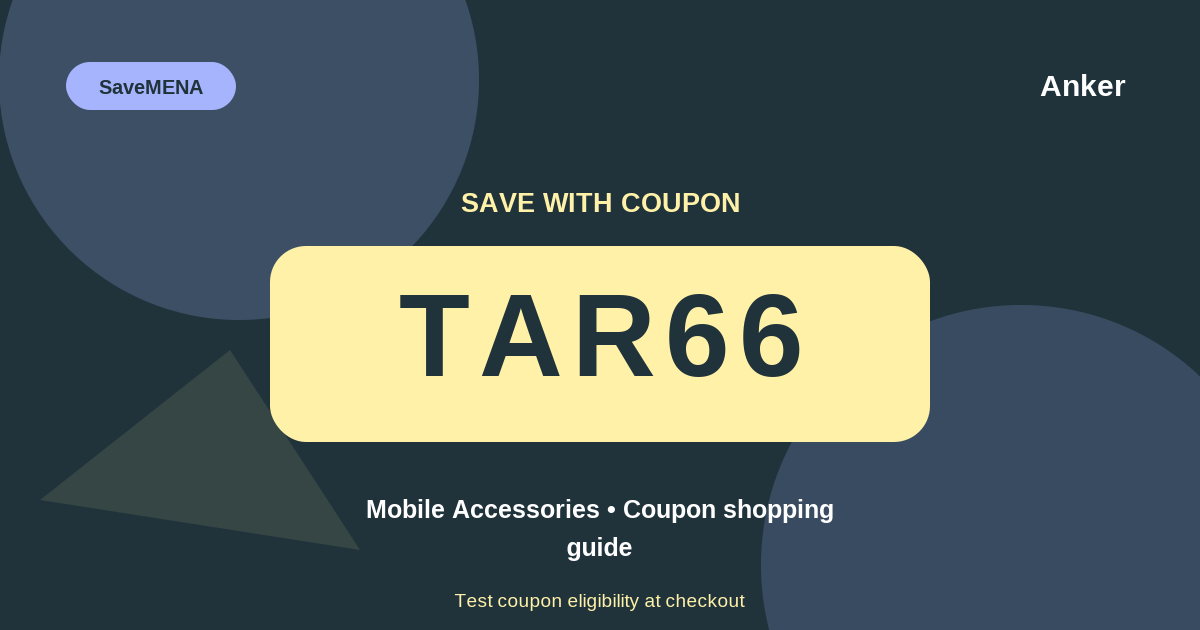
Codes available to try while comparing
These codes are not guaranteed for the article topic or listed brands; test them at checkout and use the live result.
1. Understanding the Coupon Conundrum
At the core of every coupon mishap is a misalignment between the code’s eligibility criteria and the items in the cart. Noon’s platform processes coupon checks before the final checkout screen; if the code is flagged as incompatible, it’s never applied. In the context of Anker mobile accessories, the Tos may require that the product originates from a verified seller, that it’s part of an approved brand lineup, or that no other exclusive promotions are combined. To pre‑empt the frustration, double‑check that your cart items match these implicit requirements before attempting to redeem TAR53.
Another frequent culprit is timing. Coupons are evaluated in real time, and any delay in the server response can trigger a “code not recognized” message. If you're browsing during high traffic periods—like flash sales or holidays—the code might temporarily lose validity until Noon’s systems re‑synchronize. Call nearby checks and re‑enter the code after a brief wait. This simple practice often resolves the error without requiring a full cart rebuild.
2. Step‑by‑Step Coupon Application Guide
Start by adding the desired Anker mobile accessory to your cart from the verified seller. Keep the bundle simple: one product, no bundled add‑ons, to avoid discount conflicts. Go to the cart page and locate the “Enter coupon code” field—usually situated at the bottom of the cart totals. Input TAR53 exactly as it appears, including capitalization, and press “Apply.” The platform will immediately refresh the total and display a confirmation bubble if the code is accepted.
If you see an error, check the specific message: “code not recognized,” “invalid coupon,” or “not applicable to selected items.” Each indicates a different restriction. For general failures, revisit the item’s seller page to ensure it hosts the Anker brand and is listed under the seller’s authenticated status. Only these conditions satisfy Noon’s coupon logic.
3. Common Reasons for Coupon Failures
Beyond seller authenticity, Noon imposes product‑level constraints. A coupon might be restricted to items priced within a certain range, or to those not part of other discount programs. In many cases, the Anker mobile accessory falls outside a predefined price bracket, which automatically dismisses the coupon at the cart stage. If the code insists on a minimum spend, verify the cart subtotal before hitting the “Apply” button; this prevents the system from rejecting the code without warning.
Another factor is the “entitlement” of the coupon itself. Some coupons are limited to specific buyer categories—e.g., new users—or are guided by exclusive app‑only promotional rules. Since TAR53 is a general coupon, it shouldn’t carry such restrictions, but Noon’s backend may still flag it if the user account has a history of frequent redemptions in a short time window. Reviewing account settings helps clarify whether a temporary lock is imposed.
4. Verifying Seller Authenticity and Compatibility
Seller context matters when decoding a coupon failure. Open the Anker product page and scroll to the seller information. A verified badge, a seller rating, and a detailed profile elevate the product’s authority. If the seller lacks these markers, the coupon engine may treat the listing as ineligible—despite the brand being genuine. Additionally, each seller in Noon has its own inventory, so cross‑checking the SKU against an official Anker catalog guarantees alignment.
In practical terms, if you notice a “seller mismatch” error, consider switching to a different seller that stocks the same item. Noon typically lists multiple Anker retailers; simply replace the product with the one from a verified seller before attempting to apply TAR53. Re‑adding the product after this change often resolves coupon failures tied to seller identity.
5. Using TAR53 on Anker Mobile Accessories
Once the seller is verified, applying TAR53 should be straightforward. After the coupon registers, the order summary will reveal the adjusted subtotal, along with any retained delivery charges. Noon’s rule engine typically keeps delivery fees separate, thereby maintaining transparency about the final payable total at checkout. If a delivery fee persists, ensure that it isn’t part of a bundled offer that excludes coupon usage.
Proceed to checkout once the cart reflects your intended discount. On the confirmation screen, the system will re‑evaluate eligibility one final time. If TAR53 remains “Not Applied,” revisit the coupon field one more time or reload the page, as occasional latency can prevent the engine from registering the code at the last moment. A refresh often corrects this hiccup.
6. Alternative Discount Strategies on Noon
In the event that TAR53 is permanently invalid, Noon offers alternate avenues for savings. Checking the “Deals & Promotions” tab may reveal contract‑based offers that apply to Anker accessories—especially during seasonal campaigns. These deals surface automatically in the cart; you do not need to enter a code. If a specific promo is active, it appears alongside any manual coupon, ensuring you get the best price possible.
Another viable method is to explore bundle deals, often featuring multi‑accessory packages that automatically lower the price per unit. While these bundles may not accept manual coupons, the net savings can sometimes surpass what a single code would deliver. Compare the bundle price to the sum of individual items plus TAR53, if applicable, to decide the most cost‑effective route.
7. Troubleshooting Tools and Resources
Noon provides a help center with detailed guides on coupon usage, including FAQs on common errors. Use the search bar to query “TAR53 not working” or “coupon code fails” to view the latest troubleshooting steps. Additionally, the community forum often captures users’ experiences that mirror your situation; browsing these threads can reveal quick fixes you might have overlooked.
For sellers, Noon allows you to configure product tags and eligibility settings. If you’re a vendor stocking Anker accessories, ensuring your listings are tagged with the correct category and brand attributes helps avoid accidental coupon rejection. Even after applying the TAR53 code, a seller can track the interaction through their seller portal, providing insight into why the coupon was sighted as invalid.
8. Final Checklist Before Checkout
Before pressing the final payment button, run a mental audit. Confirm that the cart contains only items from verified Anker sellers, that the subtotal meets any hidden minimum thresholds, and that cool‑downs or exclusive‑app rules have not been triggered. Verify that the coupon field displays “Applied” and that the total reflects the discount. If the code’s status remains ambiguous, double‑check the sale’s official terms visible on the product page.
After a successful coupon application, pair the order summary with your payment method details. Make sure you have a stable internet connection to avoid disconnects that might corrupt the final amount. Once everything aligns—displayed discount, seller authenticity, and payment readiness—proceed to checkout and enjoy your new mobile accessory at the best price Noon can offer.
Related SaveMENA pages
Related articles
Official sources to check
Frequently asked questions
Why does the TAR53 coupon keep saying “not recognized” even though I entered it correctly?
The code may have been flagged due to seller authenticity, incompatibility with the chosen product, or a temporary system sync issue. Ensure the Anker accessory is listed by a verified seller and try re‑entering the code after a brief pause, or try a different product listed by the same seller.
Can I combine TAR53 with other Noon promotions or discounts?
Noon generally restricts coupons from stacking with other exclusive promotions or bundle deals. Check the cart for any automatic discount tags; if a promotional slider appears, the coupon may be automatically disabled to protect its integrity.
Is the TAR53 coupon limited to specific delivery zones?
Noon does not typically impose delivery zone restrictions on this coupon. However, if your address leads to a higher shipping fee that the coupon excludes, the final total will still contain that fee. The coupon applies only to the product subtotal.
What should I do if the coupon shows “applied” but my final total is unchanged?
Verify that the code entered is TAR53, not another similar code. Double‑check the cart for any hidden discount tags or platform messages that may override the coupon. Refreshing the page or re‑adding the product can also reset any unseen filters.