Apple Mobile Accessories on Noon UAE: seller context — coupon troubleshooting · TAR92
If you’re puzzled why a Noon UAE coupon is not working on mobile accessories from an Apple seller, here's how to troubleshoot the issue using the seller context
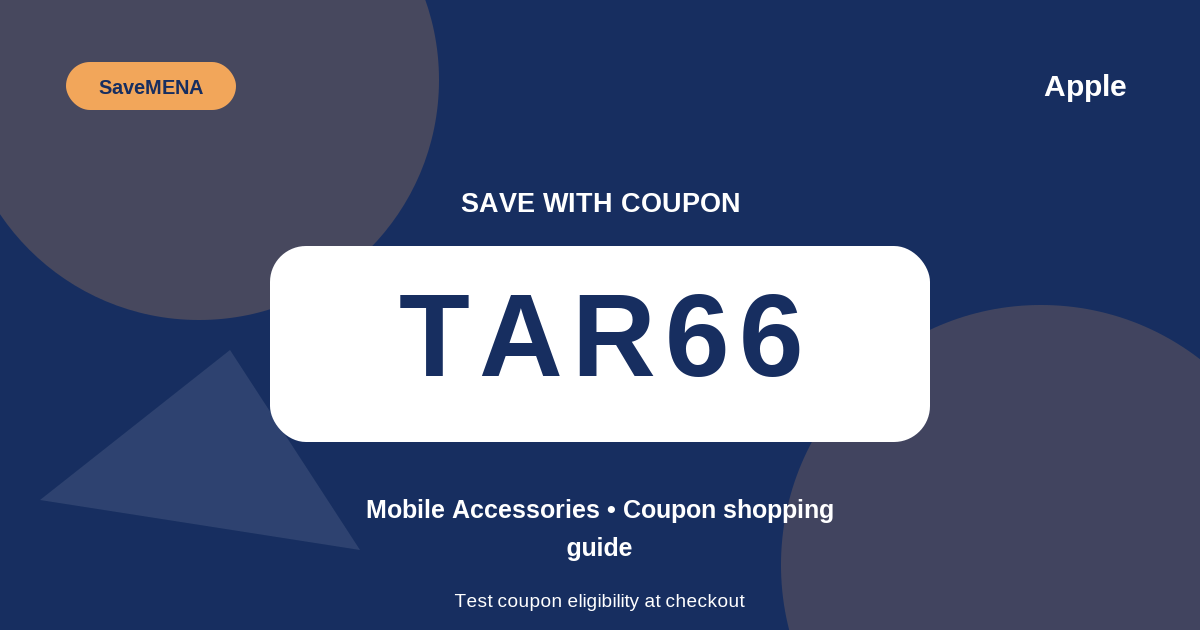
Codes available to try while comparing
These codes are not guaranteed for the article topic or listed brands; test them at checkout and use the live result.
1. Understanding the Coupon Landscape on Noon UAE
Noon’s coupon system is meant to give shoppers a quick, sometimes instant price break, but the service still relies on compatibility with each marketplace seller’s pricing rules. Even if a code appears online, it may be limited by the seller’s own terms. Your first check is to confirm that the TAR92 coupon is listed in Noon’s site‑wide promotion panel and that you are logged into your UAE account, as seller‑based promotions often require a verified profile. If the code is accepted but not applied, the problem usually lies in a seller’s restriction that overrides a platform‑wide offer.
Once the TAR92 code appears in the promotions list, scan the product description for any mention of coupon exclusions. For Apple‑branded mobile accessories, the seller may specify “excluding Apple accessories” or “applicable only to non-Apple items.” Even a single word in the fine print can block the coupon. If the seller’s page does not clarify, you can still move forward by adding the item to the cart and check at checkout – that’s where you see the real effect of any license or promo conflict.
2. Identifying the Seller: Apple Mobile Accessories
When you locate the mobile accessory you want, double‑check the “Seller” field located beneath the product title on Noon’s product page. An Apple‑licensed seller will typically have a verified badge and be listed as “Apple Authorized Reseller” or a similar title. This tag is pivotal because vendor‑specific regulations can override platform promotions. If the seller is not verified, the coupon’s status may be unpredictable. In an Apple seller context, prudence dictates that you confirm authenticity by looking at any certifications or shipping guarantees displayed on the seller’s profile.
The seller’s performance rating is also a critical filter. A high rating often indicates a smoother checkout experience, including coupon compatibility. If the rating is lower, consider if the seller allows coupon application at all – some sellers forbid platform discounts to preserve their margin. Check the customer review section for any notes about coupons; buyers often note whether codes were accepted or not, which can hint at seller-specific policies invisible to casual shoppers.
3. Why Your Coupon Might Not Apply Immediately
Many developers and content creators emphasize that coupon failures often stem from a mismatch between the cart’s total and vendor rules. Even if TAR92 can be entered, Noon’s system may enforce a minimum spend that the product alone does not satisfy. Because Apple accessories sometimes carry a higher price tag, the purchase may trigger a “not enough to qualify” message. The platform’s error syntax will usually specify this, maybe through a “minimum order value” or “cart total insufficient” notification.
Another common reason is that the voucher has a single‑use restriction or conflicts with other active promotions. When you view the voucher details at checkout, notice if any duplicate discount or “exclusive coupon” notices appear. In a scenario where the Apple seller restricts cross‑platform combo discounts, the TAR92 code could be denied by default. Remember that even if the voucher appears to work, it never guarantees an instant discount; the final payable total at checkout is where the true effect is decided.
4. Step‑by‑Step Troubleshooting at Checkout
Begin by adding the Apple accessory to your cart and proceed to the checkout page while still logged into your Noon UAE account. On the voucher input line, type TAR92 and hit “Apply.” If the code rejects with an error, note the message exactly – whether it references the coupon, the seller, or the cart size. Don’t hesitate to delete the voucher and reapply; sometimes the system needs a fresh input to register the vendor status.
If the voucher applies but the discount remains zero on the final summary, double‑check the cart for hidden fees or mandatory add‑ons. For many Apple sellers, things like a “warranty extension” or “gift wrapping” can alter the base price and break a coupon’s eligibility. Remove any non‑essential add‑ons, or see if the seller offers a “clean” version of the product. Once the product price alone reflects the coupon, the discount should appear as a subtraction in the final “Total Payable.”
5. Common Seller‑Specific Restrictions and How to Spot Them
Vendor pages on Noon often contain a “Special Offers” or “Promotions” table that lists limitations. Pay attention to fields such as “Applicable to,” “Cumulative with,” or “Excluded products.” For Apple mobile accessories, sellers may explicitly say “No coupons applied to Apple products purchased from this vendor.” If you see any of these markers, your expectation for using TAR92 will be too optimistic, regardless of your previous coupon tests.
Look for a “Terms & Conditions” link near the seller’s badge. Clicking this will usually expand a PDF or a expands list that stipulates whether platform coupons are honored. If the terms mention “sub‑vendors” or “third‑party sellers,” that’s a red flag. In this seller context, it’s safer to reach out to the seller directly through Noon’s built‑in messaging. This action might clarify whether they accept vouchers or if you need a seller‑specific discount code.
6. Rethinking Cart Items: Item Eligibility & Bundle Rules
Apple’s mobile accessories frequently come in bundles – for example, a charging pad paired with a protective case. Some vendors allow only the core item to qualify for coupons, while the packaging or additional accessories remain exclusive. When your cart contains a bundle, split the items if possible or remove the accessories temporarily to test the coupon. Re‑add them after confirming the discount. This approach lets you isolate whether the denial is because of the bundle structure.
In addition, incremental orders may trigger a staged discount policy. Certain sellers offer a “first purchase” discount only when the total purchases remain below a threshold. If you’ve made prior purchases with the same vendor, the coupon may behave differently. A quick call to the seller can clarify whether your account’s purchase history is influencing coupon acceptance.
7. Communicating with the Seller: Where and How to Seek Help
Noon provides a “Contact Seller” button on every product page. Use this feature to send a concise query: mention the voucher code, the item, and the error you’re encountering. When sellers respond, use the “Ask a question” channel in the order shipment notes for follow‑up. This helps maintain a documented trail, useful if you need to involve Noon support later.
If the seller’s response confirms that the code is blocked, request an alternative. Some authorized Apple sellers feature a dedicated Apple coupon that is not visible on Noon’s promotions list. Suppliers might also have an internal discount policy to apply at checkout, bypassing platform promotion systems.A coupon is not guaranteed; verify its result at the retailer checkout.
8. Final Checklist Before You Pay
Before finalizing payment, run through a quick checklist: verify the seller is Apple‑licensed and has a high rating; confirm that the cart contains no restricted add‑ons; ensure the TAR92 code is in the “Vouchers” field and appears as a positive deduction in the final review screen; and double‑check that no unexpected hidden fees have arisen as a result of the coupon. Feel free to use Noon’s “Save for later” feature to postpone the purchase until you confirm coupon compatibility.
If the coupon still does not apply, consider the possibility of a temporary system glitch. After a brief wait or by logging out and back in, try the process again. If the failure persists, contact Noon support using the Help Center, referring to your order ID and the voucher code. In many instances, a platform‑wide issue can be resolved by a support agent who can manually adjust the discount after confirming your eligibility.
Related SaveMENA pages
Related articles
Official sources to check
Frequently asked questions
What is the best way to confirm my seller is authorized for Apple accessories on Noon?
Look for a verified badge or the “Apple Authorized Reseller” label beneath the product title. Check the seller’s profile for certifications and read customer reviews for mentions of authenticity.
If TAR92 is accepted but no discount appears, should I still pay?
If the voucher appears in the summary but the discount shows as zero, it’s usually due to the seller’s restriction or a cart add‑on. Try removing non‑essential add‑ons or contact the seller for clarification before paying.
Can I combine TAR92 with a seller’s own discount?
Most sellers prohibit stacking platform coupons with their own promotions. Review the “Terms & Conditions” or ask the seller directly if combined discounts are allowed.
What if my checkout fails because of a hidden fee?
Hidden fees may be added by the seller, such as extended warranties. Remove them to test the coupon, then re‑add them after confirming the discount has applied at the base product level.