Logitech Computer Accessories on Noon UAE: warranty and support — coupon troubleshooting
Noon UAE coupon not working Computer Accessories Logitech warranty and post-purchase support: If you’re looking to troubleshoot a coupon without guessing, mastering
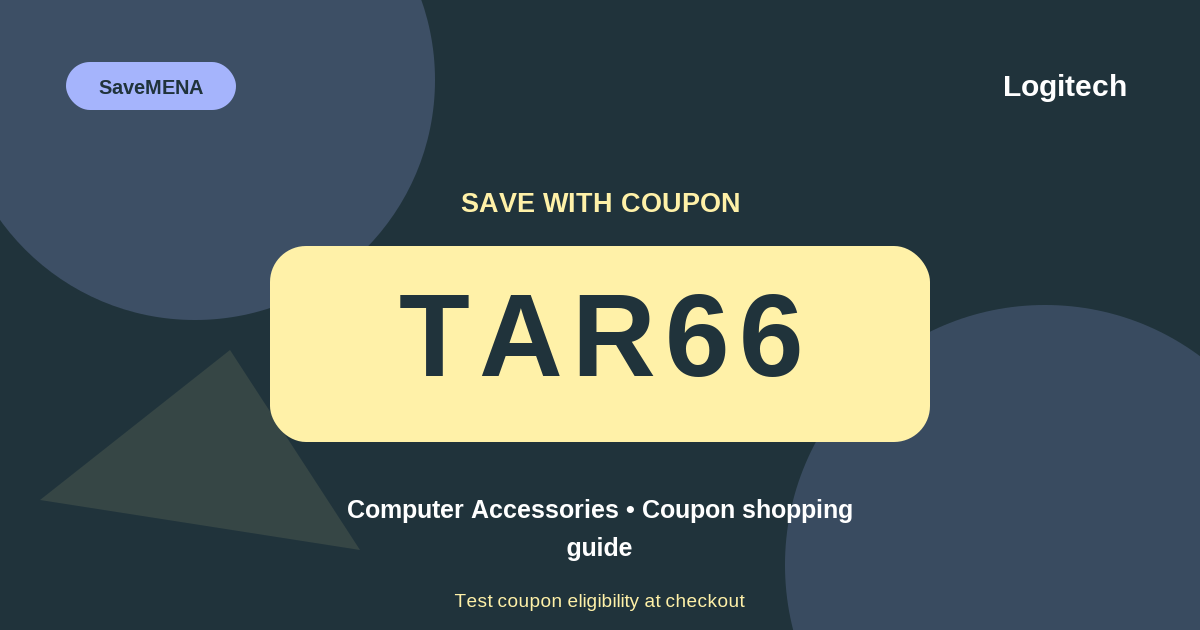
Codes available to try while comparing
These codes are not guaranteed for the article topic or listed brands; test them at checkout and use the live result.
Verify Coupon Entry Workflows
Start by ensuring the coupon code is entered exactly as it appears—no stray spaces, all letters in the same case, and typed into the correct field before proceeding past the cart subtotals. In many cases, a simple typo in the gateway’s input box is what stops a code from being recognized. Visibility of the coupon field also varies between the mobile app and desktop interface, so double‑check you are on the final checkout screen where the discount should be parsed and reflected in the order summary.
If the code still does not appear, take a snapshot of the cart totals and the coupon box and keep it attached to your ticket when you reach customer service. This visual proof will help Noon staff quickly identify whether the issue lies in the browser, the display, or a deeper system error that could impact your warranty information should you proceed with a purchase.
Confirm Eligibility and Scope
Coupons often have hidden constraints such as minimum spend requirements, product category exclusions, or brand‑specific restrictions. Verify that your selected Logitech accessory falls under the “Computer Accessories” classification and that it is not listed in a restricted item catalog. A quick way to confirm is to search the product’s detail page for any “Eligible for” tags or to scroll to the bottom where coupon terms may be nested under a “Promotions” link.
Equally critical is the warranty clause bundled with eligible purchases. If the product advertises a 24‑month Logitech warranty, ensure the coupon usage does not alter the eligibility for this support package. Some promotions temporarily waive warranty coverage or redirect it to third‑party services; confirming this before final checkout protects you from losing manufacturer backing after the sale.
Check Cart and Product Compatibility
Once you undo any prior cookie or session errors, re‑add your Logitech accessory to a fresh cart. This step clears any residual pricing logic that might have flagged the item as ineligible for the TAR66 coupon. After adding, you should view the final total before applying the coupon to see if a default surcharge—such as a platform fee—might be preventing the discount.
After the coupon is activated, scroll through the order summary to verify that the per‑item price adjustment reflects the code’s intent. Pay close attention to the warranty logo or text that typically appears alongside the product in the cart. If a warranty icon is missing after the code is applied, it might indicate that the promotion interferes with the product’s standard support terms; flag this question with the store for resolution before confirming payment.
Inspect Platform Status and Announcements
Occasionally Noon’s payment gateway or promotional engine undergoes maintenance that may temporarily deactivate coupon applications. Check the official Noon UAE social media channels and the “News” section on the site for any posted outages or updates about discount processing. A brief hiatus can explain why TAR66 is not recognized even when everything else appears correct.
From a warranty perspective, make sure that the third‑party support system (often a manufacturer‑managed portal) is also online. If the support site is down, a success flag on your receipt might still be provisional. In such cases, waiting a day or two before placing the final order can allow both checkout and warranty confirmation systems to stabilize, ensuring that post‑purchase support is available when you ultimately receive the product.
Validate Your Noon UAE Account Settings
A misconfigured account—such as an incorrect country setting or disabled voucher features—can prevent coupon activation. Open your Noon profile, confirm that your delivery address is set to the UAE, and that you have accepted the terms relevant to voucher usage. Some accounts may have active restrictions, for instance if you are in a trial phase or if your credit settings limit promotional use.
Logitech accessories typically come with a registration process tied to your account, so keeping your profile details accurate also bolsters warranty verification. If the account is flagged for a lower level of trust, the platform might block promocodes as a precaution. Resolving these settings often requires a quick confirmation of identity or a call to Noon support, after which the coupon application normally functions normally.
Cross‑Check Warranty Coverage and Post‑Purchase Terms
Before finalizing the purchase, locate the official Logitech warranty statement for the accessory you intend to buy. This statement—often found in the product description or the manufacturer’s support portal—specifies the duration, scope, and activation conditions. Confirm that you meet all conditions, such as purchasing from a verified retailer, registering the product within a set period, and preserving the receipt.
During checkout, look for a checkbox or a toggle that indicates warranty enrollment. Some platforms automatically register purchased items for generic extended support; others require explicit confirmation. Make sure that opting into the warranty does not require you to delete any promotional code or that it does not inadvertently override it. Accurate warranty alignment prevents later disputes if the product needs repair or replacement.
Use Customer Support Channels for Live Help
If repeated attempts to apply TAR66 fail, use Noon’s live chat or 24/7 helpline. Prepare a concise description: the code format, the steps you have taken, and the exact error message if any. Mention that the product is a Logitech Computer Accessories item protected by a manufacturer warranty, and ask whether the coupon conflicts with warranty activation.
When speaking to an agent, request a direct confirmation that the warranty will remain valid post‑purchase, regardless of coupon status. This assurance is crucial; a guarantee provided verbally or in chat can serve as a reference after the fact. Document the chat ID or reference number for future reference in case the warranty status requires verification from a supervisory level or the logistics partner.
Save the Proof and Plan for Post‑Purchase Protection
After successfully adding the coupon and finalizing the order, immediately save all receipts, confirmation emails, and screenshots of your order summary. These documents provide the baseline needed if you later need to claim warranty services. Attach any chats or ticket references that confirm the warranty’s continuity post‑coupon use.
If you discover post‑purchase that the warranty seems compromised, contact Logitech’s support directly with the order number and proof of purchase. Having a complete set of transaction records from Noon—including the applied discount and the warranty status—ensures that both parties can resolve the issue quickly, protecting your investment and reinforcing the reliability of using Noon’s platform for essential accessories.
Related SaveMENA pages
Related articles
Official sources to check
Frequently asked questions
What should I do if the TAR66 coupon still doesn’t work after I’ve checked everything?
Try clearing your browser cache or the mobile app’s data, then re‑enter the coupon on the final checkout screen. If the problem persists, contact Noon’s customer support with your account details and screenshot of the error, and request confirmation that the coupon is valid for your Logitech product.
Does using a coupon affect the warranty period for Logitech accessories?
Generally, the warranty period remains unchanged when applying a coupon. Still, check the product page for any “Warranty terms” notes and verify at checkout that warranty enrollment is active. Keep a copy of the receipt that shows the warranty status.
Can I combine TAR66 with other discounts or promotions?
Most coupons are exclusive, meaning they cannot be combined with other offers. Confirm the terms on Noon’s coupon listing page. If uncertain, ask a support agent during checkout to ensure no unintended conflicts with your Logitech purchase.
How can I verify warranty coverage after receiving my Logitech accessory?
Once the item arrives, locate the warranty key on the device or packaging and register it on Logitech’s official support site. Cross‑check your Noon order confirmation to ensure the warranty has been activated. If discrepancies occur, reach out to Noon or Logitech customer service with your order ID.