Dell Laptops on Noon UAE: warranty and support — coupon troubleshooting
If the Noon UAE coupon not working Laptops Dell warranty and post-purchase support is frustrating you, you’re not alone.
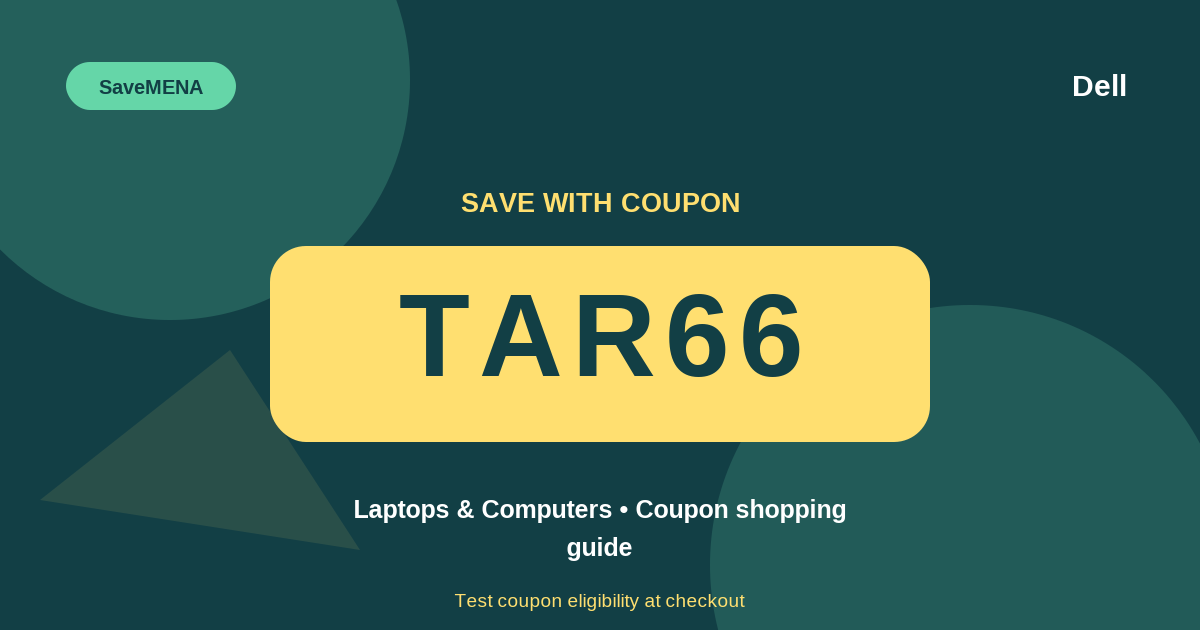
Codes available to try while comparing
These codes are not guaranteed for the article topic or listed brands; test them at checkout and use the live result.
Step 1: Verify Coupon Eligibility Before Adding Laptops
Before you even open Noon, double‑check that the TAR66 coupon can be applied to the Dell laptop you’re eyeing. Not all codes work on every product, and coupons sometimes exclude certain price ranges or models. Look for any restrictions on the coupon page or in the “Coupon Details” section of the product listing. Confirm the listing’s seller status and that the item is indeed a Dell laptop, not a generic brand or a different form factor. This step saves time and prevents the frustration of adding items to cart only to have the coupon fail at checkout.
Once eligibility is confirmed, add the laptop to your cart. If the cart summary still shows the full price, it’s a sign that the coupon is either ineligible or has already been applied elsewhere. In such cases, proceed to the next section to investigate Dell’s warranty terms, keeping the coupon issue aside for now. Knowing the coupon’s scope early on lets you plan whether to seek alternative discounts or adjust your expected final price.
Step 2: Check Dell Warranty Terms Pre‑Purchase
Before buying any laptop, read Dell’s provided warranty information on the product page. Dell typically offers a base one‑year limited warranty, but it may also include accidental damage coverage or express repair options. Pay special attention to the coverage limits—what components are covered, the duration of coverage, and whether the warranty is transferable. Understanding these details will guide your decision on whether to purchase a higher‑tier Dell warranty cover at checkout.
Do not assume a long‑term or overseas warranty is automatically included; list them explicitly on the page, and note any conditions tied to the product’s model or configuration. Keep a copy of this information handy for reference when you compare laptops later, as Dell’s warranty packages can differ significantly between models. This knowledge makes your purchase more secure and informs your support expectations after delivery.
Step 3: Review Post‑Purchase Support Options
In the UAE, Dell’s post‑purchase support is essential, particularly if you encounter hardware or software issues. Locate the “Support” tab on the Dell product page or the company’s global site and confirm the available local support center. Check for any dedicated UAE or GCC support numbers, email addresses, and live‑chat options. Seeing that Dell collaborates with local service providers can make a critical difference if your device needs onsite repair.
Also check if the warranty includes express repair or UPS pickup services. Services like Dell Express® Offer typically allow for faster turnaround, but they may require an additional fee. Record these details, as they can help you weigh the benefit of an incremental warranty upgrade versus relying on standard repair terms. Knowing the support structure reduces uncertainty after you complete your purchase.
Step 4: Compare Dell Models for Warranty Coverage
Different Dell laptop series (such as XPS, Inspiron, Latitude) may have varying warranty inclusions and support structures. Create a comparison table that lists each model’s warranty length, accidental damage protection, and included support services. Pay particular attention to any geolocation‑specific guarantees—some models sold in the UAE may come with an extended 2‑year warranty compared to international variants.
Gather this data before you hit the checkout line; the right model can save you both money and potential hassle. If one model’s warranty outperforms another by a clear margin, it may be worth swapping it, provided you’re not concerned about other specs like processor or RAM. Adjust your cart after choosing your preferred Dell laptop, ensuring the voucher eligibility remains unchanged.
Step 5: Add Laptops to Cart and Attempt TAR66
When you’ve selected your Dell laptop, add a single unit to your cart. Be sure you have no other items in the cart that might clash with the coupon validity, as this can cause the code to reject automatically. Check the cart page for any pre‑applied discounts or promotions—once the TAR66 code is typed there, the cart calculation should reflect any potential savings.
If the site indicates that the coupon was successfully applied, you should see a discount line item in the cart summary. If it does not, note the error message or note that no discount line appears. This information is crucial for troubleshooting and for identifying whether the TAP fails because the product is ineligible or the coupon itself is not accepted. Keep the error message handy, as it can guide your next steps and support queries.
Step 6: Resolve Coupon Failure at Checkout
If the TAR66 coupon is flagged as invalid at the checkout page, the issue may stem from a mismatch between your cart contents and the coupon’s conditions. Make sure the laptop’s seller remains the same and that you haven’t added any accessories or services that the coupon excludes. Some coupons only apply to base models, excluding upgrades like additional RAM or SSD.
Should the coupon still fail, clear your browser cache or try a different browser. Occasionally, cookie conflicts can prevent a coupon from applying correctly. If the problem persists, contact Noon’s customer support with the error message or refer to the “Help” section on the site. Provide them the coupon code TAR66 and the laptop reference so they can confirm if the code is still active and applicable to your desired item.
Step 7: Assess Warranty Extensions After Purchase
Once your transaction is complete, you receive a confirmation email containing your order details and a summary of the applied warranties. Verify that the standard Dell warranty (typically one year) appears as expected. If you opted for an extended warranty during checkout, double‑check its terms in the confirmation, including coverage duration and any specific service level agreements.
Save the confirmation screen or email for future reference. It should contain a Dell warranty registration number, which is often required for any post‑purchase support request. If you notice discrepancies—such as a missing warranty extension—contact Noon’s sales or Dell’s support team promptly, citing your order ID. The sooner you identify an issue, the better the chances for a swift resolution.
Step 8: Record Post‑Purchase Support Contact Points
Creating a quick reference of all support contact points aids swift resolution if your Dell laptop develops a problem. Write down Dell’s local service phone number for the UAE, the email address for warranty claims, and the support portal link for UK or global services that may route through Noon. Having an organized list means you won’t waste time searching for the correct channel when you need assistance.
Record any policy documents or terms that state how to initiate a repair or claim, such as a 24‑hour response time for express repair services. Store this information in a safe spot, like a notes app or a cloud-based document, where you can access it at a moment’s notice. With a solid plan in place, you’ll be able to quickly tap into Dell’s post‑purchase support, ultimately ensuring that your laptop remains reliable for years to come.
Related SaveMENA pages
Related articles
Official sources to check
Frequently asked questions
What should I do if the TAR66 coupon is not accepted when I try to apply it?
If the coupon rejects, first verify that the laptop you’re buying is eligible for TAR66. Remove any other items that might conflict, clear your browser cache or use a different browser, and re-attempt the code. If the issue remains, reach out to Noon customer support or check if the coupon is temporarily invalid.
Does a Dell laptop purchased on Noon include a valid warranty year?
Yes. Dell typically ships with a one‑year limited warranty covering manufacturing defects. Verify the warranty details in the product description and your order confirmation. You can also add extended coverage at checkout if offered.
Can I use the Noon coupon on additional Dell accessories purchased later?
Coupon eligibility usually applies only at the point of purchase. If accessories are added later or if the coupon was not accepted, you may still use the coupon for a new Dell item that meets the conditions. Check the coupon terms for any minimum spend or product restrictions.
What steps should I follow if my Dell laptop breaks after the standard warranty covers it?
Contact Dell’s local UAE support via phone, email, or live chat. Provide your order ID and warranty registration number. They will guide you through diagnostics or arrange express repair, depending on your warranty level and the nature of the issue.