Dell Office on Noon UAE: warranty and support — coupon troubleshooting
Noon UAE coupon not working Office Dell warranty and post-purchase support: When a Noon UAE coupon you’ve saved for a Dell office device stops working, the
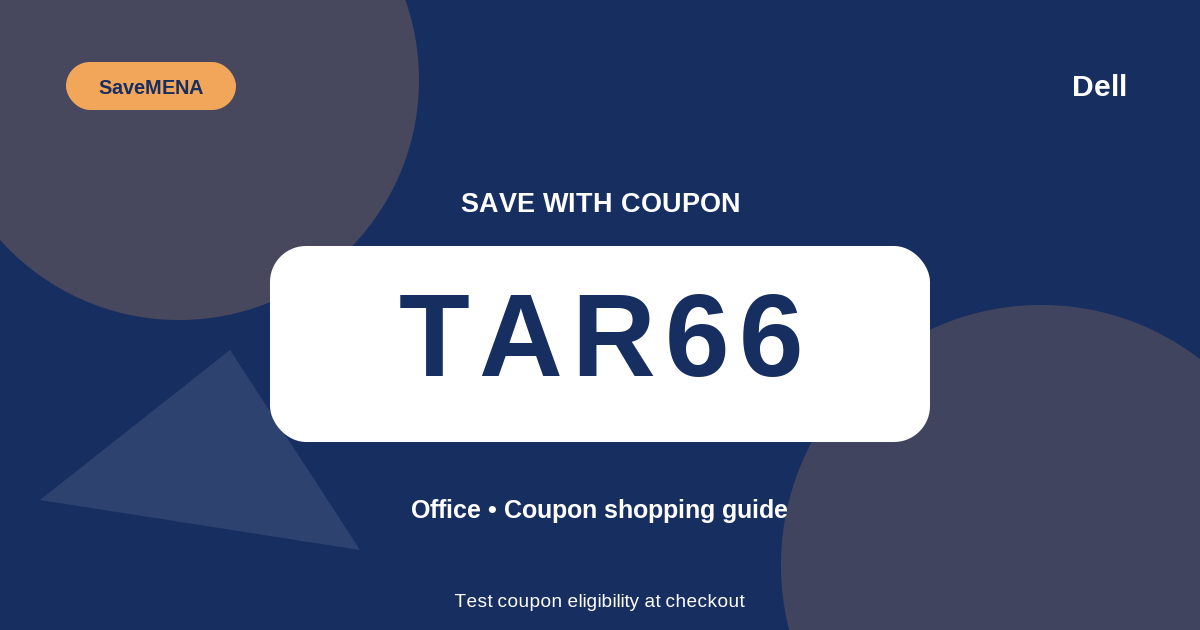
Codes available to try while comparing
These codes are not guaranteed for the article topic or listed brands; test them at checkout and use the live result.
1. Verify the Coupon’s Eligibility Field
Begin by checking the terms of the TAR66 coupon directly on Noon’s item page or the offer details section. Courteously confirm that the discount applies to office or electronics categories—particularly Dell products—while ensuring that it is not restricted to specific brands or the “app‑only” category. Since SaveMENA doesn’t receive updates on Noon’s offers, rely on Hotline chatbot or the “Help” icon to clarify whether the coupon is active for your product’s price bracket. Make sure you do not exceed any implicit maximum spend or minimum purchase requirement that might be hidden in the offer’s policy.
Once you confirm that the coupon is theoretically applicable, add your chosen Dell laptop or accessory to the cart promptly. Avoid adding multiple unrelated items that could inadvertently change the cart’s total or category mix, as this could invalidate the coupon at the checkout stage. Keep the list of office supplies minimal until you can prove the discount is functional.
2. Confirm Cart Total Meets Conditions
After adding the Dell item, inspect your cart’s subtotal and any hidden fees—such as delivery or processing charges—that Noon may add. If the total dips below a threshold that the coupon requires, the code will refuse to apply. For office buyers, whether the subtotal includes the Dell device alone matters, so ensure you’re not inadvertently pulling in printers or accessories that might alter the cart’s eligibility.
In sessions where coupon codes fail, try refreshing the cart or logging out and back in. This simple reset can trigger Noon’s latest cart recalculation, possibly clearing temporary glitches that caused the failure. Remember, no faking a smaller total or excluding items; test with the exact configuration you intend to purchase.
3. Apply the Coupon Before the Bank Gateway Stage
When navigation clicks over to the “Checkout” screen, the first note is the “Apply Coupon” field. Insert TAR66 exactly as typed, watching for case sensitivity or trailing spaces that Noon’s system may reject. No shortcut or partial entry is accepted; the system reads the input verbatim, so double‑check the code before hitting the button.
Even if the coupon shows “Not Available” after the click, check that the online display still notes the cart total unchanged. Do not proceed to payment if the discount hasn’t subtracted; you risk paying full price. If the code remains inactive, the next step is to confirm the coupon’s current status via Noon’s customer service chat, which can confirm whether the offer has expired or is temporarily stuck.
4. Compare Web and Mobile Coupon Behaviour
Occasionally, a coupon may work on the Noon mobile app but not on the desktop site, or vice versa. If you’re shopping through a phone, close the app and clear its cache before reopening. A fresh session may load the latest coupon status. If you’re a desktop user, try a private/incognito window, which bypasses stored login sessions that sometimes carry corrupted data.
Once you confirm the coupon status on one platform, lock in the same purchase through that platform. For office gear like Dell laptops, the warranty details are consistent across devices, but the coupon’s acceptability might vary. Document the platform used, as it can help resolve future disputes with Noon’s help desk.
5. Verify Account and App Status
Some coupons, including TAR66, can be restricted to first‑time buyers, frequent shoppers, or users who have verified their UAE address. Review your Noon profile to confirm that your shipping information and country are set correctly. If your account uses a corporate email, ensure that corporate purchases are allowed for office officeware purchases.
Use Noon’s “Account Settings” to confirm that you’re recognized as a UAE resident. If you are a new user on the platform, certain codes may be disabled until a purchase history threshold is crossed. Take this verification step before composing the next checkout attempt.
6. Validate the Dell Warranty Clause
If you have successfully applied the coupon, the next crucial consideration for office buyers is the Dell device’s warranty coverage. Noon typically offers an extended warranty for Dell laptops with a separate add‑on at checkout—check the “Warranty Options” box for your Dell model. Ensure the chosen warranty is active at the order confirmation time; an activated warranty guarantees that post‑purchase support, repair, or replacement is available if needed.
Record the warranty code and coverage period from the confirmation email. Dell’s post‑purchase support network in the UAE includes authorized service centers and emergency repair kits that can be accessed through the warranty. Store the confirmation in a physically protected folder or cloud account so that you can present proof if a post‑purchase issue arises.
7. Document and Monitor Post‑Purchase Support
After your order ships, use the “Order Tracking” feature to log key dates: dispatch, expected delivery, and actual arrival. Keep a small catalogue of the Dell device’s serial number and warranty card, as they may be required for any future support claim. Knowing the exact arrival date helps you track the warranty countdown accurately.
Should you encounter hardware or software trouble, begin by reviewing Dell’s knowledge base or contacting Noon’s return center. The “Ask a Specialist” chat platform often offers a dual‑layer support: Noon’s convenience for order‑related queries and Dell’s direct technical assistance. Booking a repair or replacement is smoother if you have the warranty documentation handy.
8. Escalate If Coupon Discrepancies Persist
When recurring coupon issues occur despite all previous checks, contact Noon customer support through the “Help” or “Contact Us” page. Include your order ID, screenshot of the cart where the coupon was applied, and a note that the Voucher code remained inactive at checkout. Be clear that the failure is not due to cart conditions but to the code’s status itself.
In the event you believe the coupons have eclipsed or been misapplied, request a manual credit or a voucher adjustment from Noon’s support team. For Dell warranty concerns, meanwhile keep a link to your device’s warranty page—this can prevent any confusion over coverage at the claim stage. Document all communications for future reference.
Related SaveMENA pages
Related articles
Official sources to check
Frequently asked questions
What steps can I take if Noon rejects my TAR66 coupon after all checks?
If a code is repeatedly rejected even after verifying cart eligibility and account status, reach out to Noon support with your order details. Explain the coupon code and show that it should be valid for your Dell office item. Noon’s team can confirm the code’s current availability and offer a replacement voucher if needed.
How does the Dell warranty integrate with Noon’s purchase?
When buying a Dell product on Noon, you can add Dell’s extended warranty during checkout. This warranty is separate from Noon’s assurance and can be activated directly on its page. Keep the warranty confirmation handy, as it will be needed if you contact Dell for repairs.
Can I use a coupon I saved in my phone’s browser on the Noon app?
Yes, but be sure to apply the same exact code—in the same case—as listed on your device’s advertised offer page. Some codes are app‑only or web‑specific; double‑check the `Offer Details` before applying.
What if the coupon works but the order still shows the full price?
When a coupon applies, the cart subtotal should reflect the discount. If the final amount remains unchanged, it indicates the discount wasn’t accepted. Re‑enter the code in the `Apply Coupon` field during checkout. If the price still does not adjust, contact Noon support for further intervention.