Mobiles on Noon UAE: checkout message — delivery-inclusive price
Noon UAE total with delivery Mobiles the live coupon message at checkout: When shopping for a mobile phone on Noon UAE, the final amount you pay hinges on more than
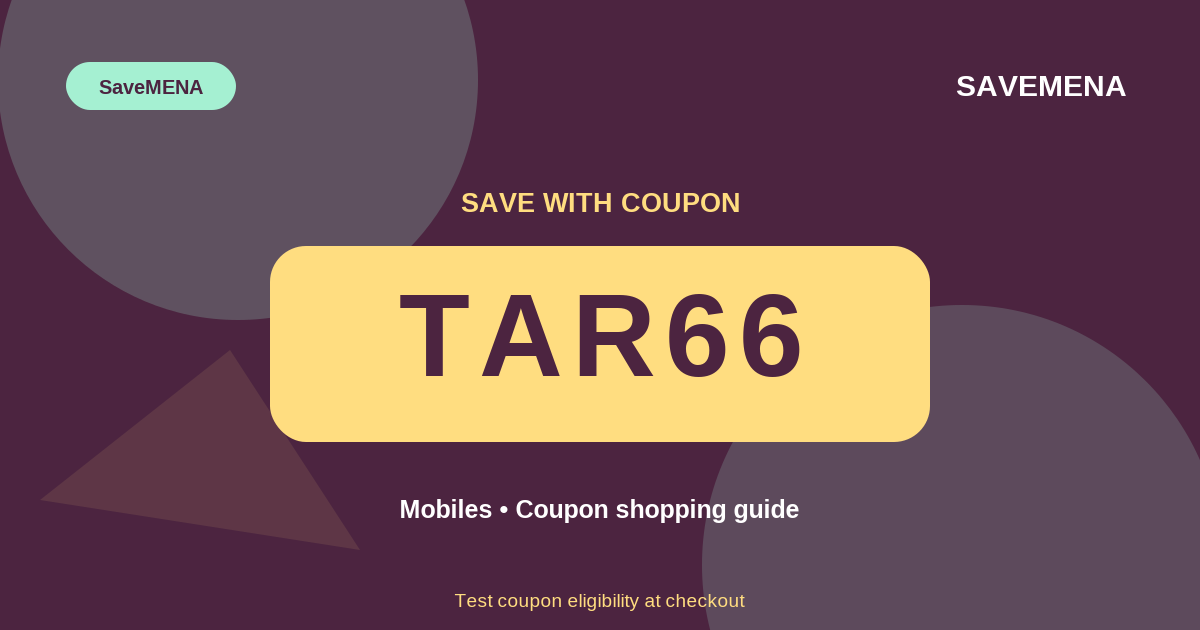
Codes available to try while comparing
These codes are not guaranteed for the article topic or listed brands; test them at checkout and use the live result.
1. Identifying the Live Coupon Message Early
Before you even add a mobile phone to your cart, sit back and skim the product page for any hints of a coupon. Noon often triggers a live coupon notice that appears on the checkout screen, not the product page. To catch it, scroll to the pricing section and look for a line that might read “Unlock discount with code” or a small button that says “Apply coupon.” This early sign tells you the coupon, if available, will roll onto the final page only when you proceed to checkout. Ensuring you’re aware of this cue saves a surprise at the end.
Mark your calendar or write the coupon format down. While Noon’s interface may vary between devices or app versions, the live coupon message typically appears as a banner or sidebar once your cart is ready. Keep an eye out for it while adding the phone and any accessories to your basket, so you can anticipate the extra step of entering TAR66 later in the flow.
2. Checking Delivery Charges Before Adding to Cart
Delivery fees are calculated based on several factors: location, carrier, and sometimes the total value of your order. Noon lists a base delivery fee upon adding your mobile phone to the cart but hides the exact amount if your wallet isn’t updated or if you haven’t entered a delivery address yet. To avoid surprises, always fill in your address in the cart summary where delivery fees will auto-populate. Once the address is set, scroll down to view the line item that reflects the delivery cost.
Note that the delivery fee may alter if you switch the shipping address after adding the phone. Every time you update your address, a quick refresh of the cart total will show the new fee. This dynamic update is crucial because it affects the baseline from which the live coupon discount applies. Remember, the coupon will only be applied to the subtotal after the delivery fee is added—so an accurate delivery charge is the first building block of your final total.
3. Verifying Mobile Phone Variants in the Cart
Mobiles on Noon usually come in multiple variants—different colors, memory sizes, or carrier options. The pricing shown on the product page is just a preview; the final price is locked in when you add the specific variant to your cart. As you confirm the variant, check that the price that appears in your cart matches what you’ve chosen. If there’s a mismatch, the final total will inflate or deflate accordingly, which can throw off your coupon calculation.
When you’re converting to the checkout stage, watch for a brief “price confirmation” step that lists the selected variant. This is your chance to double‑check that the chosen model’s price, including taxes, is accurate before any coupon is considered. Since the live coupon message will apply to the subtotal after the delivery fee, getting your variant price right is essential on the path to the final total.
4. Applying TAR66 and Understanding the Popup
At checkout, before you hit the purchase confirmation button, you’ll see an area labeled “Coupon code.” Enter TAR66 and press the apply button. The live coupon message will reappear, indicating whether the coupon has been processed. Look for a confirmation line that may read “TAR66 applied” or display the new total. If no such message appears, the coupon hasn’t been accepted and the original total remains in place.
Do not assume the coupon is auto‑activated; you must manually input TAR66. The live coupon only shows up if the code is valid for your order. Pay special attention to any red or green text that signals success or rejection, because the absence of a live coupon message often means the discount will not affect the final amount payable.
5. Reviewing the Adjusted Final Total After Fees
Once the coupon has been applied, the checkout screen will update the line item numbers. The final total will list product price, tax, delivery fee, and the coupon discount. This is the exact amount you’ll see before you click “Confirm Order.” The live coupon message usually prints a small note about the new subtotal and the final payable sum. This visual confirmation is the last safeguard against any miscalculations.
Take a mental note of the new subtotal and the impact the coupon has made—whether it reduced the purchase price, lowered tax, or simply offset part of the delivery fee. If the total still feels high, it’s wise to go back and double‑check each component: product price, variant selection, and delivery charge, before finalising the transaction.
6. Accounting for Payment Method Fees
In the UAE, some payment methods carry an extra processing fee on top of the displayed total. Noon’s checkout page shows any such fees near the bottom of the order summary, usually under “payment fee.” If you’re using an external e‑wallet or credit card that adds a fee, this amount will appear after you apply any coupons. Make sure the live coupon message still shows the discount next to the updated total to confirm that the coupon discount applied before or after any payment fees.
If a payment‑method fee is applied, the live coupon message might not adjust its displayed discount amount. Verify whether the final line item—after adding the payment fee—still reflects the coupon’s benefit. If the value looks unchanged, it often means the coupon discount was applied before the payment fee was added. In such cases, the final amount you pay on the screen remains accurate.
7. Using Quantity Adjustments to Improve Delivery Efficiency
When buying multiple phone units, some sellers offer a bulk discount but the delivery fee might be flat or scaled. Check the cart for a “multi‑purchase savings” section; the live coupon message will update accordingly when you change quantity. If the cart shows a higher delivery cost per unit, adjusting the quantity could bring the total down by spreading the fee.
After modifying the quantity, re‑apply the TAR66 code—sometimes the recalculated total will show a different discount amount in the live coupon message. Always confirm that the message appears and that the final total now shows the corrected amount before you hit “Confirm Order.” This practice ensures each unit you purchase is priced optimally within the delivery framework.
8. Final Confirmation: Verifying Every Line Item
Before you press the final “Confirm Order” button, scroll all the way down to the summary section. Each line item—product, tax, delivery, payment fee, and coupon—should have a clear numeric value. If the live coupon message is visible, it should reflect the discount applied. Any missing or mismatched figures usually indicate you haven’t gone through the required steps.
In the rare case where the live coupon message disappears after you hit confirm, double‑check your device’s network connection and that you are on the live checkout page. By methodically reviewing each line item and confirming the coupon’s presence, you safeguard against mischarged amounts and ensure the final AED you pay mirrors the carpeted total displayed.
Related SaveMENA pages
Related articles
Official sources to check
Frequently asked questions
How do delivery fees affect the final total on Noon?
Delivery fees add to the base price of the mobile phone, along with taxes and any payment‑method fees. The live coupon message appears after these charges are calculated, and the discount will be applied to the subtotal that already includes delivery. The final total you see is the sum of all these components minus any coupon savings.
What does the TAR66 code apply to when purchasing a mobile?
TAR66 is a coupon code that can be entered during checkout. If valid, it will reduce the subtotal after delivery and tax have been added. Notice the live coupon message for confirmation. The discount applies only if the code is accepted by Noon’s system at that order stage.
Can I use TAR66 along with a store‑specific discount?
Store‑specific discounts usually appear before the coupon step. Noon will apply any store discount first, then allow you to enter TAR66. Check the live coupon message to confirm that both discounts have been reflected in the final total. If it doesn’t show, the code may not have been accepted.
What should I do if the live coupon message doesn’t appear at checkout?
If the live coupon message is missing after entering TAR66, retry entering the code or refresh the page. Confirm your cart’s accuracy and update the delivery address if needed. If the issue persists, contact Noon’s support or consult the help center for guidance on coupon applicability.