Logitech Computer Accessories on Noon UAE: delivery fees — delivery-inclusive price
When you add a Logitech computer accessory to your Noon UAE cart, the total you see on the product page usually reflects only the base price.
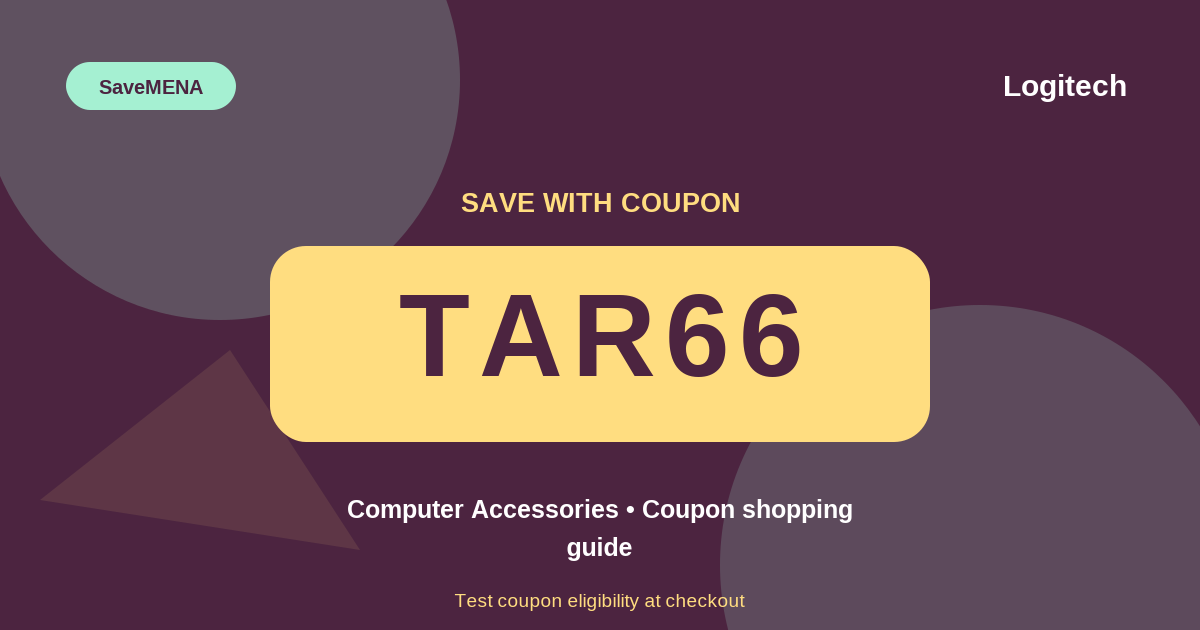
Codes available to try while comparing
These codes are not guaranteed for the article topic or listed brands; test them at checkout and use the live result.
1. How Delivery and Fees Shape Your Total
When browsing Logitech items on Noon, the price displayed is only a part of the calculation. Once you add a product to your cart, a line item labeled “Delivery and Fees” appears, indicating the extra amount you’ll need to pay for shipping and any potential handling or processing charges. This figure is not static; it can vary based on the seller, your location, and the type of delivery (standard, express, or pick‑up).
Because these fees can swing the final price substantially, it is essential to check them before you commit. On the cart page, Noon lists a breakdown under “Summary” showing the subtotal, the delivery fee, any additional handling charges, and the final total. A quick glance at these lines will give you a clear picture of how much you owe beyond the sticker price of your Logitech accessory.
2. Selecting the Right Seller for Logitech Accessories
Different sellers on Noon can price the same Logitech keyboard or mouse slightly differently, and their delivery policies may differ. Some sellers offer free delivery when the minimum spend threshold is met, while others charge a flat fee regardless of order volume. It is a good practice to compare at least two sellers before adding the product to your cart, especially if you’re looking to avoid unexpected delivery fees.
Use the “Seller” filter to see each vendor’s ratings and check the “Delivery” tab in the product listing. This section tells you whether the seller provides standard delivery, express options, or local pick‑up. Sellers that include free delivery often reveal this upfront, helping you avoid additional fees at checkout.
3. Adding Logitech Accessories and Seeing the Fees
Once a Logitech product is added to your cart, Noon will automatically calculate any shipment or handling charges based on your shipping address. These fees can be influenced by factors such as package weight, destination zone, or special handling for delicate items like gaming mice. The “Delivery and Fees” line updates in real time as you change quantities or select different delivery options.
It’s a good idea to click into the cart and view the fee details before proceeding to payment. If you notice an unexpected fee—that is, a charge that appears unexpectedly or seems higher than usual—consider re‑selecting the delivery method or reaching out to customer support for clarification.
4. Applying the TAR66 Coupon at Checkout
During checkout, the coupon field allows you to enter the code TAR66, which is currently available for trying on Noon orders. Entering the code after the product selection will automatically recalculate the total if the coupon is applicable. However, the offer’s details, such as the scope or minimum spend, are determined at checkout and are not disclosed in advance.
Once the coupon is applied, be sure to review the updated “Summary” section again. The discount should reflect under a line item like “Coupon Discount.” If the discount does not appear, double‑check that the code was entered correctly and that there are no restrictions preventing its use.
5. Comparing Delivery Costs Across Sellers
Some sellers include their shipping cost in the product price, effectively offering “free delivery,” while others quote a separate fee. In the cart view, you’ll see a line item for “Seller Delivery Fee.” Compare this figure for each Logitech accessory you’re interested in to understand which combination gives you the lowest total.
Another tactic is to place a single item from one seller in your cart and gradually add more Logitech accessories from that same seller. Doing so can sometimes trigger a threshold that eliminates or reduces the delivery fee, giving you a more accurate overall price comparison.
6. Verifying the Final Totals Before Payment
After all items are in your cart and the TAR66 coupon has been applied, scroll to the bottom of the checkout page where Noon shows the final payable amount. This figure includes the base item prices, any delivery charges, handling fees, and the coupon discount. It is the amount that will be deducted from your payment method.
If you find discrepancies—such as an extra fee that wasn’t displayed earlier—contact Noon’s customer support before finalizing the order. Because the final total is calculated last, it is the most reliable indicator of how much you will be charged.
7. Common Pitfalls That Inflate Your Total
One common mistake is overlooking “Auto‑Add‑Delivery” options that can automatically apply a delivery fee if you haven’t selected a delivery method. Ensure that you intentionally choose the delivery option you want rather than leaving it on the default setting, which may carry an extra cost.
Another pitfall is assuming that a coupon will fully offset delivery charges. In many cases, coupons only apply to the product subtotal and not to the delivery and handling fee.A coupon is not guaranteed; verify its result at the retailer checkout.
8. A Practical Checklist Before You Place Your Order
Before clicking “Place Order,” run through this quick checklist:
- Verify the subtotal of all Logitech accessories. <br>- Confirm delivery and handling fees are rounded correctly.A coupon is not guaranteed; verify its result at the retailer checkout. <br>- Check that the final total matches your expectations. <br>- Validate shipping address details to avoid delivery mishaps.
Related SaveMENA pages
Related articles
Official sources to check
Frequently asked questions
What should I do if the TAR66 coupon does not apply to my Logitech accessory?
If the coupon fails to apply, double‑check that you entered the code correctly and that it has not expired. Some items or sellers may be excluded from coupon promotions. If the problem persists, contact Noon’s support for clarification.
How can I be sure the delivery fee listed is accurate for my location?
Delivery fees are calculated by Noon based on your shipping address when you reach the checkout page. If the listed fee seems unusually high, verify the address is correct and consider comparing another seller’s delivery cost, as fees can vary.
Can I cancel the order after “Place Order” if I notice an unexpected fee?
You can attempt to cancel within the time window displayed on the order confirmation screen. If the order is already being processed or shipped, cancellation may not be possible. It’s best to double‑check all totals before confirming.
Will the delivery fee be added to the total if I change the delivery method after adding items?
Yes. Changing delivery options after items are in the cart will update the delivery and fees line, which then recalculates the final total. Review the updated total before you proceed to payment.