ASUS Laptops on Noon UAE: price changes — delivery-inclusive price
Start by opening the ASUS laptop listing on Noon UAE’s website or app. Check the price displayed at the top of the page, as it may differ from the previous day’s
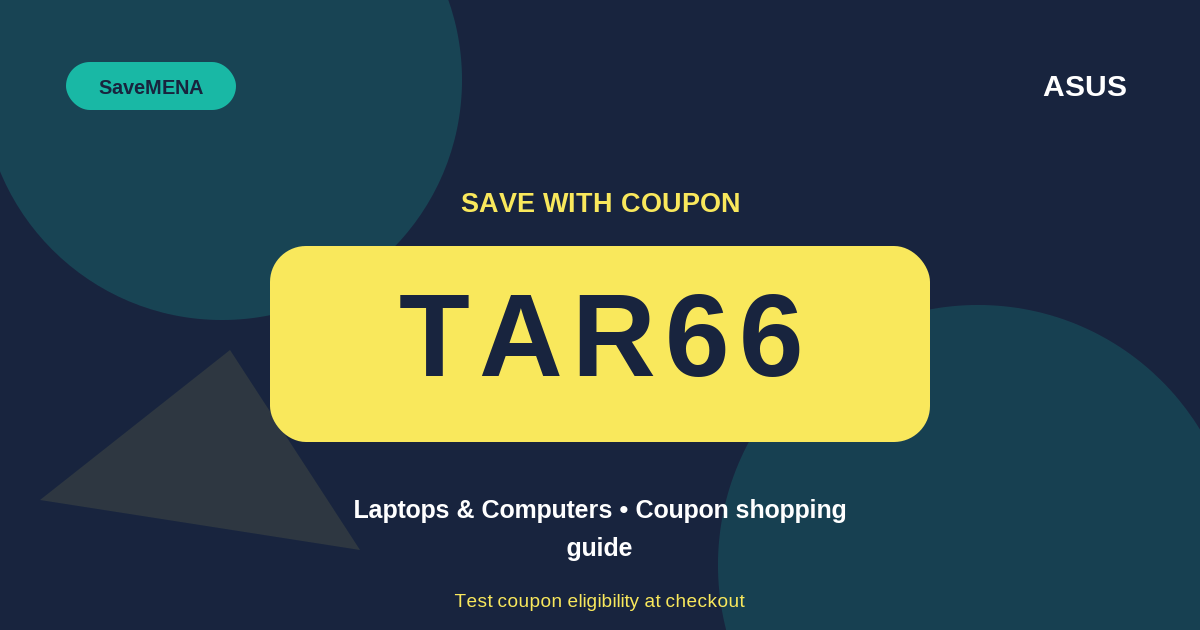
Codes available to try while comparing
These codes are not guaranteed for the article topic or listed brands; test them at checkout and use the live result.
1. Verify the Updated Laptop Price
Start by opening the ASUS laptop listing on Noon UAE’s website or app. Check the price displayed at the top of the page, as it may differ from the previous day’s rate. If a price change has occurred, the new amount should be immediately visible; however, sometimes promotional labels are hidden until you click "View Details." Be sure to note the currency (AED) and any subtotals shown under “Price Breakdown.”
Next, scroll to the bottom of the listing to confirm if an introductory offer or coupon banner is present. This banner might indicate a discount that sits on top of the listed price but is only applied during checkout. If no such banner appears, the displayed price is the amount you’ll pay before any shipping or service fees are added. Save the figure in a note or screenshot for quick reference later in the process.
2. Check the Seller’s Shipping Policy
Once you’ve confirmed the ASUU laptop’s price, identify the seller or distributor offering the product. Click on the seller’s name to open their profile, where delivery options are usually listed. Pay close attention to whether the seller is “FastShip” or “Retail,” as this determines the initial shipping fee listed in the cart.
Some sellers provide a free delivery option for items above a certain value or for specific payment methods. If such a threshold appears, compare it against the laptop’s price to see if the free shipping condition applies. Remember that a lower listed fee may still combine with a platform-level fee; keep both in mind as separate items in the cart total.
3. Compare Noon’s Platform Delivery Fees
After adding the laptop to your cart, scroll to the “Subtotal” section where Noon aggregates the product price and seller-provided shipping fee. Below that, Noon may display an additional “Platform Delivery Fee” if the seller’s fee is waived or not applicable. This fee varies depending on the customer’s location and the selected delivery method.
Take note of the platform fee multiplier, often labeled “Delivery Charge” or “Courier Fee.” The final cart subtotal should now include both the seller fee (if any) and the platform fee. If you’re uncertain about how this figure is composed, pause the checkout and record the numbers; you’ll need them for the final confirmation step.
4. Evaluate Payment‑Method‑Based Fees
Even though Noon rarely imposes extra fees for payments, the chosen payment method can influence the final amount if a fee applies. For example, some credit card processors levy a small surcharge for certain cards or for foreign currency transactions. Read the payment options carefully before proceeding.
In the payment selection screen, examine any “Processing Fee” or “Service Charge” listed next to the method. If this appears, add it to your current subtotal to predict the final payable amount. If the platform does not display a fee, you can safely assume the current subtotal is the amount to be charged.
5. Apply and Inspect Coupon Code TAR66
When you reach the “Apply Coupon” box, type TAR66 and submit. Noon will immediately recalculate the total if the coupon is applicable. Observe whether the total decreases and how much the discount subtracts. Some coupons only apply to the product price, while others may offset shipping fees.
If TAR66 does not activate, the interface will show a notification, such as “Coupon not applicable.” The platform will still display a “Total” figure; use that as your recalculated final amount. Remember, the coupon is only “available to try”; it might still be excluded if the list price already includes a similar discount.
6. Double‑Check the “Order Summary” Before Confirmation
Navigate to your cart’s “Order Summary” or “Review Order” page. Here, Noon lists every line item: product price, seller fee, platform fee, payment–method fee (if any), and coupon discount (if applied). Verify that each amount matches your previous calculations, especially after adding the invoice of a price change.
Look for any “Recalc” button or “Session Expired” notice. If the page prompts you to re‑enter your cart, do so, as it guarantees that all dynamic fees are refreshed. Only after all fields confirm the expected values should you proceed to the next step.
7. Confirm Final Total in the Checkout Window
When you click “Place Order,” Noon presents the final checkout window. At this stage, the platform shows the total payable amount in a prominent place. Confirm that the amount displayed here equals the “Order Summary” earlier. Pay special attention to any small discrepancies that might arise from rounding or currency conversion.
Also review the “Estimated Delivery” date and the delivery method; this can sometimes influence shipping costs, especially if you select expedited shipping after cart creation. If the final total still feels higher than expected, return to the previous steps to locate any overlooked fee.
8. Record the Final Amount and Receipt
Once the order is finalized, Noon sends a confirmation email with the exact transaction details. Download or print the receipt to save the paper trail, especially if you need to dispute an unexpected fee later. The receipt should list the product price, any seller or platform fees, the coupon applied (if any), and the final total.
If you later discover a discrepancy between what you paid and what the receipt shows, use the recorded figures to contact Noon’s customer service. Having a clear record of each component will facilitate a smoother resolution process.
Related SaveMENA pages
Related articles
Official sources to check
Frequently asked questions
Does Noon always add a delivery fee to every laptop purchase?
Noon may include a delivery fee, but it depends on the seller’s shipping policy and the customer’s location. Some sellers waive the fee or offer free delivery over a certain order value. Always check the cart summary before checkout.
Will the TAR66 coupon subtract from the shipping fee?
It depends on the coupon’s terms. Some coupons apply only to the product price, while others may offset shipping. If TAR66 is applied, notice how the total changes in the order summary.
Can I change the delivery method after I place the order?
In many cases, Noon allows delivery method changes up to a certain time before shipment. Check your order status page or contact support. Late changes may trigger additional fees.
What should I do if my final total is higher than the amount shown in the cart?
If the final total increases after checkout, review the order summary before confirming. If the discrepancy persists, contact Noon’s customer support with your order number and the cart screenshot for clarification.