Laptops on Noon UAE: price changes — delivery-inclusive price
When a laptop’s listed price changes, the first task is a thorough review of the new retail figure on Noon’s product page.
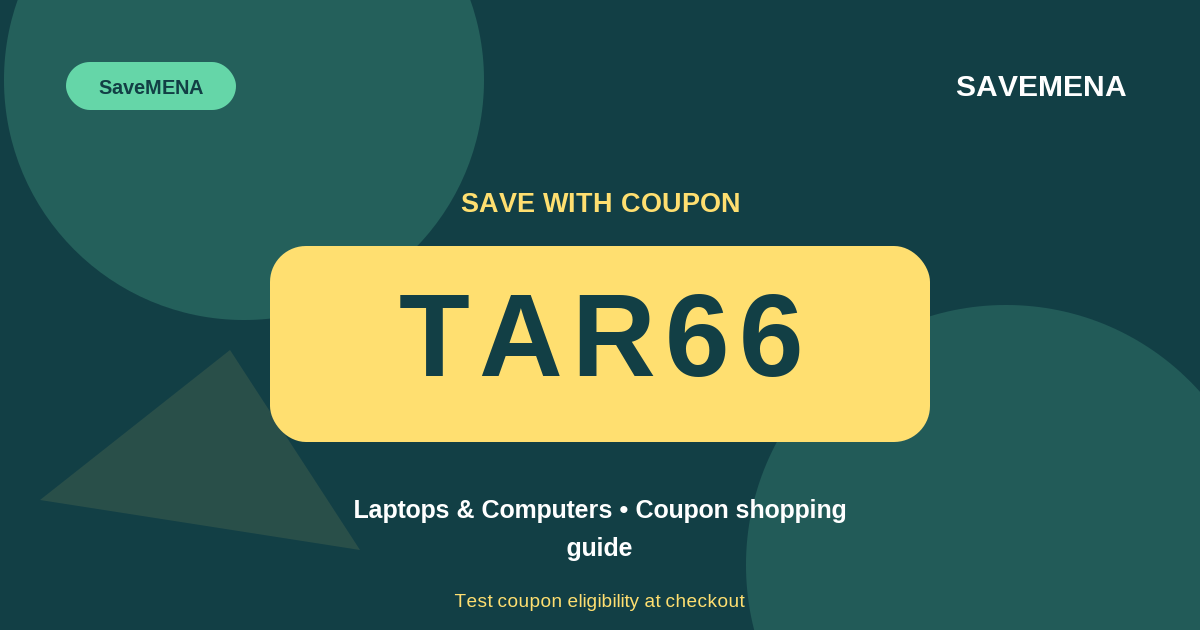
Codes available to try while comparing
These codes are not guaranteed for the article topic or listed brands; test them at checkout and use the live result.
1. Verify the Updated Laptop Price
When a laptop’s listed price changes, the first task is a thorough review of the new retail figure on Noon’s product page. Compare the updated amount with the previous cost displayed during the initial add‑to‑cart stage to avoid any hidden surprises. If you notice a discrepancy, check the seller’s profile and note whether the change is a promotional adjustment, a new edition, or a pricing error that may be corrected later. Certain sellers list additional context on their price labels, like “observed price” or “original price,” which can clarify whether the change is temporary.
After confirming the revised amount, capture the updated price in your notes or write it down on your device. Remember that Noon may show a cart subtotal before any tax or delivery fees, so it is vital to note the cash or credit card amount you’ll be charged for the product alone. This step ensures the rest of the calculation is based on the most current figure, preventing any mis‑calculation later in the checkout flow.
2. Explore Shipping Options for Your Location
Delivery fees on Noon vary by seller and destination. Before proceeding, navigate the product’s shipping details which appear beneath the price on the listing page. Identify the seller’s primary fulfillment center—if it’s a local hub, the delivery charge is likely lower, while international dispatches can incur higher fees. The system may also suggest alternative sellers offering the same laptop at slightly different prices or shipping rates.
For UAE shoppers, cross‑check whether the seller supports same‑day or next‑day delivery, which can carry higher surcharges. If you opt for standard delivery, the fee may be reduced or free, depending on the seller’s thresholds. Note each seller’s posted delivery time estimate, as it affects your expectation of when the laptop will arrive, and keep a record of the chosen seller’s shipping cost for later aggregation into the total.
3. Calculate the Subtotal After Price Adjustment
With the latest unit price confirmed and the chosen seller’s shipping fee identified, you can calculate a new subtotal. Combine the updated laptop price with any applicable tax that may be applied on the product itself, paying careful attention to their order of addition. Noon typically displays a “Tax” line item after the product price in the cart, allowing you to notify what portion of the amount is taxable. Enter this figure to avoid afterward surprises.
Now, add the shipping charges retrieval from the seller’s details to the incremental product subtotal. This summation gives you a pre‑payment figure that includes everything except payments or coupon adjustments. Write down or take a screenshot of this interim total to compare with the final figure required at checkout, ensuring any differences are discovered early.
4. Add Delivery Charges and Handling Fees
Delivery fees on Noon are sometimes split between a base shipping rate and an optional handling fee, especially for high‑value electronics such as laptops. The handling component can cover packaging, insurance, or courier insurance premiums. These costs usually appear in the cart subtotal when you proceed to the “Delivery” step of the checkout process. It’s essential to record each component separately to evaluate if any can be waived or eliminated.
Check every item in the cart’s “Delivery” section carefully. If an optional “Premium/Express” shipping tier is listed, evaluate whether the extra cost aligns with your urgency. In many cases, opting for the standard shipment will keep the handling fee minimal or zero and may be sufficient if you are not time‑constrained. Ensure that this selection is finalized before moving forward to the payment stage.
5. Apply Coupon Code TAR66 at Checkout
Customer key notes—coupon codes are only verified at the point of payment on Noon’s checkout platform. Simply enter “TAR66” in the designated field and press apply. The system will determine whether the code is eligible for the laptop and its associated shipping charges. Since coupons may be on a “try‑out” status, NO guarantee is given for acceptance, nor will it be automatically applied for all variations or sellers.
Upon attempting the code, observe the response message. If rejected, the cart total remains unchanged; if accepted, the discount will reflect in the final amount prepared for payment. To avoid a last‑minute refund or discrepancy, re‑check the updated payable figure after code acceptance or rejection. Document the difference, if any, so that you have a clear record of the effect that the coupon has (or has not) had on the total.
6. Review Payment Method Fees
While Noon’s main payment gateways usually do not charge extra for card or e‑wallet usage, it is prudent to confirm the fee policy through your chosen method. Some banks or payment providers may add a small processing fee for international transactions or certain card types. Verify whether your selected payment method is flagged as “No extra fee” in the checkout’s payment screen to secure the agreed amount.
In the rare case where a processing fee is visible—often a small percentage of the total—add it to the figure you’re about to pay. Note that this fee will appear after the coupon application and delivery fee summation. It is advisable to add this fee to your interim total so that you have an accurate figure when confirming the order.
7. Confirm Wishlist vs Cart Totals
Occasionally, items linger in a wishlist and may receive a different price or shipping policy when finally moved to the cart. Verify that the laptop in the cart corresponds exactly to the one you wish to purchase. Look for any differences in specifications like storage, RAM, or display that might influence price or eligibility for the coupon code.
Cross‑reference the item details displayed at the cart level with those originally saved in the wishlist. Ensure that any updates to the product name, model, or condition are reflected. If discrepancies exist, adjust accordingly by removing the wrong item and re‑adding the correct laptop, then repeat the steps above to re‑calculate the final payable amount.
8. Double‑Check Final Amount Before Pay
On the final checkout page, Noon consolidates all the costs into a payment summary. At this juncture, the product (at the verified price), the applicable tax, the chosen delivery and handling fees, any coupon discount, and potential payment method fees should all be clearly displayed. This is the last point to reconsider any percentage changes that may arise after a price shift, ensuring there are no hidden or unexpected adjustments.
Before hitting the “Pay” button, compare the summary’s total with your previously recorded interim total. If the numbers differ, investigate the discrepancy—check for hidden components such as GST or unexpected handling charges. Only after confirming the amounts align should you proceed to complete the transaction. This diligent final check guarantees you fully understand what you are paying for each element of your laptop purchase on Noon UAE.
Related SaveMENA pages
Related articles
Official sources to check
Frequently asked questions
How can I be sure the final total includes all fees?
On the checkout confirmation screen, Noon lists product price, tax, delivery, handling, coupon discounts, and payment method fees separately. Reviewing each item here ensures you see all charges before you finalize the purchase.
Will the TAR66 coupon definitely apply to my laptop?
The coupon code can be tried at checkout. Its application is confirmed only by the checkout system; if it does not convert into a discount, the final total remains unchanged. No guarantee of acceptance is promised.
Can delivery charges change after I select a shipping option?
Normally, the delivery fee is fixed once you choose a seller and shipping speed. However, if the seller reverts to a different standard rate or you switch shipping tiers, the total may alter accordingly. Check the cart after any change.
Do I need to use a specific payment method to avoid extra charges?
Most payment methods on Noon do not add extra fees, but verifying the “No extra fee” status for your chosen method on the payment screen helps avoid surprises. Always read the fee details displayed before final payment.