Dell Computer Accessories on Noon UAE: item availability — coupon eligibility
Noon UAE coupon eligibility Dell exact item or variant availability at purchase time: To determine whether a Noon UAE coupon like TAR66 applies before you finalize
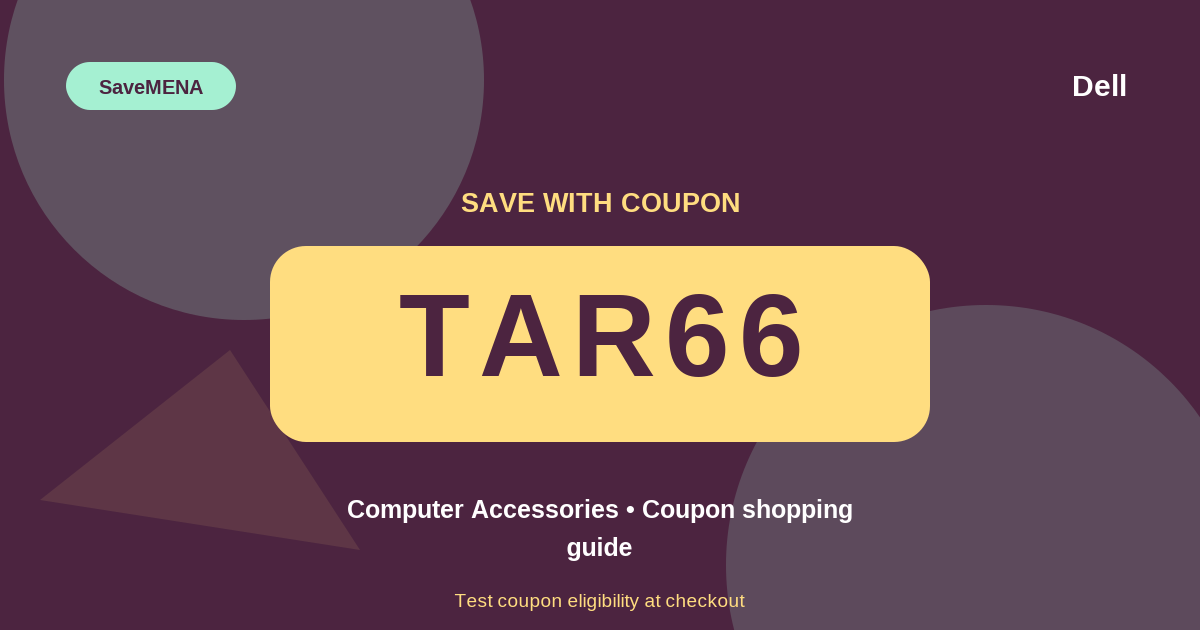
Codes available to try while comparing
These codes are not guaranteed for the article topic or listed brands; test them at checkout and use the live result.
1. Confirm Product and Variant Selection
When you first locate a Dell computer accessory on Noon, you’ll see multiple variants such as color, capacity, or connectivity options. Before adding any variant to the basket, read the description carefully to ensure it matches your needs—e.g., “Dell USB‑C Hub, 4‑port, black.” This initial confirmation safeguards you against selecting a model that later becomes unavailable or changes its attributes after checkout.
After selecting the exact variant, click the “Add to cart” button. At this point, Noon will display a small confirmation popup that includes the chosen item, quantity, and price. You can scroll to like the minimum price and tax or shipping info. This snapshot guarantees that the item you’re about to buy is the one you intended and serves as the baseline for any coupon application later.
2. Verify Retailer and Seller Information
Every product listing on Noon shows the seller’s name and rating. If you’re shopping for a Dell accessory, you’ll often find listings from official Dell partners or electronics retailers. Check that the seller’s profile reads “Verified Seller” or displays a low return rate; this signals a reputable source. The seller’s credibility matters because an unreliable seller might alter the listed variant or charge hidden fees, complicating coupon usage.
Click on the seller’s link to open their profile, where you’ll see their ratings, other product categories, and delivery ratings. If you have a preference for a particular retailer—say, Amazon UAE or a local electronics chain—confirm that the listing belongs to that entity. This step aligns with the exact‑variant lens by ensuring the accessory is sourced from a known, trustworthy vendor.
3. Inspect Stock Status and Delivery Window
Once you’re certain about the product and seller, scroll to the “Availability” section of the product page. Noon usually marks items as “In Stock” or “Limited Stock.” If the status reads “Out of Stock,” you can’t rely on coupon eligibility because the purchase won’t proceed. For items marked as “Limited Stock,” note the quantity left; if it’s low, you might consider buying sooner to preserve your chosen variant.
Below the availability, Noon lists the estimated delivery window. If you want the product by a specific date, ensure the delivery times match your schedule. Delivery shortages can cause the final payable total to change, potentially invalidating coupon applicability once you’re at checkout.
4. Analyze Price and Potential Hidden Fees
The product’s listed price appears near the top of the page. Note whether the price includes VAT or if it’s shown separately. Hidden fees are rarely added on Noon, but there can be regional taxes or optional gift wrapping options that increase the subtotal. On the product page, these are normally displayed in a small dropdown labeled “See details.”
Also look for any “Currency Converter” double‑check if you’re paying in AED. Since AED is the default, there should be no conversion fee, but verify the displayed amount is exactly what you see. This minute detail keeps the exact‑variant principle intact by making sure the pre‑coupon price you’re seeing is accurate.
5. Apply Coupon Before Adding to Cart
Now that the variant, seller, stock, delivery, and price are all confirmed, proceed to use your coupon. On the product page, you can paste or type TAR66 into the “Have a Promo Code?” field. Noon will attempt to apply the coupon instantly, showing a “Coupon Applied” banner if successful or an error if not applicable.
During this step, Noon recalculates the subtotal. If the coupon applies, you’ll see the discounted amount reflected. If the coupon is not accepted, the banner will mention “Not eligible”—which clarifies that at this product level the code is ineffective. In the latter case, proceed without the coupon but keep the code handy for later if you find a different product.
6. Re‑check Eligibility on the Checkout Page
Proceed to the “Checkout” button that now displays the updated price. The checkout page lists all items in your cart, the total price, and any applied coupons. Here you’ll see if Noon continues to acknowledge TAR66; the coupon line reads the exact discount value or “Coupon not applicable.”
This verification is critical because some coupons are only valid during or after cart review when the system recalculates taxes or delivery fees. If the coupon disappears or is marked “Not eligible,” your purchase will go through at full price. Only keep the coupon if the line confirms its presence on the checkout page.
7. Examine Cart Summary for Final Totals
On the checkout screen, scroll to the “Cart Summary” section. This area displays the itemized list, quantity, unit price, tax, and shipping, culminating in the final payable total. Verify each line: the variant selected must match the product’s title, the seller’s name must match the earlier profile, and the price must not change unexpectedly.
In the final total, the savings from the coupon should be subtracted before tax and shipping calculations. However, Noon’s system may sometimes recalculate the tax based on the discounted subtotal. Compare this total visually to the pre‑checkout tax and shipping expectations from the product page to ensure consistency.
8. Retain Records and Update List After Purchase
After confirming that the coupon is applied and the total matches your expectations, complete the payment method selection. Save a screenshot or note the receipt number so you can cross‑reference later if the refund or discount does not apply in the statement. This record acts as evidence of your attempt to use TAR66 and the final payable amount.
If you plan to use the coupon on other Dell accessories, update your personal list of items and variants that have moved through the process successfully. Keep a simple spreadsheet noting the variant, seller, coupon status, and final price for future reference, turning each transaction into a learning point for discount usage on Noon UAE.
Related SaveMENA pages
Related articles
Official sources to check
Frequently asked questions
Does the TAR66 coupon automatically apply to all Dell computer accessories on Noon UAE?
No, the availability of VAT discount code TAR66 depends on each product’s eligibility. It may apply only to select Dell accessories and is subject to validation at checkout. Check each item individually.
Can I use the TAR66 coupon after the purchase if it wasn’t applied at checkout?
Coupons must be applied during checkout. If the code was not accepted, it cannot be retroactively applied. Only the seller’s refund policy may address post‑purchase adjustments.
Will the coupon reduce shipping or only the product price?
The coupon code typically reduces only the product price, not the shipping fee. Shipping is calculated separately during checkout.
What should I do if my Dell accessory variant runs out of stock after I add it to the cart?
Check the item status on the checkout page. If marked “Out of Stock,” you might be prompted to remove it or wait until restock. A new variant can be selected once available.