Dell Laptops on Noon UAE: basket contents — coupon eligibility
Begin by navigating to the cart icon on Noon UAE’s website or app. Visual inspection of the viewport will display each line item – the product name, SKU, and
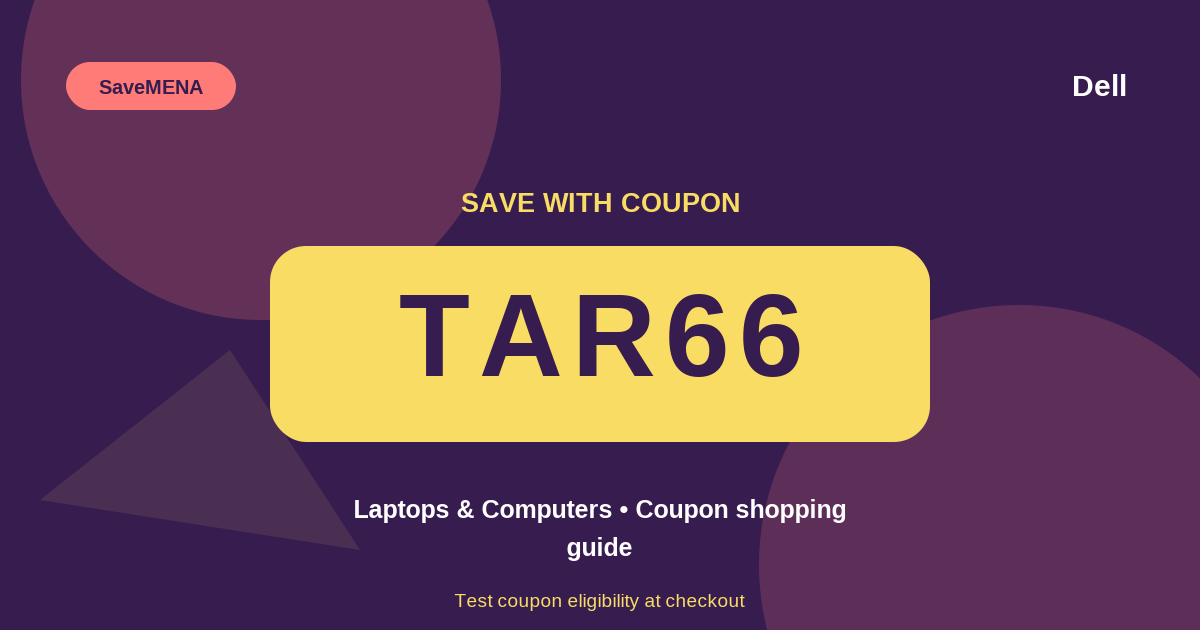
Codes available to try while comparing
These codes are not guaranteed for the article topic or listed brands; test them at checkout and use the live result.
Step One: Open Your Cart and Identify Eligible Items
Begin by navigating to the cart icon on Noon UAE’s website or app. Visual inspection of the viewport will display each line item – the product name, SKU, and quantity. Pay close attention to the vendor tag (e.g., “Dell” or “Dell Authorized Reseller”) as the coupon’s scope may depend on the seller’s catalog status. If a Dell laptop is listed as a branded item from a certified reseller, it is more likely to qualify. Keep an eye out for package bundles that include peripherals – these can alter eligibility. If you notice any discrepancy, such as a third‑party seller or a package kit, that might affect the eligibility status later at checkout.
The next step is to snapshot each laptop’s summary line: hardware specs, price, and any promotional labels like “Deal” or “Premium.” These details appear in the cart window and will be compared against the coupon’s conditions during the validation phase. Ensure you record the item quantity accurately – even a single unit can trigger a different coupon logic. Store this information mentally or in a text note; it will help you spot any variations when you test the coupon code. At this point, you still have a clear picture of what’s in your basket with respect to the Dell laptop brand and any accessories or bundles.
Step Two: Understand the Terms of the TAR66 Coupon
The TAR66 coupon is a general promotion available for attempts on Noon UAE; no guarantee of application is provided. Because the terms are not fixed public content, you must rely on the dynamic eligibility prompt that appears after you input the code during checkout. The prompt will list the items that are considered eligible for the coupon, based on Noon’s internal logic. For laptops, this usually means that items directly under the Dell brand and sold by a certified seller will pass the test, while bundled accessories might be excluded if they are not part of the core product line. Maintain awareness that the eligibility list is evaluated at the moment of code entry, not earlier.
If your cart includes multiple Dell laptops, the code’s functionality may depend on quantity or product variation. However, because the rule set is hidden, you cannot predict precisely how many Dell units will be accepted before you first attempt to apply the coupon. The only reliable way to confirm is to add the code at checkout and wait for the system’s feedback. Make a mental note that you might need to adjust quantities or remove extra items to trigger the full coupon effect. Remember, the key to success is balancing the number of Dell products and their specific SKU attributes that Noon recognises as “eligible.”
Step Three: Anchor the Coupon at the Checkout Page
Proceed to checkout only after you’ve validated that every Dell laptop in your basket enters the shipping screen. At the next screen – the payment gateway – you’ll see a field labeled “Coupon Code” or “Use Promo Code.” Input TAR66 and hit apply. Noon UAE will then run a hidden eligibility check and inform you immediately if your key is valid for the items listed. This instant feedback lets you know whether all your Dell laptops, or only a subset, qualify for the coupon. Pay close attention to any visual cues: “Coupon Applied” or “Coupon Rejected” messages appear near the total summary.
If a warning surface indicates that some items are not eligible, the platform highlights them individually. The response is immediate, and you can make changes right away. For example, if an accessory package deems one laptop non‑eligible, consider removing that set or separating the laptop from its accessories. Keep in mind that any changes you make will require you to re‑apply the coupon to see the updated eligibility status. Once the system confirms a successful application, the discount will reflect under “Promo Applied” before you finalize payment. At this point, you have corroborated the coupon’s status for the chosen Dell laptops.
Step Four: Verify Basket Composition After Coupon Application
After you hit “Apply,” check the entire order summary again. The breakdown lists item prices, any discounts, and the final payable total. Notice the per‑item discount amount if there is one; it will confirm the coupon’s impact. If the order remains unchanged, the coupon has likely not been accepted for your laptop(s). The main indicator is the presence of a “Coupon Deducted” line underneath the subtotal. Ensure that the deduction appears against each Dell laptop line, not just the total.A coupon is not guaranteed; verify its result at the retailer checkout.
If you see the deduction only on the subtotal and not aligned with specific items, double‑check whether the platform treats the coupon as a category‑wide discount instead of a per‑item discount. In such scenarios, the eligibility of the basket is still valid, but the representation is aggregate. In either case, the final amount displayed is what you will pay. Keep a clean screenshot or note of the displayed figures to confirm that everything is in order before moving to payment. This precaution helps you avoid disputes later, should a discrepancy arise between what you saw and what you were charged.
Step Five: Adjust Your Basket if Eligibility Is Incomplete
If Don’t see coupon coverage for all your Dell laptops, identify the items triggered as non‑eligible. Noon’s message will typically list the SKU number or product title. You might need to remove bundled peripherals or shift to a different Dell seller whose catalog aligns with the coupon’s hidden rules. The checkout page permits editing quantities or deleting items — simply tap “Edit” next to the offending line, adjust or remove, then re‑apply the coupon. Each modification will refresh the eligibility logic.
Be mindful of the fact that sometimes the platform marks the entire bundle as ineligible rather than just the accessory. In that case, consider isolating the laptop into a separate order or choosing a competitor’s individual product page if you want the coupon to trigger. The approach you take will vary based on your urgency and price sensitivity. Once you have refilled the basket so that all the relevant Dell laptops are flagged as eligible, reapply TAR66 to confirm that the discount now reflects on each item line.
Step Six: Final Payment Verification
Before you press the final “Pay” button, review the last payment confirmation screen. This screen lists all taxes, delivery fees, and any promotional deductions.A coupon is not guaranteed; verify its result at the retailer checkout. If the system shows an unexpected surcharge or a missing discount, you might need to revisit the previous steps to understand why the coupon wasn’t counted. Noon UAE’s confirmation screen is the ultimate checkpoint ensuring no hidden surprises.
After payment submission, you will receive an order confirmation email. The email will reiterate the final total, the applied coupon code, and a line item breakdown. Keep a copy of this confirmation for your records. If a discrepancy surfaces after the fact — for example, if the email shows no coupon applied — reach out to Noon UAE’s customer support and present the evidence from the checkout screen. Remember, the coupon code entered at checkout is the decisive artifact that validates the discount, not the purse of the cashier. Keeping the entire chain of evidence is the best way to avoid a delayed claim.
Step Seven: What to Do if Noon Rejects TAR66 for Your Laptops
Sometimes the coupon plain rejects after a quick test, meaning that the code either does not apply to the director or the particular Dell SKU. In such a scenario, confirm that you typed "TAR66" correctly with no spaces or special characters. If still rejected, consider the possibility that the coupon is still in testing. In those cases, you can try redeeming a different currently available discount that matches the category, or you might simply proceed without a coupon. No special penalty or charge is levied; you just get the standard price.
Another remedy is to explore alternative vouchers that Noon sometimes offers for laptops. You can check the brand page or the “Deals” section for an active Dell discount. Even if the new voucher is not precisely TAR66, the savings can be comparable. Finally, note that coupon eligibility can also shift toward seasonal or promotional periods. If you do not need the purchase immediately, waiting until a major discount wave may be a better strategy. The key takeaway is that if TAR66 fails, use the systematic approach above to verify whether you can discover a compatible promo for your Dell basket.
Step Eight: Future‑Proof Your Laptop Purchases on Noon UAE
Once you are comfortable checking eligibility, the process can become routine. Each time you add a Dell laptop to your cart, use the pre‑payment test while noting the cart composition. Over time, you’ll build intuition about which SKUs are likely to pass the coupon filter. Mark these as preferred for future orders. If you maintain a checklist of labels such as “Dell Authorized,” “Non‑bundle,” and “Standard SKU,” your decision process will become faster and less error‑prone.
Staying plugged into Noon’s notification systems is also beneficial. The platform occasionally sends alerts for new coupons or the coupon code deals. If you subscribe to Dell‑related or laptop newsletters on Noon, you’ll be alerted to any coupons that specifically mention “Dell” or the laptop category. Having that awareness combined with the basket‑composition checks will keep you ahead of the curve and let you bag the best deals with confidence. Keep the coupon key handy, and know that the moment you apply it, the visibility of your eligibility hits the ground running.
Related SaveMENA pages
Related articles
Official sources to check
Frequently asked questions
Can I use TAR66 on multiple Dell laptops in one order?
Yes, if all Dell laptops in your cart meet Noon’s eligibility criteria. When the coupon is applied, a single code can cover each eligible laptop line. If any item is non‑eligible, only the approved laptops will benefit.
What happens if I accidentally add an accessory that makes the laptop ineligible?
You’ll receive a prompt during checkout indicating the non‑eligible item. Remove the accessory or switch to a standalone Dell laptop, then re‑apply the coupon. The discount will only trigger on qualifying items.
Is there a delivery fee that affects coupon eligibility?
Delivery fees are separate from coupon rules; they apply after the discount calculation. The presence of a fee will not prevent the coupon from being applied to eligible laptops.
Do I need a Noon UAE account to apply TAR66?
Yes, applying coupons requires a logged‑in account or a guest checkout that allows promo codes. After logging in, the code will be validated against your current cart.