Apple Mobiles on Noon UAE: basket contents — coupon eligibility · TAR64
When you’re ready to buy the latest mobile phone on Noon UAE, you’ll naturally want to use every discount at your disposal.
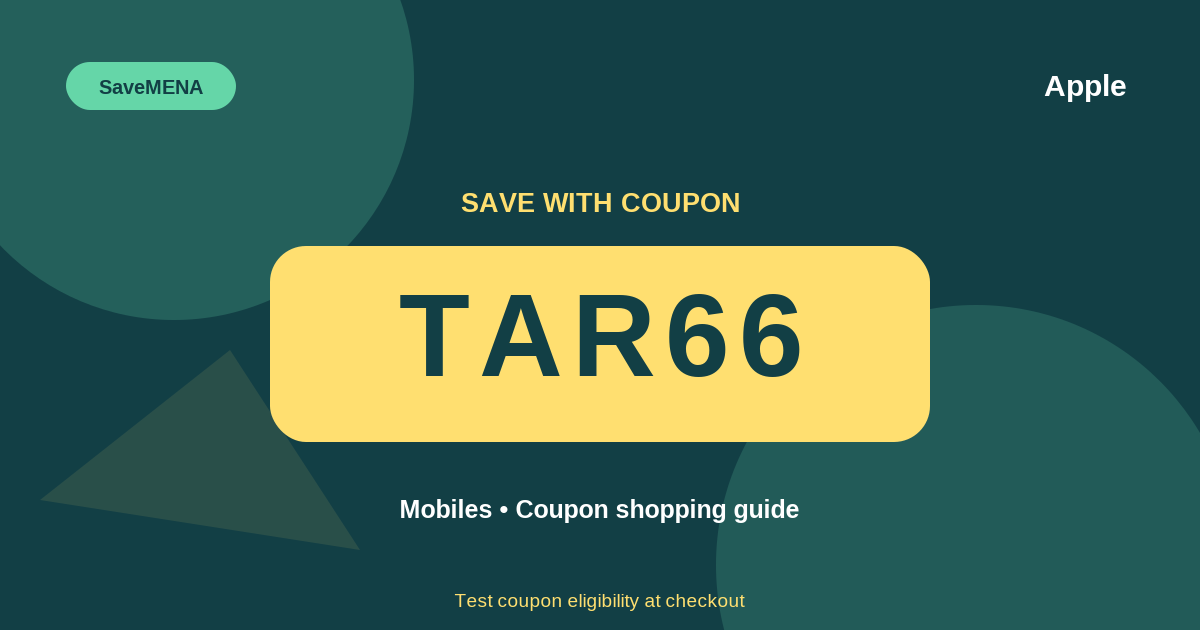
Codes available to try while comparing
These codes are not guaranteed for the article topic or listed brands; test them at checkout and use the live result.
Locate the Coupon Prompt in the Mobile Cart
Begin your shopping session by adding your chosen mobile or Apple phone to the cart. Once you’re at the cart page, look for the “Enter Coupon Code” field that appears right under the total amount. This field is always available regardless of the device you’re using, whether desktop, mobile web, or the Noon app. It’s the first place you’ll input TAR64, so having it handy ensures you won’t miss the chance to qualify for any potential savings.
After entering TAR64, the cart will automatically reload to recalculate totals. A small, stylised banner will appear beside the code entry box, indicating whether the coupon has been accepted, rejected, or is pending review. If the code isn’t accepted instantly, the banner will frequently display a brief warning—often stating “Coupon invalid” or “Not eligible for this product.” At this point, you can revisit the eligibility criteria for mobile purchases before proceeding further.
Analyze the Basket Composition for Apple Devices
Next, focus on the basket’s composition. Your Apple phone should appear as a distinct item line, displaying the model, color, and price. The composition of your basket dictates how the coupon interacts with each product. Coupons on Noon can be sensitive to brand, category, or even SKU within a product family. Verify that your Apple phone is not paired with incompatible accessories that might alter the discount applicability. For instance, if you added an Apple charger, the system will still treat each line item separately in the discount calculation.
Check the quantity field next to the Apple phone entry. The coupon eligibility can change if you’re purchasing more than one device; some systems apply a single discount per basket, while others apply it per qualifying item. By confirming the quantity list here, you’ve essentially set the groundwork for the coupon’s behavior before the final price is shown.
Validate Minimum Spend and Eligibility Requirements
Although the exact a minimum-spend condition, if the retailer shows one discount isn’t specified, Noon typically requires a certain threshold for any coupon to activate. Inspect the overall cart total displayed after you entered the coupon code. If the total is below the threshold, the banner will often say something like “Minimum spend required.” This message will appear just above the payment button. Even if you can’t see the exact figure, the system’s response gives you a clear indication that the coupon is not yet active.
Prep the basket accordingly: If the total is insufficient, consider adding another mobile or a related accessory to boost it. Keep in mind that each added item will be part of the final total, thereby potentially nudging the cart over the threshold and turning the coupon into an active discount.
Strategic Timing for Applying the Coupon
Coupon activation can be a race against time. Noon occasionally updates cart totals mid‑session if items are auto‑charged for delivery or if promotional banners are refreshed. To prevent losing the coupon, after entering TAR64, submit your cart with the "Continue to Checkout" button immediately—do not linger on the page or navigate away. Delays can trigger a recalculation that might remove the coupon if any conditions change during the waiting period.
During the checkout, don't forget to verify that the “Coupon Applied” tag is listed next to the total amount. This tag remains visible until you complete the payment. If it disappears before you proceed, you’ll need to re‑enter the code or adjust basket items to meet eligibility once more.
Common Pitfalls When Applying Noon Coupons to Mobile Purchases
Two major pitfalls often surface when using Noon coupons for mobiles. The first is assuming that the discount automatically applies to every brand. Even though TAR64 is a general coupon, it may still have hidden constraints that exclude particular brands or SKUs. The second pitfall involves overlooking hidden delivery charges that can push the cart total just below the coupon’s threshold. Both issues can lead to a failed coupon even if you entered the code correctly.
To mitigate these, always double‑check the final itemized list while it’s still in the cart. Pay special attention to the “Delivery Fee” line—delivery can be free for certain price bands but can also increase the total if your purchase flirts with a boundary. If the total slips below the required dent, re‑evaluate your items.
Cross‑Reference Other Promotions in Your Basket
On Noon, you may find other promotional offers, such as “Buy 1 get 1 free” or “Bundle discount.” These promotions can affect the final subtotal, which in turn influences the coupon’s activation. When multiple promotions apply, Noon usually prioritises the ones that reduce the subtotal directly before applying coupon codes. Therefore, confirm that all other discount lines appear correctly before verifying the TAR64 status.
Many shoppers overlook the “Promotions” tab beneath the cart total. Clicking this tab reveals all active promotions and the order in which they’re applied.A coupon is not guaranteed; verify its result at the retailer checkout.
Final Confirmation Step: Check Eligible Total at Checkout
When you reach the final checkout step, the payment screen becomes your ultimate referee for coupon eligibility. Verify the screen’s “Subtotal,” “Delivery,” “Taxes,” and the “Coupon Discount” lines. The coupon must appear as a separate line item with the label TAR64. If this line is missing, the coupon was not accepted. Even if it appears, the amount may be zero—indicating eligibility existed but no monetary benefit applied.
Take note of the final amount to be paid. If the “Coupon Discount” line applies, it will be subtracted from the top of the payment window, just before you enter payment details. This is the stage where you confirm that the coupon truly took effect. If everything checks out, you can confidently proceed to the payment method selection.
Safeguarding Your Purchase: Post‑Checkout Review and Customer Support
After you finalize the payment, keep the order confirmation page open until the next step is complete. This confirms that the checkout process recognized the coupon and that the final transaction has been recorded. If unforeseen errors occur—such as the coupon appearing after you’ve paid—contact Noon customer support immediately and reference the order number and the coupon code TAR64.
Should the discount not reflect post‑purchase, Noon’s support team will typically investigate by checking the backend status lines. They can confirm whether the coupon was applied at the checkout but not displayed due to a sync delay, or whether it was never activated due to eligibility mismatches. Communicating the exact coupon code and the details of your basket will accelerate this resolution.
Related SaveMENA pages
Related articles
Official sources to check
Frequently asked questions
How do I confirm if TAR64 has been applied before I pay?
On the Noon checkout screen, look for a “Coupon Discount” line showing TAR64. If the line appears with a non‑zero amount, the coupon is active. If the line is absent or shows zero, the coupon wasn’t applied or has no savings effect.
Does TAR64 work with every Apple mobile in the cart?
The coupon can be applied to Apple devices, but eligibility depends on the overall cart total and any other active promotions. Verify the cart after entering the code; the coupon’s acceptance banner will indicate whether it applies to your Apple phone specifically.
Can I use TAR64 together with free delivery or other promotional discounts?
Noon typically applies other discounts—such as free delivery or bundle offers—before evaluating coupons. Once those adjustments are finalised, TAR64 may or may not trigger based on the new subtotal. Double‑check the final total for a coupon line before proceeding.
What should I do if the coupon appears after I’ve already paid?
Contact Noon customer support immediately, providing your order ID and TAR64 code. Explain that the discount should have applied before payment. Support will review the transaction details and apply the necessary correction or refund.