Logitech Office on Noon UAE: basket contents — coupon eligibility · TAR64
A coupon is not guaranteed; verify its result at the retailer checkout. This guide walks UAE shoppers through each step of adding Logitech products to your cart
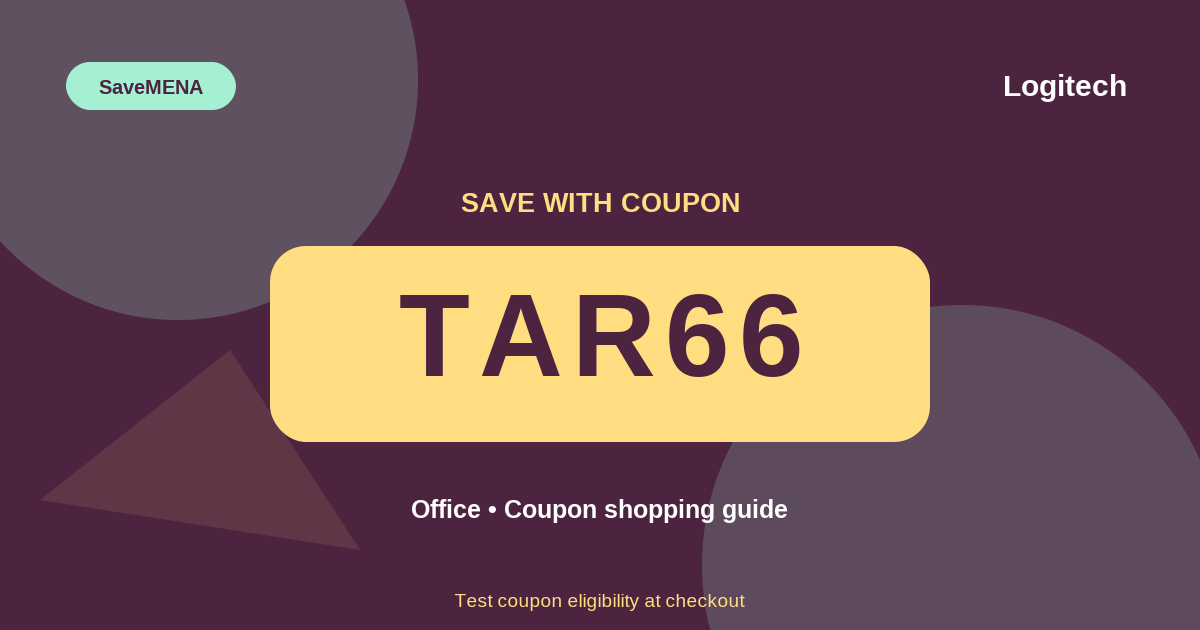
Codes available to try while comparing
These codes are not guaranteed for the article topic or listed brands; test them at checkout and use the live result.
Choosing the Right Logitech Items for Your Office Basket
When assembling an office supply list, start by selecting the Logitech devices that align with your workflow. Think about keyboards, mice, webcams, and headsets that fit your needs. Ensure each item is listed under the Office category on Noon, as that confirms it’s eligible for the broader office discount framework. Pairing high‑quality peripherals with complementary accessories can improve productivity and build a cohesive setup that justifies a higher basket value, which may positively influence coupon eligibility.
Logitech offers a range of models, from ergonomic mice to polished laptops. The key is to match the device’s features—wireless vs. wired, DPI settings, or connectivity options—to your usage patterns. While the CDI does not disclose specific product requirements for the TAR64 coupon, choosing renowned Logitech brands typically triggers better consumer confidence and may align with Noon’s coupon eligibility logic that often favors mainstream, well‑reviewed items.
Understanding Noon UAE Coupon Eligibility: What It Means for Your Office Cart
Coupon eligibility rules on Noon UAE are evaluated against the basket’s total value, items, and seller identities. For office purchases, eligibility often hinges on whether the items belong to a recognized office-product category and whether their seller meets Noon’s approval criteria. The TAR64 code might function across multiple brands, but the system checks for compliance before applying any discount, so always verify that the items you choose satisfy each condition physically reflected in your cart.
Keep in mind that eligibility is not a permanent status; it’s recalculated whenever you add or remove items, update quantities, or switch sellers. Once you reach the payment stage, the system finalizes the eligibility check—any changes after that point will not be reflected. Reviewing the eligibility status at the moment of checkout is therefore the most reliable method to confirm your coupon will be applied.
Step‑by‑Step: Adding Logitech Products to Your Basket Before Coupon Check
Begin by navigating to the Office section on Noon and filtering for Logitech. Select each product and examine its product page for seller information—publicly listed seller ratings, location, and fulfillment type. Adding items from multiple sellers to the same order may affect coupon validity if the system requires a single seller for certain offers. Once all desired Logitech items are added, review the basket summary to ensure quantities match your needs.
If you notice variations in seller status or notice that a particular Logitech item defaults to a new seller, consider replacing it with a similar model from an approved vendor. Harmonizing the seller field across all items can streamline coupon eligibility checks, as many online platforms tie coupon application to seller consistency. This pre‑checkout alignment reduces surprises later, making the checkout flow smoother.
Verifying Basket Composition Against Coupon Criteria Early in Checkout
Before proceeding to the payment step, click the "Apply coupon" button in the basket page. Enter the TAR64 code, then watch for the system to confirm or deny eligibility. If the system flags a problem—such as mixed sellers, insufficient total value, or out‑of‑stock items—it will typically offer an explanation or suggest adjustments. Use this window to tweak quantities or replace problematic items, ensuring the basket meets all criteria the coupon uses.
The “Coupon eligibility” overlay on Noon may show brief metrics like “Eligible” or “Not eligible.” While it does not list the omitted reasons, it reflects real‑time calculations based on your basket. If you see “Not eligible,” double‑check that each item remains within the office category, that no proprietary brand restrictions exist, and that the seller meets the core requirements for the coupon to work. Adjusting the basket at this stage is far easier than correcting it after payment.
How to Apply the TAR64 Coupon During the Checkout Process
Upon reaching the checkout screen, after verifying shipping details, you’ll be presented with a field to input coupon codes. Enter “TAR64” carefully and click “Apply.” Noon’s system will immediately recompute the order total. If the code is accepted, the page will display a discount amount, even though we cannot provide specific savings figures. Always allow the system a few seconds to refresh the total; a delayed update can lead to confusion during payment.
If the news is that the coupon is not accepted, pause and revisit the earlier eligibility confirmation. Sometimes the problem lies in delayed stock status or an outdated buyer account. Double‑check that your internet connection is stable and that you are logged into your usual Noon account, as erratic logins can sometimes cause the coupon trigger to fail, particularly if your account is flagged for restricted usage.
Finalizing Your Order: Seeing the Final Price and Confirming Eligibility
When you reach the payment method selection, the final order total is displayed in full. At this point, the coupon eligibility is definitively confirmed. The total will include any verified discount, saved shipping, or tax adjustments. Review each line item carefully: confirm that all Logitech devices are present, the shipping fee is correct, and the discount amount matches the earlier calculations. Any discrepancy warrants an immediate refund request or a return to the shopping cart before authorization.
Once you confirm the total, choose your preferred payment method—credit card, net banking, or an e‑wallet—and complete the transaction. The payment gateway will lock in the total; alterations here can lead to double charges or refund complications. Save any confirmation emails or receipts; these serve as proof that the coupon was applied at the level of checkout and that you have purchased the intended items.
Keeping an Eye on Your Order Post‑Payment and Best Practices for Future Buys
After payment, locate your order status in Noon’s order history. The system will reflect the final applied coupon and the total addressed at payment. If the coupon was not applied, the receipt will show a zero discount. From there, you can prefer to reorder or request a refund if you are unsatisfied. Tracking your order also lets you monitor the delivery timeline and the seller handing the items, especially for subscriptions or repeat purchases.
Going forward, adopt a checklist when shopping: verify the category, seller consistency, stock status, and then re‑check coupon eligibility before hitting payment.A coupon is not guaranteed; verify its result at the retailer checkout. By treating the checkout window as a final checkpoint, you can confidently manage your office supply budget and maintain a smooth shopping workflow.
Compare alternatives without guessing
When you compare another option in logitech, keep the specifications, quantity and seller as consistent as possible and compare the total shown at checkout. A different coupon does not automatically make a deal better because delivery, fees and the live basket context can change the outcome. Use the final payable total as the practical comparison point.
If the retailer shows a specific condition, rely on that visible message; if it does not, do not turn an assumption into a general rule. Test available options one at a time and note any real change in the total or eligibility message. That creates a verifiable shopping comparison instead of a recommendation built on an unsupported marketing claim.
Related SaveMENA pages
Related articles
Official sources to check
Frequently asked questions
A coupon is not guaranteed; verify its result at the retailer checkout.
Not necessarily. The code’s applicability depends on the real‑time eligibility workflow, including seller status, item category, and stock availability. Always verify eligibility at checkout before finalizing payment.
What happens if I add additional items to my basket after applying the coupon code?
Adding or removing items can alter the basket composition and potentially invalidate the coupon eligibility. Re‑apply the coupon after any changes to confirm it still applies before payment.
Can I use the TAR64 coupon on future purchases without re‑checking eligibility?
Coupon eligibility is evaluated on a per‑order basis during checkout. Each time you place an order, confirm eligibility again before finalizing payment.
How can I troubleshoot if the TAR64 coupon isn’t applying at checkout?
Check that all items are from a single approved seller, within the office category, and in stock. If problems persist, contact Noon support with order details and coupon code.