Adidas Sports on Noon UAE: checkout message — coupon eligibility
Noon UAE coupon eligibility Sports Adidas the live coupon message at checkout: When you’re ready to snag a pair of sports‑ready Adidas gear on Noon UAE, the first
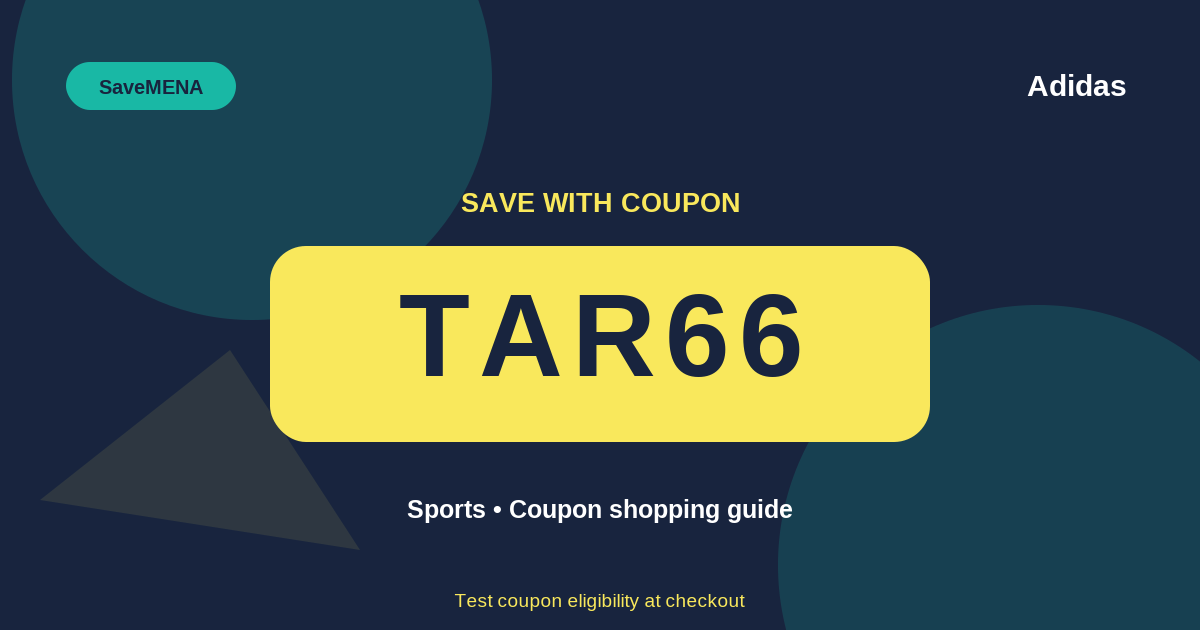
Codes available to try while comparing
These codes are not guaranteed for the article topic or listed brands; test them at checkout and use the live result.
1. Verify the Eligibility Summary in the Shopping Cart
Navigate to the shopping cart where the Live Coupon message first appears. The system will list any active coupons and display whether they’re eligible for the items selected. At this stage, keep an eye on the “Coupon Eligibility” indicator; it should reflect your intent to apply TAR66. If the indicator shows “eligible”, you’re good to go. If it states “not eligible” or omits the code, adjust either the quantity or product variant before proceeding.
During this check, confirm that the items are truly sports apparel—this adds to the pool of qualifying products for a Noon UAE coupon. For instance, if your cart contains an Adidas running shirt and a pair of soccer cleats, the eligibility summary should cross‑reference the brand and category, signifying that the coupon is likely to qualify. If your cart also holds non‑sports products, consider removing them to keep the coupon applicable.
2. Review the Coupon Code Input Screen
On the coupon input page, type TAR66 exactly as shown; the Live Coupon framework will instantly recalculate the discounted amount. The numeric change is reflected in the total before you continue to checkout. This is the first practical decision point—does the screen update in real‑time, or do you need to press “Apply” again? A responsive field confirms that the mechanics are working.
After pressing “Apply”, watch for a confirmation message underneath the input area. Even if the coupon is correct, the message may suggest a need for a higher cart value or a specific product arrangement. Documenting this text prepares you for the next step where you’ll evaluate the final order summary.
3. Inspect the Live Coupon Summary Before Applying
Before you hit “Proceed to Payment”, scroll to the summary section on the cart page. The live coupon message appears in a highlighted box, often with a thumbs‑up icon or a small note that the discount will be deducted from the total. This is your assurance that the Future total will adjust under the selected coupon.
Read the wording closely—many pop‑ups mention “Coupon will apply at checkout” or “Discount applied automatically”. If the text is absent, it indicates the coupon did not register. In that case, double‑check the cart items, the code, and any “clear cart” or ‘more options’ actions you might have inadvertently triggered that reset the coupon field.
4. Confirm the Automatic Application of TAR66
At the checkout stage, your payment screen should show a “Coupon Applied” line item. The Live Coupon message typically recurs in the “Order Summary” or “Payment Breakdown” portion, reaffirming that TAR66 will be automatically deducted. If the summary lists “Coupon – not applied”, attempt resubmission or review any visible error code.
Every value shown in the summary is dynamic; tapping the summary can reveal a tooltip or a small FAQ that explains the eligibility logic. That explanation can clarify whether the issue lies in product selection, minimum spend, or another hidden qualifier that might not have been obvious earlier.
5. Double‑Check the Updated Total at Notice Area
Beyond the order summary, the checkout interface often displays a separate notice area that highlights the final payable amount. Look for a text that includes “Total after Coupon” or similar. This area underscores the discount effect and confirms that the live coupon integration has functioned. If the notice area only shows the pre‑coupon total, the discount was not applied correctly.
When the discount appears, verify that the value matches the estimated savings displayed earlier in the cart. The Live Coupon mechanism keeps the numbers consistent, but a small mismatch could signal an issue with the coupon's applicability to the chosen quantity or variant.
6. Watch for Shipping Fees or Additional Charges
Coupon eligibility for TAR66 often does not extend to shipping fees. The checkout page will typically list “Shipping” as a separate line item, sometimes after the coupon discount is applied. Confirm that the live coupon message still shows “Coupon Applied” even though shipping might remain unchanged.
If you see an “extra charge” note after the coupon row, it indicates that the discount was applied only to the product subtotal. note it in your own tracking sheet so you can compare the post‑discount and pre‑discount totals if you suspect a discrepancy in discounted shipping eligibility.
7. Verify the Final Payable Total in the Order Summary
The final billing statement on the checkout screen lists each item, the applied coupon, any shipping costs, and taxes. This is where you verify that the “TAR66” discount is reflected in the overall total. The Live Coupon message should coincide with the amount subtracted in the breakdown.
Take a screenshot of the entire summary for your records. A reliable way to ensure you’re not missing any hidden fees is to enter a different payment method or to view the order confirmation after payment; the Live Coupon message carried through to the confirmation email confirms it took effect.
8. Look for Confirmation Email After Payment
After submitting payment, request or open the order confirmation email. Search for references to “TAR66” or “discount” within the email body. The confirmation should reconcile the final amount paid with the expected discount applied, effectively closing the loop on coupon eligibility.
If the confirmation email lacks any mention of the discount, review your payment receipt and track any missing messages in the navigation track. In rare occurrences, email filters can move the confirmation to the spam folder, so double‑check your inbox and spam folders. This final step confirms that the coupon was applied exactly as it appeared during checkout.
Related SaveMENA pages
Related articles
Official sources to check
Frequently asked questions
How do I know if TAR66 is still available when I add items to my cart?
During the cart review, a live coupon message will instantly update if TAR66 is applicable. If the message disappears or shows “not eligible”, the coupon is currently unavailable for the chosen items. Check the cart contents and try the coupon again after adjustments.
Can I use TAR66 together with another coupon or promotion?
Only one active coupon can be applied at a time on Noon UAE. If you try to use another coupon after applying TAR66, the system will replace it. Confirm the coupon status before finalizing payment.
Does the TAR66 coupon affect shipping costs?
Generally, coupons on Noon UAE apply only to product prices, not to shipping. The Live Coupon message will show the applied discount on the product subtotal, while shipping remains separate unless otherwise specified.
What if I see a “not eligible” message after placing my order?
Check the order confirmation for any notes on coupon status. If the message persisted, contact Noon customer support for clarification and to confirm that the discount was not applied due to cart contents or other limitations.