Beauty on Noon UAE: price changes — coupon eligibility
Noon UAE coupon eligibility Beauty rechecking after a price change: .. Verify the actual item, seller, and checkout total; the coupon is available to try, not
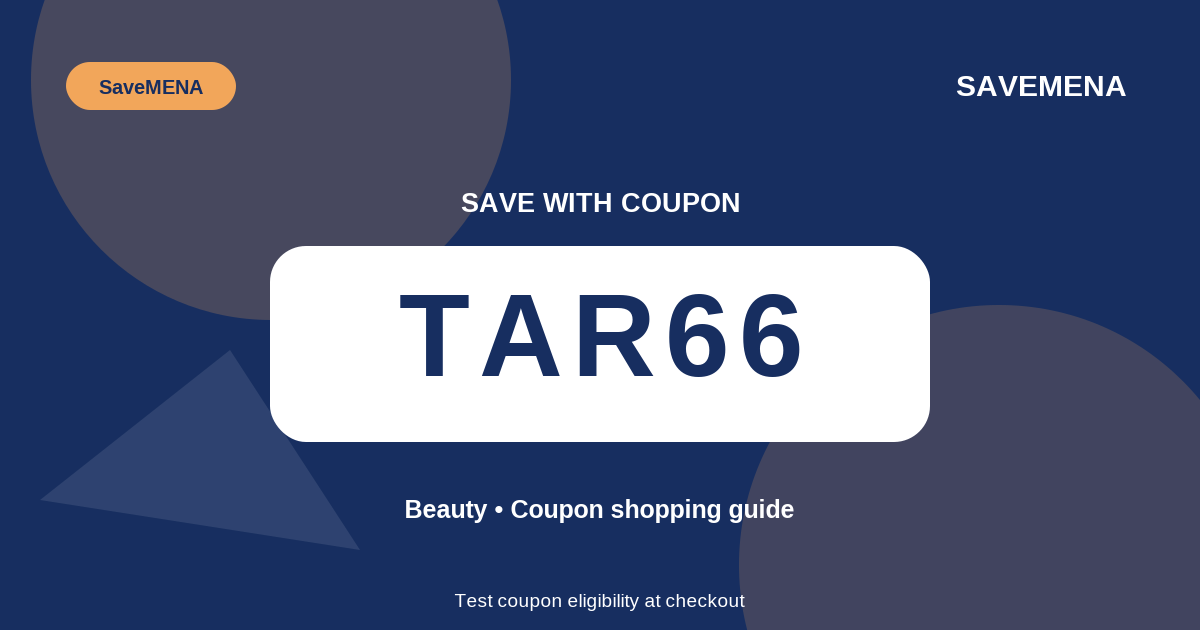
Codes available to try while comparing
These codes are not guaranteed for the article topic or listed brands; test them at checkout and use the live result.
1. Pinpoint the Exact Beauty Item Before Adding to Cart
When you browse Noon’s beauty listings, a product’s headline often hides a subtle variation that could affect coupon applicability. Make a note of the model, size, and color—details that sometimes appear in the description but not in the price tag. Capture a screenshot or jot them in a notes app; this snapshot will help you match the exact variant later, especially if a price change or stock switch occurs after you add the item to your cart.
After you’ve chosen the variant, double‑check its listing page for any “Price change” banner or a “Last updated” date. These indicators hint that the page may have been refreshed, and that the price you’re about to lock in can shift before checkout. Store this information as a checklist item for the next step, where you’ll validate the eligibility of your coupon against the current figure on the page.
2. Confirm the Active Price on the Product Page
Before adding a beauty product to your cart, scroll to the price section and note the exact amount in AED. On Noon, prices can be displayed with subtle variations—sometimes the promotional price is on fire, the regular price hidden, or a dynamic sale price that updates hourly. Ensure you’re looking at the value that will be charged if you proceed to checkout.
If the price displayed differs from what you expect, or there’s a notification that the price will “Change soon,” it’s wise to add the item to your cart now but pause on checkout. Capturing the price now gives you a baseline. In the next step you’ll use this baseline to verify the coupon’s applicability after any price shifts.
3. Add the Beauty Item and Proceed to the Cart Overview
Drag the chosen item into your cart or click “Add to Bag.” Once it’s there, open the cart overview. This screen shows each item’s current price, the number of units, and any applied coupons or promotions. Notice that the price might differ from what you saw on the product page if the listing refreshed in the interim.
At this point, look for the “Apply Coupon” field. The system does a quick eligibility check as soon as you enter a code. If you type “TAR66,” the platform will either show “Coupon applied” in green or a message that it can’t be used with this product. Either response gives you an early prompt that the coupon might have been rejected due to a price change or product restriction.
4. Review the Coupon Eligibility Reason if Denied
Should the coupon not apply, Noon usually displays a short explanation—such as “Coupon not eligible for this product” or “Coupon only valid for items under a certain price.” Carefully read that message; it often points directly to the price threshold or the specific product that triggered the rejection.
If the message references a price limit, cross‑check the current price on the cart item. A price that has climbed above the coupon’s minimum requirement will force the system to refuse the code. Recognize that this is not a glitch; it’s the system’s finalized data for your order, so the coupon’s status at checkout is final until you interact with it again.
5. Re‑confirm the Coupon at the Checkout Stage
Before you hit “Place Order,” go to the final checkout screen. This screen pulls together the subtotal, any cart‑level discounts, shipping fees, and the final payable amount. The last place to catch a discount is here. Type “TAR66” again into the coupon box, and observe whether the code triggers the same response as earlier or if it now applies.
The checkout stage uses the most up‑to‑date price, reflecting any dynamic pricing or inventory updates that might have happened after you added the item. If the coupon applies here, all is fine, and you can move forward. If it still fails, you have confirmed that the price has indeed slipped out of the coupon’s umbrella.
6. Adjust Quantity or Choose an Alternate Variant If Needed
If your coupon remains ineligible after checkout, consider whether quantity changes could lower the per‑unit price into the eligible range. Some coupons trigger on a minimum spend or a lower unit price once more units are bought, but this is rare for a single beauty item. Instead, look for a slightly smaller variant—such as a 30 ml instead of a 50 ml—whose price might fall within the coupon’s limit.
Alternatively, you might choose a third‑party seller whose listing offers a lower price but still falls under the coupon’s criteria. Notice that the seller badge does not guarantee coupon acceptance; you’ll still need to verify eligibility at checkout. This adjustment step is critical to ensuring your coupon is applied before you finalize payment.
7. Account for Shipping and Taxes in Your Final Total
In the UAE, some beauty items enjoy free express delivery, while others incur a small fee. Shipping can push the total above the coupon’s threshold. When you’re about to place the order, double‑check the fee and the subtotal together. If the combined amount exceeds the coupon’s maximum spend, the discount may not apply, even if the coupon code is technically valid.
Similarly, GST or other taxes are added post‑checkout. Since Noon calculates taxes after the coupon has been applied, you won’t see them affect the final discounted price. However, if you notice a discrepancy between your expectations and the final displayed total—particularly an extra charge that wasn’t on the cart screen—contact Noon customer support to clarify whether a hidden fee altered coupon eligibility.
8. Capture the Final Payable Amount for Record Keeping
Once the coupon is either applied or confirmed to be ineligible, note the final total displayed before you complete the transaction. The final price is the official reference for your purchase and any future returns or disputes. If you hit “Place Order,” keep a screenshot of the payment confirmation. This screenshot records the exact price charged after all checks and re‑checks, giving you peace of mind that the coupon’s eligibility was validated just before payment.
Storing this confirmation is also useful if the beauty product later returns with a lower price or a new coupon becomes available. You’ll be able to reference the original transaction when discussing a potential refund or price‑match claim through Noon’s customer support.
Related SaveMENA pages
Related articles
Official sources to check
Frequently asked questions
What if my coupon is rejected after I place the order?
If you discover a rejection post‑placement, the system has already locked in the price. Reach out to Noon’s support immediately; they can offer a credit or refund if the price discrepancy was due to a system error. Otherwise, the coupon cannot be retroactively applied.
Does the “TAR66” coupon apply to every beauty product on Noon?
Not automatically. Coupon eligibility depends on the item’s price and sometimes on the seller. Re‑check eligibility at checkout, especially after a price change, to guarantee it applies.
Will re‑checking the coupon after a price change cost extra on my bill?
No. The re‑check is part of the checkout process; it simply observes whether the coupon still meets the updated conditions. It won’t alter the final payable amount unless the coupon applies.
How can I confirm Noon isn’t charging me extra hidden fees that affect the coupon?
Review the cart overview and final checkout screen for any added shipping or service fees. If any fee pushes the total over the coupon threshold, the code may not apply. Contact Noon if bonus fees appear after confirmation.