Anker Mobile Accessories on Noon UAE: offer combinations — coupon eligibility
Noon UAE coupon eligibility Mobile Accessories Anker coupon interaction with visible promotions: In the digital shopping experience, checking a coupon’s eligibility
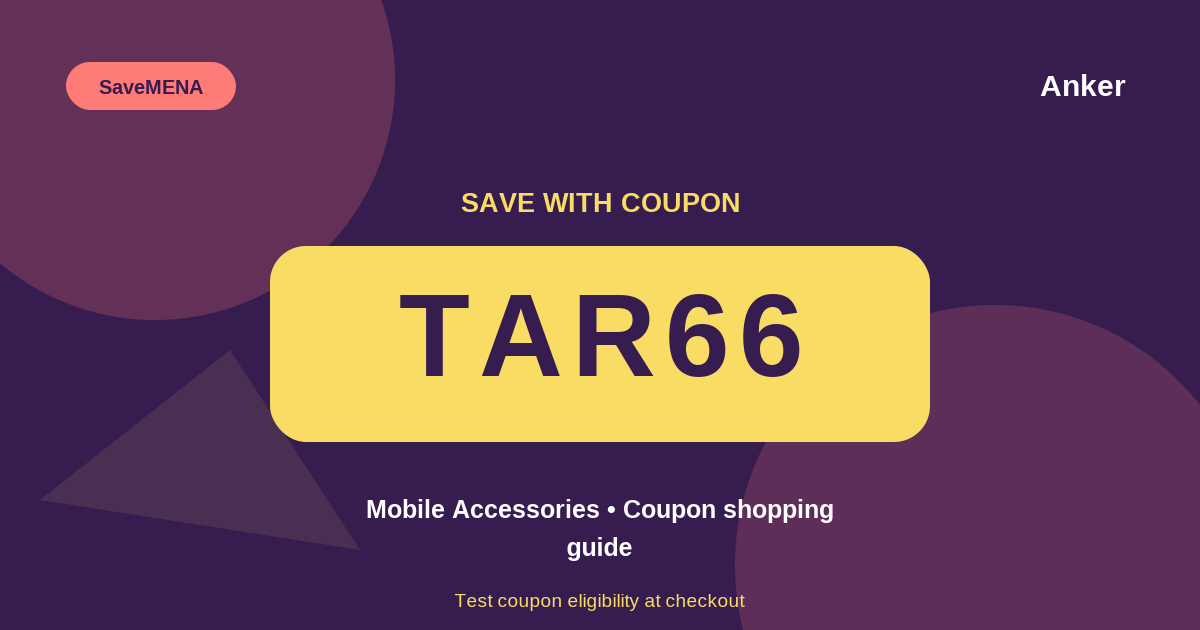
Codes available to try while comparing
These codes are not guaranteed for the article topic or listed brands; test them at checkout and use the live result.
1. Understanding the Coupon Display on Product Pages
When you browse an Anker mobile accessory on the UAE e‑commerce site, the interface usually places a small banner or icon near the price. This banner might read “Coupon available” or show a code in a highlighted format. The presence of such a banner signals that the platform has detected at least one promotional rule tied to this item. You do not need to assume the rule is the TAR66 code; it could be a generic discount or a seasonal offer. By recognizing the banner’s standard visual cues, you can confirm that a coupon is indeed under consideration before you even open the cart.
Notice that the banner is not static: after you add the item to your bag, the promotional information may shift to a different spot, usually in the cart summary or a tooltip beside the total. This transition is a key moment: if the banner disappears or changes format, it often means the coupon was accepted, rejected, or overridden by another rule. Recording that change as you proceed gives you a concrete audit trail of the coupon’s interaction with visible promotions.
2. Spotting the Voucher Tag in Mobile Accessory Listings
Within the category listing for Anker charging cables and power banks, each product card may carry a small overlay that indicates a “TAR66” tag, or simply a “Coupon” symbol. When you encounter this tag, pause and mentally record its location: is it on the main card, the hover overlay, or only in the product details pane? This alert is a first‑hand suggestion that the coupon is prepared for use but not yet applied. Such visibility gives you confidence that the coupon’s scope is aligned with the items you are viewing.
Furthermore, the tag’s position within the card can hint at the coupon’s nature. For instance, a badge on the right corner often denotes an app‑only coupon, whereas a center‑aligned label is more likely to be valid on both web and mobile. Since SaveMENA only provides general support, your own analytic eye is essential for deducing the coupon’s operational ground.
3. Temporarily Adding to Cart to Trigger Promotion View
Before you commit to a purchase, add one unit of the chosen Anker product to your cart. This action forces the platform to recalculate applicable rules. Once the item sits in the bag, you’ll typically see a side panel or a newly‑displayed line that describes the active coupon: its code, what it would deduct, or a note that it may apply when conditions are met. This step is critical because many platforms hide coupon applicability until after the cart is populated.
In the cart view, pay close attention to any icon that shows “TAR66” next to the item. If the icon is present, the coupon has “passed” a preliminary check and has entered the promotion engine. If it is missing, it may highlight a problem—such as a missing minimum spend or a conflicting promotion—that prevents the coupon from being shown. Either way, the cart is your window into the coupon’s interaction with visible promotions.
4. Comparing Shop‑Wide Promotions with TAR66
Scroll through the cart’s subtotal area. Often the platform shows a list of active promotions stacked one above the other. Your goal is to locate any line that references “Upload dp-2” or similar, indicating the global coupon engine has triggered a rule. Then, compare that line to the one labeled “TAR66”. If both appear, you are sure that the TAN coupon is competing or cooperating with other discounts.
In many mobile‑accessory purchases, merchants run buy‑one‑get‑free or limited‑time flash sales. These are typically shown as separate lines in the summary. Notably, the framework will not combine two identical coupon types, but it may stack a coupon with a flash sale if the terms allow. The visibility of both lines is a transparent sign that the coupon will still be considered during checkout, regardless of other visible promotions.
5. Checking Cart Summary for Estimated Savings
Within the cart’s price breakdown, there is often an “Estimated Coupon Savings” box. This field is not a guarantee, but a preview of how much the system expects the coupon to reduce the final amount. The estimate should line up with the textual cue you saw earlier: “TAR66 will reduce your total by X.” Keeping note of this value helps you confirm that the coupon is actively generating a discount, even if you have not yet entered payment details.
Remember that the estimate is only a preview. If later in the checkout flow the coupon is unfortunately disqualified, the refund of the estimated savings will be automatically lost. Therefore, carrying the estimate through to the real payment step is recommended; it is your documentation of the coupon’s interaction with visible promotions along the purchase path.
6. Verifying Eligibility on Login vs Guest Checkout
Many platforms treat logged‑in users and guests differently, especially when applying coupons. When you are logged in, your account status may trigger additional criteria—such as a verified email or a loyalty tier. If “TAR66” appears only after logging in, you can infer that the coupon requires authenticated status. Check the cart to see if a “Login to see savings” prompt appears in place of the coupon line.
For guests, the coupon may still be visible but the final offer could differ. After selecting the “Continue as Guest” option, re‑verify the cart’s summary. If a separate discount line disappears or its numeric value changes, that indicates the coupon’s interaction with visible promotions was partially dependent on your login status. This step is a critical checkpoint for ensuring the coupon truly applies to your scenario.
7. Final Eligibility Confirmation in the Checkout Flow
At the transition from cart to checkout, the platform usually renders a “Promotions” pane. Here, you will see the coupon code you entered or the one auto‑applied. The pane will either confirm the coupon is valid and show the final discounted total, or display an explanatory message explaining why the coupon was not accepted (e.g., minimum purchase not met, product not eligible). This is the definitive interaction with visible promotions that finalizes eligibility.
Do not scroll past the payment section. If the coupon is clearly listed and the total has adjusted, the coupon’s eligibility is confirmed. If it is absent or appears with a refusal notice, you may need to remove or replace it. At this stage, the final payable total reflects the true state of coupon interaction—your pre‑payment confirmation is complete.
8. Post‑Checkout Navigation for Potential Adjustments
Even after the transaction is authorized, you can still review the order details in your account history. The order summary will show the applied promotions, listing “TAR66” if the coupon was applied. If the promotional line is missing despite earlier confirmation, it may mean the coupon was overridden, and you can contact support for resolution.
In the rare event that your order ends up without the anticipated coupon contribution, you can use the “Request Refund for Missed Coupon” or “Re‑apply Coupon” mechanism in your order page. This step ensures that the coupon’s interaction with visible promotions is tracked throughout the entire lifecycle of the purchase, not just the initial payment process.
Related SaveMENA pages
Related articles
Official sources to check
Frequently asked questions
What should I do if the coupon appears in the cart but not at checkout?
The coupon display in the cart indicates initial eligibility, but the final validation happens at checkout. If it disappears here, the platform likely found a conflict or missing condition. Re‑examine the cart total and any other active promotions that might interfere.
Can I see the exact discount amount the TAR66 coupon will give me?
You can view an estimated savings figure in the cart’s “Estimated Coupon Savings” area. This preview will be adjusted at checkout if the coupon is successfully applied; otherwise, the estimate may change or vanish.
Will the coupon apply if I’m not logged into my account?
Some coupons are tied to logged‑in status for verification or loyalty levels. If you add a product to cart as a guest and the coupon remains visible, it likely applies. Verify at checkout to be certain.
How do I confirm the coupon interacted correctly with other promotions?
Look for multiple discount lines in the cart and checkout panes. If “TAR66” is listed alongside a “Buy One Get One” or other promotion, they’re interacting. If the coupon line is missing after other promotions, it may have been superseded.