Anker Computer Accessories on Noon UAE: review signals — coupon eligibility
Noon UAE coupon eligibility Computer Accessories Anker visible product and seller review signals: If you’re hunting for a new computer accessory in the UAE and want
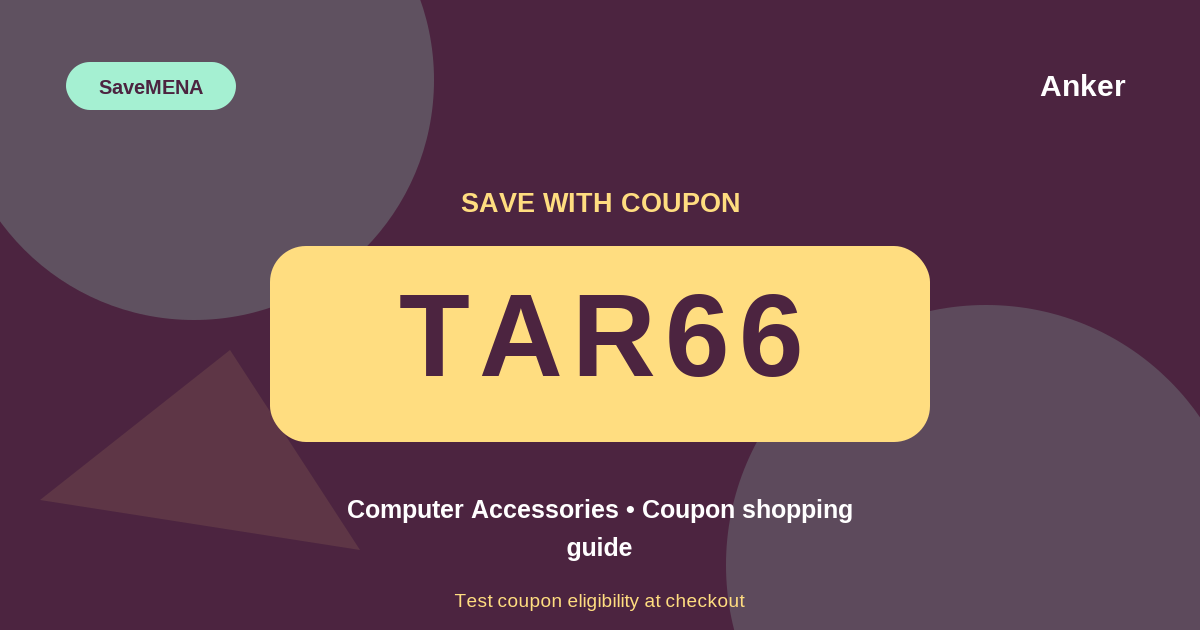
Codes available to try while comparing
These codes are not guaranteed for the article topic or listed brands; test them at checkout and use the live result.
1. Spot the Product‑Level Eligibility Notice
Start at the product listing itself. On each computer accessory page, Noon typically displays a small eligibility indicator next to the price, stating “Eligible for coupon” or “Coupon not applicable.” Before you add an Anker keyboard or mouse to your cart, check that the eligibility notice is present and aligns with the intended coupon “TAR66.” If the banner reads “No coupons for this item,” you can skip it early and avoid cart‑size friction later. Keep an eye on the wording—occasionally the site may say “Some coupons available” which still warrants a deeper lookup in the next step.
In practice, the best way to sense consistency across multiple products is to open the same accessory under “Computer Accessories” and scroll to the top of the price block. The eligibility icon is usually a small tag like a blue crown or a green stamp, overlaying the price. If you see one of these, the product is, by display logic, ready for a coupon check. If absent, double‑check the stock status; sometimes an out‑of‑stock or manufacturer‑late product page may blur the eligibility indicator. In such a case, confirm with seller ratings in the next section before adding to cart.
2. Verify Seller Reputation Before Adding to Cart
Sellers on Noon influence coupon eligibility. Look for a seller badge next to the name or a high rating (generally 4 stars or above). That badge shows the seller’s performance level. For a brand like Anker, established sellers usually maintain a steady rating and offer fast delivery. Click on the seller title to open their profile page, where you’ll see the overall rating, number of completed orders, and return rate—visible signals that help you gauge reliability. Since the coupon check is governed by seller policies, a reputable seller often confirms compatibility with coupons such as TAR66.
If the seller has a mixed rating or a low number of reviews, ask yourself whether you’re comfortable proceeding. Even if the product “eligible” icon is present, a low‑rated seller can override an expected coupon application. In such situations, you might consider a different seller offering the same accessory or waiting for a verified seller’s stock update before checking eligibility at checkout.
3. Inspect the Cart Summary for Coupon Support Flags
Once you add the accessory to the cart, Noon updates the cart page immediately. Here the system highlights whether each item supports coupons. A green tick or a “Coupon Accepted” tag appears in the cart line item. For computer accessories like a USB‑C hub or an external SSD, you’ll find the tag beneath the item name. Pay close attention to the indicator because sometimes the product page shows eligibility, but the cart summary may hide a conflicting rule from the coupon’s policy. If no tag appears, you likely need to reassess.
At this stage you should also confirm that the “Apply Coupon” field is active. This field opens only when at least one eligible item is present; a disabled field signals no coupon can be applied. Even when the field is ready, the system may still block specific coupons for certain sellers. Verify that the screen prompts you that your specific coupon code is “TAR66” and that it can be entered. If the prompt is absent, continue to the next step before moving to payment.
4. Confirm the Coupon Eligibility Digitally in the Checkout Tiles
Proceed to checkout, and in the payment splash, Noon shows a tile titled “Coupons.” Tap on the tile to see a list of codes you can apply. The tile will actively search your cart for eligible coupons that apply to any combination of items. For the TAR66 code, there should be an instant prompt saying “TAR66 eligible” if the cart conditions match. This visual cue confirms the system's internal check matches your expectations from the earlier steps.
If the list shows “TAR66 not eligible” or simply does not appear, examine the “Item Details” section for hidden restrictions—such as cart value thresholds or product categories. Additionally note that this tile might reflect a lag; if it still shows as ineligible after refreshing or re‑adding the product, consider little sellers’ discount policies at the seller’s profile. Once you cleanly see the eligible tag, jot down the discount amount displayed to ensure you’ve captured the exact value before paying.
5. Look for “Minimum Spend” Signals in the Payment Summary
Before finalizing your payment, Noon’s payment summary will detail any minimum spend requirement for the coupon. Even though the review signals don’t carry specific amounts, the summary exposes the necessity of a threshold—displayed next to the coupon icon. This tells you whether your current cart value meets the needed minimum. For computer accessories, the threshold might apply only to certain items. If the summary states “Minimum AED 150 to use TAR66,” you must add additional eligible items to satisfy it.
If the threshold is not displayed, it usually implies no minimum, but double‑check the “Terms & Conditions” link adjacent to the coupon box. Sometimes a black‑box condition is revealed only through that link. If no condition appears, you can safely assume you’re cleared to add the coupon. Use the visual cue of the discount number next to the original price; if you see the expected reduction, you’re ready to proceed. If the discount is absent, revisit the seller rating or product page.
6. Inspect Shipping & Fee Display for Coupon Impact
The coupon eligibility also influences secondary costs such as shipping charges. In the payment summary, Noon shows the delivery fee adjacent to the item subtotal. If the coupon code offers free shipping or reduces the delivery cost, the display line will explicitly change to reflect the new amount. For a mouse or keyboard, the shipping fee may move from a paid amount to “Free.” These changes function as a final visual confirmation that your coupon is active.
Should the shipping remain unchanged after entering “TAR66,” this could indicate that the coupon is only on the item price and does not cover shipping, or the coupon rule is not being honored for that particular seller. In that case, confirm if the seller offers separate shipping discounts or whether a different code might apply. Keep an eye on the “Calculated at checkout” message that appears if the system expects a fresh calculation once you confirm payment.
7. Re‑Validate in the “Order Review” Before Confirmation
Under the “Order Review” tab, Noon presents the final state of the cart, including item list, coupon discount, taxes, and total payable. This screen is the last checkpoint where the coupon should be reflected. A clear header that reads “Coupon applied: TAR66” and a stamp beside the discounted price indicate that your eligibility process was successful. If the header is missing, the coupon may not be recognized at this final step due to earlier missteps.
If the review shows the original price with no deduction, revisit the cart or seller details for an overlooked restriction. You can also try removing the item and re‑adding it to trigger a refresh, or switch to a different eligible product in the same category. Once the discount appears in the order review, you can lock in the purchase confidently. Avoid proceeding to the “Place Order” button without verifying this marker remains present.
8. Post‑Purchase Check: Confirmation Email for Coupon Confirmation
After confirming the order, Noon sends a confirmation email that often summarizes the transaction. Look for a line that references the coupon code TAR66, indicating that the discount was processed. Even after all the visual checks, this email acts as a final verification that the coupon was applied correctly in the payment system. It also provides the base for possible dispute if the discount is not reflected in the order total.
If your email shows no mention of the coupon, contact Noon customer support, citing the steps you followed and referencing the visible product and seller review signals that led you to apply the code. This post‑purchase documentation helps resolve any discrepancy quickly, ensuring you receive the intended savings or a corrective action if needed.
Related SaveMENA pages
Related articles
Official sources to check
Frequently asked questions
What do I see on the product page if an item is eligible for a Noon coupon?
On the product page, an eligibility icon will sit next to the price block, often a small crown or stamped badge, indicating the item can accept coupons. If the tag is absent, the item may be ineligible, or you may need to check the seller’s profile first to confirm.
Can I use the TAR66 coupon on all Anker accessories?
Noon does not guarantee universal applicability of TAR66. Eligibility depends on the seller’s policies and specific item listings. Verify each product and seller before turning your cart to payment.
Does free shipping automatically apply when I use TAR66?
Free shipping typically appears only if the coupon includes a shipping waiver. Check the payment summary: if the delivery fee changes to “Free” after entering TAR66, the shipping has been waived. Otherwise, standard shipping applies. Consult the coupon policy on the payment screen.
What should I do if my cart shows “TAR66 not eligible” during checkout?
Review the cart summary and item list for hidden restrictions like minimum spend or restricted sellers. Remove any problematic items, confirm seller ratings, and re‑add the product. If issues persist, contact Noon support with order details.