Anker Computer Accessories on Noon UAE: seller context — coupon eligibility · TAR73
When you’re eyeing a new Anker computer accessory on Noon UAE, the initial excitement is often tempered by a single question: “Will the SUN coupon still be valid
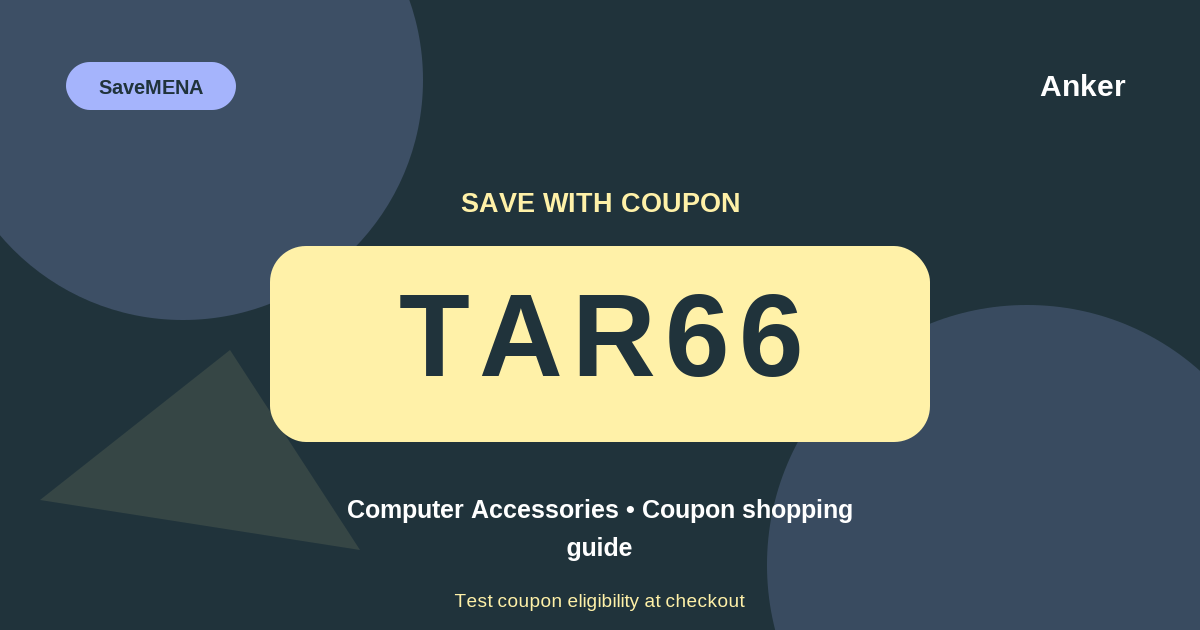
Codes available to try while comparing
These codes are not guaranteed for the article topic or listed brands; test them at checkout and use the live result.
1. Identify the Deal: Ensuring the Coupon Applies
Start by locating the exact Anker accessory you wish to purchase within Noon’s computer accessories listing. The product’s detail page will list the base price, shipping information, and typically a small note indicating “coupon available to try.” At this early stage, confirm that the displayed coupon code—TAR73—is listed in the promotion section. If the coupon appears, the item is potentially eligible, but you must still verify seller details before moving to the cart, as a seller’s profile can influence ultimate eligibility.
Next, note any discount formatting on the product page. Some sellers display a discount banner that shows the percentage off if a coupon is applied. This banner usually appears only after you add the item to your cart and optionally enter a code. If the banner is absent, click the “Add to Cart” button, then manually input TAR73 in the coupon field. If the interface accepts the code and applies a discount—even a placeholder—that signals the coupon is indeed recognized by the platform for this specific seller.
2. Verify the Anker Seller for Authenticity
Seller authenticity is the cornerstone of coupon reliability on Noon. In the product’s detail view, scroll to the seller section where you’ll find the shop’s name, the “Seller Rating,” and the certified status badge. For an Anker accessory, the seller should have a reputable rating, usually provided by Noon’s standard system, and a verified status that confirms they are authorized to sell brand‑specific items. A missing rating or an unverified badge raises a red flag and may render the coupon unusable, even if the code appears initially on the product page.
Click the seller's name to open their store profile. Verify the number of items sold, read customer feedback, and confirm that the store’s rating aligns with Noon’s badge system. If customers consistently rate the seller highly across multiple product categories, this increases confidence that the coupon will hold through checkout. Conversely, a low seller rating should prompt a closer examination of the coupon’s status after adding the item to the cart.
3. Confirm Category Alignment: Computer Accessories Section
The category in which your Anker device is listed must match the coupon’s intended domain—in this instance, computer accessories. On Noon, category specificity determines whether a newly applied coupon code can override default pricing rules. Navigate to the “Computer Accessories” section, then locate your product under sub‑categories such as “USB Cables” or “Power Adapters.” If the product’s path is buried under unrelated categories, the coupon might fall outside the eligible spectrum, leading to its rejection at checkout.
Inspect the breadcrumb trail at the top of the product page. This trail shows the exact hierarchical placement of the item. Checking that the trail reads “Computer Accessories → [Sub‑Category] → Anker Product” confirms the category alignment. Once verified, proceed to the cart; a mismatch often triggers the “coupon not applicable” notice in the cart summary box.
4. Check Item‑Level Eligibility: Adding the Product to Cart
Only after confirming category alignment should the item be added to your cart. Click “Add to Cart” and wait for the confirmation overlay. This overlay should display the product price, any available discount indicator, and a field for the coupon code. Enter TAR73 here, and observe if a reduction percentage or revised total appears instantaneously. A recomputed total indicates the coupon is still active at this stage, but it is not yet the final token of eligibility.
It is crucial to observe any warnings that appear post‑code entry. A message such as “Coupon not applicable to this item” or “Anker discount combined with coupon” signals that the item level does not support the coupon, despite earlier visual cues. If you encounter such a warning, double‑check the seller’s block or contact Noon support for clarification, as this could preclude you from using the coupon later in the journey.
5. Review Cart Summary and Coupon Placement
Open the cart and examine the summary table. The table should list each product, its price, tax, shipping, and any discounts applied. Under the discount section, you should see the term “Coupon Code” followed by TAR73. If another discount (e.g., a vendor‑specific promotion) appears alongside the coupon, note that Noon allows multiple discounts, but some may override others depending on the seller’s policy.
Confirm that the cart total reflects the coupon’s impact. Even a nominal change indicates the coupon is accepted. Should the cart total remain unchanged or display the original price in both pre‑ and post‑coupon columns, the coupon might not be correctly associated with the cart. In such scenarios, re‑input the code and watch for a real‑time update; absence of this update implies a need for step‑by‑step seller confirmation before proceeding.
6. Understand the Payment Confirmation Steps
Proceed to checkout by clicking “Proceed to Buy.” Here, Noon will first confirm the shipping destination, delivery status, and your payment method. On the payment screen, a final “Apply Coupon” button will allow you to re‑enter TAR73 or adjust any previously applied discount. The platform will recalculate the total payable amount before you confirm the payment.
At this juncture, the platform’s check is decisive. If the coupon has been applied successfully, the final total will show a reduced price line, and the coupon code will remain listed under the discount section. If the platform still displays the original price or shows an “invalid coupon” notification, the coupon is no longer valid for the selected transaction, possibly due to an updated seller policy or stock issue.
7. Account and Checkout Conditions to Watch
Even with a merchant‑approved coupon, Noon may impose particular conditions related to your account status. These may include minimum purchase thresholds or regional restrictions. When the card payment step displays a warning, scroll to the “Terms & Conditions” link for the “Coupon Code” to ensure that your account meets all stipulations. If the condition involves a minimum spend and you have only added a single TBS product, you may be prompted to add another item or to go to a different category. The best practice is to confirm any such prerequisites early, lest you risk having the coupon rescinded after confirming payment.
Additionally, Noon sometimes associates coupons with specific device types. For instance, launching an Anker accessory in a new form factor might trigger a geo‑specific restriction. On dismissal of any pop‑up that highlights these restrictions, recall that they apply to the final transaction data. If you err in the verification stage, you will be left with the opportunity to either amend your order (via “Edit Cart”) or reach out to Noon’s customer support for clarification before payment.
8. Final Sweep: Summarizing Eligibility Before Payment
Before you hit “Confirm Order,” do a last‑minute cross‑check. Verify that the cart total, shipping fee, and tax all reflect the correct discount, and confirm that the coupon code appears under the final payment breakdown. Also double‑check that the seller’s name matches the one shown in the details you previously verified. This meticulous double‑check will confirm that every condition—product category, seller authenticity, cart status, and account eligibility—has been met.
Once satisfied, click “Confirm Order.” Noon will generate the final receipt, and the coupon terms will be recorded in the confirmation email. Save the receipt and the receipt confirmation link for future reference. If you encounter any discrepancies post‑payment, contact Noon’s support immediately; since the coupon eligibility is validated at this last checkpoint, any issue can often be resolved swiftly.
Related SaveMENA pages
Related articles
Official sources to check
Frequently asked questions
Will the TAR73 coupon always apply to Anker computer accessories on Noon UAE?
No guarantee is made that TAR73 will apply to every Anker accessory.A coupon is not guaranteed; verify its result at the retailer checkout.
Can I use the TAR73 coupon if the Anker seller has a low rating?
Low seller ratings can signal potential restrictions on coupon usage.A coupon is not guaranteed; verify its result at the retailer checkout.
What happens if I see a “coupon not applicable” message after adding TAR73 to my cart?
Encountering a “coupon not applicable” message signals that the coupon hasn't been accepted at the cart level. Double‑check the seller, category, and any account restrictions; if still unresolved, deleting and re–adding the product or contacting support is advised.
Does the coupon apply automatically at checkout, or do I need to manually enter it again?
While Noon often retains a previously applied coupon, it is wise to re‑enter TAR73 during the payment step to prompt the system’s final eligibility check and confirm that the discount has not been overridden by other promotions.