Men’s Fashion on Noon UAE: seller context — coupon eligibility · TAR71
When you’re ready to snag a sharp new suit or a pair of sleek trainers, the first question that sticks in your mind is whether you can use that jaw‑dropping Noon
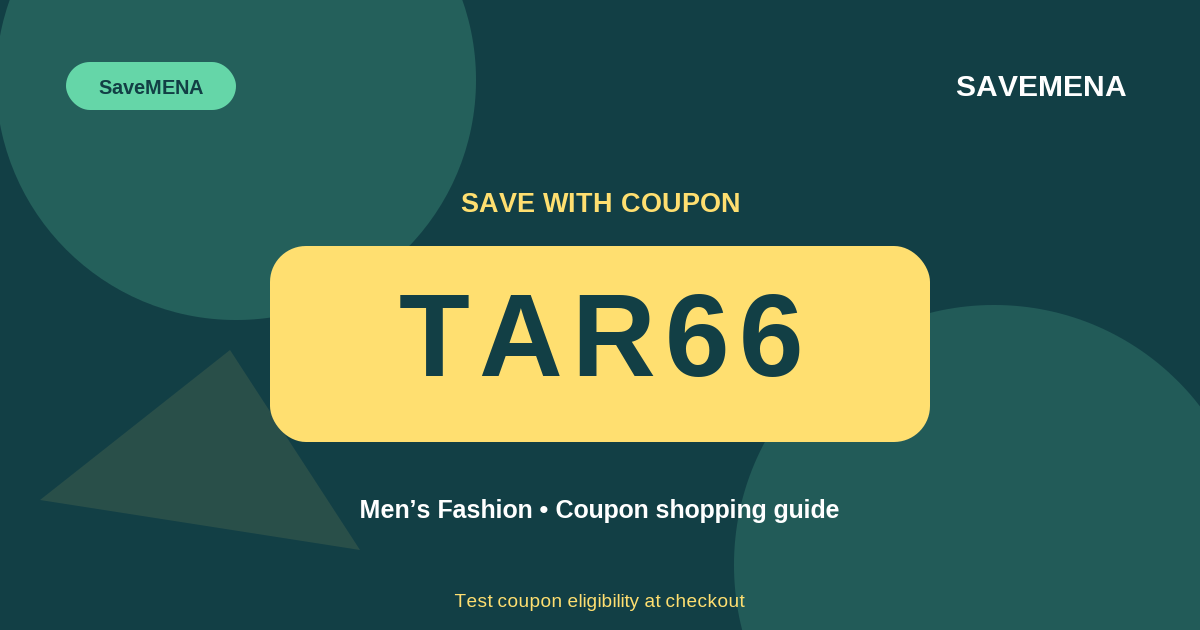
Codes available to try while comparing
These codes are not guaranteed for the article topic or listed brands; test them at checkout and use the live result.
1. Understanding Seller Context on Noon UAE
On Noon UAE, each seller functions as an independent vendor, with its own policies regarding discounts, returns, and coupon usage. This distinction is crucial because a coupon that works for one seller may be inapplicable to another, even within the same category. When you browse a men’s fashion listing, notice the seller’s name displayed beneath the product title and hover over it to review any highlighted seller notes. These notes often mention whether a coupon code is accepted or if there are limitations tied to the seller’s inventory or logistics. By grounding yourself in the seller context from the outset, you set up a reliable baseline for all subsequent steps.
This seller‑centric approach also influences the verification process at checkout. If the coupon is accepted by the seller, its availability will surface when you access the order summary; if not, you’ll encounter a clear message indicating incompatibility. Understanding this relationship early saves you from a last‑minute scramble, giving you a chance to either modify your cart or switch sellers before you commit to payment. Remember: the toe‑in of a seamless deal is a clear grasp of who sells your item and what that seller’s coupon rules are. That’s the key to an effective eligibility check.
2. Navigating the Men’s Fashion Catalogue
Begin by filtering the men’s fashion section for the specific product you want—be it a blazer, chinos, or sneakers. Noon’s search bar and filter sliders allow you to narrow by brand, price range, material, and seller rating. When you spot a promising item, click through to its detail page and read the seller’s description carefully. Pay special attention to any mention of discount acceptance; some sellers explicitly list “coupon codes accepted” while others may not. If this is unclear, the seller’s support channel can provide clarification before you add the item to your cart.
Staying organized during this search phase means noting the seller’s name and product details in a quick list or your phone’s notes app. Doing this lays a foundation for the later cart adjustments, ensuring you’ll be dealing with the correct items and sellers when you apply the TAR71 coupon. The men’s fashion segment is broad, so this methodical catalog walk not only streamlines the search but also positions you to assess coupon applicability right from the start.
3. Adding Goods and Inspecting the Cart
Add each chosen product to your cart by tapping “Add to Cart” or “Buy Now.” Once all items are in, open the cart to verify the seller for each line item. Noon lists the seller right underneath the product name, and there is a small badge indicating whether the seller accepts coupons. While you cannot see the discount effect yet, the visual cue will help you anticipate whether the TAR71 code might be viable. If you notice any discrepancy—such as a “No coupon accepted” flag—you may want to drop the item or seek a replacement from a seller that does accept coupons.
Check for any bundled packages or promotional bundles; sellers sometimes hide coupon restrictions within these offers. If an item’s label reads “Seller exclusive” or “Bundle only,” treat it as a likely ineligible candidate. Keep your cart lean, focusing only on products that either expressly state coupon acceptance or where the seller’s policies seem permissive. This pre‑payment inspection is a crucial step—it prevents you from being surprised by a coupon rejection after the payment gateway is engaged.
4. Triggering the Coupon Field at Checkout
Proceed to checkout by selecting “Proceed to Payment” or similar. Halfway through the shipping step, you’ll encounter a field labeled “Enter Coupon Code.” This is where you input TAR71. The software will instantly attempt to apply the code, and you’ll see an update in real time as the cart’s total adjusts if the coupon is accepted. If it’s not accepted, a brief message will indicate “Coupon not applicable.”
If you don’t see the coupon field, review the screen flow; sometimes the field appears just after entering shipping information. The field can also be hidden if the user is a guest vs. a logged‑in shopper, but it will appear eventually. Once you type TAR71, give the app a second to refresh. If the coupon’s ineligible for the seller, the interface will either refuse to apply the code or will remove the discount altogether after you move forward. By engaging the field early, you lock in the coupon’s status before any payment actions are initiated.
5. Interpreting Eligibility Outcomes
When the TAR71 code is applied, a few scenarios are possible. If the total adjusts downward, the discount is successfully added; the change will be reflected in the cart subtotal and the final payable amount. If the coupon is rejected, the screen usually displays a concise message such as “Coupon not available for this order.” From there you can infer that the seller either does not accept the the coupon code code, or the eligibility criteria (such as minimum spend or item prohibition) have not been met.
If you receive a partial discount or the code is accepted but the amount is smaller than expected, it’s generally because another rule—like a different coupon being automatically applied—has taken precedence. Since the focus here is seller context, the most common cause for a difference is that the seller’s own policies override any coupon application. In such cases, the display will explicitly note the seller’s restriction, and you’ll know the coupon is ineligible for the chosen items. Knowing how to read these signals saves you from confusion at the last minute.
6. Adjusting Order to Unlock Discounts
If the coupon is rejected, examine each cart item. Remove or replace any product that is flagged as incompatible with coupons, and consider selecting an alternative seller that accepts the TAR71 code. You can do this by returning to the product detail page and selecting a different vendor, or by searching for the name of a seller known to accept coupons. Once justified adjustments are made, revisit the cart to confirm the new seller lineup matches the coupon eligibility.
In some cases, you may need to add an extra item to meet a minimum spend requirement set by the seller. Though we can’t specify a precise threshold, the overall seller policies will appear in the product notes or seller profile. Adding a complimentary item that meets the threshold can open the door to the coupon's benefits. Conversely, if you wish to keep the order lean, you may choose to proceed without the coupon if the seller’s terms are fixed. Either way, keep the seller context as your guiding star.
7. Final Verification Before Payment
Once the TAM71 code is applied and the cart recalculates to your satisfaction, double‑check the final total on the payment screen. This includes any shipping fees, taxes, and the applied discount. Ensure that the total is what you expect before selecting a payment method. If the discount does not appear where you anticipate, revisit the coupon field to confirm the code is still in place. Some platforms automatically clear applied coupons once you move beyond the shipping step, so verify it again before finalizing.
At this point, you are ready to finalize the purchase by confirming your payment. Proceed by entering your payment details (credit card, debit card, or any other available method). Nol the payment isn’t processed until you hit “Place Order.” Then enjoy the confidence that your order has all applicable discounts applied, derived from the seller’s acceptance rules. If any discrepancy emerges after payment, the seller’s support is your next resource in resolving the issue.
8. Common Pitfalls and How to Avoid Them
One typical mistake is overlooking the seller’s coupon policy before adding items. Sellers may differ in their acceptance of external coupons; assuming a universal coupon will lead to disappointment. Another pitfall is not verifying the coupon exactly at checkout—adding the code only after dragging to the payment step will waste time because the system may have already locked in the discount amount. Stopping to confirm eligibility early minimizes frustration.
Finally, check the shipping destination before hitting checkout. Some sellers restrict certain coupons based on the delivery location; a mismatch can nullify the discount even if the code initially entered. By ensuring your shipping address is correct and your cart is aligned with a seller that accepts TAR71, you seal the deal with minimal effort. Courtesy checks and quick verification save cycles of backtracking.
Related SaveMENA pages
Related articles
Official sources to check
Frequently asked questions
How does I confirm the seller accepts the TAR71 coupon?
You can verify by looking for a “coupon accepted” badge on the product’s detail page or in the seller’s profile notes. If that isn’t visible, test the code in the cart; if it applies and shows a discount, the seller accepts the coupon. If rejected, the seller likely doesn’t accept it.
Can I use TAR71 if I have another discount in my cart?
If another seller‑specific discount is automatically applied, TAR71 will either not be applied or the discount amount may change.A coupon is not guaranteed; verify its result at the retailer checkout. Confirm by re‑applying the coupon after other discounts are removed.
What should I do if the coupon is rejected at checkout?
Remove or replace any item that is marked as non‑eligible, or switch to a seller that accepts TAR71. Once the cart reflects only eligible items, re‑apply the coupon and verify the discount before proceeding.
Do I need to log in to use TAR71?
The coupon applies regardless of login status, but the system may require a registered account for certain sellers. If you encounter an issue, try logging in or contacting seller support for clarification.