HP Office on Noon UAE: item availability — final price comparison
Begin by navigating to Noon’s search bar and entering the HP office product description along with any desired specifications such as storage, processor, or colour.
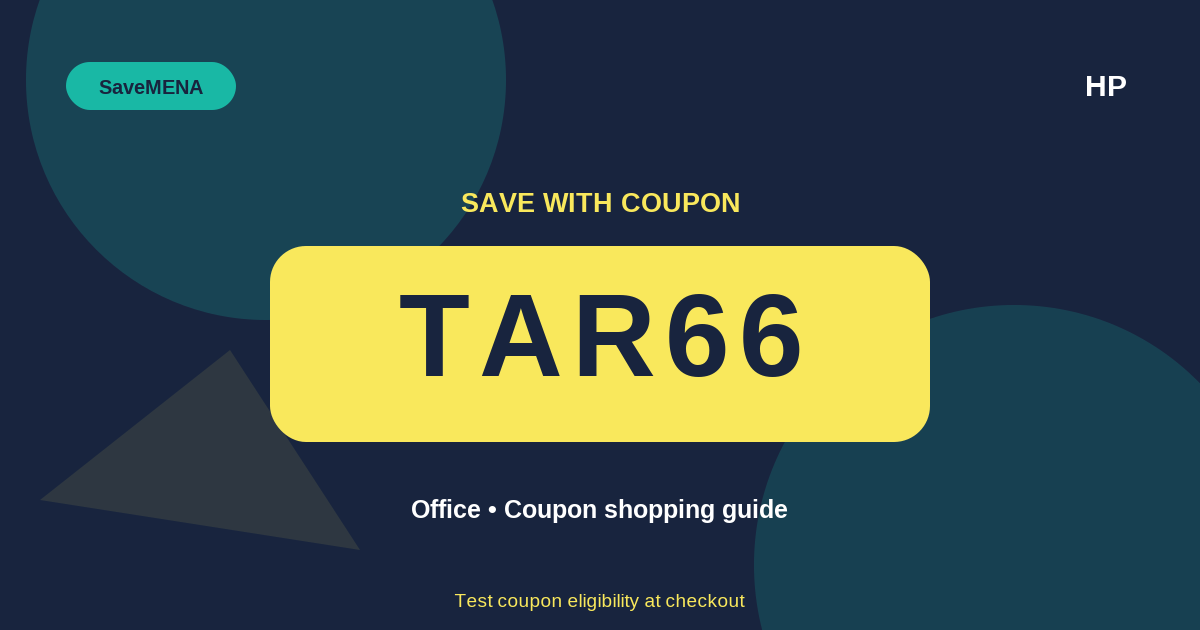
Codes available to try while comparing
These codes are not guaranteed for the article topic or listed brands; test them at checkout and use the live result.
Step 1: Locate the Exact HP Office Variant on Noon
Begin by navigating to Noon’s search bar and entering the HP office product description along with any desired specifications such as storage, processor, or colour. Use the filters to narrow down results, ensuring the listing matches your chosen variant exactly. Reading the product title and subtitle is essential; sellers often list multiple variations in a single brand category, and only the precise match will appear in your cart. Document the model identifier if provided, as this will help in future comparisons and in confirming that the same variant is loaded throughout the checkout flow.
Once you identify the correct variant, click on its image to open the detailed product page. Verify that the seller’s name and any available seller ratings are displayed; while these do not guarantee authenticity, they provide context for the vendor’s reputation. Before proceeding, confirm that the “In Stock” status is visible and that no out‑of‑stock warning appears. This preliminary check ensures you won’t encounter an unavailable item when you add it to the cart later.
Step 2: Add the Variant to Your Cart and Observe the Unapplied Price
Add the product to your cart by selecting the required quantity—commonly one for office equipment—and clicking the “Add to Cart” button. At this first stage, Noon typically displays the price listed on the product page, which represents the base price without any discounts. Pay close attention to any hidden fees presented in the cart summary; additional service charges may be applied to specific charging options or extended warranties that could influence the final amount.
Navigate to the cart page and note the subtotal shown. Some sellers provide a “Deal” or “Uncategorized” tag that can affect the price shown. Do not apply any coupon yet; you want to capture the raw price that is ready to be adjusted. This snapshot of the base cost will serve as a reference when you later compare the price after applying the TAR66 coupon.
Step 3: Apply the TAR66 Coupon at Cart Review
Scroll to the bottom of the cart page where the coupon code field appears. Enter “TAR66” carefully, ensuring no extra spaces or capitalization errors, then click the apply button. Noon will recalculate the subtotal after attempting to apply the discount. Note that the system may not apply the coupon if it is not eligible for the selected seller or item, which will be indicated by an explanation message.
After the code is processed, observe the new price line that should show the adjusted amount. Even if the coupon does not apply, the system will keep the original price and may display a note about ineligibility. Record whether any visible price reduction occurred; this will guide your expectation of the final payable sum even before the checkout step.
Step 4: Review Tax and Service Fees Before Proceeding
Proceed to the checkout by selecting “Proceed to Checkout” or a similarly titled button. At the order summary stage, Noon lists applicable taxes such as VAT or sales tax applied to the base and any discounted prices. These are calculated separately from the coupon, so the tax amount should reflect the adjusted subtotal after any coupon application. Do not assume a universal tax rate; instead verify the exact tax figure presented.
Alongside tax, verify any service or delivery fees shown in the payment breakdown. Certain sellers or delivery options might impose an additional fee independent of the item price. Confirm that these fees are accurately reflected before finalizing the payment detail, as they form part of the total amount you will service.
Step 5: Compare the Initial and Coupon‑Adjusted Final Prices
On the payment page, you now have a complete line‑item breakdown: initial base price, coupon adjustment, tax, and any additional fees. Compare the subtotal before applying the coupon with the new subtotal after. Even a small change can indicate that the coupon had an effect; if no change is present, the coupon did not apply to this item or seller. Keep in mind that Noon’s discount logic is applied after the coupon entry and before tax calculation.
If the final price after all adjustments matches the list price in addition to any generic fees, the coupon has either not been accepted or the discount amount is zero. In such scenarios, the final payable amount is equivalent to the base price plus taxes and fees, so you should consider whether to contact Noon support or seek alternative discount offers for that specific product.
Step 6: Verify Payment Method Spefications and Final Confirmations
Before confirming the order, double‑check the chosen payment method options displayed on the final confirmation screen. Some platforms offer multiple payment windows, such as credit cards, debit cards, or wallet balances. The system will often recalculate the total including potential payment‑related fees. If you notice any change after selecting a payment method, note the new final amount.
Confirm and place the order only after you have validated that no additional charges appear after the last adjustment. Once you click “Place Order” or the equivalent, Noon will lock the final amount. Recording the pre‑payment figure in your notes is useful for future reference, especially if you plan to purchase similar items and want to assess whether a coupon would apply consistently.
Step 7: Capture the Order Summary for Future Reference
After the order is submitted, Noon typically sends an order confirmation email and displays an order summary screen. This screen includes the final items list, prices, applied discounts, taxes, and payment method used. Keep this summary in a safe place; it is the definitive statement of the amount you agreed to pay and the actual coupon effect.
These details can also be used as a reference if you need to inquire about the coupon status or if you intend to return or exchange the product. Having the confirmation available ensures that you have a documented record affirming that the final price was as displayed during checkout.
Step 8: Repeat and Refine Your Process for Future HP Office Purchases
Use the knowledge gained from this order to streamline future purchases. Whenever you plan to shop for more HP office items or variants, revisit the product page early, add it to the cart, and apply the coupon before advancing to checkout. By consistently following these confirmation steps, you’ll reduce uncertainty about discounts and final costs.
If a coupon repeatedly fails to apply, consider that it might be restricted to certain sellers or categories. You can then adjust your search to the coupon code alternative retailers within Noon that may accept the discount. Over time, this iterative process will help you fine‑tune your buying pattern for optimum savings on office equipment.
Related SaveMENA pages
Related articles
Official sources to check
Frequently asked questions
What happens if the TAR66 coupon does not apply to my chosen HP Office variant?
Should the coupon be rejected, Noon will display an explanatory message and the price will remain unchanged apart from any visible fees. In that case, the final amount reflects the base price plus taxes and any additional charges without the coupon discount.
Do I need to use a specific payment method to activate the coupon?
The coupon application is handled before the selection of payment method. It generally does not depend on your chosen scheme; however, payment‑related fees are applied after the final price is calculated.
Can I use the same coupon code on multiple items at once?
Coupons on Noon are usually applied to the entire cart if the code is valid for all listed items. If one item is ineligible, the code may still apply to the remaining eligible products, as shown in the summary.
How can I verify that the variant is still in stock at checkout?
When you reach the cart or checkout page, Noon shows a real‑time availability flag. If the status changes to “Out of Stock,” you will be prompted to remove the item or choose a different variant before proceeding.