Baby & Kids on Noon UAE: final total — final price comparison
Noon UAE final price Baby & Kids final payable total: When you’re browsing for baby and kids items on Noon UAE, the first step to getting the best deal is to see
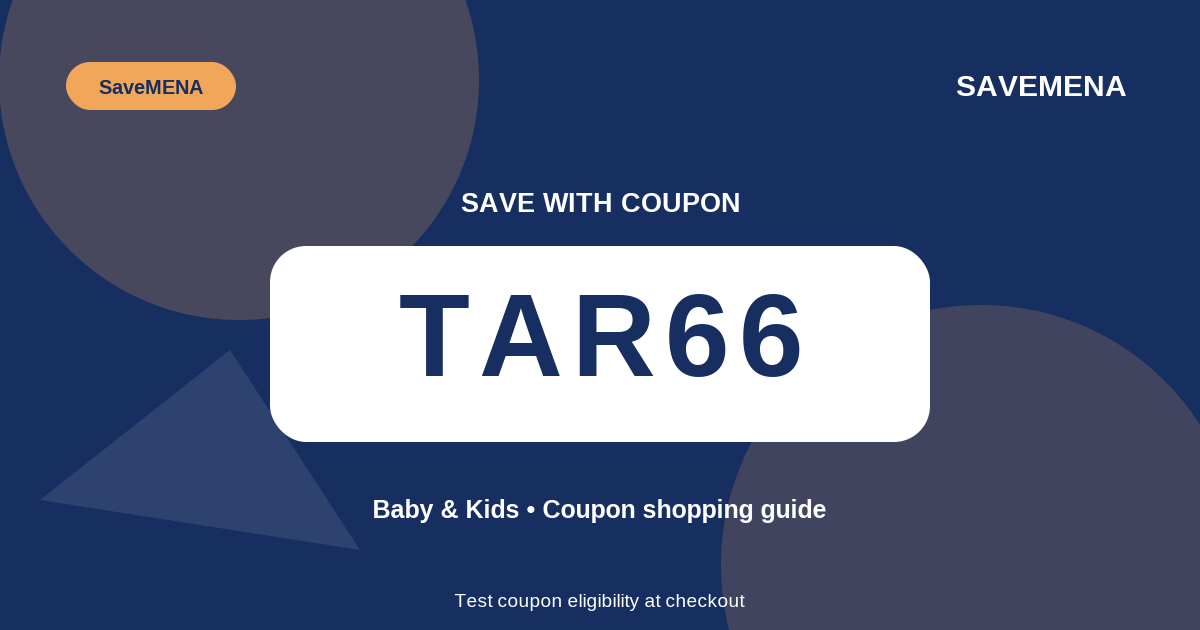
Codes available to try while comparing
These codes are not guaranteed for the article topic or listed brands; test them at checkout and use the live result.
1. Identify the Final Item Total Before Discount
When you choose a baby stroller or kids’ playmat, Noon displays a “Price” and an optional “Original Price” if the item was discounted. The initial figure you see is the baseline value that will be used in later calculations. For each item, note how many units you’re buying and multiply to get the subtotal. This subtotal is the critical figure that will drive any coupon or additional discount calculations.
Before adding anything to your cart, double check if the product listing offers a second “Rating” or “Seller” badge that might signal a special sale. Items clearly marked “Bestseller” often still have hidden multipliers; whenever in doubt, jot the visible price and quantity down, as it will be your reference when you later compare the final amount shown at checkout.
2. Verify Coupon Compatibility on the Product Page
Not every coupon applies to every category. On the product page, look for an icon or note that mentions “Coupon Code” availability. If Noon indicates “Coupon support: Yes” next to the pricing section, it means a code like TAR66 could be valid for that particular item. Some listings have a small “Learn More” link that explains eligible codes, so click it if you want to be sure?
Coupon compatibility can also be linked to the seller. In some cases, the seller’s storefront page contains a list of the promo codes they honor. If you see an emphasize on “Weekend Specials” or “Membership Only,” that might restrict TAR66. Confirm compatibility by noting any warning or confirmation text that appears alongside the price.
3. Apply the TAR66 Code at Checkout and Monitor “Discount” Field
Once you’ve added a few items to your bag, navigate to the cart summary. Look for the “Coupon Code” input field. Enter TAR66 precisely as written and tap “Apply.” A new box should appear showing the applied discount. The interface usually updates the subtotal and shows a “Discount” line item. Verify that the amount reduced matches the code’s claim—if not, the code may not be applicable to these items.
After the discount line appears, recompute the new subtotal. Beware that the system might aggregate several hidden discounts before showing the final figure. If the “Discount” line is missing or says “Invalid code,” double-check that you typed the code correctly and that it hasn’t expired. Even if it looks right, save a screenshot of the discount field for later scrutiny.
4. Check for Additional Automatic Savings or Stickers
Beyond the manual coupon, Noon often bestows automatic savings for certain product categories. These are typically displayed as green stickers above the price, labelled “Save” or “Deal.” If such a sticker is present, Noon will automatically subtract it before letting you apply a coupon. Review the stacked savings: first the automatic discount, then your TAR66, and finally the new total.
Occasionally, the site bundles a “Buy 1 Get 1 Free” or “Bundle Discount” that alters the quantity logic. Confirm the effective number of items in your cart; the final payable total reflects that adjusted quantity. If a sticker changes the per‑unit price, the final total will see a proportional reduction, so make sure to account for it when comparing pre‑ and post‑coupon amounts.
5. Review the Delivery and Handling Fees before confirming
After all product discounts have been applied, Noon adds delivery fees and any handling charges. The delivery fee is often a flat amount or a sliding scale based on the total weight. Highlight its present location in the cart summary; it’s usually listed under “Shipping” or “Delivery fees.” Make sure the fee matches the free‑delivery threshold if you’re approaching one.
Some sellers incur extra “Handling” fees when multiple items are shipped together. These appear in a separate line item. If you’d rather pay a higher fee for faster shipping, select the higher tier in the shipping options, but always recalculate the final total after making that selection. Neglecting this step can inflate your payable amount after you’ve already locked in the product discounts.
6. Confirm Payment Method and Potential Add‑on Charges
Choose your payment method via the payment summary panel. Credit cards sometimes charge a small processing fee, especially if out‑of‑country cards are used. The checkout screen will show a “Processing fee” line if applicable. Compare the total amount displayed with and without that fee, to see how it affects the final payable total.
If you’re using a digital wallet or a Cash on Delivery option, the platform might add a convenience fee. Pay close attention to any “Cash on Delivery fee” label that appears after you select that option, and verify it is factored into the final total before you submit. Skip this check and you risk a surprise increase in the amount you eventually pay at the counter.
7. Re‑evaluate the Final Payable Total After each Step
Now that all discounts, delivery, and payment fees are visible, scroll to the bottom of the order summary to see the “Total Payable” amount. This is the figure Noon sends to your bank account or card pre‑authorization. It is the definitive amount you’ll be charged.
Take a moment to compare this final payable total with the initial subtotal you noted in Section 1. If the difference isn’t as large as your expected discount, re‑examine the cart for missing coupons or hidden fees. One small oversight—such as a mis‑typed coupon—can leave you paying more than intended.
8. Safeguard Your Order with Order Summary Screenshots
Once you’ve confirmed the final payable total, capture a screenshot of the complete order summary. This image should include the item list, applied coupon note, delivery fee, and payment method. Many shoppers get peace of mind knowing they have a media log of every number that entered the ticket. Store it in a secure cloud folder or widget for quick reference if the seller contacts you.
In the rare case the final total you paid differs from what was displayed, this screenshot will serve as evidence when you file a dispute or request a refund. It also helps you track whether a coupon code is consistently applied across future orders.
Related SaveMENA pages
Related articles
Official sources to check
Frequently asked questions
What happens if the TAR66 code doesn’t work on my cart?
If the code appears invalid, it may not be eligible for the selected items, the seller might not support it, or the coupon could be expired. Check the product page to confirm eligibility, re-enter the code precisely, or try applying it on another item that is listed as compatible.
Will Noon add a hidden tax to my final total?
Noon UAE includes VAT in the displayed final payable total during checkout. You won’t see a separate tax line item after all discounts and fees are applied, but the amount displayed is the full charge you’ll pay.
Can I apply more than one coupon to a single order?
Noon generally allows only one coupon code per transaction. If you have multiple discounts, run them sequentially by creating separate orders, or confirm on standby whether the first coupon has auto‑applied any additional coupon codes.
How does shipping affect my final payable total?
Shipping fees and handling charges are added after all product discounts but before the final pay‑able total is shown. Check the cart summary for any delivery line item; selecting a faster shipping option increases this fee, raising your overall payable amount.